I know that officially Google One and Google Drive have been unavailable in Russia for a long time, but that doesn’t stop me from paying for a cloud subscription through the App Store. Right now I have an active 100 GB plan, but at some point even that wasn’t enough, since my wife and daughter also use my storage. So it’s no surprise that at some point I found myself almost out of space. However, deleting more than 15 GB of photos turned out to be a perfectly manageable task. Let me tell you exactly how it’s done.
Cleaning up Google Photos turned out to be easier than it seems
Cleaning Google Photos Manually or Automatically
Let’s start with the fact that Google Photos has no built-in auto-delete for duplicates — and this is something where Apple’s ecosystem is objectively more convenient. So sorting through identical shots, accidental photos of the ground and fingers on the lens, as well as hundreds of repeated screenshots, has to be done by hand.
The first thought when seeing gigabytes of junk is to install an app that will automatically find and delete duplicates. At first I wanted to go this route, but quickly changed my mind: most of these programs look questionable, almost always require a subscription, and according to reviews, work unreliably.
Another reason to pass — privacy. Any third-party cleaner asks for access to your entire photo archive spanning years, meaning personal photos, documents, conversations in the form of screenshots, and geolocation data. Handing over such a massive amount of data to an unknown developer to save a couple of hours is a bad deal. Manual sorting is slower, but you have full control over what stays and what goes to the trash.
Before installing yet another utility, it’s worth remembering that any automatic algorithm works by its own rules, not yours. It might delete an important photo, considering it a duplicate, or keep junk that you obviously don’t need.
Manual cleaning is slower than automatic, but you decide the fate of each photo yourself.
How to Set Up Google Photos for Faster Cleaning
Simply scrolling through the feed and deleting one photo at a time is agonizing. To speed up the process, before you start, it’s worth enabling a couple of settings right in the app on your smartphone. It’s not one-time magic, but grouping similar shots significantly saves time.
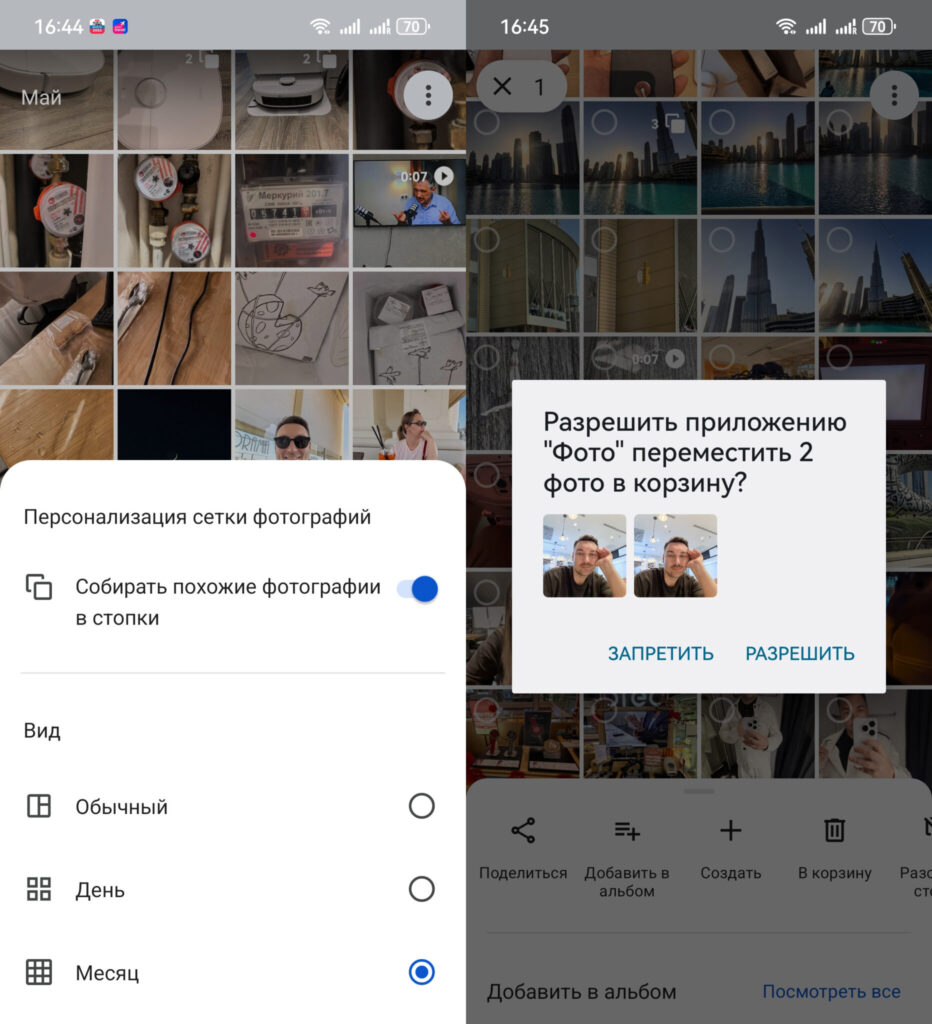
Photos will also be deleted in stacks
- Open the Google Photos app on your smartphone.
- Tap the three-dot button next to a photo and enable the similar photo grouping feature — it groups identical shots so they’re easier to spot while scrolling.
- In the same menu, enable the monthly view to see a larger portion of your library at a glance.
- Open a group of photos, scroll through them, and decide what to keep and what to delete by tapping the trash icon.
Some say grouping doesn’t work perfectly: supposedly random screenshots or shots taken back-to-back on the same day end up in the same stack. But first, that didn’t happen to me. And second, even in that form it noticeably speeds up the sorting process, because identical photos are no longer scattered throughout the entire feed.
How to Free Up Storage on an Android Smartphone
Cleaning the cloud and cleaning your phone’s storage are two different things. If photos have already been uploaded to the cloud, their copies on the smartphone can be deleted without losing the photos themselves. This isn’t necessary if you only need to free up cloud space, but it does free up space on the phone.
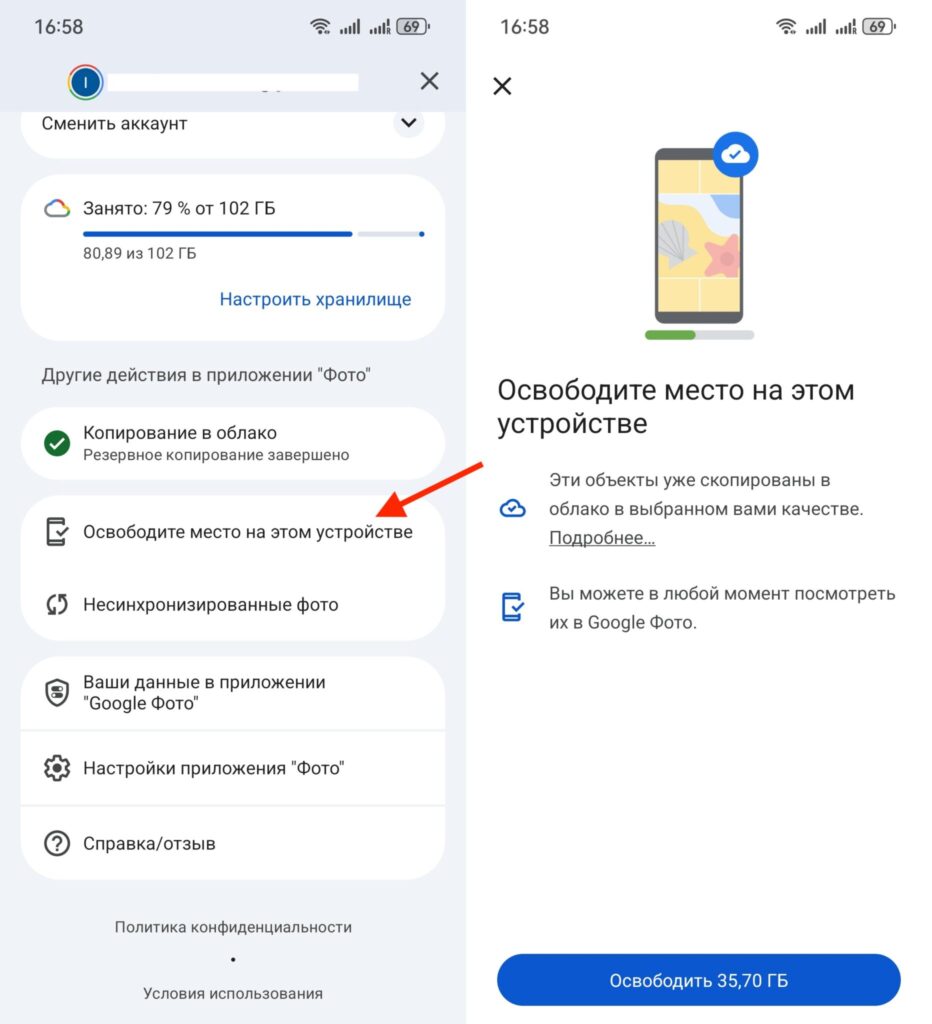
You can also free up space on the smartphone itself. In my case, I could free up 35 GB
- In the Google Photos app, tap on your profile icon in the upper right corner.
- Select the option to free up space on the device.
- The app will show how much storage will be freed — for example, in my case it was 35 GB; but the exact number depends on how many photos are stored locally.
- Wait a few minutes for the process to complete.
If you want to dig deeper, in the same profile menu there’s a storage settings section. There, Google itself suggests where to look for heavy junk: large files in Drive, emails with large attachments, and trash contents. It’s a convenient way to tidy up your entire Google One storage, not just photos.
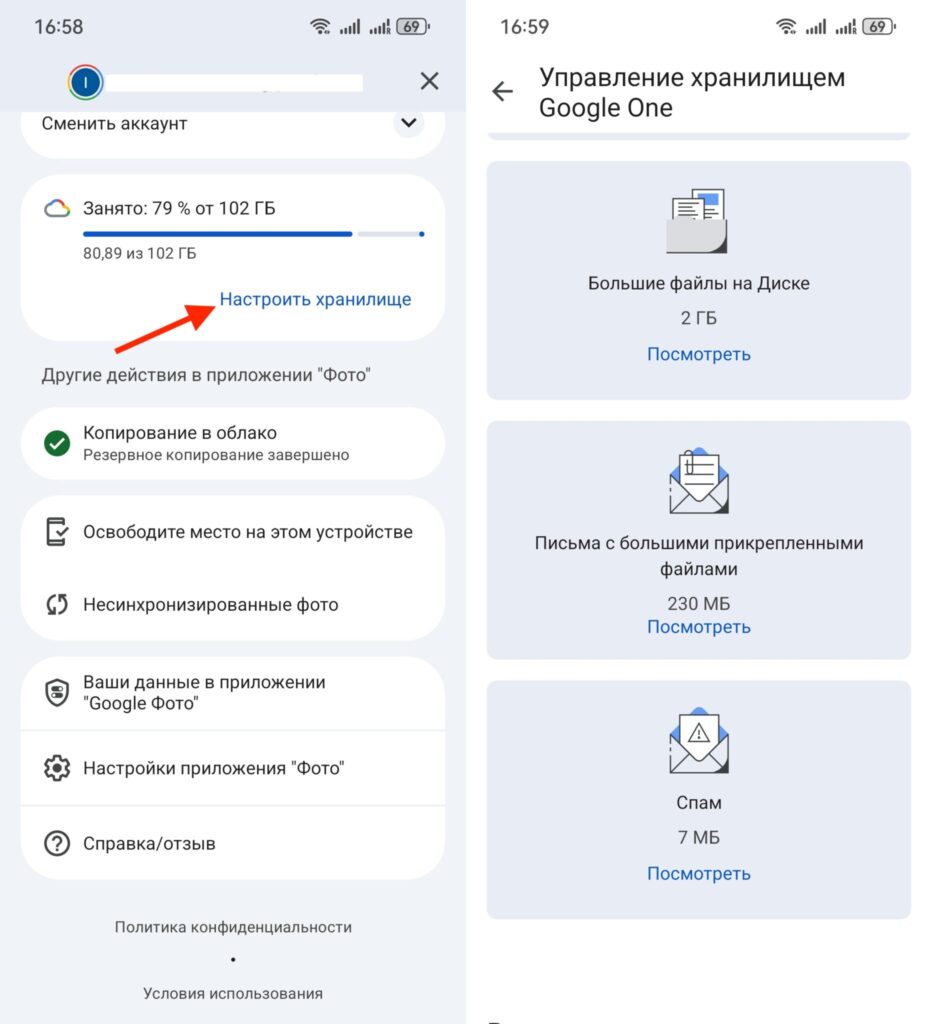
And if you want, you can clean up space across all of Google One
How Much Storage Was Freed and Is It Worth It
Undoubtedly, the photo deletion process is very tedious but absorbing: sorting through the archive with a show playing in the background is actually relaxing. By deleting duplicates, accidental shots of fingers and the ground, unnecessary 4K videos, and test photos for reviews, I managed to free up more than 15 GB.
But there’s a sobering detail. I only got back to 2020, and I need to clean all the way back to 2013, so there’s still a lot of work ahead. But I personally trust the manual result far more than an algorithm or a questionable app — and that’s perhaps the main argument in favor of this approach.
The conclusion is simple. If your Google cloud is overflowing and you don’t want to pay for the next tier, manually cleaning Google Photos is a working and safe way to win back tens of gigabytes. It takes time and patience, but you don’t need to entrust your personal archive to third-party services. Start by enabling similar photo grouping and the monthly view, sort through at least a couple of recent years — and most likely, that will already be enough to stay on your current plan or even avoid unnecessary expenses altogether.