I was born in 1995 — the very same year Microsoft released Windows 95. I obviously couldn’t appreciate this operating system at the time of its release: back then I was interested in completely different things. But in 2026, I finally got acquainted with Windows 95 — right on my Xiaomi. No flashing, no root, no complicated manipulations. If you want to change your Android’s look to something unconventional, there are plenty of ways, but I chose the most unexpected one.
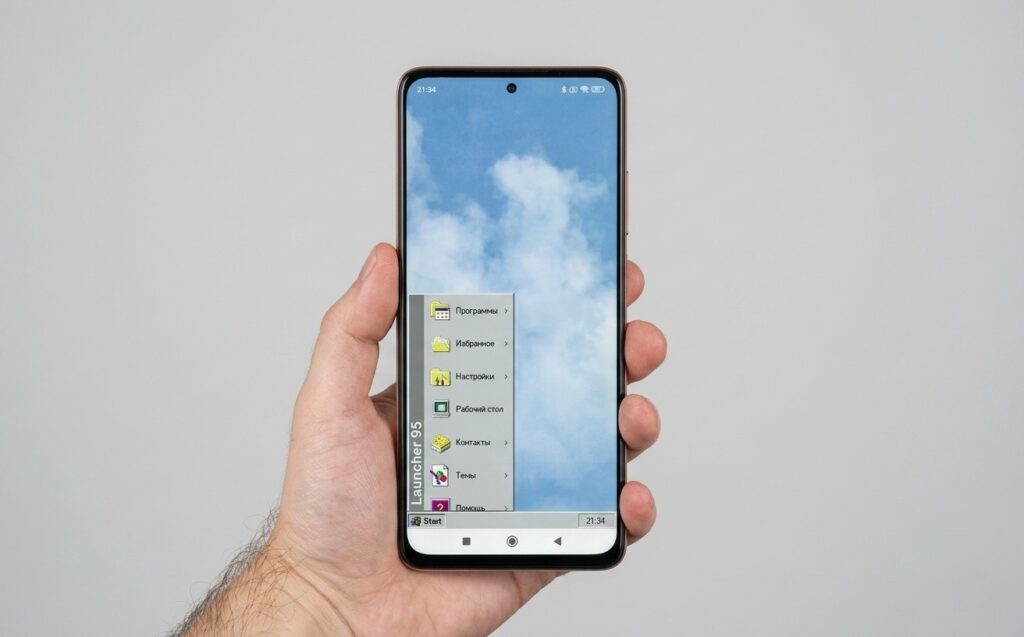
Windows 95 right on Android, can you believe it!
Windows 95 Launcher for Android
The main hero of this story is the Launcher95 app. This is a Windows 95 launcher that transforms the Android home screen into an exact copy of the classic Microsoft operating system: with a Start button, a taskbar at the bottom of the screen, a windowed interface, and characteristic pixel icons.
To get Windows 95 on Android, you don't need to flash your smartphone.
The app is available on Google Play. No APKs from third-party sources, no ADB. Just find it, download it, and install it.
Here’s how to download Launcher95:
- Open Google Play on your Android smartphone.
- Type “Launcher95” in the search bar.
- Find the app with the Windows 95-style icon and tap “Install.”
- Wait for the installation to complete.
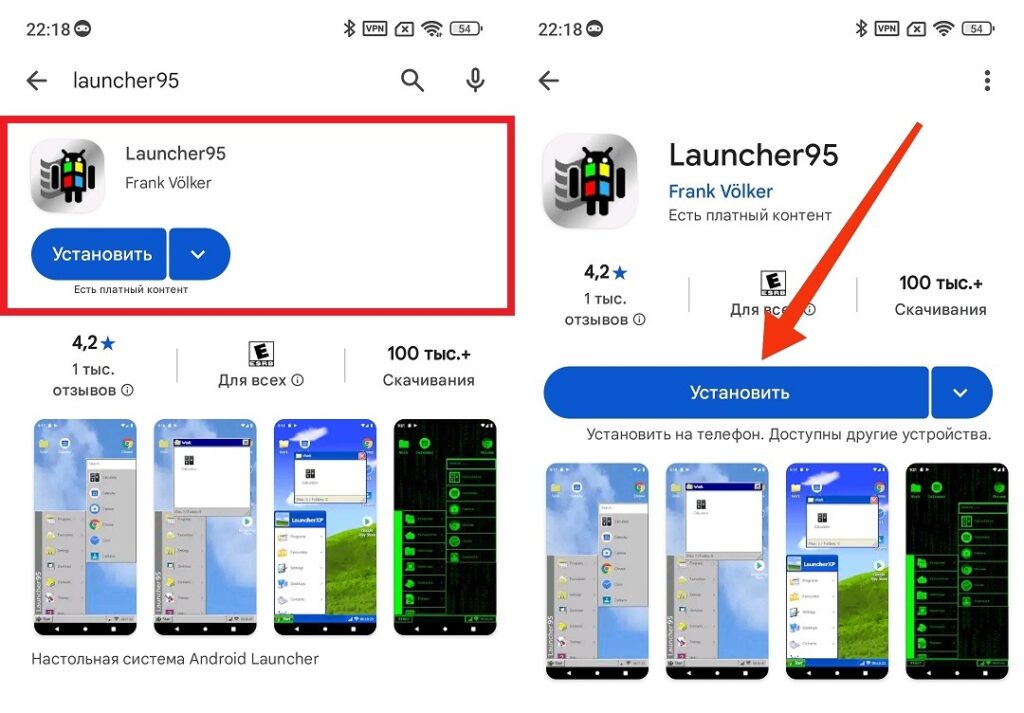
The launcher installs like a regular app
After installation, the Launcher95 app will appear in your app list, but the home screen won’t change on its own — you need to set it as the default launcher. More on that in the next section.
How to Set Up a Launcher on Android
To change the launcher on your phone, you need to make Launcher95 the default home screen app. The path to this setting varies slightly on different smartphones, but the general principle is the same:
- Open “Settings” on your smartphone.
- Go to the “Apps” or “App Management” section.
- Find the “Default Apps” option.
- Select the “Home Screen” or “Desktop” tab.
- Choose Launcher95 from the list of available launchers.
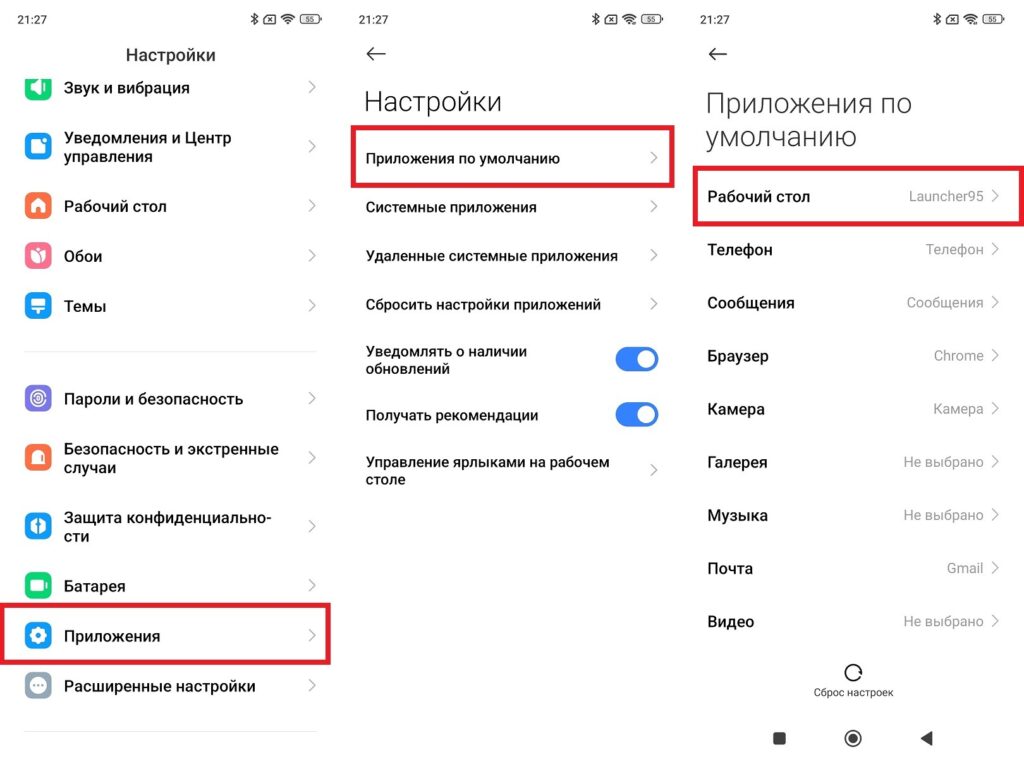
You need to set the Windows 95 launcher as the default
The first impression is exactly what you’d expect. A gray desktop, pixel icons, a Start button in the lower left corner. The Android home screen at this point looks like a screenshot from 1995.
What Windows 95 on Android Can Do
Windows 95 on a phone via Launcher95 is not just a visual theme. The app reproduces the interface with surprising accuracy. Here’s what actually works:
- the Start button opens a menu in the Windows 95 style (with programs, settings, and a shutdown button);
- the taskbar at the bottom of the screen shows running apps and the system clock;
- icons on the desktop can be moved, renamed, and organized just like on a real PC;
- folders open in separate “windows” in the spirit of Windows Explorer;
- Android notifications are integrated into the taskbar (they don’t stick out at the top but appear at the bottom like a system tray);
- the built-in “Notepad” works as a full-fledged text editor.
The sounds were a particularly nice touch. Launcher95 plays the original Windows 95 system sounds: that iconic startup sound, icon clicks, window openings. This delivers the final blow of nostalgia. Even if, like me, you only caught the tail end of that era.
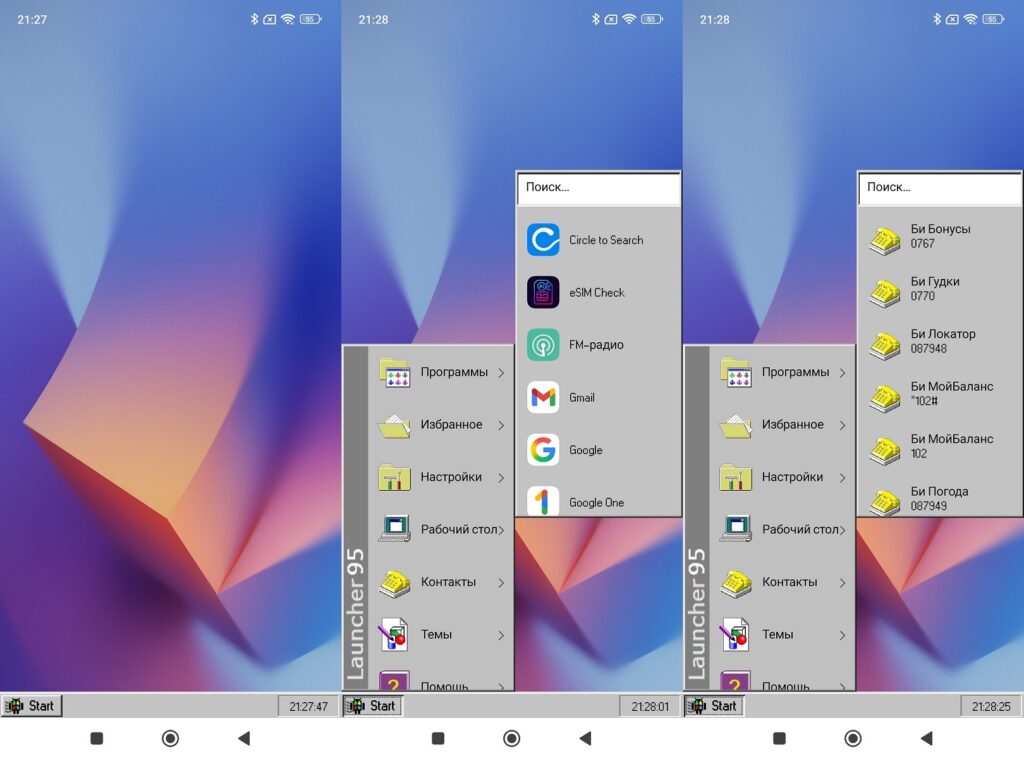
It really looks like Windows 95 on a phone
You can further customize the launcher on Android through the “Start — Settings” menu inside Launcher95 itself. There you can adjust icon size, taskbar transparency, and desktop behavior.
How to Get Windows XP on Android
Now for an honest confession. Windows 95 on Android is cool, but my first real operating system was Windows XP. That’s where I opened a browser, played games, and first encountered viruses. My nostalgia for XP is significantly more personal.
Launcher95 includes a Windows XP launcher.
It turns out that Launcher95 anticipated this. Inside the app, there’s a theme switcher — and one of the themes is Windows XP with its characteristic blue styling, the green “Bliss” wallpaper, and rounded buttons in the spirit of 2001. To get Windows XP on your phone:
- Tap the Start button on the Launcher95 desktop.
- In the menu, select “Themes.”
- Choose the “Theme XP” theme.
- The desktop will instantly switch to the Windows XP look — with its characteristic icons, “Bliss” wallpaper, and blue taskbar.
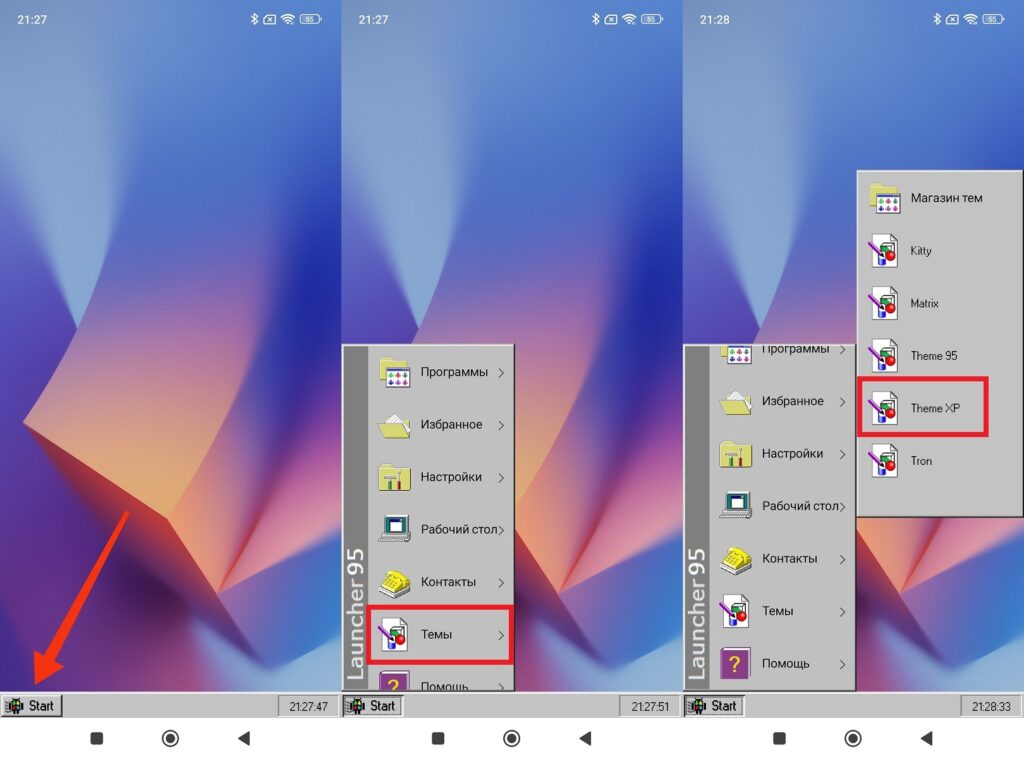
The launcher also has a Windows XP theme
The Windows XP launcher looks even more convincing than Windows 95, because XP is remembered by more people and is instantly recognizable. I showed a screenshot to friends, and nobody immediately realized it was a phone.
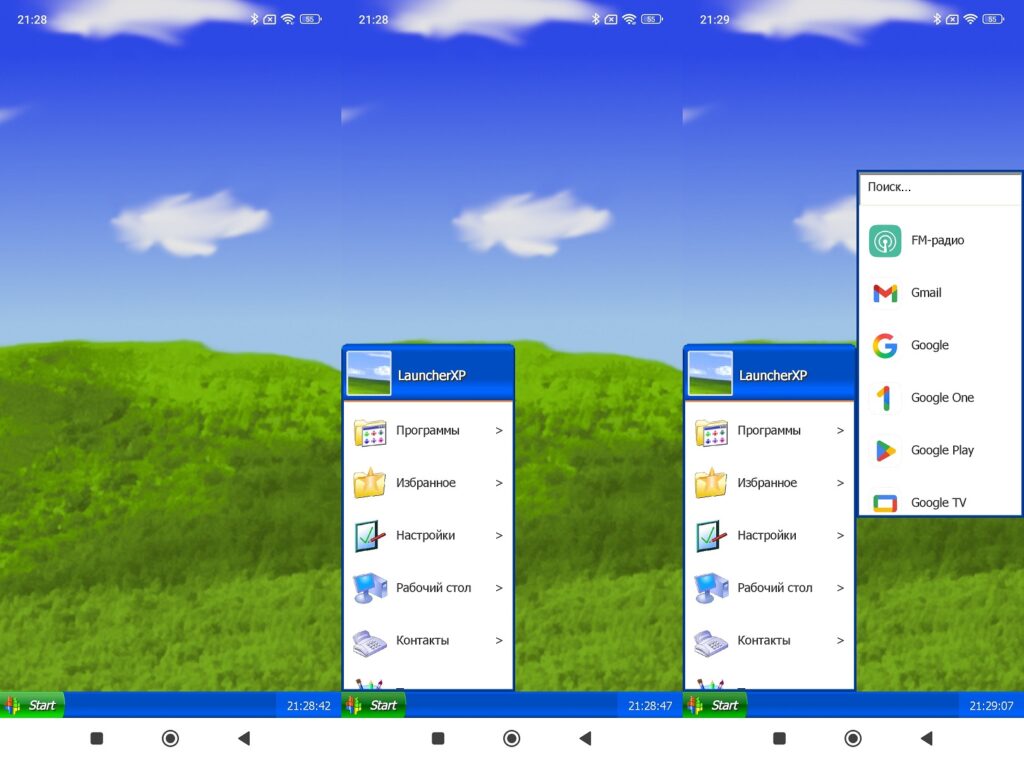
This is what Windows XP looks like on Android
Switching your phone’s home screen back to standard Android is just as easy: go to “Settings — Apps — Default Apps — Home Screen” and select your device’s default launcher.


