In iOS 26.5, Apple added a new set of vibrant wallpapers with colored stripes that you can customize to your liking. But if you go to the wallpaper gallery right now, you most likely won’t see anything new. It’s all about regional restrictions. If you haven’t updated to iOS 26.5 yet, now is the time. Here’s how to bypass the restriction and set stylish wallpapers on your iPhone.
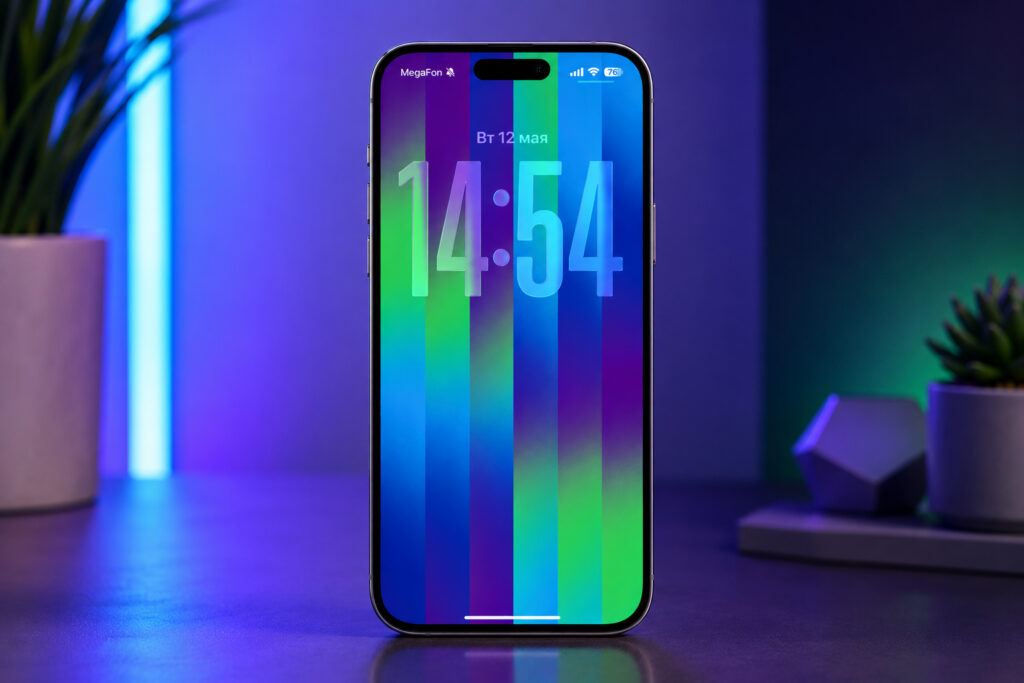
Here are the cool wallpapers you can create yourself on iPhone
New iOS 26.5 Wallpapers with Color Customization
The iOS 26.5 update introduced a collection of dynamic wallpapers called Pride Luminance. It’s not just one image but an entire set — 11 ready-made options plus a constructor where you choose the colors yourself.
The wallpapers feature vertical colored stripes that shimmer beautifully when you unlock your iPhone. On the lock screen they look one way, and on the home screen — slightly different. On models with Always-On Display, the wallpaper behaves even more interestingly: the colors dim and gently flicker.
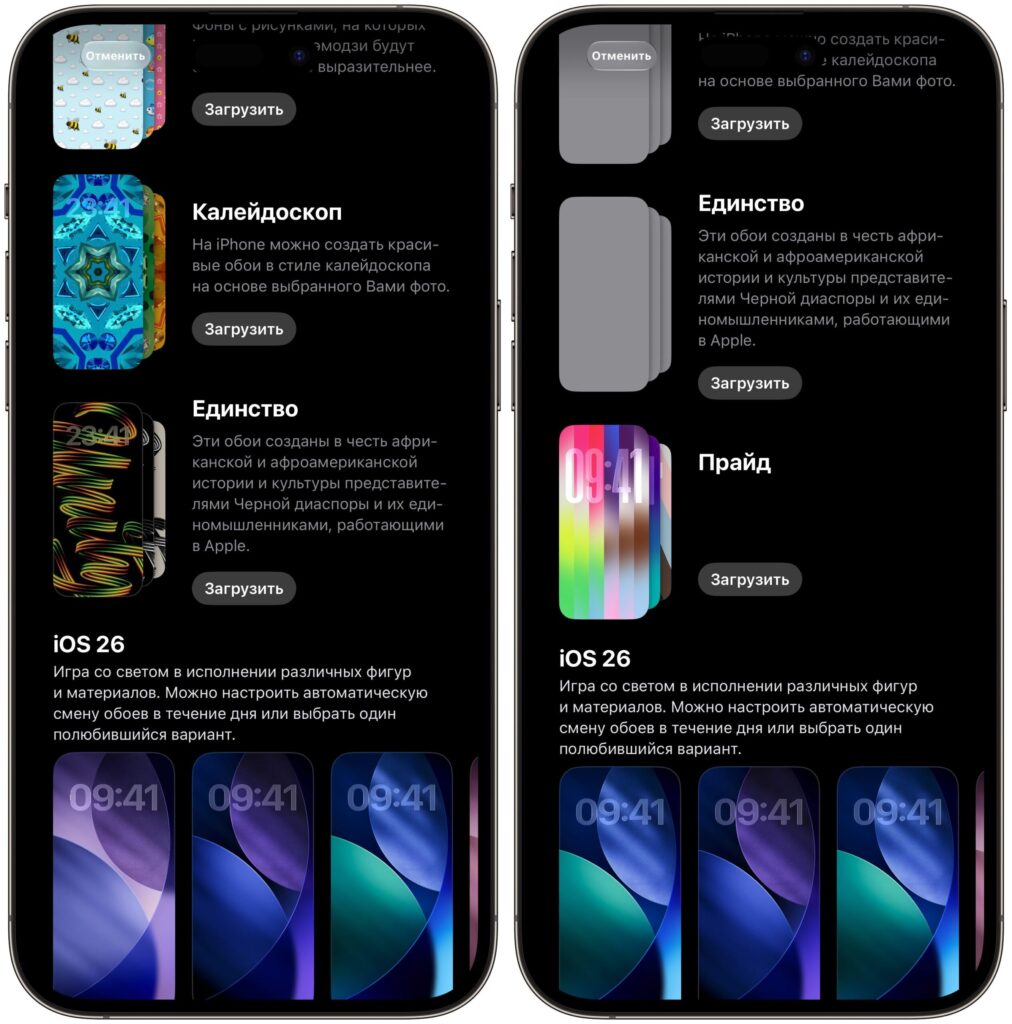
If the iPhone region is set to Russia, the new wallpapers won’t be available
The main feature is the color constructor. You can choose from 1 to 12 shades and create your own unique combination. Apple offers dozens of colors to choose from, so there are thousands of options. Want wallpapers to match your case or your interior — easy.
The Pride Luminance collection is not available in all regions. If your iPhone is set to Russia, the new wallpapers simply won’t appear in the gallery. You’ll update to iOS 26.5, open wallpaper settings — and everything will look the same as before. This isn’t a bug or an error. Apple restricts access to these wallpapers at the regional level. But the solution is simple — you need to temporarily change your iPhone’s region to the US. This doesn’t affect the App Store, doesn’t reset your data, and doesn’t break anything in the system. It simply unlocks access to hidden content.
Changing iPhone Region Without Changing Apple ID
The first step is to unlock access to the new wallpapers. To do this:
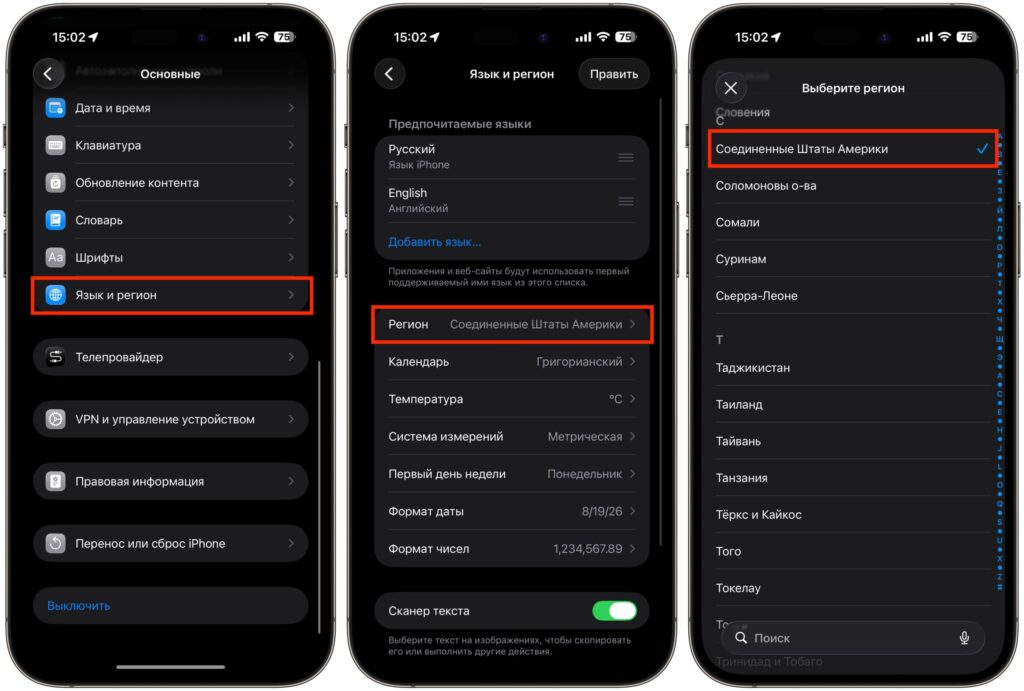
I recommend simply switching the region to the US. Just make sure to check the time format and units of measurement afterwards
- Open “Settings” on your iPhone.
- Go to “General” — “Language & Region.”
- Tap on “Region.”
- Select “United States” from the list.
- Confirm the region change.
The system language will remain Russian — only the regional setting changes. Notable changes: the date format may switch to American (month/day/year), and temperature may switch to Fahrenheit. All of this can be manually adjusted in the same settings where you changed the region, without switching the region back.
How to Find and Install the New Wallpapers in iOS 26.5
Now that the region is changed, let’s get the wallpapers:
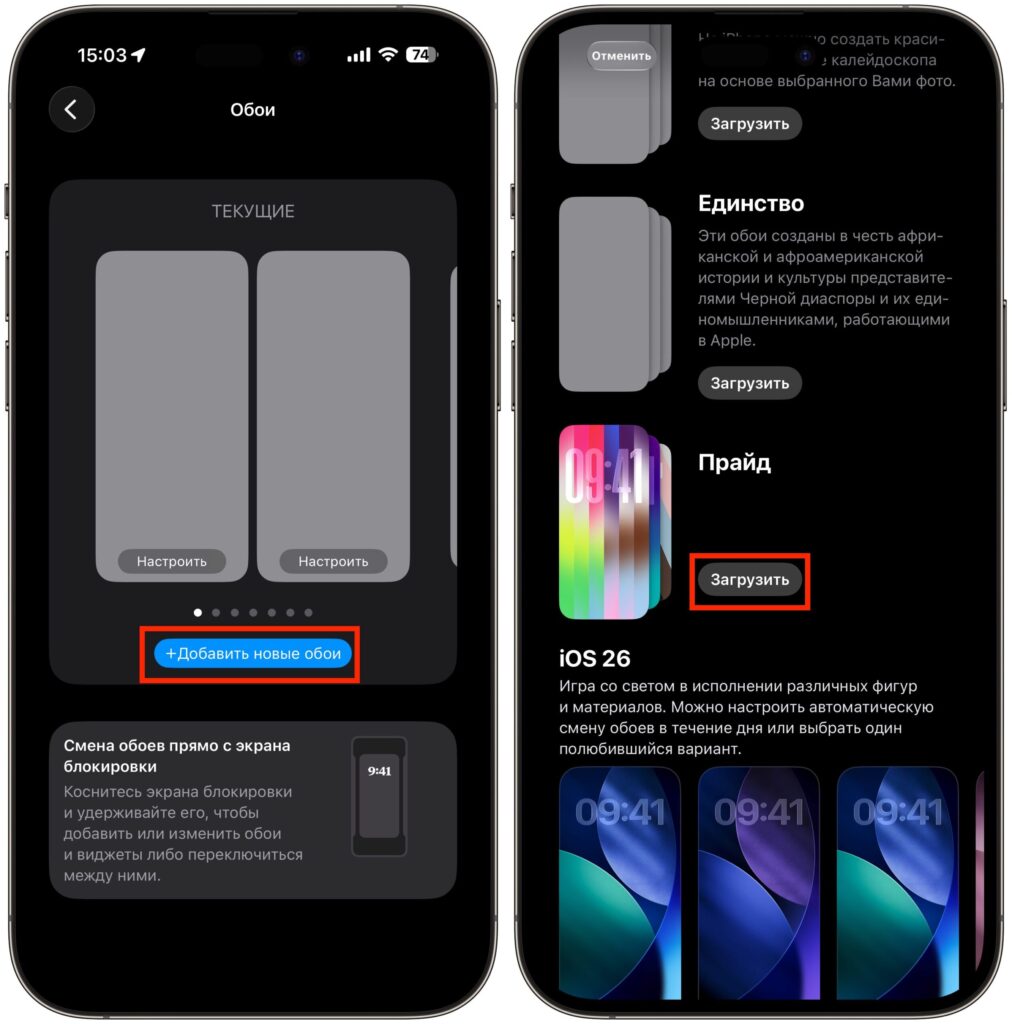
Download the new wallpapers — it happens quickly
- Open “Settings” — “Wallpaper.”
- Tap “Add New Wallpaper.”
- Scroll the gallery all the way down.
- Next to the “Pride” label, tap the “Download” button.
- Wait for the collection to download — it takes a few seconds.
After downloading, you’ll see 11 ready-made options with different color schemes. Choose the one with vertical colored stripes — it looks brighter and more interesting than the others.
Customizing the New Wallpapers on the iPhone Lock Screen
This is where the fun begins. After selecting the striped option, swipe left through the suggested combinations. At some point, your iPhone will offer you the option to choose colors yourself — this is the constructor.
In it you need to:
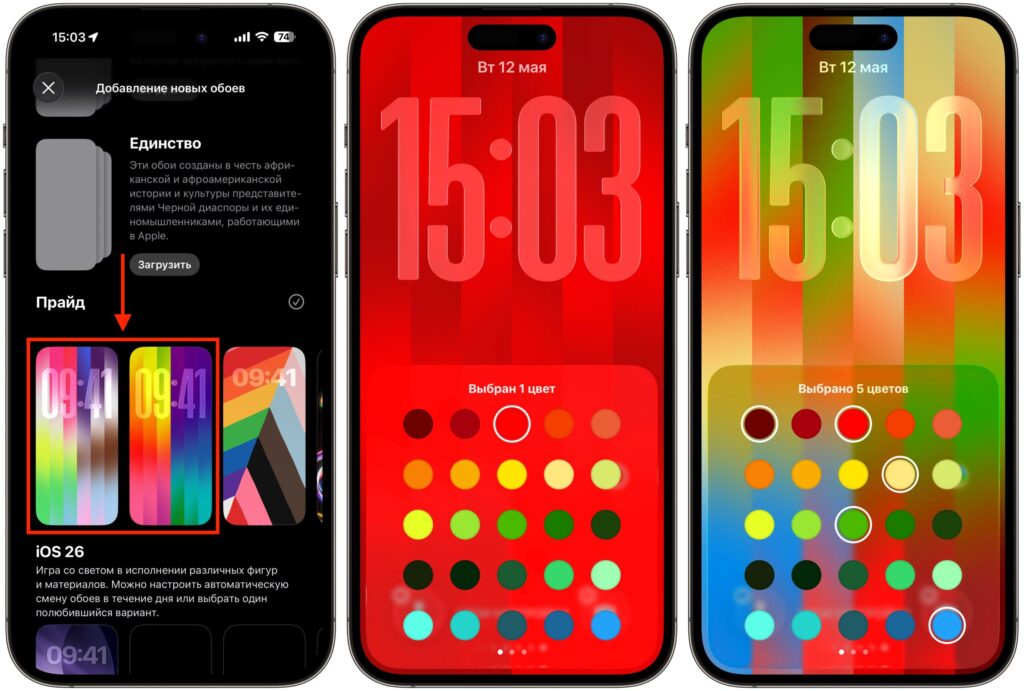
Choose any colors you like, and the iPhone will combine them
- Select from 1 to 12 colors from the palette.
- Change shades until you’re happy with the result.
- Preview how the wallpaper will look on the lock screen in real time.
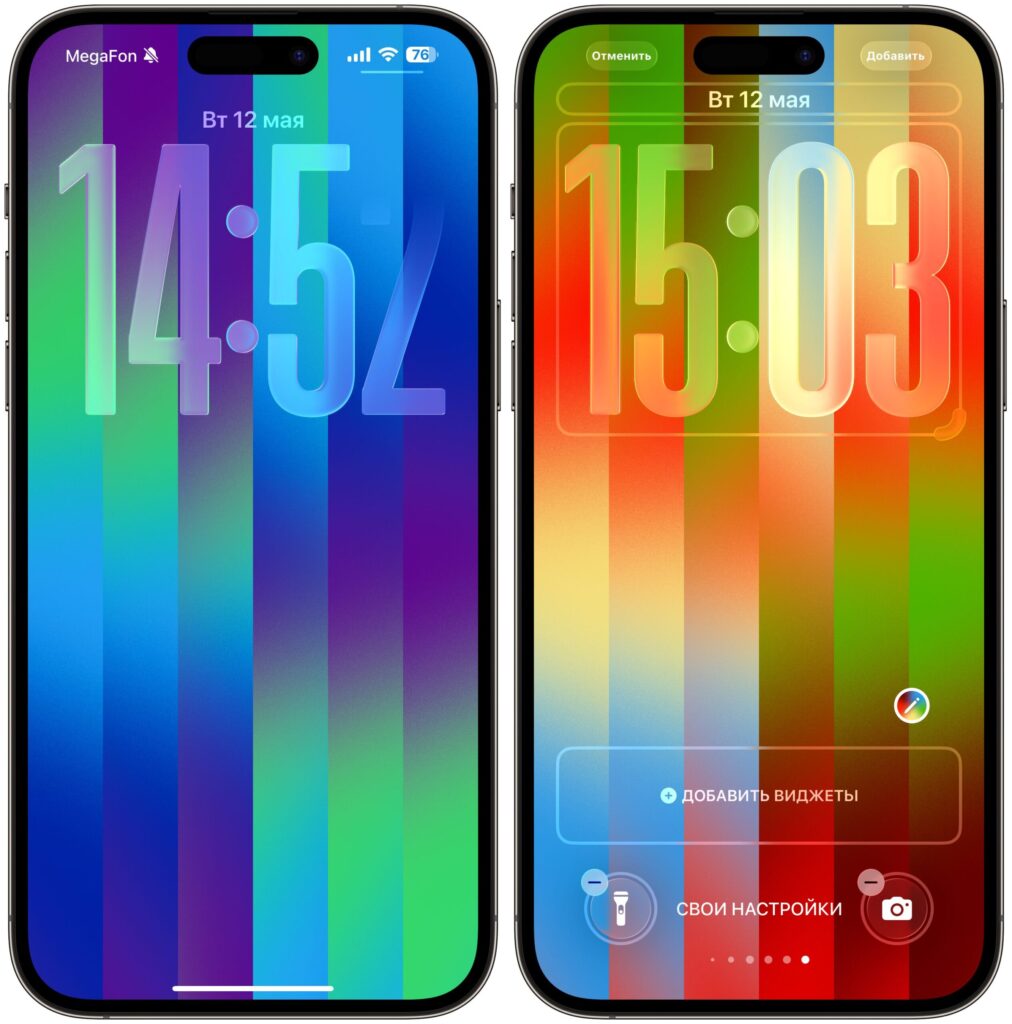
You’re only limited by your imagination
Once you’ve found the perfect combination, tap “Add” and choose where to apply the wallpaper — to the lock screen, home screen, or both. Done.
What Happens to the Wallpapers If You Switch the iPhone Region Back to Russia
If you switch the region back to Russia, the wallpapers will immediately disappear from iPhone settings. Apple ties this collection to the region, so when you switch back to Russia, the system simply hides the wallpaper again.
But there’s no need to worry. The “United States” region in settings has no effect on everyday iPhone use. The App Store, Apple ID, banking apps, carriers — everything will continue working as before. The only thing that might change is the date format and units of measurement, but that’s easy to fix manually in the same settings. So feel free to leave the American region and enjoy the new wallpapers.
iOS 26.5 Wallpapers with Color Customization: Who Should Enable Them
If you want a vibrant and unique wallpaper that you can fine-tune down to the smallest detail — definitely yes. These are some of the most flexible system wallpapers Apple has ever released. Instead of the standard set of five or six options, you get a constructor with dozens of shades and dynamic effects.
Changing the region takes 30 seconds and doesn’t affect anything.


