Many iPhone users decide to change their Apple ID region and unexpectedly hit a wall. The system won’t let them switch countries because there’s some small amount sitting on their balance — 5, 10, 20 rubles. It seems like pocket change. But Apple treats it as a serious obstacle. We’ve already covered how to change your Apple ID region on iPhone step by step, but the question of remaining funds causes the most difficulties. Let’s figure out how to get rid of them once and for all.
Figuring out what balance Apple agrees to zero out
Why You Need to Spend Your Apple ID Balance Before Changing Regions
Apple is designed so that your balance is tied to a specific region. Rubles can’t be transferred into Turkish lira or dollars. This isn’t a currency conversion at a bank — Apple has its own rules. As long as there’s even one ruble in your account, the system will simply refuse to let you change countries.
One of our subscribers contacted Apple Support in Russia and was told that to zero out the balance, the account must have less than 22 rubles. But that’s not quite an accurate statement. The actual rule is different — the remaining balance must be less than the price of the cheapest item in the App Store for your region.
I spent some time checking what you can buy for the minimum amount in the Russian App Store. The cheapest thing I could find was the game Overwinter Survival for 15 rubles. This means your balance needs to be less than 15 rubles for Apple Support to agree to write off the remaining amount manually. I’m not entirely sure where the 22-ruble figure from support came from. Perhaps sometimes the write-off does happen with that amount.
If you have more than 15 rubles in your account, the strategy is simple — first buy something cheap, then contact support. If it’s less — go straight to Apple.
How to Spend the Remaining Balance on Your Apple ID in the App Store
Let’s say you have 27 rubles left on your balance. That’s enough to buy something inexpensive. The ideal option is that same game Overwinter Survival. It costs just 15 rubles, and after the purchase, the remaining balance will be an amount that support can write off without any issues.
Here’s what you need to do:
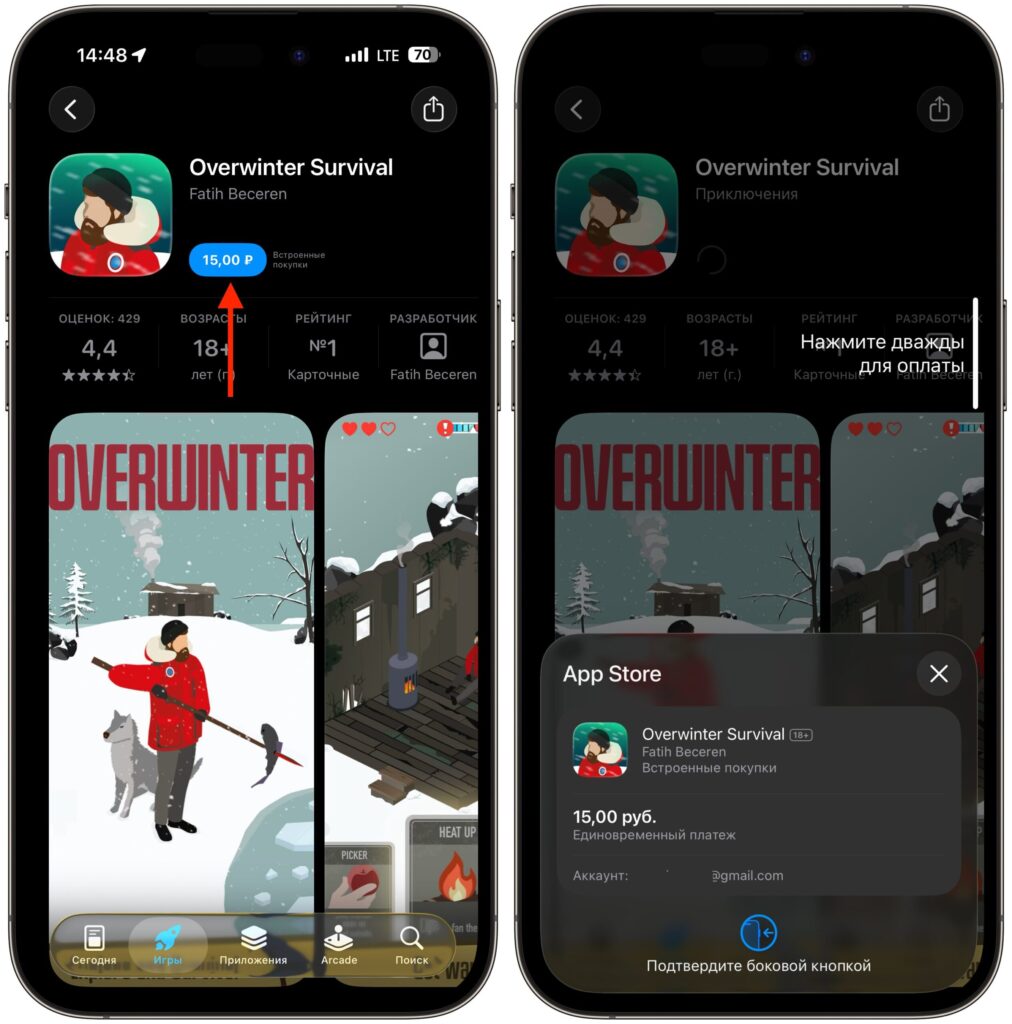
Simply buy whatever you can afford until the amount is less than the cheapest item
- Open the App Store on your iPhone.
- Tap the search icon at the bottom of the screen.
- Type Overwinter Survival in the search bar or follow this link.
- Tap the price (15 rubles) and confirm the purchase using Face ID, Touch ID, or your password.
- Wait for the funds to be deducted from your Apple ID balance.
After the purchase, check your remaining balance. To do this, open the App Store, tap your avatar in the upper right corner — your current balance will be displayed there. If less than 15 rubles remain — great, move on to the next step.
Clear Your Apple ID Balance Through Apple Support
When your balance is less than the cost of the cheapest item in the App Store, it’s time to contact support. Apple has no problem writing off such small remainders — this is a confirmed and long-established practice. No operator will object.
There are two ways to contact support. The first is by phone. Simply call +7 (499) 951-25-79 and explain the situation. Note that this is a long-distance number, so calling Apple Support in Russia may incur charges. The second method is through the website. It’s more convenient because you don’t have to wait on the line:
- Open your browser and go to the Apple Support website.
- At the bottom of the screen, tap “Other.”
- On the page that opens, select “Apple Account.”
- Tap “Other Apple Account Topics” and in the window that opens, tap “Clear Apple Account balance.”
- Follow the on-screen instructions.
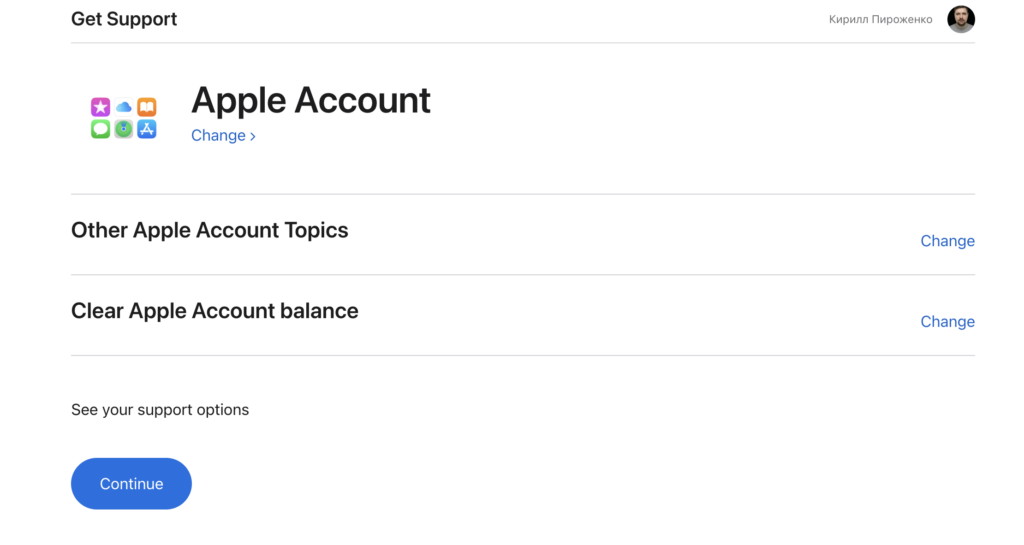
Apple Support has a dedicated section for zeroing out your balance
Usually the issue is resolved in a single request. The operator sees your balance, confirms the request, and writes off the remainder. Within a few minutes, your account balance becomes zero.
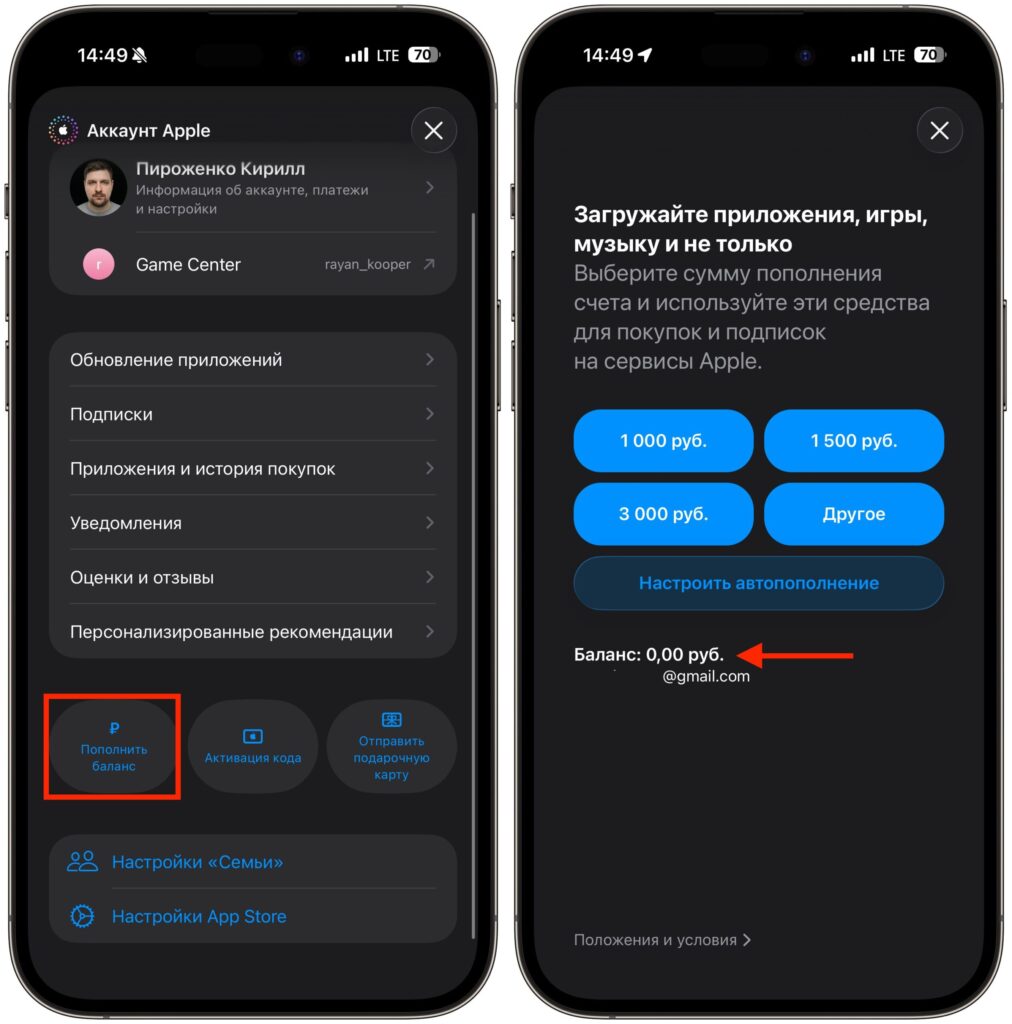
In the end, the balance on this page will look like this
If the support website doesn’t open or shows an error, try using a VPN. Sometimes access to getsupport.apple.com from Russia is unstable. Connect a VPN with any other country’s location and try again.
Changing Your Apple ID Region After Zeroing Out the Balance
Balance zeroed out, subscriptions canceled — it’s time to change the region. The procedure takes a couple of minutes, but it’s important to do everything correctly so you don’t have to start over. Before changing the region, make sure all conditions are met:
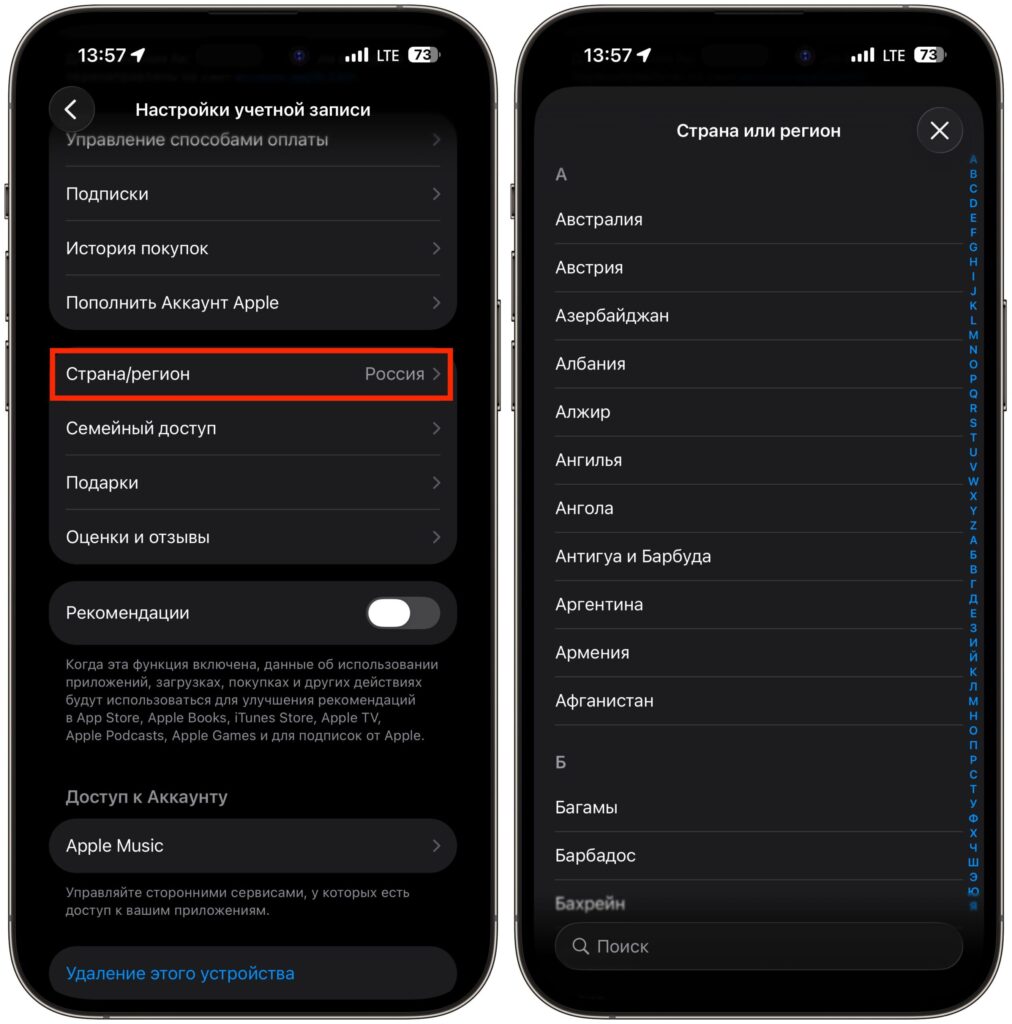
With a zero balance, changing the region will be easy
- Apple ID balance is zero.
- All active subscriptions are canceled and have expired.
- You have left Family Sharing if you were part of a family group.
- Open “Settings” on your iPhone and tap your name at the top of the screen.
- Go to the “Media & Purchases” section.
- Tap “Country/Region” and select the new country.
- Accept the terms of use and fill in the payment details for the new region.
What Prevents You from Zeroing Out Your Apple ID Balance and Changing Regions
It seems like a simple procedure. But people regularly make the same mistakes that drag the process out for days and weeks.


