For a while, when Google left Russia but its services weren’t blocked in the country, you could watch YouTube without ads. For many, this was the best period, since even those without a YouTube Premium subscription could watch without interruptions from ads. But then everything changed: YouTube was blocked, and watching it without ads became difficult due to well-known circumstances. However, in the latest update of the DuckDuckGo browser, a built-in YouTube ad blocker has appeared. It works without third-party extensions and is enabled by default on Windows, macOS, and iOS.
You can watch YouTube without ads too
What Exactly DuckDuckGo Did with YouTube Ads
DuckDuckGo is a browser and search engine that focuses on privacy. Now it has gained another feature: blocking ad inserts within YouTube videos right in the browser itself, without installing additional extensions.
According to the developers, the feature is enabled by default on Windows, macOS, and iOS. This means that if you open YouTube through the DuckDuckGo app on iPhone or through the browser on Mac, ads in videos should disappear automatically, without any configuration.
An important note: this applies specifically to the DuckDuckGo browser, not the native YouTube app. The official YouTube app on iPhone or Apple TV is not affected in any way — ads will remain there.
How Duck Player from DuckDuckGo Differs from the Built-in Ad Blocker
DuckDuckGo already had a feature called Duck Player — a separate YouTube video viewing mode. It opens videos in a clean window without ads, without sidebar recommendations, and without tracking your activity. Simply put, it’s a way to watch a specific video without diving into the YouTube feed.
The new built-in blocker works differently. It removes ads directly on regular YouTube pages when you scroll through the feed, search for videos, and navigate between clips as usual. The familiar YouTube interface remains — just without ad inserts in the videos themselves.
In short:
- Duck Player — a separate clean window for a single video without recommendations and tracking
- Built-in blocker — regular YouTube, but without ads in videos
One doesn’t interfere with the other: you can use both depending on what’s more convenient at any given moment. But if ads haven’t been disabled for some reason, here’s a detailed guide on watching videos in Duck Player: there are definitely no ads there.
How to Enable YouTube Ad Blocking
Here’s what it looks like on Mac:
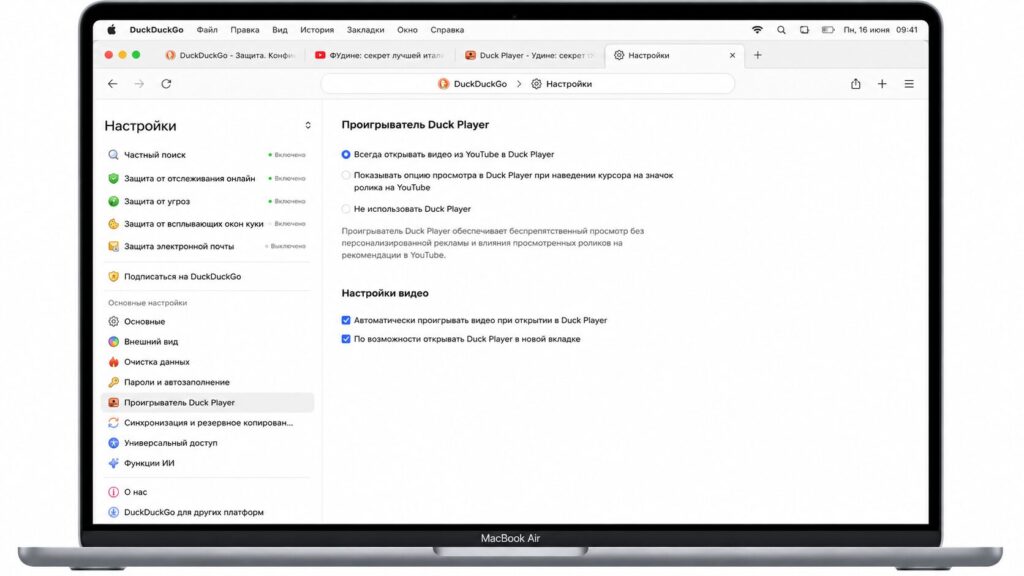
Enable Duck Player and enjoy
- Open the DuckDuckGo browser on Mac
- Click on the hamburger menu (three lines in the upper right corner)
- Go to browser settings
- Select the Duck Player section
- Turn on the corresponding toggle

The video will open in a separate window, and there will be no ads in it
On iOS, as practice shows, YouTube ad blocking in DuckDuckGo is enabled by default. So iPhone owners don’t need to do anything — everything works right after updating the browser. You simply find the video you need in the browser — specifically in the browser — play it, and it opens in a separate player without ads.
But just in case, here’s the instruction for activating the blocker on iPhone:
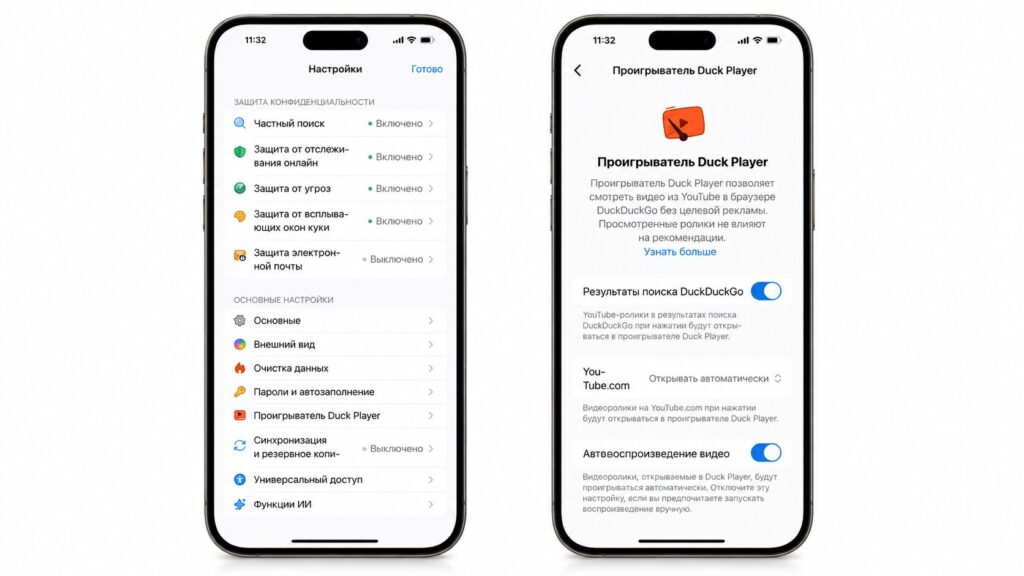
Enable Duck Player — and enjoy
- Download and launch DuckDuckGo on iPhone;
- Go to the hamburger menu — and then to settings;
- Select the Duck Player section;
- Enable video playback in Duck Player.
- Start watching videos from the browser on YouTube.
Is It Worth Switching Browsers for YouTube Ad Blocking
The main advantage is that you don’t need to fiddle with extensions and settings. For many, this is simpler than dealing with blockers in Safari or Chrome. Especially on iPhone, where installing third-party ad blockers has always been a separate hassle.
But there’s also a pragmatic side. YouTube regularly fights ad blockers: it shows warnings and sometimes even slows down video loading for users with blockers. Therefore, there’s no guarantee that the feature will work reliably for a long time — Google can change the rules at any moment, and developers will have to catch up.
It’s also worth remembering that blocking only works within DuckDuckGo itself. If you’re used to YouTube through the official app on iPhone or to Safari with password and tab syncing, not everyone will want to fully migrate to a new browser for just one feature.
Free YouTube Ad Blocking in DuckDuckGo
The blocker in DuckDuckGo is a working and free way to watch YouTube without ads, if you’re willing to do it through a separate browser. It’s especially convenient on iPhone, where installing standard blockers is more difficult.
If you already use DuckDuckGo or have been looking for a way to remove ads without jumping through hoops with settings — it’s worth simply updating the browser and checking if the feature works for you. If you’re deeply embedded in the native YouTube app and don’t want to change anything, you can safely skip this news: it doesn’t affect the official app.


