Anthropic’s Claude chatbot now works in Apple CarPlay, letting drivers talk to the AI assistant by voice without picking up an iPhone. The feature relies on the conversational-app support Apple added to CarPlay in iOS 26.4, so you need that version or newer, the Claude app installed on your iPhone, and a Claude account. Once set up, Claude appears as an icon on the CarPlay home screen and can hold spoken conversations, though it cannot control your car or iPhone functions and has no wake word.
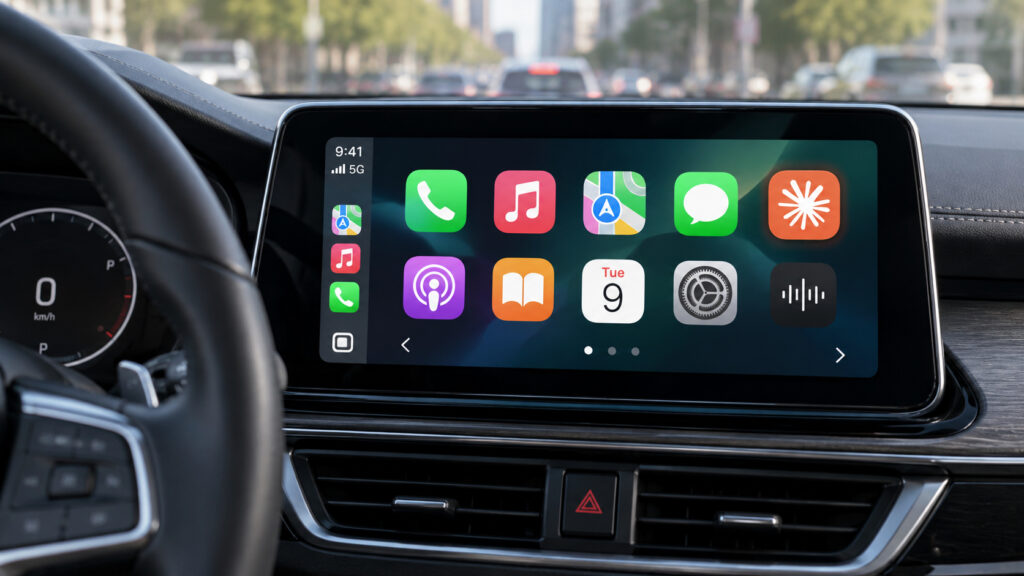
The Claude icon on the CarPlay home screen
What you need to know
- Claude is the fifth conversational AI app to support CarPlay, following ChatGPT, Perplexity, Grok and Meta AI, according to the source.
- Third-party chatbot support in CarPlay requires iOS 26.4 or newer; older versions do not show the relevant section.
- Claude in CarPlay has no voice activation phrase: each new conversation starts by tapping the app icon on the car’s screen.
- Apple does not let third-party assistants control vehicle settings or iPhone functions while driving, so Claude only answers questions by voice.
Claude becomes the fifth voice assistant in CarPlay
Apple opened CarPlay to conversational apps in iOS 26.4, and the list of chatbots you can talk to in the car has been growing since. According to the source, Claude is the fifth such app: Meta AI joined only days before, and ChatGPT, Perplexity and Grok had added support earlier. Among the major AI companies, Anthropic was the last to ship the integration. The source also notes that Apple’s own AI-powered assistant is expected to arrive later with iOS 27, which was still in beta at the time of writing and, per the source, is due for official release this month.

The Claude logo
Claude itself is a chatbot that answers questions, helps with writing, explains complex topics in plain language and keeps track of long conversations. In the car, all of this happens by voice: you ask aloud and Claude responds while you keep your eyes on the road.
What you need before Claude will work in the car
The requirements are modest, but without them the integration will not appear:
- An iPhone running iOS 26.4 or newer. This is the version in which Apple allowed third-party chatbots into CarPlay; on older releases the necessary section simply does not exist.
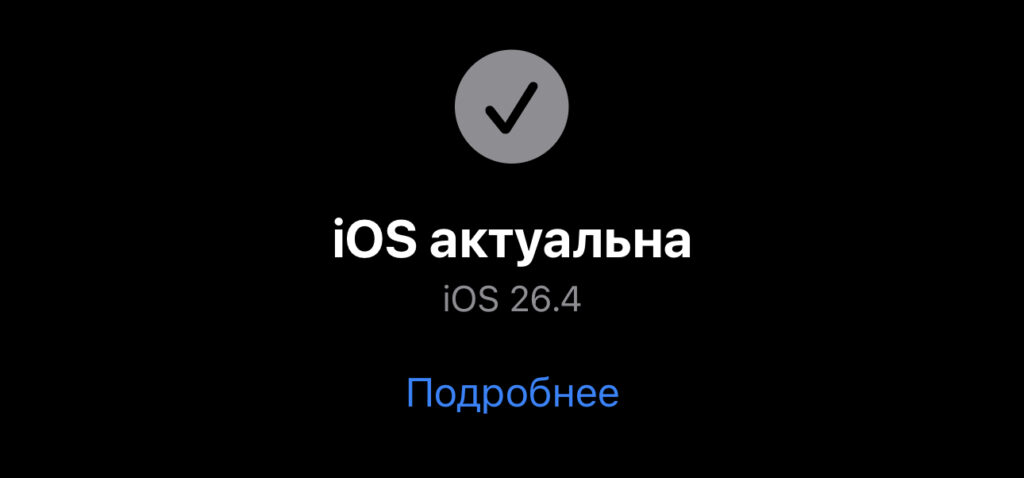
The iPhone must run at least iOS 26.4 or a newer OS
- A Claude account. This is a separate login from your Apple ID; without it the app will not get you past the start screen.
- The Claude app on your iPhone. It is available from the App Store, though not in every country.
One important caveat: according to the source, Anthropic does not offer Claude in all regions, and the restriction applies to the iPhone’s network connection rather than to the car. CarPlay simply mirrors what is happening on the phone, so if Claude is not available where your iPhone is connecting from, it will not respond either on the car screen or on the handset itself.
How to install Claude and add it to CarPlay
Once the prerequisites are in place, setup takes only a few minutes:
- Open the App Store on your iPhone.
- Find the Claude by Anthropic app and download it.
- Open Claude, sign in with your Claude account (not your Apple ID) and grant microphone access.
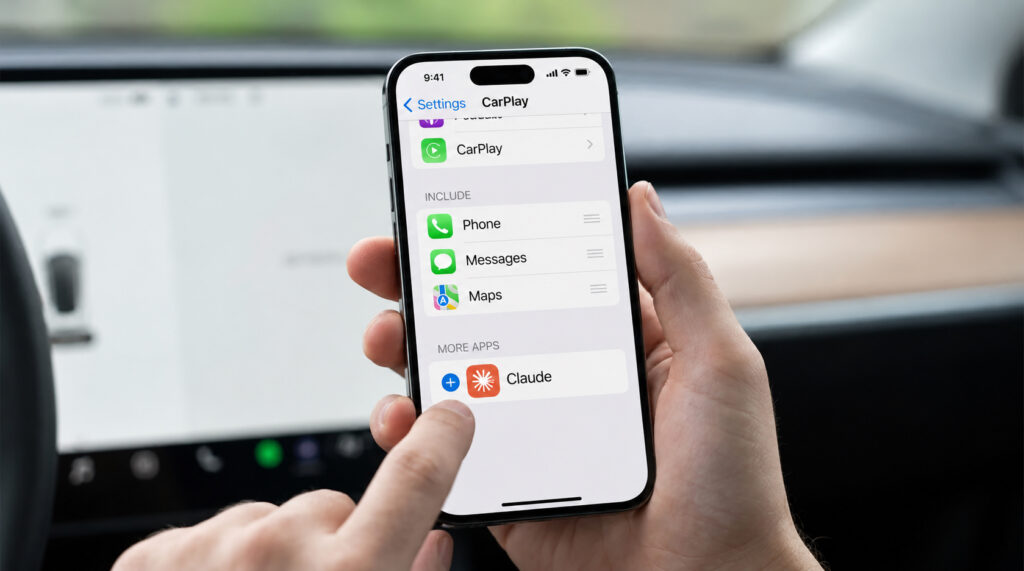
Adding Claude to CarPlay
- Go to the iPhone’s Settings and open General.
- Tap CarPlay and select your connected vehicle.
- Check that Claude appears in the CarPlay app list; if it does not, tap + to add it.
How to talk to Claude while driving
The controls are deliberately minimal so they do not distract from the road:
- On the CarPlay screen, open the Claude app. It has no wake word, so every chat has to be started manually by tapping the icon.
- Tap Start a hands-free conversation (the app’s interface is in English) to begin a new voice chat.
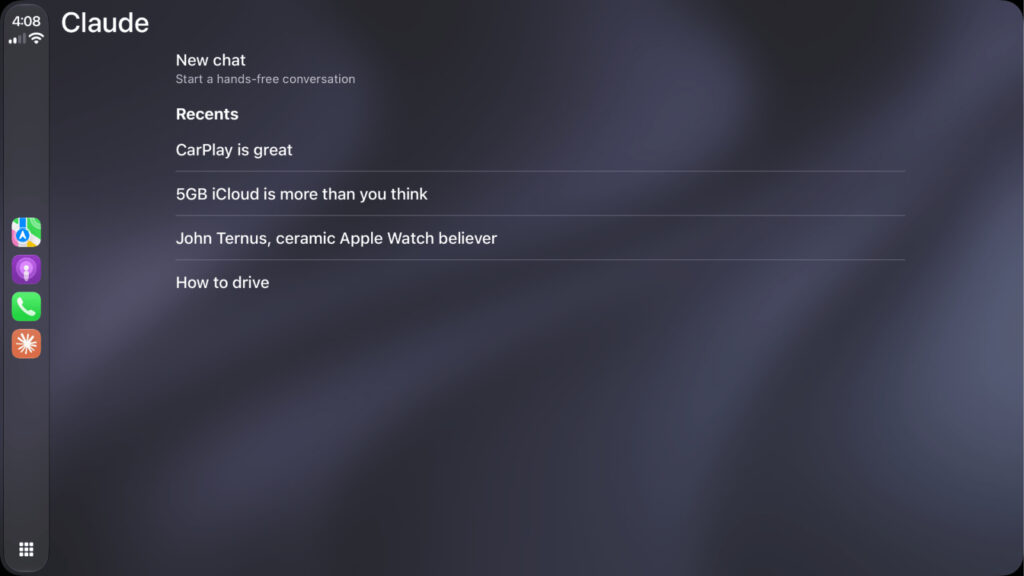
The list of previous chats in Claude
- Alternatively, pick one of your recent chats from the list to continue an earlier conversation.
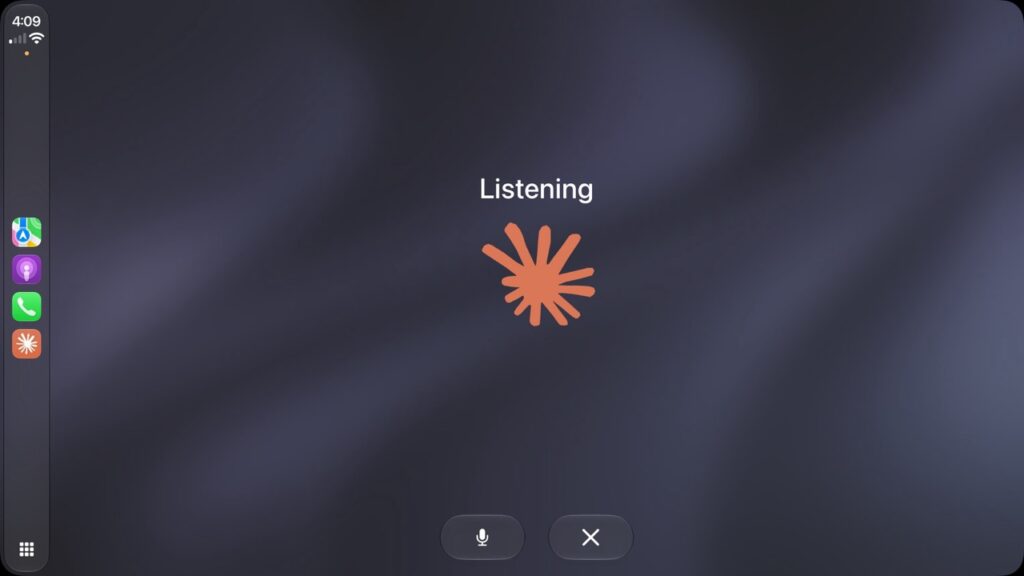
Claude listening to your commands
- Speak your question aloud. Claude listens and replies by voice, and the screen indicates whether it is currently listening or speaking.
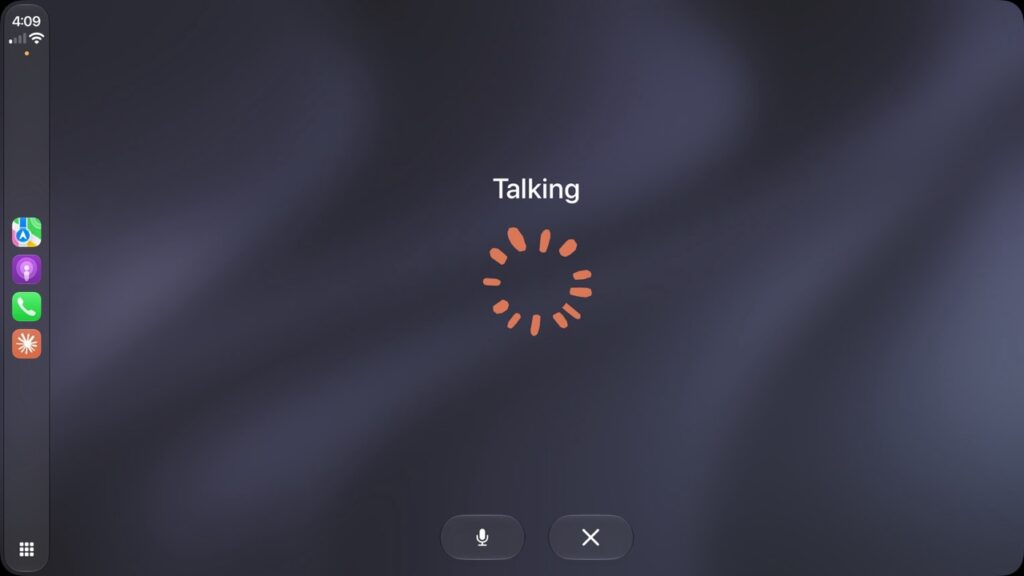
Claude answering your request
- Use the on-screen buttons in the app to mute the microphone, pause the conversation or end it.
What Claude can and cannot do behind the wheel
In the car, Claude answers entirely hands-free: you can ask it to clarify an unfamiliar term, summarize a long news story, dictate a to-do list or talk through a topic while stuck in traffic. It is essentially the same conversation you would have in the phone app, just without a screen or typing. Responses can be listened to in full without looking at the display; the brief prompts on the CarPlay screen only show whether the assistant is listening or answering.
There are two firm limitations. First, Claude will not control the car or iPhone functions. According to the source, this is a deliberate restriction by Apple: CarPlay does not let third-party assistants into vehicle or phone settings while driving in order to reduce distraction. Second, you cannot wake Claude by voice. Third-party assistants in CarPlay do not yet support their own activation phrases, so every new dialogue has to begin with a tap on the icon.


