For many Android owners in Russia, the domestic app store has become the primary way to install apps on their phones. Now it’s time to figure out how to update it. For the store to work smoothly and without errors, it needs to be updated in a timely manner. There are several ways to do this, which we’ll cover below.
Guide to updating RuStore on Android
Why You Should Update the RuStore App
An app store is not something you install once and forget about. Regular RuStore updates are needed to keep the app current: according to support, this improves stability, fixes bugs, and enhances compatibility with new versions of Android.
The flip side is obvious. An outdated version can lead to crashes, limited access to features, and incompatibility with already installed apps. If RuStore has started glitching or refuses to install something, the first thing to check is whether you missed an update to the store itself.
How to Update RuStore via Notification
The simplest way is to wait for the store to offer the update itself. If a new version of RuStore is available, a notification will appear on the screen suggesting you update. From there, the steps are minimal:
- Tap “Update” — the new version will start downloading to your device.
- Wait for the download to complete.
- Tap “Install” to finish the update.
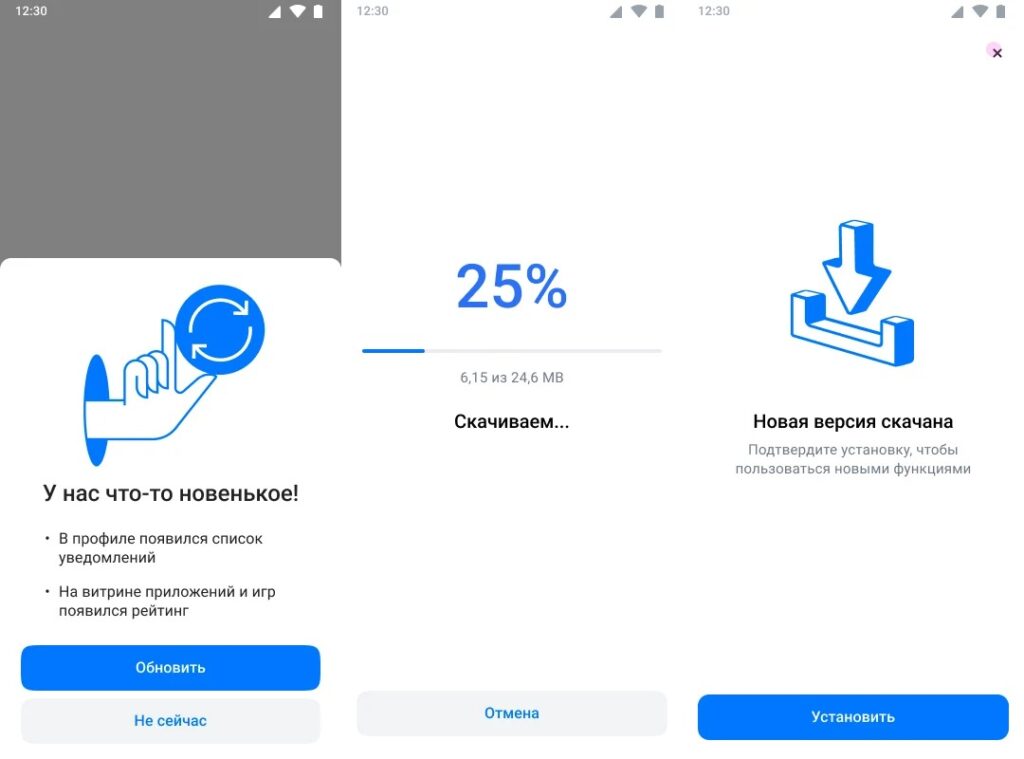
The easiest way to update the store
If you’re busy, you can postpone the update by tapping “Not now”. An important detail: the notification won’t disappear forever — it will reappear once a week until you install the new version.
How to Install a New Version of RuStore via the “My” Section
Let’s say you dismissed the notification and a couple of days later decided to update after all, but you don’t want to wait a week. You can manually trigger the update at any time through the “My” section in the app’s bottom menu:
- Open RuStore on your device’s home screen.
- Go to the “My” section in the bottom menu.
- Tap “Update.”
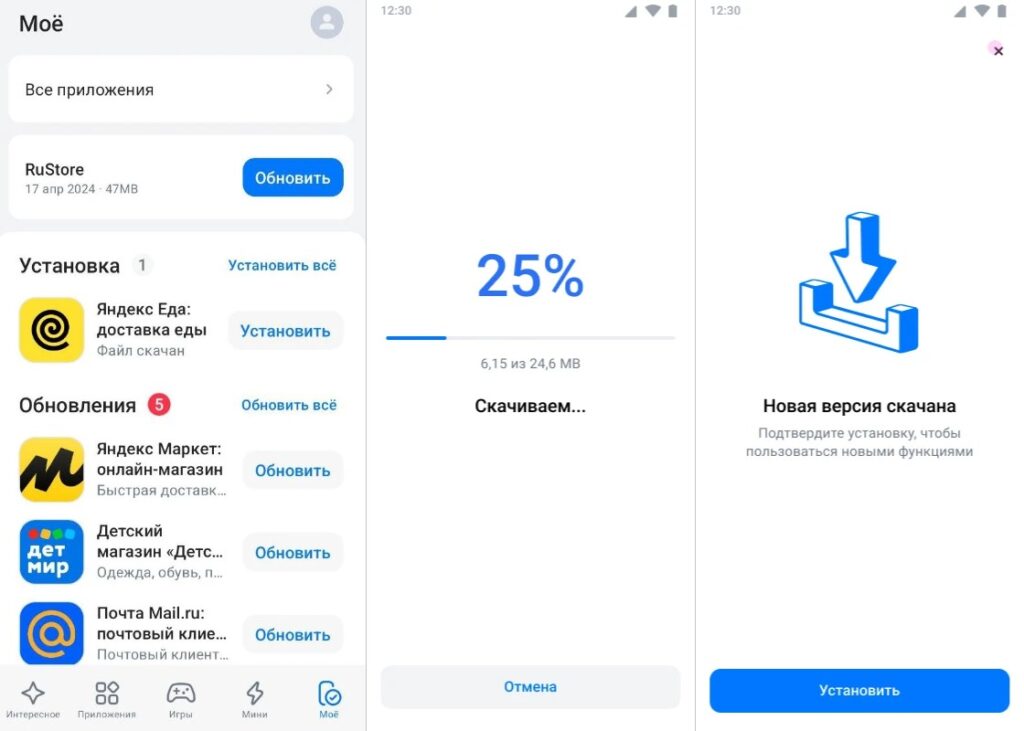
Another update option
The logic here is the same as with regular apps: if you missed the auto-suggestion, the update is always available in the store’s personal section. By the way, in the same way — from the “My” tab — you can also update the apps themselves that were installed through RuStore: there you can tap “Update” next to a specific app or “Update all” at once.
Updating RuStore via APK
Sometimes the update prompt doesn’t appear — for example, notifications are disabled or something went wrong with the store itself. In this case, the remaining option is a manual update via APK — an installation file for the app that is downloaded directly from the website:
- Open the official RuStore website in a browser on your Android device.
- Download the latest version of RuStore as an APK file.
- If necessary, allow installation from unknown sources for the app you’re using to install the file — usually this is a browser or file manager.
- Open the downloaded APK and confirm the installation.
- Launch RuStore and continue using it.
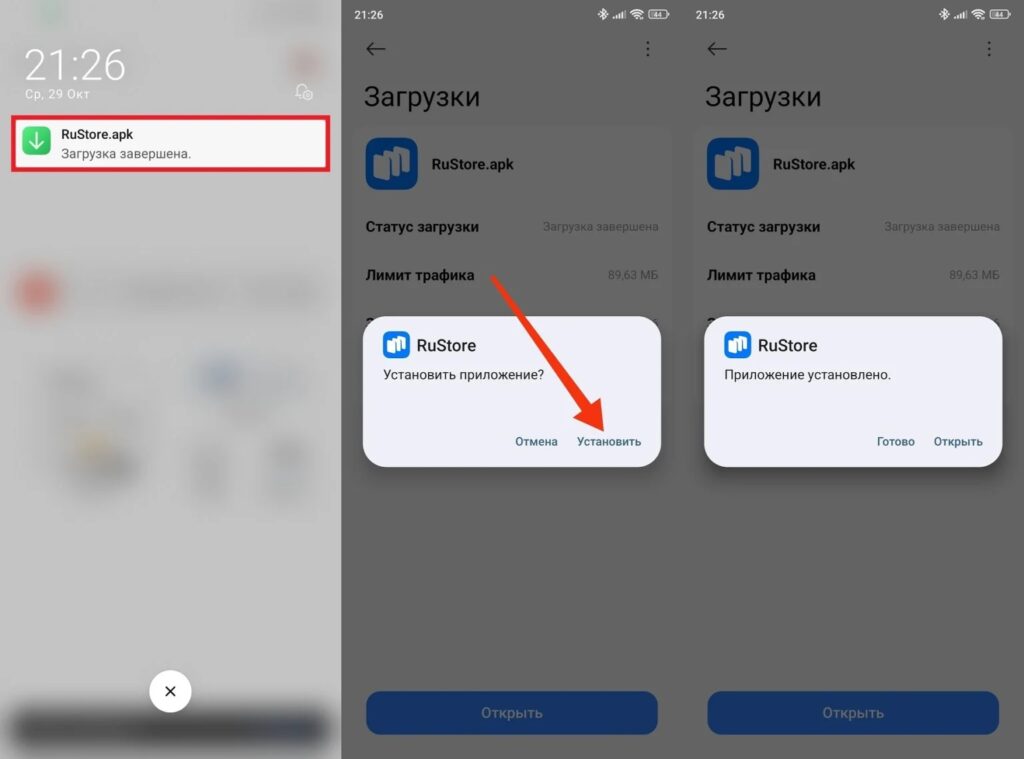
You can simply install the new version via APK
There’s an important limitation that support explicitly warns about: only install APKs from a trusted source. For RuStore, this is the official website (files “from forums” and from dubious channels can easily turn out to be fakes with malicious code).
Automatic RuStore Updates
There’s one scenario where nothing is required from you at all. If the installed version of RuStore is no longer supported, the app will update automatically through a forced update mechanism. In other words, the store won’t let you permanently “get stuck” on a dead version, but you shouldn’t let it get to that point: it’s better to update on time rather than wait for features to start breaking.
The bottom line is simple. In most cases, it’s enough to tap “Update” in the notification or go to the “My” section. Manual APK installation is only needed as a backup option and only from the official website. If the store is behaving strangely, refusing to install apps, or throwing errors — start by checking its own version, as that is often the cause of the problem.


