If you’re wondering whether your photos and data will be deleted when resetting the pattern lock, we have a short answer. Unfortunately, on modern Samsung smartphones, unlocking a forgotten password or pattern lock almost always results in complete data loss. Modern Android security systems are designed so that no one can access your personal files without entering the correct password.
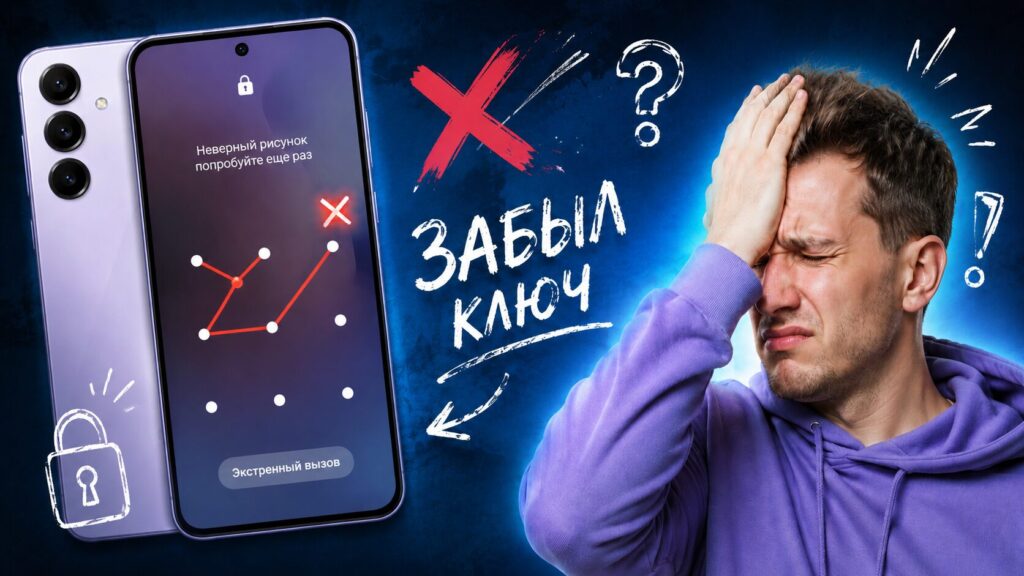
Forgot the pattern lock on your Samsung? No problem
There is only one strict exception — the official Samsung SmartThings Find feature. It allows you to remove the screen lock while keeping all your data, but only if you set it up in advance and met a number of requirements.
Any other working methods, including manual factory reset using hardware buttons or specialized software, will inevitably delete all your personal files, photos, contacts, and apps.
Assess your situation realistically: don’t waste time searching for “miracle” ways to save data if the official conditions haven’t been met. Accept the loss of files and choose a safe way to regain access to the device itself.
Method 1: Unlocking via Samsung SmartThings Find (the only method without data loss)
If you’re wondering how to remove the screen lock officially while keeping all your photos and contacts, the SmartThings Find feature can help. This is the only working method without data loss, but it will only work if strict conditions are met.
Your phone must meet the following requirements:
- The device is turned on and connected to the internet (via Wi-Fi or mobile network).
- Your Samsung account is signed in on the locked phone.
- The remote unlock feature (“Remote unlock”) was enabled in the phone’s settings beforehand.
Step-by-step unlocking process:
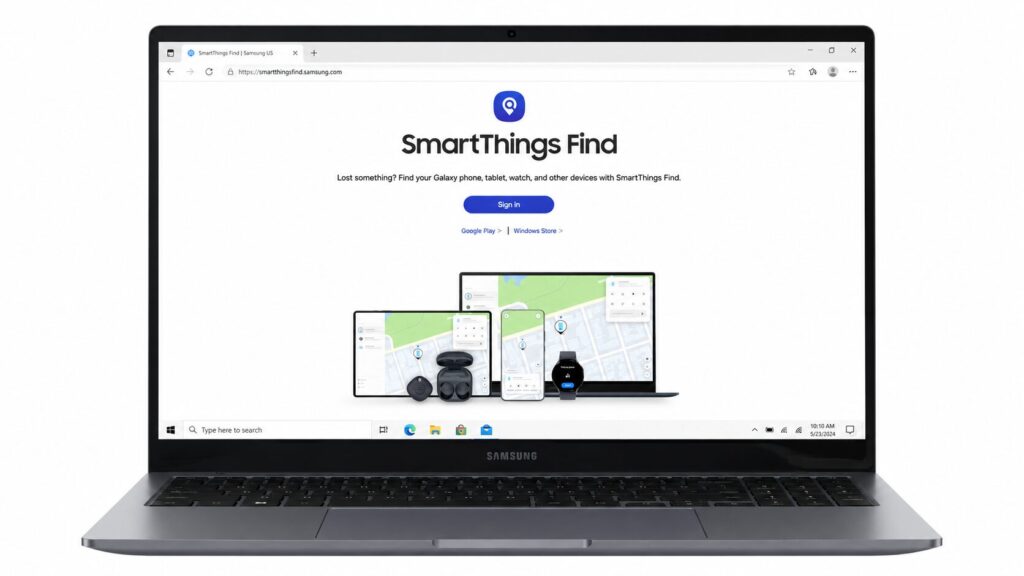
The easiest way to reset the key is through the Find hub
- Open a browser on a computer or another smartphone and go to the official SmartThings Find website.
- Sign in using the same Samsung account that is linked to the locked phone.
- In the left menu, select your locked device from the list.
- On the right panel, find and click the “Unlock” option.
- Enter your Samsung account password again to confirm the action.
- Wait for the system to remotely remove the pattern lock. Your phone will be unlocked, and all data will remain intact.
If even one of these strict requirements is not met (for example, the phone is disconnected from the internet or you don’t remember your Samsung account credentials), this method will not work. In that case, you’ll have to proceed to factory reset methods with data loss.
Method 2: Resetting the pattern lock via Recovery Mode (with data loss)
If the official Samsung service doesn’t work for you, the only basic way to remove the pattern lock is to perform a Hard Reset using the phone’s hardware buttons.
Warning. This process will completely and irreversibly delete all your user data, including photos, messages, and apps.
How to factory reset via Recovery Mode:
- Completely turn off your Samsung smartphone.
- Simultaneously press and hold the Volume Up button and the Power button. If your model has a separate Bixby button, hold Volume Up + Bixby + Power. On older Samsung models with a physical Home button, use the combination Volume Up + Home + Power.
- Release the buttons when the Samsung logo appears on the screen and the device enters the Recovery Mode system menu.
- Use the volume buttons to navigate up and down through the menu. Select “Wipe data/factory reset”. Press the Power button to confirm your selection.
- On the next screen, select “Factory data reset” and confirm the action.
- After the wipe is complete, a corresponding message will appear at the bottom of the screen. Select “Reboot system now” to restart the phone.
Critically important warning. After such a reboot, your phone won’t simply turn on. The built-in Google protection (FRP) will activate. The smartphone will require you to connect to Wi-Fi and enter the login and password of the Google account that was linked to the device before the reset.
Caution: Google Lock (FRP) after manual reset
Many users who successfully perform a manual reset via Recovery Mode encounter an unexpected and unpleasant problem — the phone locks up and asks for the old Google account. What is this and why does it happen?
This is FRP (Factory Reset Protection) — an official protection system from Google, created to prevent the use of stolen phones. It activates automatically if the system detects that the factory reset was performed not through the phone’s standard menu but forcibly, using hardware buttons.
If you forgot not only the pattern lock but also the password to your Google account, the situation becomes a deadlock: your phone turns into a useless “brick”. Bypassing this verification screen without the correct credentials is not straightforward, and basic manual methods are powerless here. For legitimate device owners caught in this FRP trap, or for those who find the button combinations in Recovery Mode too complicated, the solution is to use specialized desktop software.
Method 3: How to unlock Samsung using DroidKit (step-by-step process)
If the manual button reset seems too confusing to you, or if after the reset you’re stuck on the Google lock screen, a practical solution is the DroidKit program.
DroidKit is a comprehensive set of modular tools for PC and Mac, designed to help legitimate Android device owners. Instead of guessing button combinations and risking mistakes, you simply follow clear on-screen prompts on your computer.
The Screen Unlocker module will safely guide you through the process of removing the pattern lock. It’s important to understand that, just like with a manual reset, data will be deleted. However, the process itself is significantly more understandable for the average user. If Google protection activates after wiping the smartphone, DroidKit has a special FRP Bypass module — it will serve as a reliable safety net and help bypass the Google lock on supported Samsung devices.
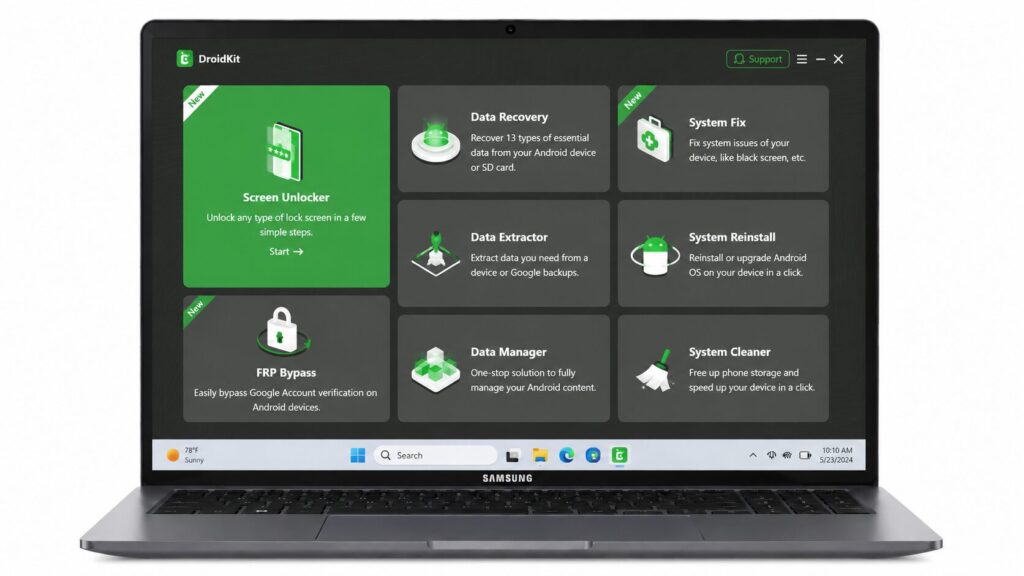
FRP Bypass will help bypass the lock
Basic steps for using Screen Unlocker:
- Install and launch DroidKit on your computer (PC or Mac).
- In the main menu, select the Screen Unlocker module.
- Connect your locked Samsung phone to the computer.