Can you unlock an iPhone if you forgot the passcode without losing data? Short answer: bypassing a forgotten screen passcode without data loss is impossible. Any working method will require a complete factory reset of the device. Don’t trust instructions that promise to preserve files while removing the screen lock.
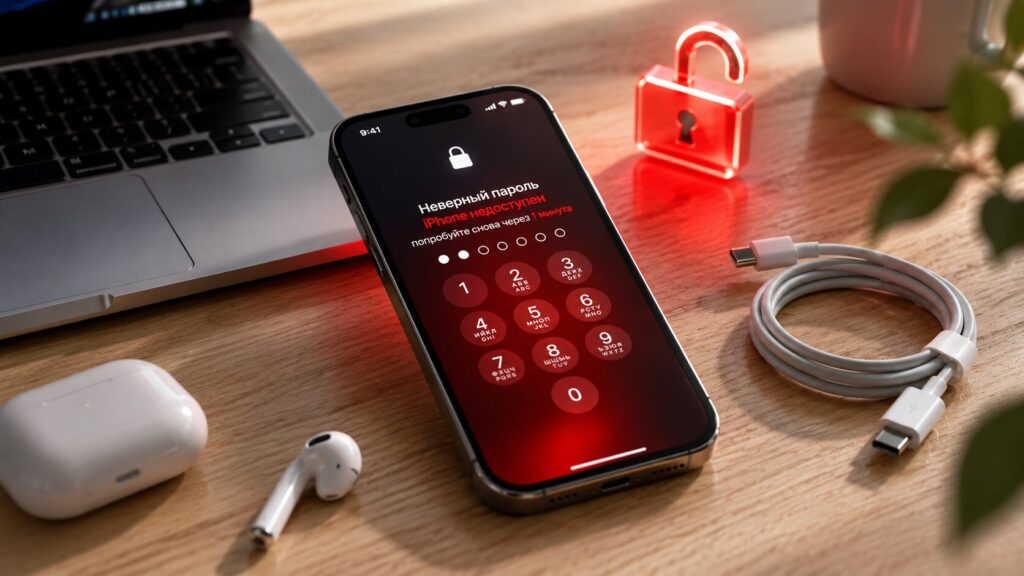
There are several ways to remove the lock from an iPhone
When you enter the wrong passcode too many times, the screen displays the message “iPhone Unavailable” or “Security Lockout”. This is Apple’s protective mechanism. The only way out of this situation is to erase the device.
What will happen to your data?
- All photos, contacts, and apps will be deleted.
- You can restore personal information only if you have a previously created backup in iCloud, Finder, or iTunes.
- After the reset, you will still need your Apple ID password to get past the Activation Lock screen.
Losing data is unpleasant, but understanding this fact from the start will save you time and frustration. If you’re ready to regain access to your smartphone, let’s check what you’ll need.
Checklist: What You Need to Unlock the Screen
Before starting the passcode reset, make sure you have everything you need at hand. This will help avoid situations where the process gets interrupted halfway through due to a missing cable or forgotten account password.
Your preparation checklist:
- Apple ID credentials. You must know the login and password for the Apple ID account currently linked to the locked iPhone. Without them, you won’t be able to use the device after the reset.
- Computer (Mac or PC) and cable. Required if you plan to use iTunes, Finder, or third-party desktop programs (if the method without a PC doesn’t work for you).
- Wi-Fi or cellular network connection. A mandatory requirement for using the built-in “Erase iPhone” feature without a computer.
- Legal ownership. The device must belong to you, or you must have the owner’s permission to perform the reset.
Which Reset Method Should You Choose? (With and Without a Computer)
The choice of method depends on which version of iOS is installed on your smartphone, whether you have access to a computer, and whether the locked iPhone is connected to the internet.
| Recovery Method | What’s Required | Difficulty Level | Best Suited For |
|---|---|---|---|
| Option 1: “Erase iPhone” feature (from the lock screen) | iOS 15.2+, Wi-Fi/LTE, Apple ID password | Easy | Ideal if you don’t have a PC, the phone is connected to a network, and you remember your Apple ID password. |
| Option 2: Remotely via iCloud / Find My | Access to iCloud.com, “Find My iPhone” enabled | Medium | For those who want to initiate the reset from another device (tablet or someone else’s phone). |
| Option 3: iTunes / Finder (Recovery Mode) | Computer (Mac/PC), cable, knowledge of button combinations | High | Standard Apple method if the iPhone has no Wi-Fi or is completely turned off. |
| Option 4: AnyUnlock desktop program | Computer (Mac/PC), cable | Easy (with visual guidance) | Best alternative if iTunes freezes, doesn’t detect the iPhone, or you can’t press the right button combinations. |
Method 1: “Erase iPhone” Feature (for iOS 15.2 and Later, Without a PC)
If your device is running iOS 15.2 or later and is connected to a cellular network or Wi-Fi, this is the simplest official method. You won’t need a computer — just your Apple ID password.
How to reset the passcode without a computer:
- Keep entering the wrong passcode on the lock screen until the “iPhone Unavailable” or “Security Lockout” screen appears.
- At the bottom of the screen, find and tap the “Erase iPhone” option.
- The system will ask you to confirm the action. Tap “Erase iPhone” again.
- Enter your Apple ID password to sign out of the account on this device.
- Wait while the iPhone deletes all data and restarts.
Method limitation. If the iPhone is not connected to the internet (for example, Wi-Fi is turned off) or you have an older version of iOS installed, the “Erase iPhone” button simply won’t appear. In that case, proceed to the methods that use a computer.
Method 2: Reset via iTunes and Recovery Mode
If the device is not connected to a network, Apple’s official guide prescribes using a computer with iTunes installed (for Windows and older Macs) or Finder (for modern Macs). The process requires putting the phone into Recovery Mode by pressing the correct button combination.
Step 1. Put iPhone into Recovery Mode and Connect to PC
First, completely turn off the iPhone. Then, to put the iPhone into Recovery Mode, use the button combination for your model while holding the button during cable connection to the computer:
- iPhone 8, X, 11, 12, 13, 14, 15, 16: press and hold the side power button.
- iPhone 7 and 7 Plus: press and hold the volume down button.
- iPhone 6s and older: press and hold the Home button. Keep holding the button until the computer and cable icon appears on the iPhone screen (Recovery Mode).
Step 2. Perform the Reset via iTunes/Finder
- Open iTunes or Finder on your computer.
- A window will appear on the computer screen with a message about a problem with the device. Select “Restore.”
- Confirm the action. The program will begin downloading the latest version of iOS.
Common issues. This process often causes difficulties. If the firmware download takes longer than 15 minutes, the iPhone will automatically exit Recovery Mode, and you’ll have to start the button procedure all over again. Additionally, older versions of iTunes may freeze or display driver errors, failing to recognize the connected phone.
Method 3: Screen Unlock via AnyUnlock (If iTunes Gives an Error)
If iTunes doesn’t recognize your phone, constantly interrupts the download, throws unknown errors, or you simply find it difficult to figure out the button combinations for entering Recovery Mode, the desktop program AnyUnlock is an excellent alternative.
AnyUnlock handles the entire complex process for you. It’s a modular toolkit for managing iOS passwords that replaces the confusing manual iTunes process with a step-by-step visual interface. The program is designed for working with devices you legally own (data will still be deleted, as required by Apple’s security architecture).
How to reset the passcode using AnyUnlock:
- Download and launch AnyUnlock on your Mac or Windows PC. In the main menu, select the “Unlock Screen Passcode” module.
- Connect your locked iPhone to the computer using a cable. If the program doesn’t detect the device automatically, it will show clear graphical instructions on how to put your specific model into Recovery Mode.
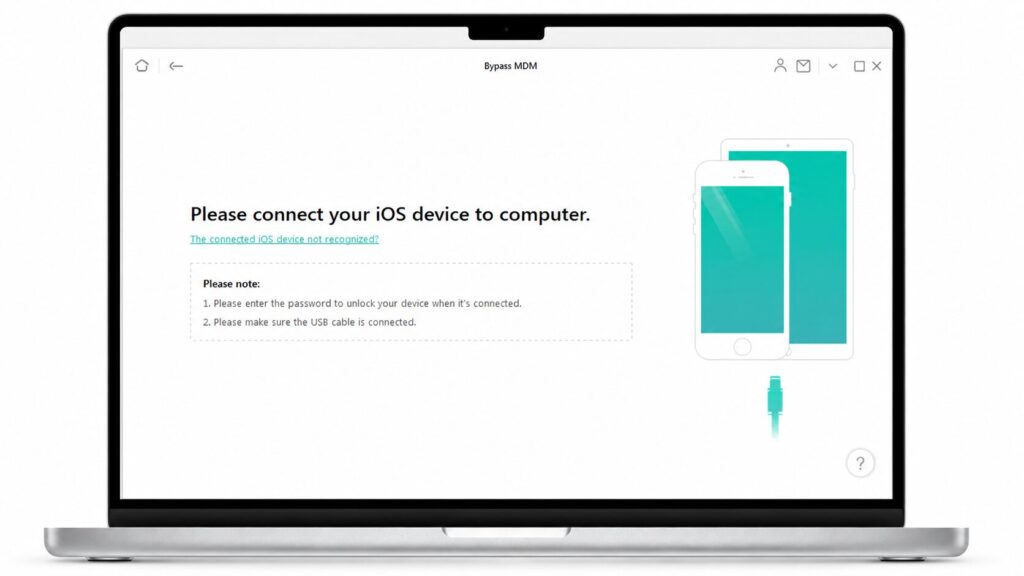
You can remove the screen lock. The key is knowing how and with what
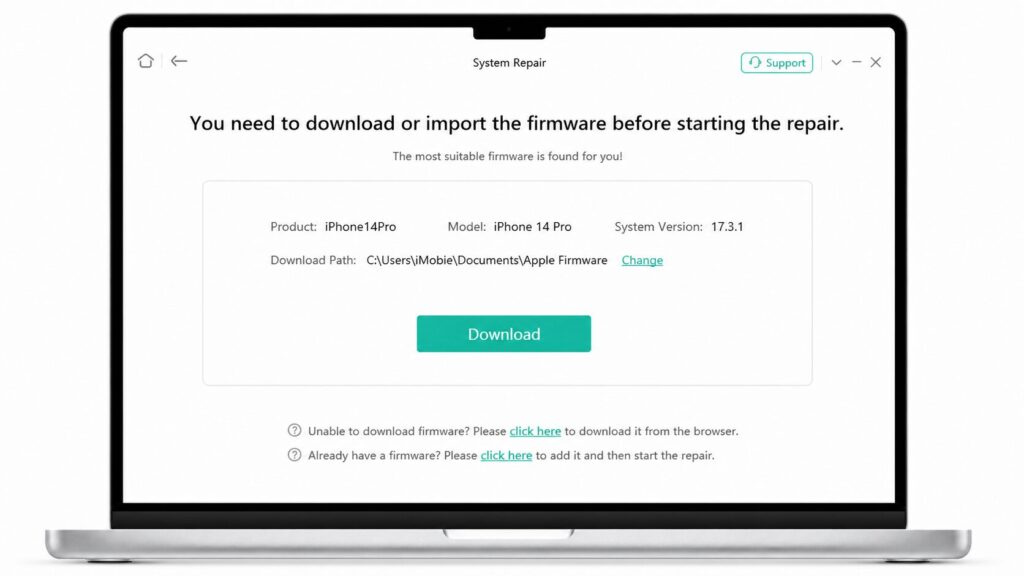
- The program will automatically select the appropriate iOS firmware version for your device. Click “Download,” and the download will complete in one click without interruptions.