Sometimes a phone shows no signs of life at all. You press the button: black screen, zero response. There are several fundamentally different reasons why an Android phone won’t turn on. I’ll go through them in order: where to find the power button, how to properly turn on a phone, and what to do if it still doesn’t respond.
Learning to turn on a phone and troubleshoot problems
Where Is the Phone’s Power Button Located
On most Android smartphones, the power button is located on the right side edge. This applies to Samsung, Xiaomi, REDMI, POCO, vivo, realme, and most other brands.
There are exceptions:
- On some older Sony and Nokia models, the button is on the top edge;
- On some budget smartphones, the power button is combined with a fingerprint scanner and is located on the side, slightly below the middle of the body.
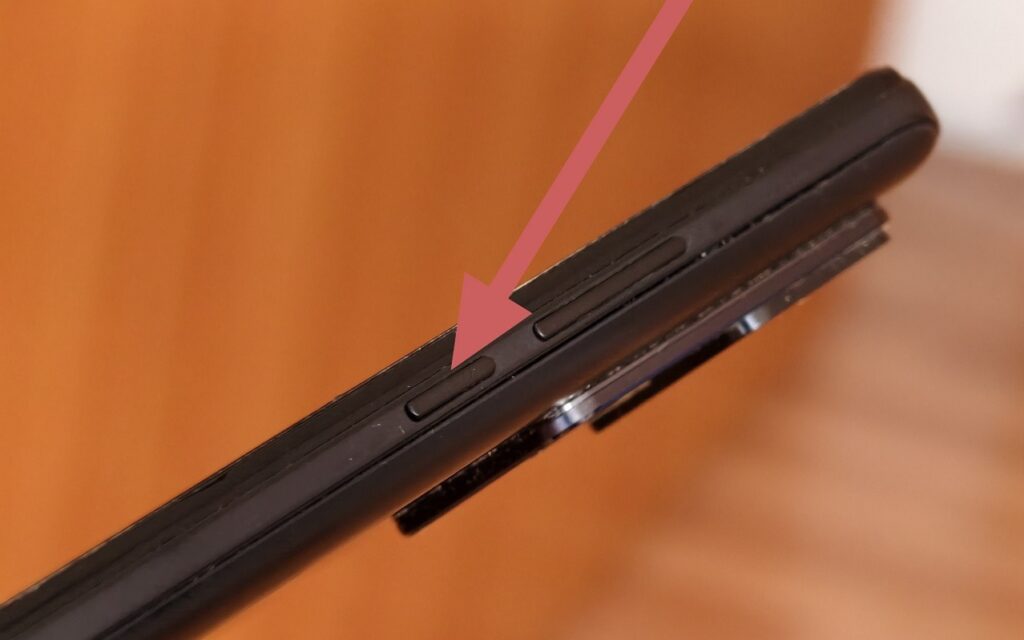
That very power button
Beginners often confuse the power button with the volume buttons: they’re located next to each other on the same edge. The power button is usually a single button located slightly above the middle, while the volume buttons (a pair of buttons below or above it).
How to Turn On Android
Once you’ve found the right button, turning on Android looks like this:
- Find the power button on the right side edge.
- Press and hold it for 3-5 seconds.
- Wait for the brand or system logo to appear on screen.
- Release the button and wait for the full boot-up.
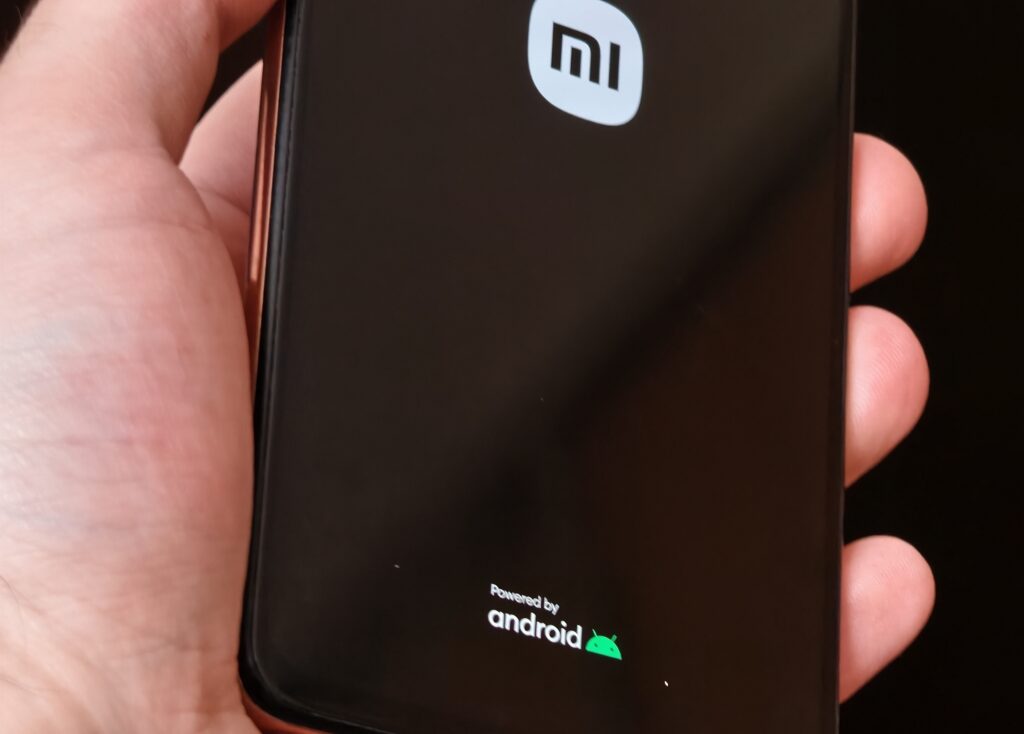
It’s important to wait for the startup animation
After the logo appears, the phone boots up on its own (this usually takes from 30 seconds to two minutes depending on the model and installed Android version). You don’t need to touch any buttons during the boot process. If the logo appeared but the phone is stuck on it and won’t load further — skip to the last section of this article.
Why the Phone Won’t Turn On
If pressing and holding the button produces no result, there could be several reasons:
- Dead battery. The most common cause. If the battery is completely drained, the phone doesn’t respond to the power button even when connected to a charger (you need to wait a few minutes).
- Software crash. The system froze, and the phone doesn’t respond to anything. It looks turned off from the outside, even though it’s technically on.
- Faulty power button. The power button doesn’t respond due to mechanical damage (especially relevant if the phone was dropped and won’t turn on).
- Damage from a drop or water exposure. Internal components can fail from impact or contact with liquid.
- Crash after an update or factory reset. Sometimes firmware gets corrupted during an update or reset.
- Fastboot or recovery mode. If the phone entered a service mode, it won’t boot normally: the screen shows text or a menu instead of the logo.
Most of the listed causes can be resolved on your own without visiting a service center. The exception is physical damage from drops or water exposure: professional diagnostics are necessary in these cases.
What to Do If Your Phone Won’t Turn On
The solution depends on the cause. I’ll go through them from simple to complex. If the phone died and won’t turn on, it’s not a malfunction — it just needs time:
- Connect the phone to a charger using the original cable.
- Wait 10-15 minutes. With a deep discharge, the phone won’t respond immediately (this is normal).
- After a battery or charging icon appears on screen, press and hold the power button for 3-5 seconds.
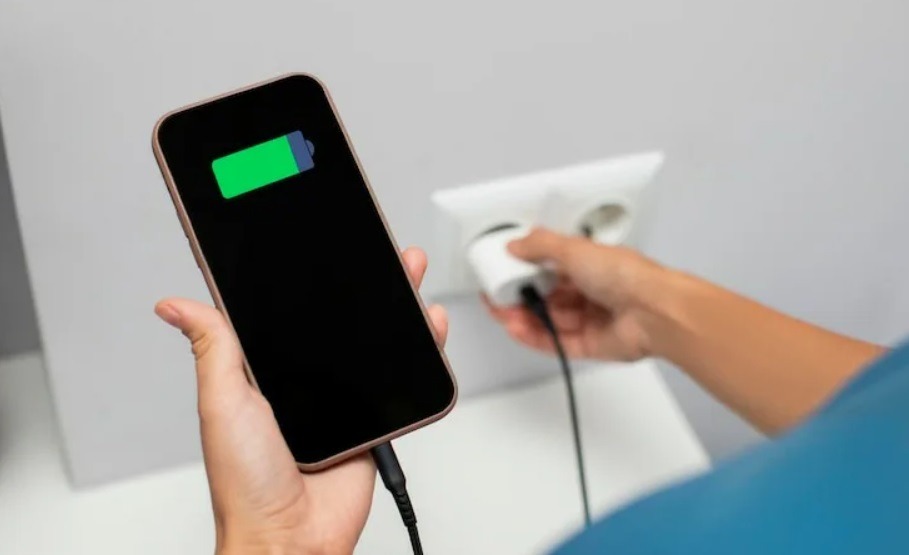
Your smartphone may need charging. Image: ru.freepik.com
Important: if the phone won’t turn on while charging even after 30 minutes, try a different cable or charger. The problem is often with them, not the phone itself.
If the Android phone turned off and won’t turn on or doesn’t respond to anything at all:
- Press and hold the power button and volume down button simultaneously.
- Hold both buttons for 10-15 seconds.
- Wait for a vibration or the logo to appear, then release the buttons.
- The phone will force restart.
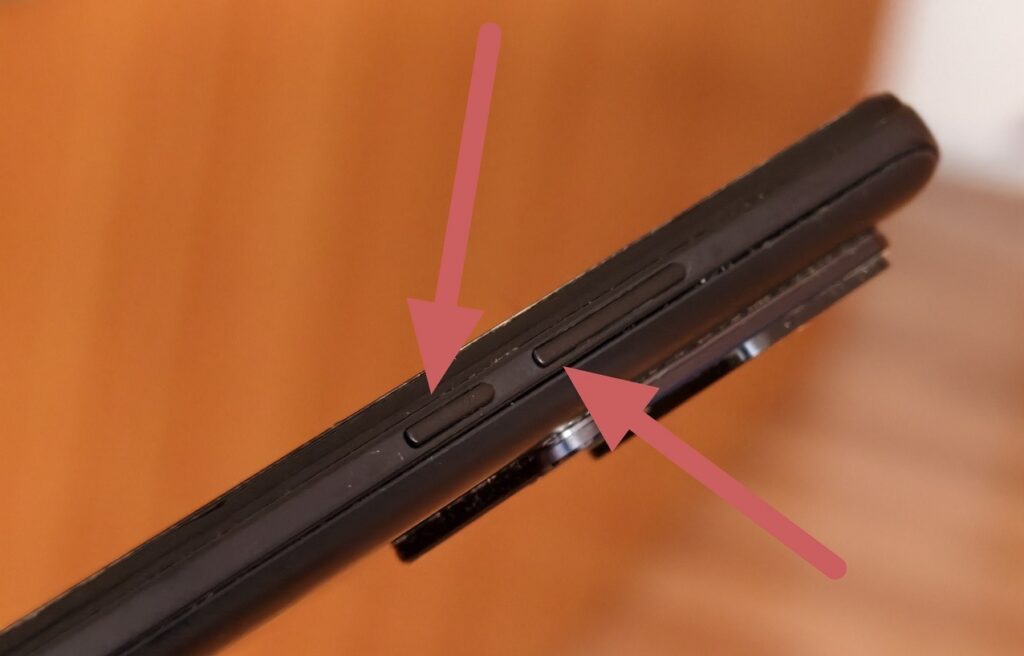
Sometimes you need to hold two buttons
On some older Samsung models, a force restart is performed by holding only the power button for 10-20 seconds.
If the screen displays a text menu or a Fastboot message, press and hold the power button until the phone restarts, or use the volume buttons to navigate the menu and select “Reboot”. If the power button doesn’t work mechanically, you can still try to turn the phone on:
- Connect the phone to a charger. Some models turn on automatically when power is supplied.
- Try double-tapping the screen (on some smartphones, this feature activates the display).
- Connect the phone to a computer via USB (sometimes this triggers the boot process).
If none of these methods helped and the phone still won’t turn on even after charging and force restarting — the problem is most likely hardware-related. In this case, there’s only one option: take it to a service center.