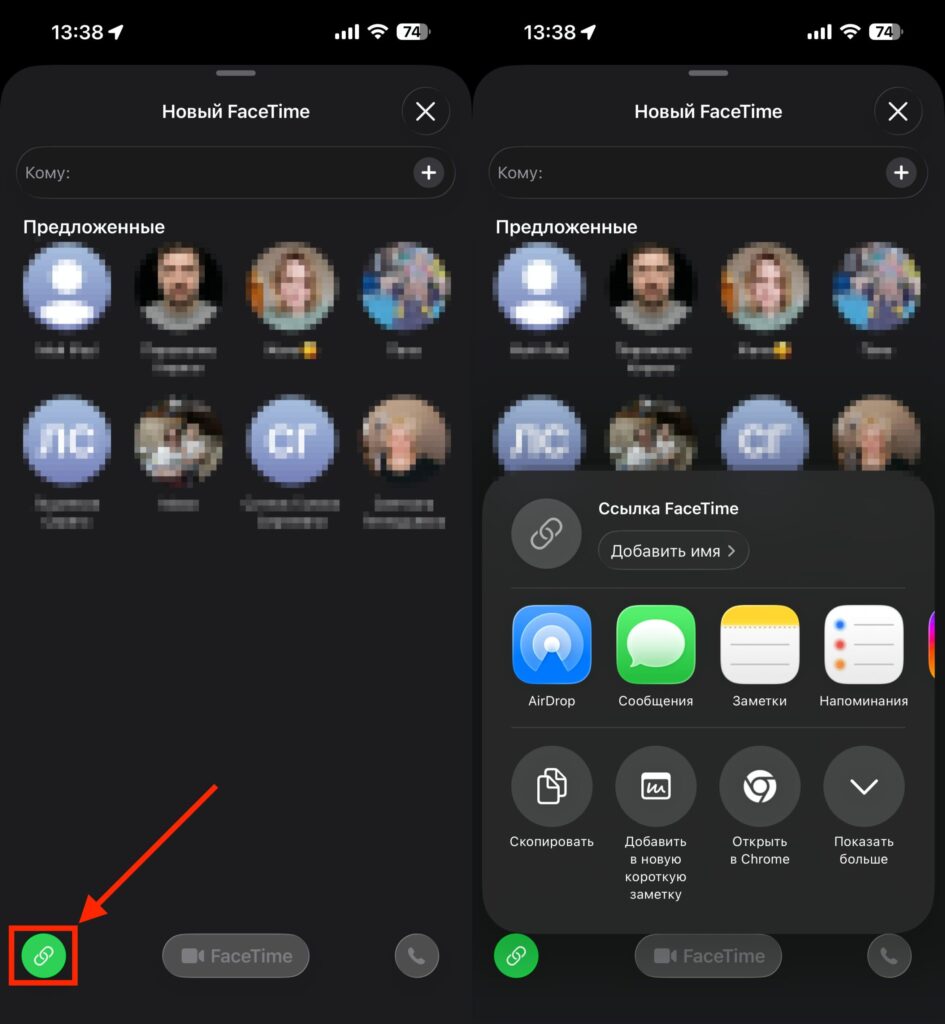
Most iPhone owners use FaceTime for regular calls, not realizing that the app has long been able to transfer conversations between devices, remotely control someone else’s iPhone, and add Android users to a call. Many people find that FaceTime doesn’t work in their region — and don’t even suspect how many features they’re missing out on. Below are seven features that make FaceTime significantly more useful, along with instructions on how to enable them.
FaceTime is much more than just a video calling app
Transfer a FaceTime Call Between iPhone, iPad, and Mac
Apple connects its devices through a set of Continuity features (which link iPhone, iPad, Mac, and Apple TV into a unified system). One of them is Handoff, and it works with FaceTime: you can seamlessly transfer a call from one device to another without dropping the connection.
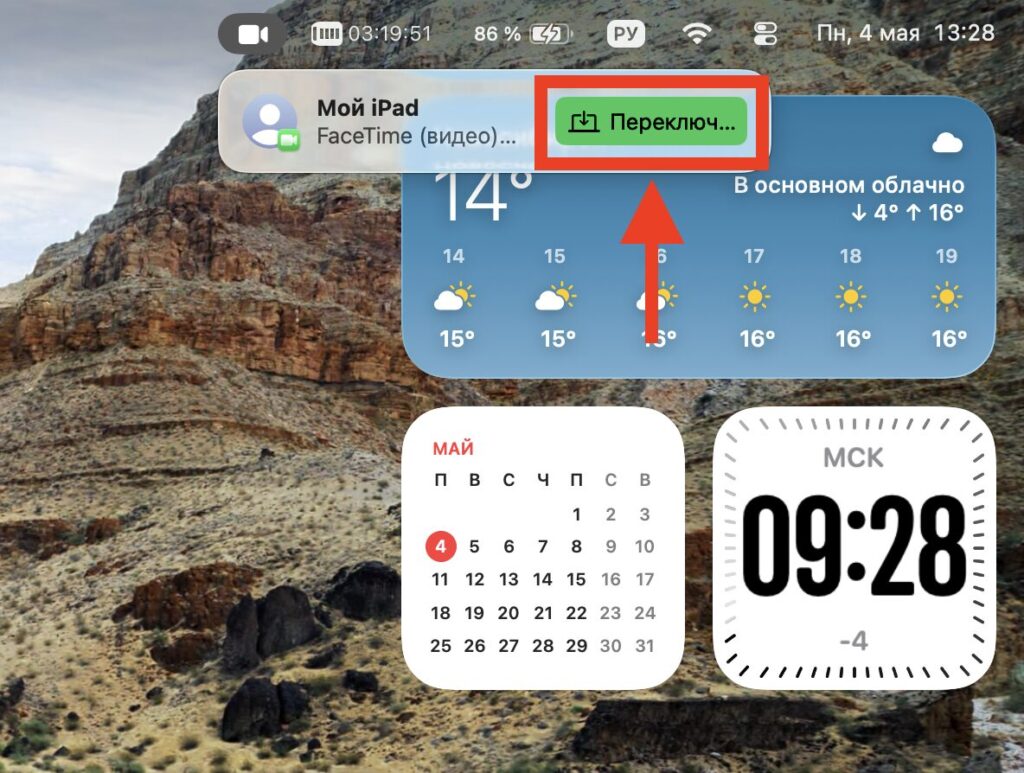
You can switch calls between devices with one button
The scenario is simple: the conversation is dragging on, you’re tired of holding the iPhone — transfer the call to your MacBook. Or, conversely, you’re leaving the house during a group call on Apple TV — take it with you on your iPhone.
To make this work, open Settings, General, AirPlay & Continuity, and make sure the Handoff toggle is on. During a call, a notification will appear on nearby devices — tapping it will transfer the conversation to the selected screen.
Remotely Control Someone Else’s iPhone via FaceTime
Screen sharing in FaceTime isn’t just for tech-supporting your parents. It’s also convenient for showing a presentation, reviewing vacation photos together, or explaining to a colleague where a certain button is in the interface.
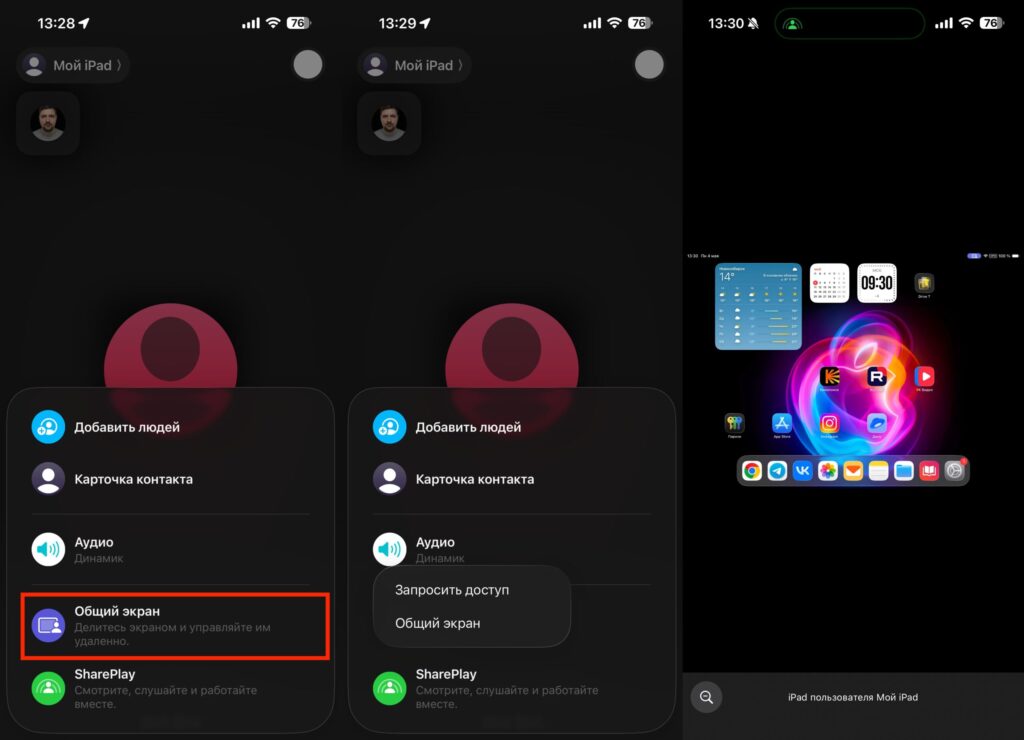
You can share your screen with your conversation partner and demonstrate things on it
During a call, tap the screen, press the ellipsis (three dots), and select “Share Screen.” You can draw on top of the broadcast with your finger — your conversation partner will see a hint of where to look. It’s faster than dictating coordinates by voice.
If you’re the family member responsible for “fix my phone,” this feature will save you hours. FaceTime shows the other person’s screen and even lets you control it — meaning you don’t have to explain to your parents where to tap; you can do it yourself.
During a call, tap the screen to bring up the controls, press the ellipsis, and select “Share Screen.” Here’s the most interesting part: there’s a separate button for requesting remote control. Once the other person confirms the request, you can tap and scroll their iPhone right from your own screen.
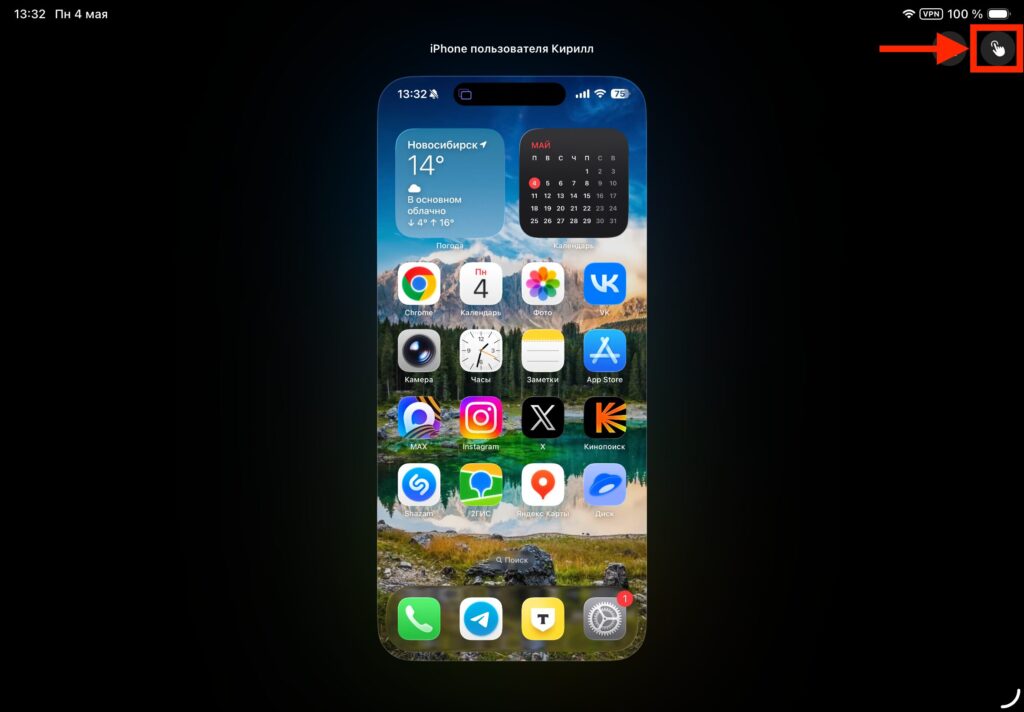
One button lets you remotely control the other person’s device. With their consent, of course
There’s a caveat: this is access to someone else’s device, so the feature only works with mutual consent and requires confirmation each time.
How to Watch Movies and Listen to Music Together via SharePlay
FaceTime has long supported group calls, but something more interesting is SharePlay. This is a mode where call participants watch movies and listen to music in sync: when one person pauses, it pauses for everyone.
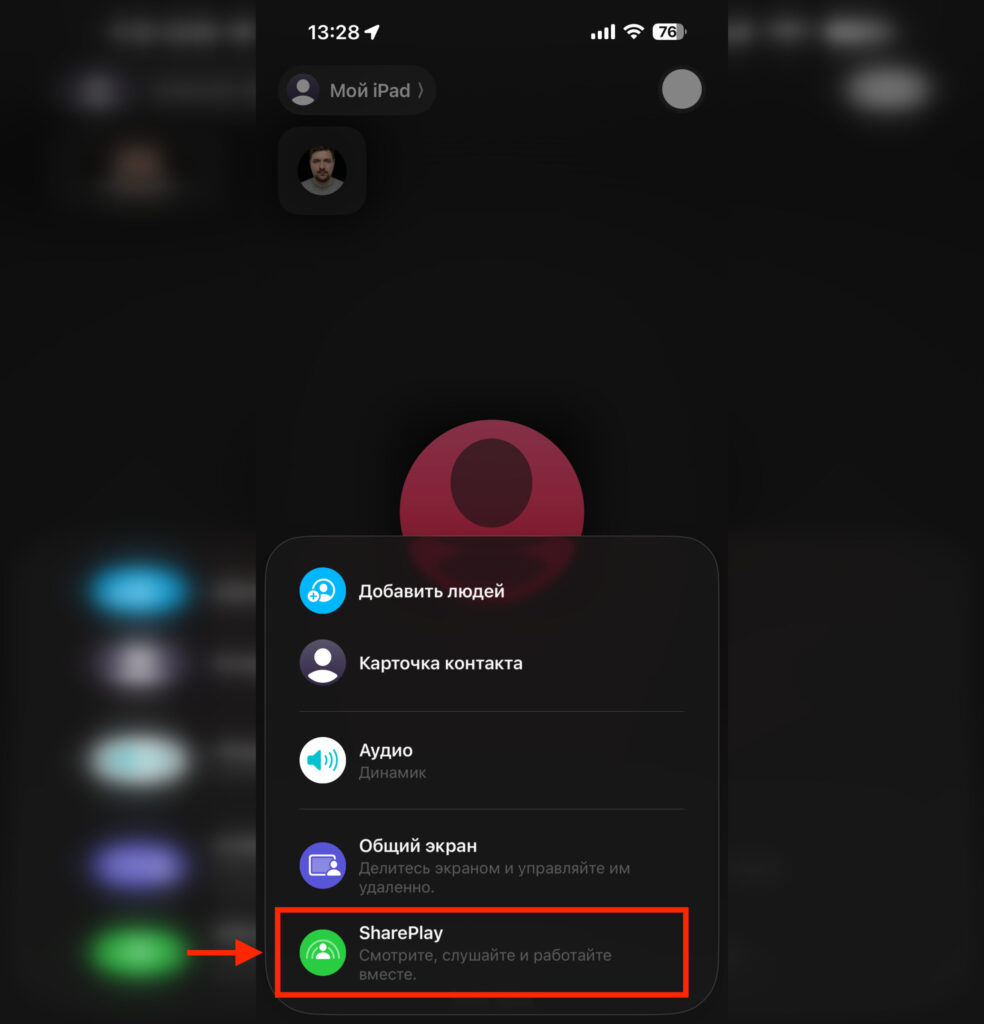
Through SharePlay you can watch movies together and even play games
It works with supported services — for example, Apple TV and Apple Music. It’s useful when you want to discuss a TV series episode with a friend from another city without counting “three-two-one-play” out loud.
How to Improve Picture and Sound Quality in FaceTime
FaceTime has gained a set of tools usually associated with professional video conferencing. They help if you’re making work calls or simply don’t want to show the mess in your room.
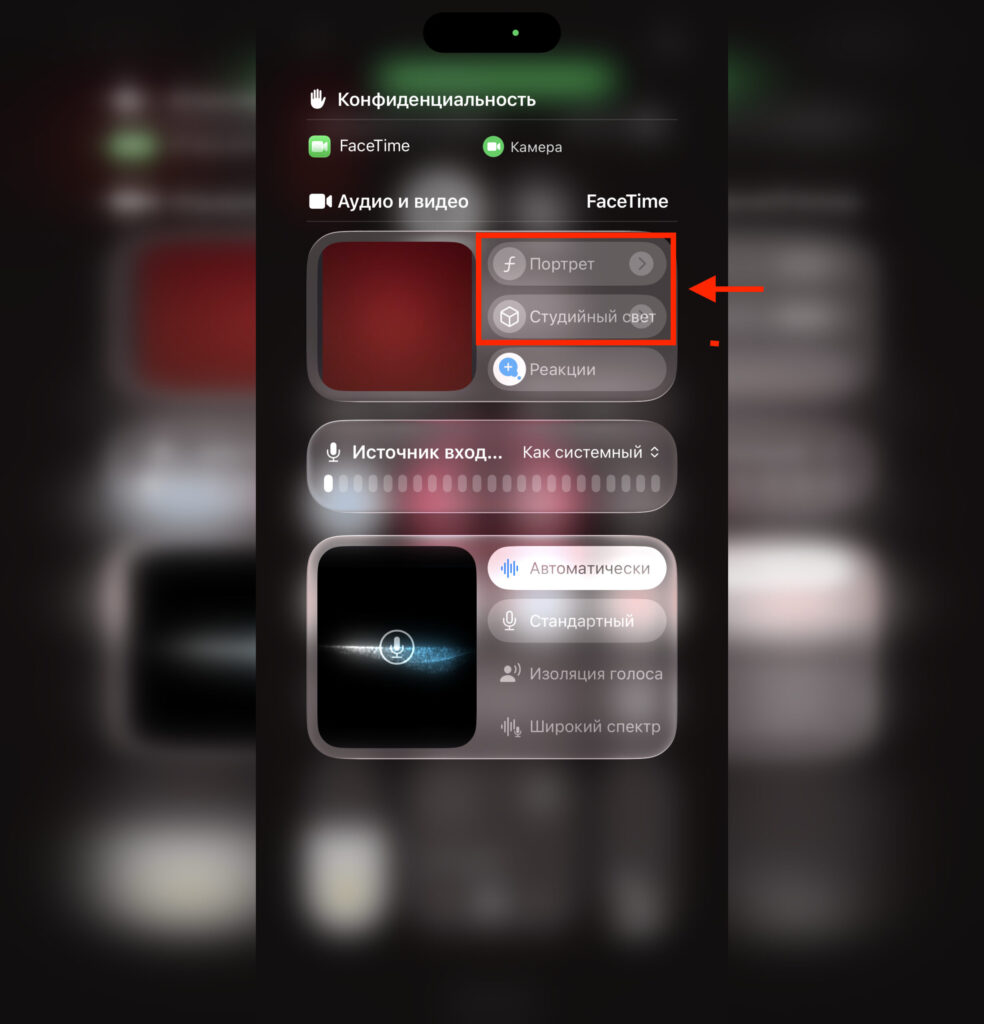
Here are the settings that can improve the picture
- Portrait Mode blurs the background behind you — your face stays in focus.
- Studio Light dims the background and illuminates your face, as if you’re under a spotlight.
- Voice Isolation cuts out background noise — keyboard, air conditioner, nearby conversations.
- Virtual backgrounds on Mac replace what’s behind you with a neutral image.
These options are enabled from Control Center during a call or from the video menu in the menu bar on Mac. No third-party software is required.
FaceTime Calls to Android and Windows
For a long time, FaceTime was considered a closed ecosystem “only for Apple users.” That’s no longer the case: you can create a link to a call and send it to an Android or Windows user — they’ll join through a browser, without installing any apps and without an Apple account.