iCloud Shared Albums are a convenient feature. You go on a weekend trip with friends, dump all the shots in one place, and nobody has to send anything through messengers. But there’s a catch that few people think about: photos and videos in a shared album don’t belong to you. If the creator deletes the album, your photos are gone. Let’s figure out how to transfer other people’s shots to your own gallery on iPhone before they disappear.
Saving photos from shared albums
Deleting an iCloud Shared Album: What Happens to the Photos
The main catch is that you can see other people’s photos, but they aren’t stored in your media library. Until you hit “Save,” it’s just a window into someone else’s storage. It looks like your album, sits in the Photos app right next to the rest, but in reality, you’re a guest.
Once a photo is in your library, it stays with you forever. The author can delete it from the shared album, can wipe the entire album, can even disappear from your life — none of that will affect your saved copy. That’s exactly why you shouldn’t delay the transfer.
There’s a separate category — temporary albums. These links live for exactly 30 days, and they have a timer icon in the upper left corner. After a month, the album simply vanishes, and iOS won’t send any reminders beforehand. If someone shared wedding or office party photos with you this way, consider that you have one month and not a day more.
How to Transfer Photos from a Shared Album to Your iPhone Media Library
The fastest option if you need the entire album. No third-party apps needed — everything is done with built-in tools in a couple of taps. The instructions are written for iOS 27 and iPadOS 27 in beta, so the wording of menu items may slightly differ in the final version.
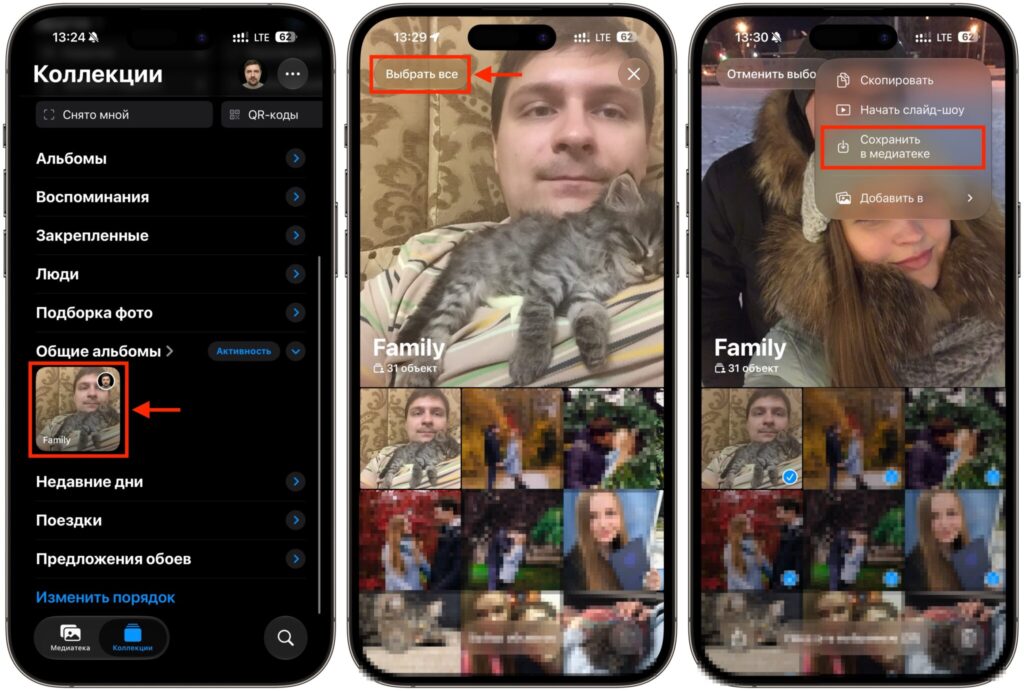
All files can be saved at once
- Open the Photos app on your iPhone.
- Scroll through the “Collections” tab and open the desired shared album.
- Tap “Select” and then tap the “Select All” button.
- Tap the three dots again and in the dropdown menu, tap “Save to Library.”
- Find the saved files in the “Recently Saved” section or in your main library.
The entire album will end up in your gallery at once — no need to check each photo manually. For large albums, the transfer takes just a few seconds as the iPhone simply copies files from the shared storage to yours.
How to Save Individual Photos from an iPhone Shared Album
You don’t always need the entire album. Out of a hundred shots from someone else’s birthday party, you’re probably only interested in the three where you actually look good. There’s no point cluttering your gallery with the rest, especially since they’ll take up space in iCloud.
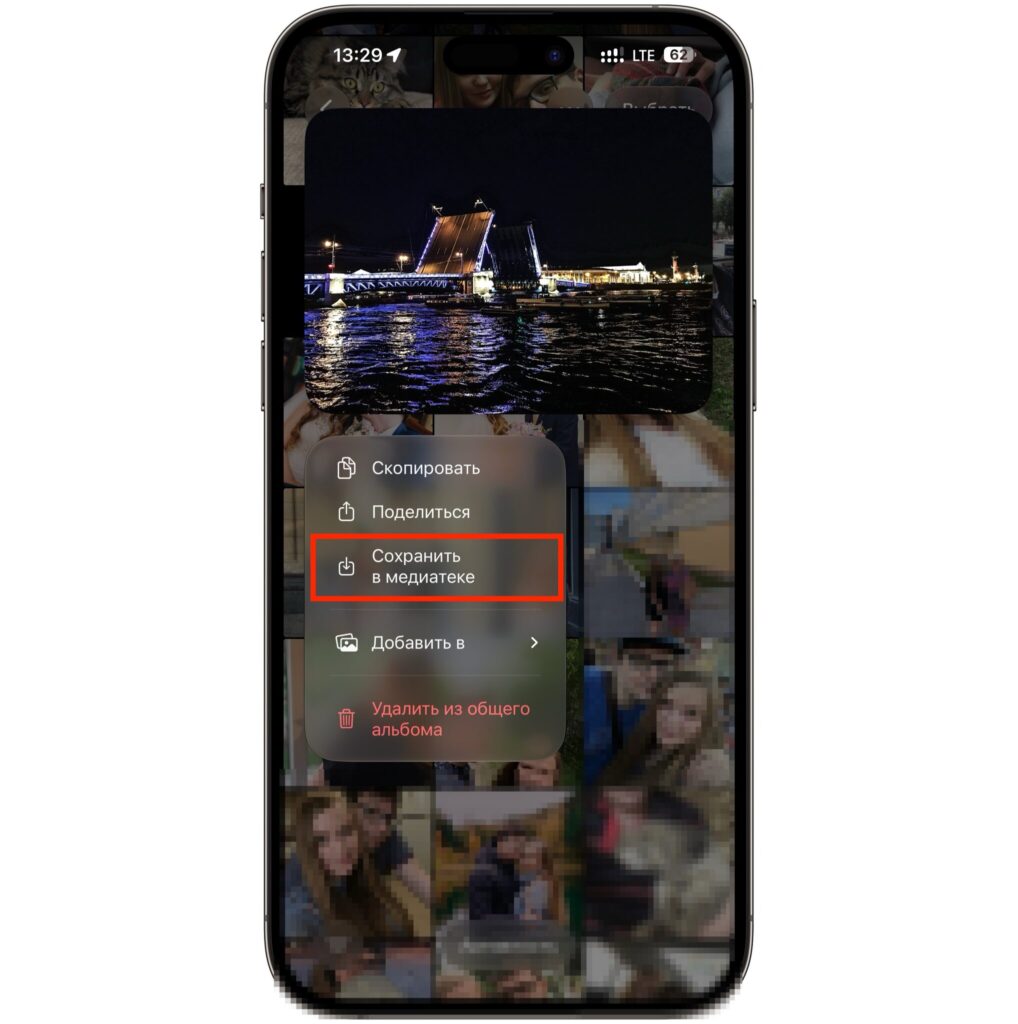
If you only need to save one thing, you can do it through the context menu
Open the shared album, long-press on the desired photo or video, and in the dropdown menu tap “Save to Library.” Or check the files you need using the “Select” button.
How iCloud Shared Albums Differ from Telegram and WhatsApp
iCloud Shared Albums aren’t the only place where you have to manually extract photos. A similar situation exists with messengers. The difference lies in the content’s lifespan.
In a messenger, a photo sits inside a chat and stays there for years until you clean up the conversation yourself. In an iCloud Shared Album, things are different: expiring albums have a hard deadline of 30 days, and a regular album lasts only as long as the owner keeps it. That’s exactly why delaying with shared albums is the most dangerous.
There’s also a second point. From a chat, a photo arrives compressed, while from an iCloud Shared Album you get the file in its original quality, as uploaded by the author. For family snapshots, the difference isn’t visible to the naked eye, but for shots you’ll later print or crop, it’s crucial.
Why Photos from a Shared Album Won’t Save on iPhone
If you’re currently using a beta version of iOS, keep a couple of things in mind. Beta versions break familiar workflows more often than you’d like: sometimes a menu item has moved, sometimes the Photos app crashes in the middle of transferring a large album. If that happens, just repeat the operation — already saved photos won’t be duplicated, and iOS will offer to “Save Remaining.”
Beta versions may have saving issues, but they don’t occur often
A backup before updating is mandatory, especially if your media library contains something that doesn’t exist anywhere else.
The bottom line is simple: if there’s something important in a shared album, transfer it to your media library right away. The method is free, takes a few seconds, and doesn’t require third-party apps. The menu item names are provided for the iOS 27 beta, so the wording on your system may differ slightly — but the logic of the steps will remain the same.