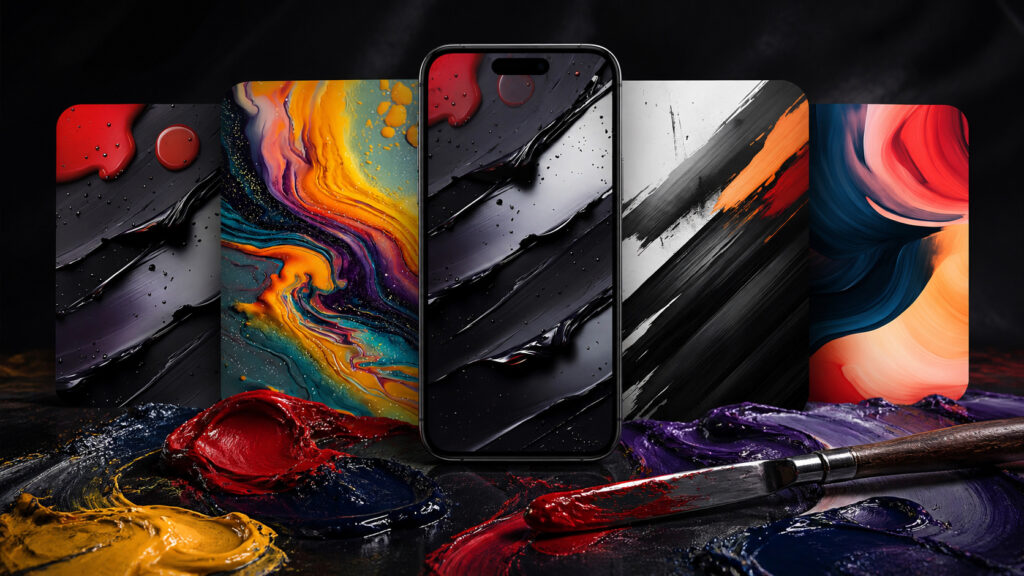
Standard iPhone wallpapers get boring quickly. You set one, enjoy it for a week, and already want something new. If you know the feeling, I’ve got a great collection for you. Five wallpapers in an oil painting style — with thick brushstrokes, paint splashes, and textures you can’t take your eyes off. They’re not just beautiful — they look like someone worked on your screen with a palette knife. Grab them for yourself!
Found cool wallpapers for iPhone
Beautiful iPhone Wallpapers with a Paint Effect
All five wallpapers share one idea — imitating real oil painting. But each image differs in mood and palette. Let’s go through them one by one.
They look gorgeous
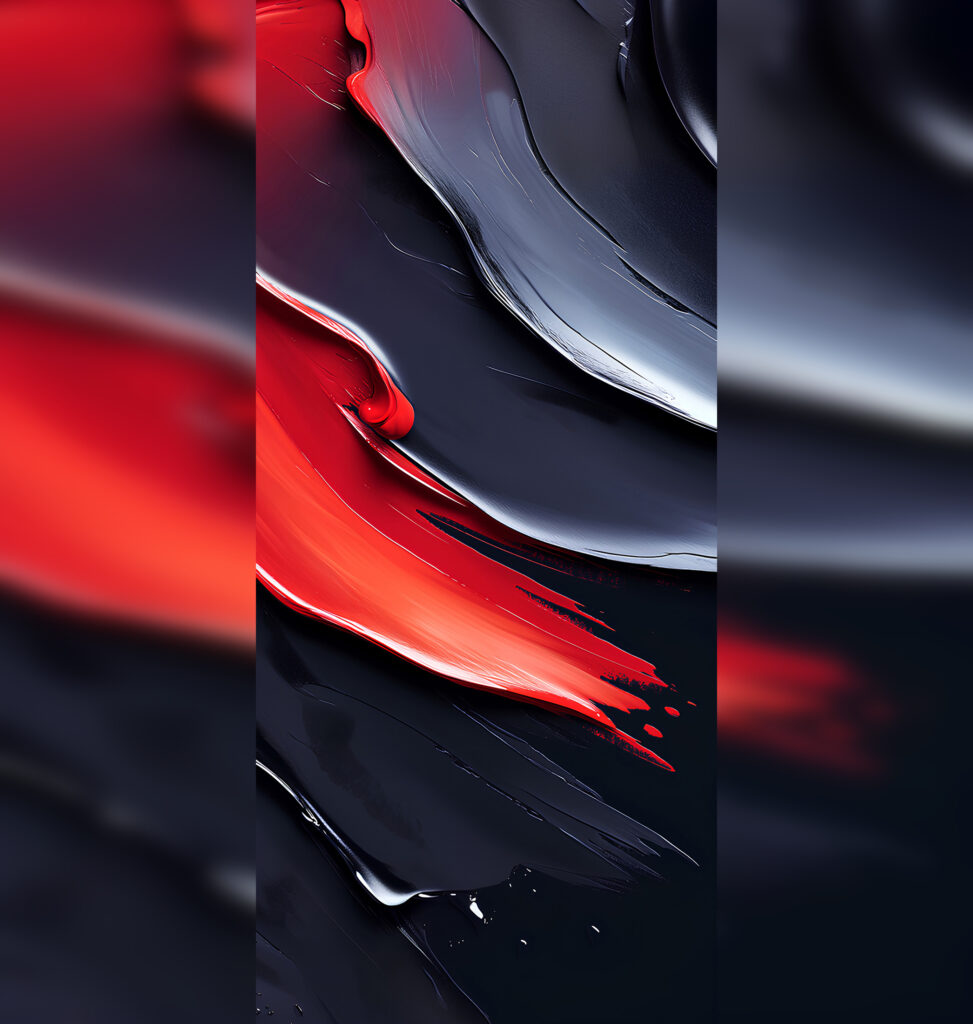
The first wallpaper is a black-and-red classic. A dark background with a bright scarlet brushstroke running across it. The paint looks so three-dimensional that you want to run your finger across the screen to make sure it’s flat. Silvery-gray streaks add depth. A perfect option for a dark theme — the clock and widgets on the lock screen will be perfectly readable.
Perfect for OLED screens
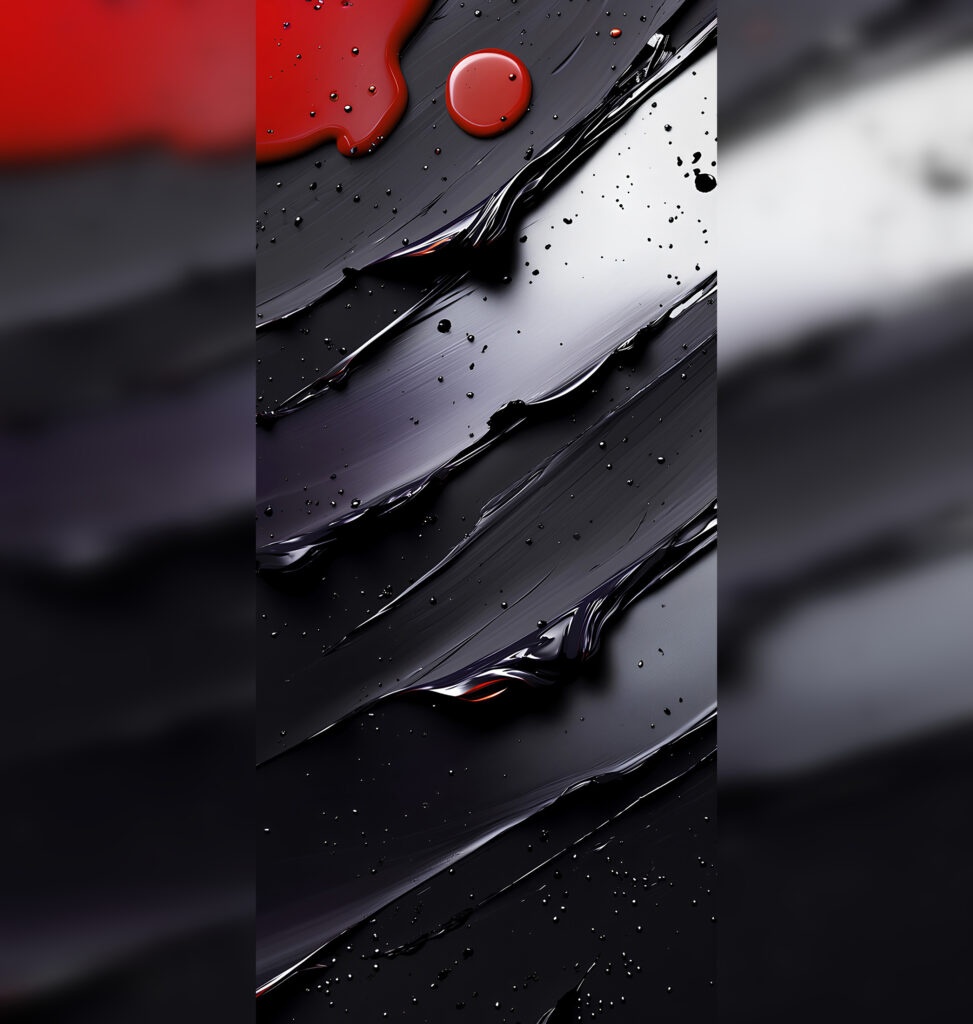
The second option features dark textures with droplets. It’s even moodier here: diagonal strokes of dark gray and black paint, fine splashes, and in the upper part — a red spot and a neat round drop. It’s reminiscent of rain on black asphalt. It looks minimalistic and refined, perfect for those who don’t like bright screens. I’d set this one for nighttime — it doesn’t strain the eyes but still looks stylish.
When you want some lighter shades
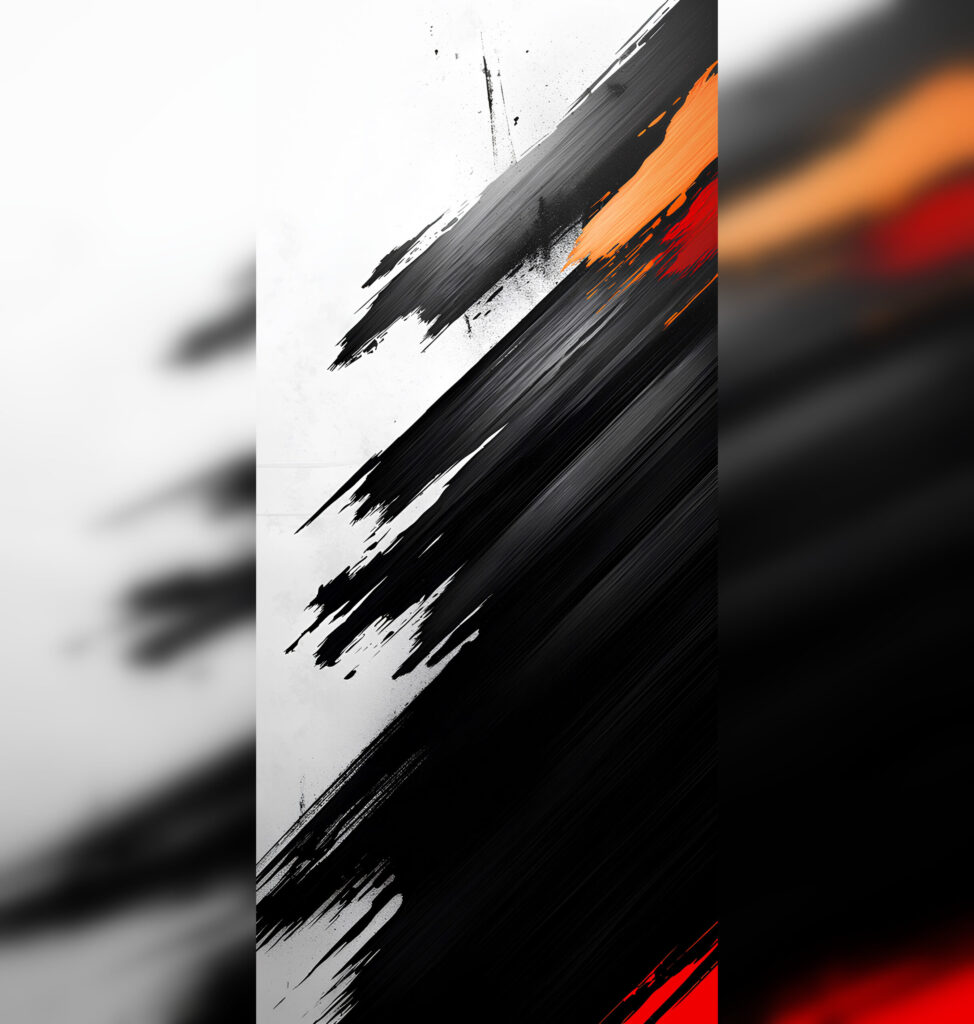
The third wallpaper features contrasting strokes on a white background. A white background cut by a powerful diagonal slash of black paint with touches of orange and red. This is the most dynamic option in the collection. The wallpaper resembles the work of a street artist — energetic, sharp, full of character. On OLED displays, the black areas will be absolutely black, and the white areas — maximally bright. The contrast will be impressive.
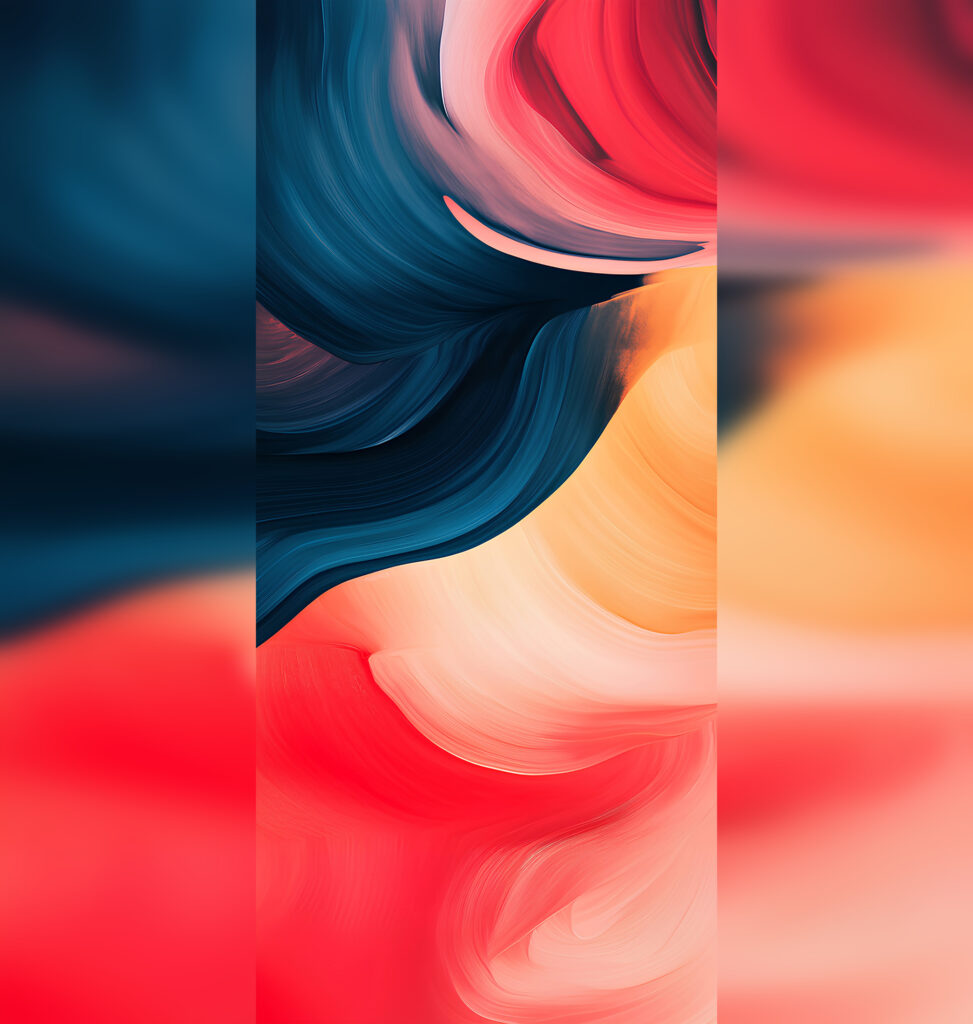
This is a more vibrant composition
The fourth wallpaper is a true painterly whirlwind. Smooth waves of dark blue, coral, pink, and golden orange. No sharp boundaries — the colors flow into each other like on Impressionist canvases. This wallpaper looks more elegant than the rest and is perfect for a light lock screen. It also pairs beautifully with stylish lock screen widgets.
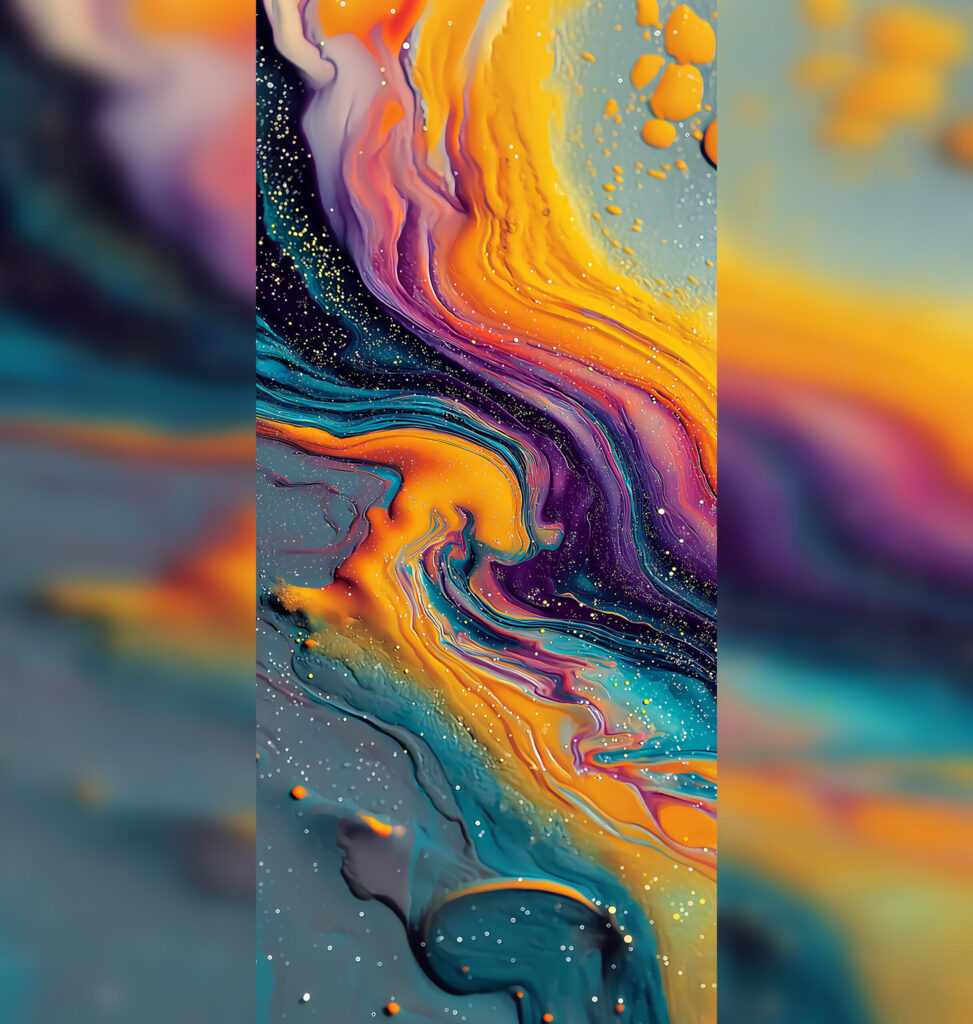
This one is my favorite
The fifth image is the brightest and most vibrant in the collection. Liquid streams of orange, turquoise, purple, and yellow blend into a true cosmic whirlpool. Tiny glitter particles and drops create an effect of scattered stars. If you want your iPhone to boost your mood every time you unlock it — this is your pick.
Download wallpapers for iPhone
How to Set Wallpapers on the iPhone Lock Screen
Saving and setting any of these wallpapers takes just a couple of minutes. First, save the image you like to the Photos app. Then open “Settings” — “Wallpaper” and tap “Add New Wallpaper.” Select the saved image from your gallery. Your iPhone will offer to adjust the scale — just move the image around so that the most interesting part is centered on the screen. After that, tap “Add” and choose where to apply the wallpaper: the lock screen, the home screen, or both at once.
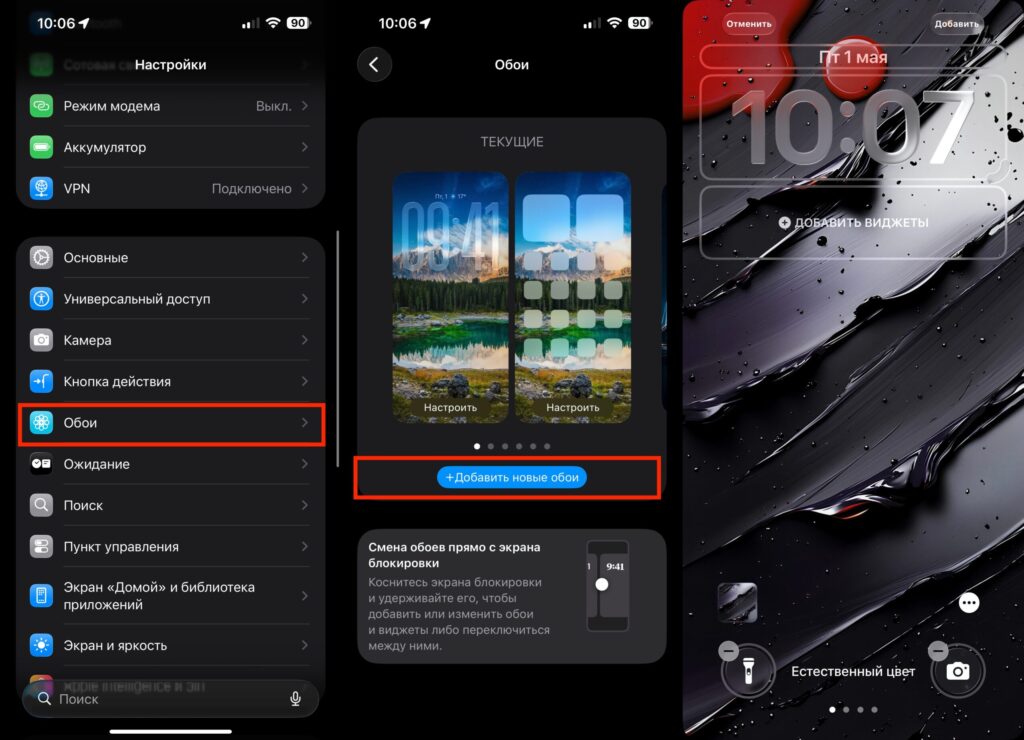
It takes just a couple of taps
By the way, if you’ve downloaded several wallpapers, pay attention to the file size. All images in this collection are 1–3 MB each — that’s enough to look sharp even on screens with Super Retina XDR resolution. No pixelation or blurriness. They’re adapted for the resolution of modern iPhones, including Pro and Pro Max models.
Automatic Wallpaper Rotation on iPhone Lock Screen
Can’t pick just one wallpaper? You don’t have to. iOS has a great feature — Photo Shuffle on the lock screen. It lets you load multiple wallpapers, and your iPhone will change them automatically. This has been available since iOS 16, but many people still don’t know about it.
To set up shuffling, go to “Settings” — “Wallpaper” — “Add New Wallpaper.” At the top, you’ll see the “Photo Shuffle” option — tap on it. The system will prompt you to select photos from your gallery. Select all five wallpapers and you’re all set.


