Many of us have used Telegram as a free cloud storage for years. Sending photos, documents, and videos to “Saved Messages” — and everything was always at hand. But the situation with the messenger in Russia remains unstable. The good news is that Telegram won’t be blocked any further, but it’s still worth playing it safe. Especially since a convenient built-in tool has now appeared — transferring files from Telegram directly to Mail.ru Cloud.

All files from Telegram can be transferred to Mail.Ru cloud
Files You Can Copy from Telegram to Mail.ru Cloud
The Mail.ru Mail and Mail.ru Cloud apps now feature Telegram synchronization. The function allows you to copy photos, videos, documents, music, and even video messages (circles) to cloud storage — essentially everything you’ve ever sent or received in the messenger. Only files are transferred, while text messages are not copied. This makes sense: the service’s purpose is to preserve valuable media content, not duplicate conversations.
Another important point: mobile data is not consumed when copying files. This means that even if you have a limited data plan, transferring data from Telegram won’t affect it. All copied files undergo Dr.Web antivirus scanning, so you don’t need to worry about security.
If you actively use several Telegram accounts on iPhone, keep in mind that the transfer is performed for one specific account — the one whose phone number you specify during setup.
Do You Need a Mail.ru Cloud Subscription for Telegram Transfer
A pleasant surprise: you don’t need a paid subscription to transfer files. The function is available even on the free Mail.ru Cloud tier, which provides 8 GB of space. Yes, the volume isn’t the largest, but it’s quite enough for your most valuable photos and documents.
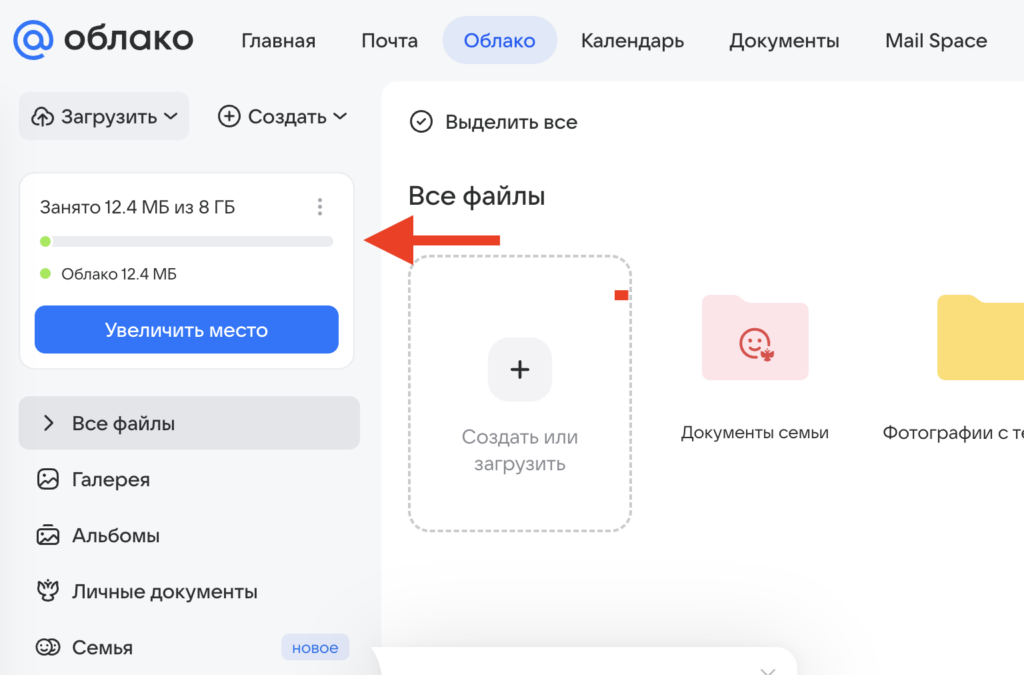
Most users will have enough free space
And if you have more files stored in Telegram, you can always choose what exactly to copy — more on that below. A Mail Space subscription will, of course, expand your storage, but purchasing it is not required. The transfer will start without it.
Step-by-Step Guide to Transferring Telegram to Mail.ru Cloud
Here’s where it gets interesting. The Telegram file transfer function is available in the Mail.ru Mail app on iPhone. It’s in the Mail app specifically — don’t confuse it. The banner may also appear in the Mail.ru Cloud app itself, but it displays most reliably through the Mail app. Open the app, go to the “Cloud” tab — and right below the “Auto-upload” block, you’ll see a card with the Telegram logo and the text “Copy files from Telegram to Cloud.” The card will have a “Start” button.
The transfer process isn’t complicated but includes several confirmation steps. Here’s a step-by-step guide for iPhone:
- Open the Mail.ru Mail app on iPhone and go to the “Cloud” tab at the top of the screen.
- Scroll down to the “Auto-upload” block. Below it, find the banner “Copy files from Telegram to Cloud” and tap the “Start” button.
- A screen describing the function will open. It states that your valuable photos, videos, and documents will always be at hand, messages are not copied, and mobile data is not consumed. At the bottom are two buttons — “Start” (copy everything) and “Choose what to copy” (if you want to transfer only certain file types).
- Tap “Start” for a full copy or “Choose what to copy” if you only need photos or only documents.
- Enter the phone number associated with your Telegram account. Tap “Continue.”
- Now open Telegram. In the system chat (from Telegram itself), a message requesting data export will appear. It will indicate the device — mailCloud. Tap the “Allow” button under the message.
- Above the chat list in Telegram, a banner “Chat access” will appear with the question “A login to your account has been detected. Was this you?” Tap “Yes, it was me.”
- Return to the Mail.ru Mail app and tap “Got it.” Copying will start automatically.
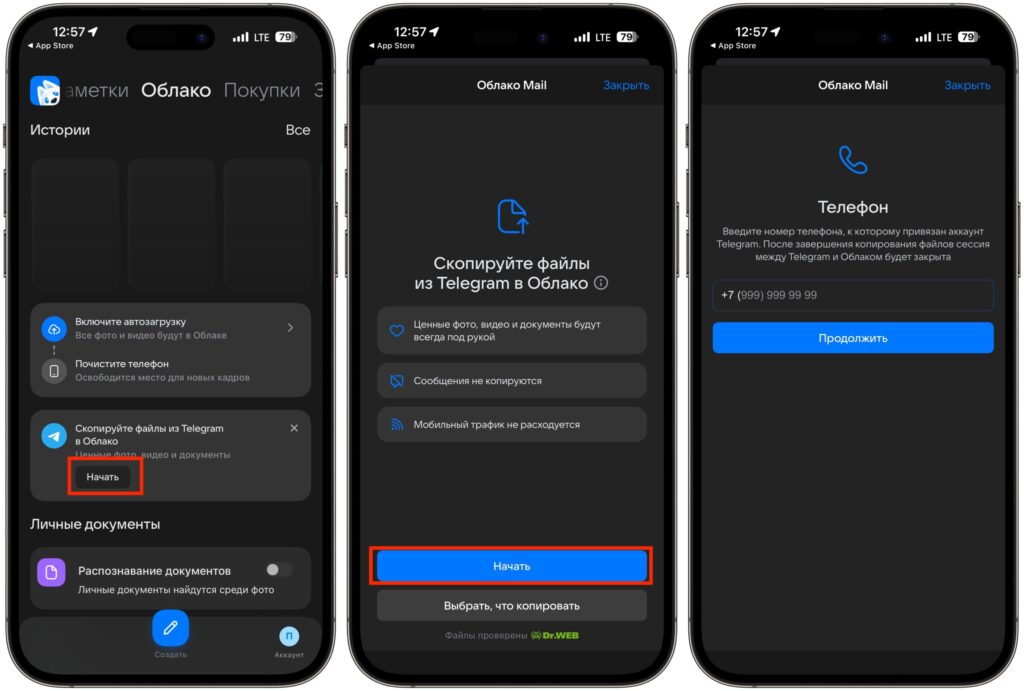
Start copying files
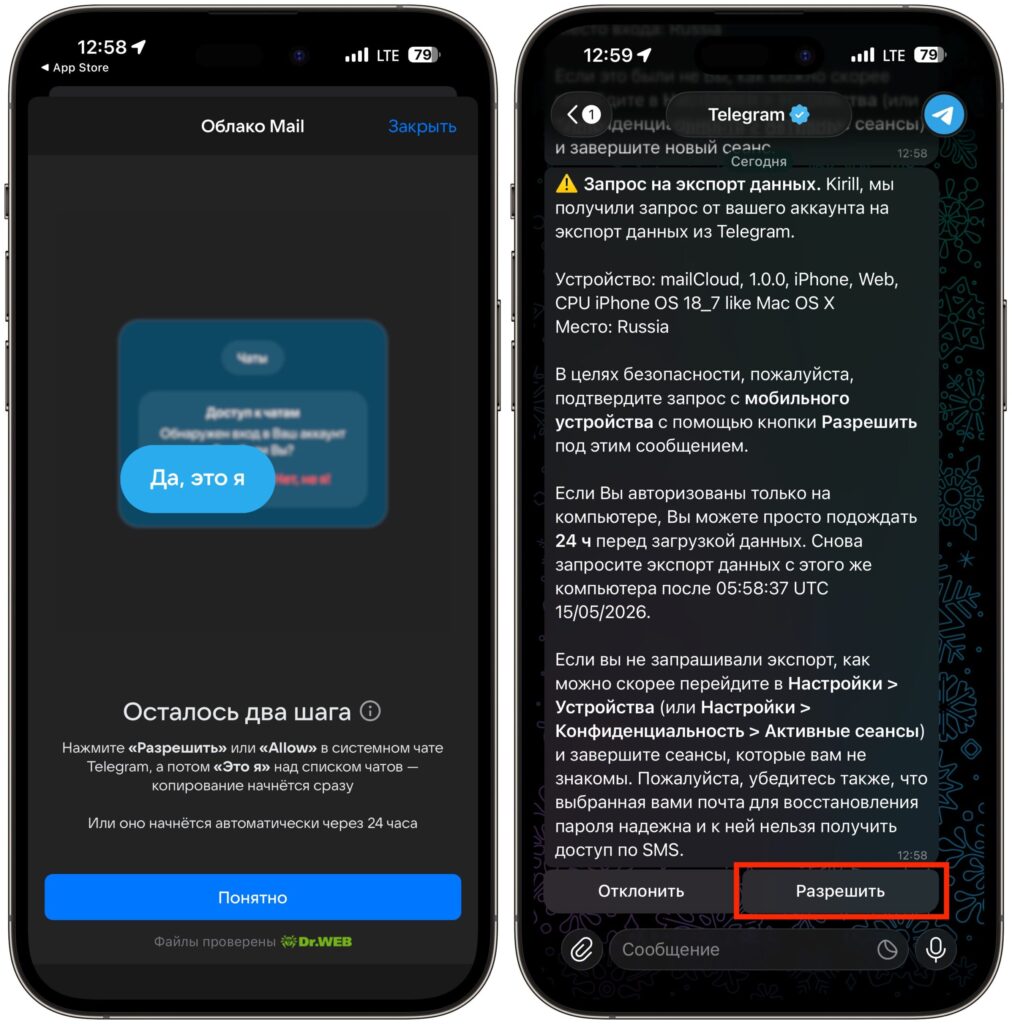
Allow Cloud access to Telegram data
If you didn’t manage to confirm the Telegram login right away — no worries. Copying will start automatically 24 hours after the request. You’ll just need to wait a bit. After the transfer is complete, the session between Telegram and Mail.ru Cloud will be closed, so you don’t need to worry about account security.
What to Check Before Copying Telegram to Mail.ru Cloud
Before launching the copy, check a few things. First, make sure there’s enough free space in your Cloud. The free tier offers 8 GB, and if you’ve accumulated more files in Telegram, you’ll either need to select the most important ones or expand your storage. Second, the Mail.ru Mail app must be updated to the latest version.
One more nuance: the function works specifically through the Mail.ru Mail mobile app. The web version of the Cloud or the desktop client doesn’t have this option yet. This is a bit odd, but VK may expand support to other platforms in the future.


