VKontakte has launched its own tool for transferring channels from Telegram. It works without bots, access tokens, or third-party services: you open a mini-app, confirm that the channel is yours, and within a few minutes all posts along with the name and avatar end up on VK. Many people are considering transferring their channels to VK. I went through this process myself and put together a short guide that will help you complete the transfer in 15 minutes.

Transferring a channel from Telegram to VK now takes just minutes
How Transferring a Telegram Channel to VKontakte Works
An important detail right away: VKontakte channels exist within communities. VK doesn’t have standalone channels like Telegram, so your transferred channel will necessarily be linked to a group or public page. This isn’t a bug but the platform’s logic, and there’s no way around it.
The tool itself is straightforward. You go to the mini-app, provide it with a link to your Telegram channel, receive a unique TID code, and paste it into the channel description. This is how VK confirms that you’re the owner and not a random person trying to steal someone else’s posts. After verification, the app copies the posts to a new VK channel. In my test, 12 posts were transferred, and the whole thing took less than fifteen minutes.
This method is suitable for those who have owner or administrator rights on a Telegram channel with the ability to edit the description. Without access to the description, you won’t be able to verify the channel, because that’s exactly where the verification code is inserted. By the way, the transfer is not affected by whether the channel has a blue verification checkmark in Telegram — any channel can be migrated. If a team manages the channel, clarify in advance which admin has the necessary rights so you don’t hit a wall halfway through the process.
I’d also like to note the speed. Most cross-posting services push posts one by one and stretch the process out for hours, especially with large archives. Here, the app works directly within VK, without intermediaries, so a small channel migrates almost instantly. For larger channels with hundreds of posts, the transfer will take a bit longer, but it’s still minutes, not an evening spent copying manually.
Transferring a Telegram Channel to VK via the Mini-App
Here’s a step-by-step plan. Do everything in order, and pay special attention to the step about choosing a community.
- Open the “Channel Transfer” mini-app in VK and click the “Start Transfer” button.
- Go to your Telegram channel where you are the owner or admin with permission to edit the description. Copy the link or tag of the channel (format t.me/your_channel).
- Return to the app, paste the link or tag into the field, and click “Find”.
- When the app finds your channel, copy the generated TID code. It looks like a string such as TID:1100751375.
- Open your Telegram channel again and add the TID code to the channel description. This step proves to the app that the channel is truly yours and can be transferred.
- Go to the mini-app and click the “Confirm” button. VK will check the description and find your code.
- Choose the community to which you’ll link the channel. If you have multiple communities, double-check your selection, because the channel will be permanently attached to it.
- Done. The channel is transferred from Telegram to VK and linked to the selected community. After completion, the app will show how many posts were transferred.
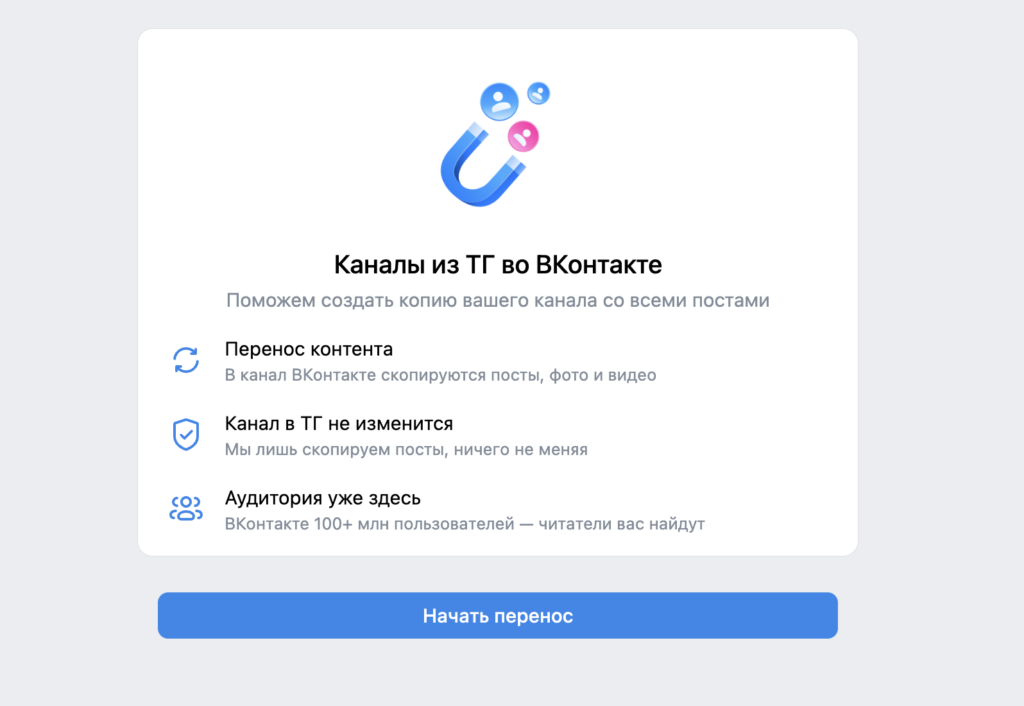
Launch the mini-app
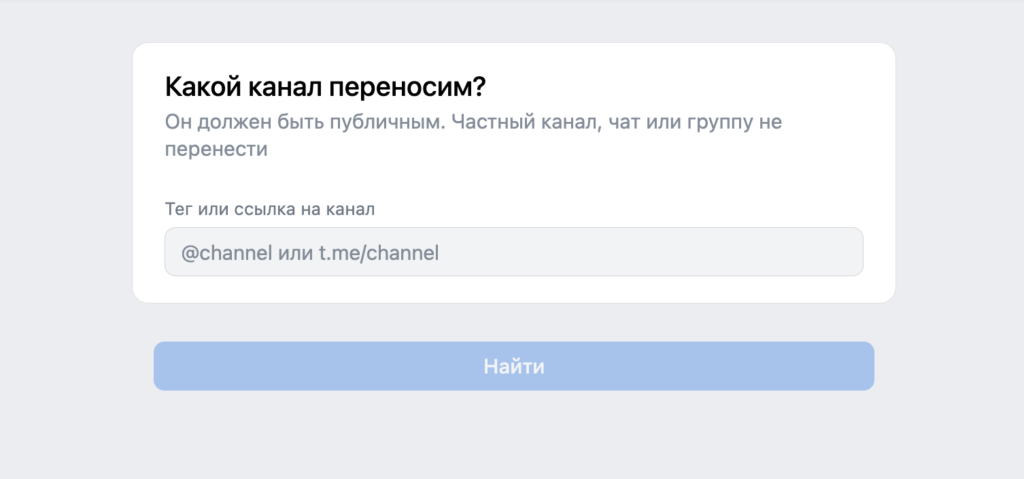
Paste the link and activate the search
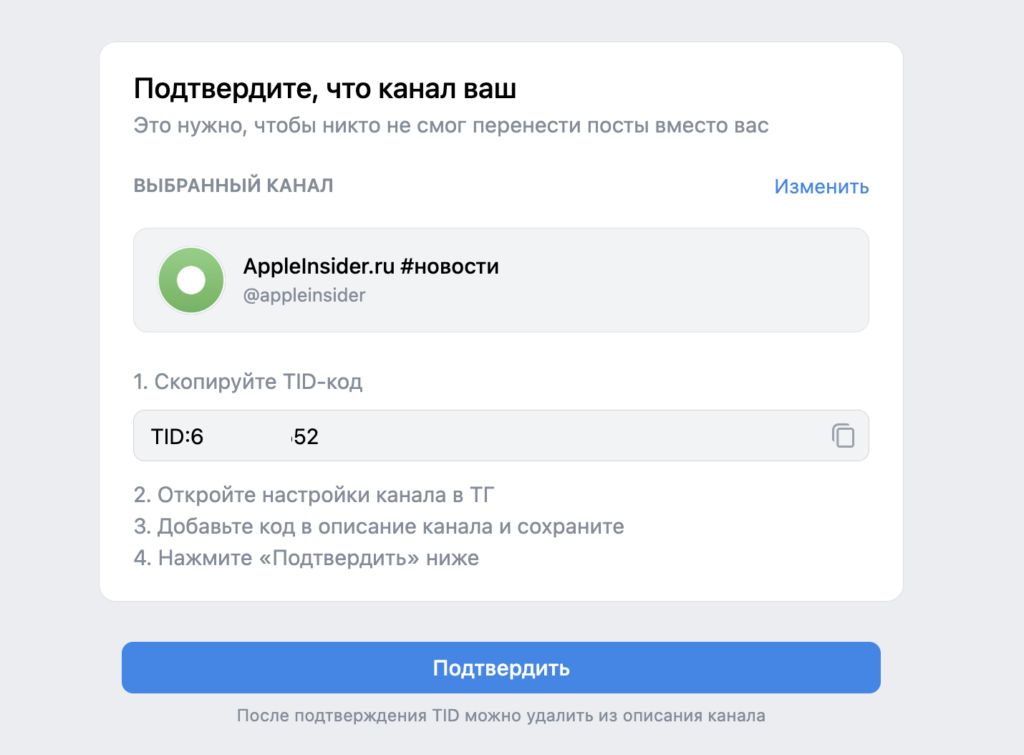
Copy the code from this page
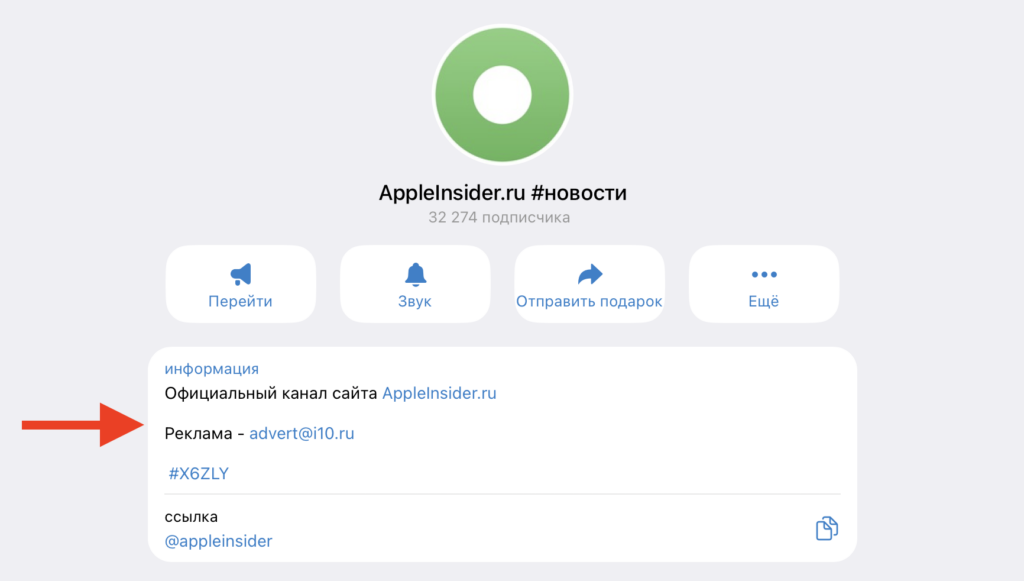
Paste it into the TG channel description
Once verification is complete, the TID code can be removed from the Telegram channel description. It was only needed at the time of verification and serves no purpose afterward. If you forget to delete it, nothing bad will happen, but an extra line with a code in the public description looks messy.
It’s important to understand: only posts are transferred, while subscribers and media files remain in Telegram. If you want to play it safe and preserve the entire archive, you can transfer all files from Telegram to cloud storage in advance so that photos, videos, and video messages definitely don’t get lost.
How to Choose a VK Community for Channel Transfer
The most common question: what happens if I don’t have a VK community. The answer is simple. The app will create a community automatically and link it to your page. The name and avatar will be taken directly from the Telegram channel, so you won’t need to set anything up manually.
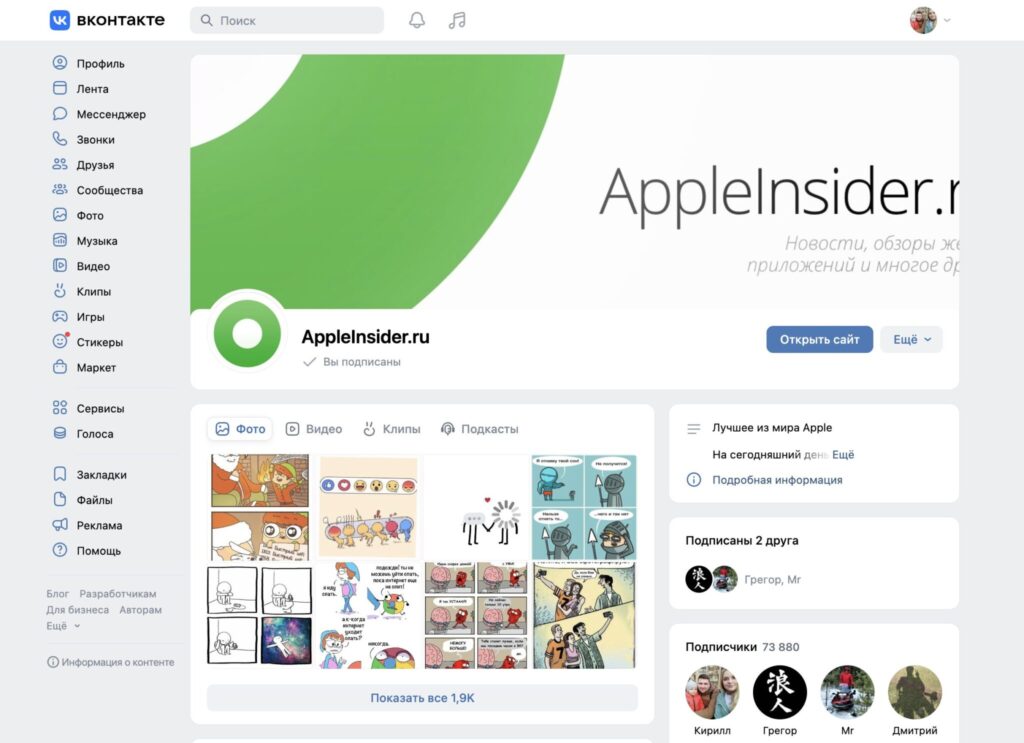
The channel will need to be linked to a community
The logic here is strict: the mini-app can only link channels to a community; attaching a channel to a personal page is not possible. So even if you ran your Telegram channel under your own name, a separate group or public page with the same face and name will appear on VK. Keep this in mind if you were counting on a channel linked to a personal profile.
A couple more things to keep in mind. Telegram and VK use different markup, so complex formatting sometimes breaks. Bold and italic text usually stay in place, but tricky elements like quotes, spoilers, and custom emoji are better checked visually across several posts. If you’re a perfectionist, run a small channel first or do a test run before transferring an archive of thousands of posts.
Why Transfer a Telegram Channel to VKontakte