Your iCloud data, favorite music, and work tools are part of your everyday life that you don’t want to give up. Since early spring, when top-ups through mobile carriers (MTS and Beeline) finally became a thing of the past, the rules of the game have changed. But “difficult” doesn’t mean “impossible.” We’ve found a way to keep access to the Apple ecosystem and stay connected despite any restrictions. Some people change their region, while others create a second Apple account — everyone chooses their own path. In this article, we’ll break down the methods — how to buy apps in Russia and pay for subscriptions when Russian bank cards are not accepted and mobile payments have stopped working.
Figuring out how to top up App Store in Russia
How to Top Up App Store in Russia in 2026
In 2026, the payment situation for Apple has become more complicated: due to bank card blocks and carrier restrictions, direct payments are unavailable. Since early spring, the issuance of ruble top-up cards has been discontinued, and the only working way to pay for iCloud, Apple Music, and top up App Store in Russia remains — changing the Apple ID region followed by selecting a payment method.
If you don’t want to be left without iCloud, music, and your favorite apps, there are currently two paths:
- Apple Gift Cards — this is the most convenient and fastest method. You buy a special code, enter it, and the money is credited to your Apple account balance
- Foreign bank cards — an option for those who have a foreign card; it can be linked to an Apple account and used to pay for apps and subscriptions
Let’s break down in more detail how this works in practice.
Which Region to Choose for App Store Payments
Gift cards in rubles for the “Russia” region are no longer issued. To pay for iCloud, apps, subscriptions, and purchases in the App Store again, you need to change your Apple account region.
For Apple payments, the US or Turkey are most commonly used, as gift cards are consistently available for these regions.
USA:
- All services and apps work (iCloud, Apple Music, ChatGPT, Claude, Minecraft)
- The App Store here is the most universal, with the largest number of apps
- Tax may apply to purchases depending on the state (life hack — choose a state with no App Store purchase tax, such as: Delaware, Montana, New Hampshire, or Oregon)
Turkey:
- All services and apps work (iCloud, Apple Music, ChatGPT, Claude, Minecraft)
- Lower prices on subscriptions and purchases
Many users worry about what will happen to their apps. After changing the region, nothing will happen to your apps — already installed apps will continue to work. For example: Gosuslugi, Moy Nalog, Ozon, Wildberries, and many others are currently available for download in the Turkish and American App Store.
How to Change Apple ID Region on iPhone: Detailed Instructions
Preparation for changing the country or region:
- Cancel all active subscriptions (iCloud, Apple Music, etc.)
Open: Settings — your name — Subscriptions — cancel all active subscriptions
UPD: According to some media reports, Apple has allowed Russian users to change their account region despite having active subscriptions.
- Leave Family Sharing if you are a member
Open: Settings — Family — leave Family Sharing
- Spend or zero out your remaining Apple ID balance
If there is money on the balance, you won’t be able to change the region. What to do?
- Spend the entire balance
If that doesn’t work:
- Contact Apple Support to have it written off
Apple Support phone: 8-499-951-25-79, available during business hours Mon–Fri: 10:00 AM to 6:00 PM (Moscow time). Tell the operator that you want to write off the remaining funds from your Apple ID.
Life hack: If you choose the US — pick a state with no App Store purchase tax, such as: Delaware, Montana, New Hampshire, or Oregon.
Instructions for changing the region:
- Open “Settings” on your iPhone;
- Tap on your name;
- Go to “Media & Purchases” — “View Account”;
- Enter your Apple account password if required;
- Open the “Country/Region” section;
- Select the desired region;
- In payment methods, select “None.”
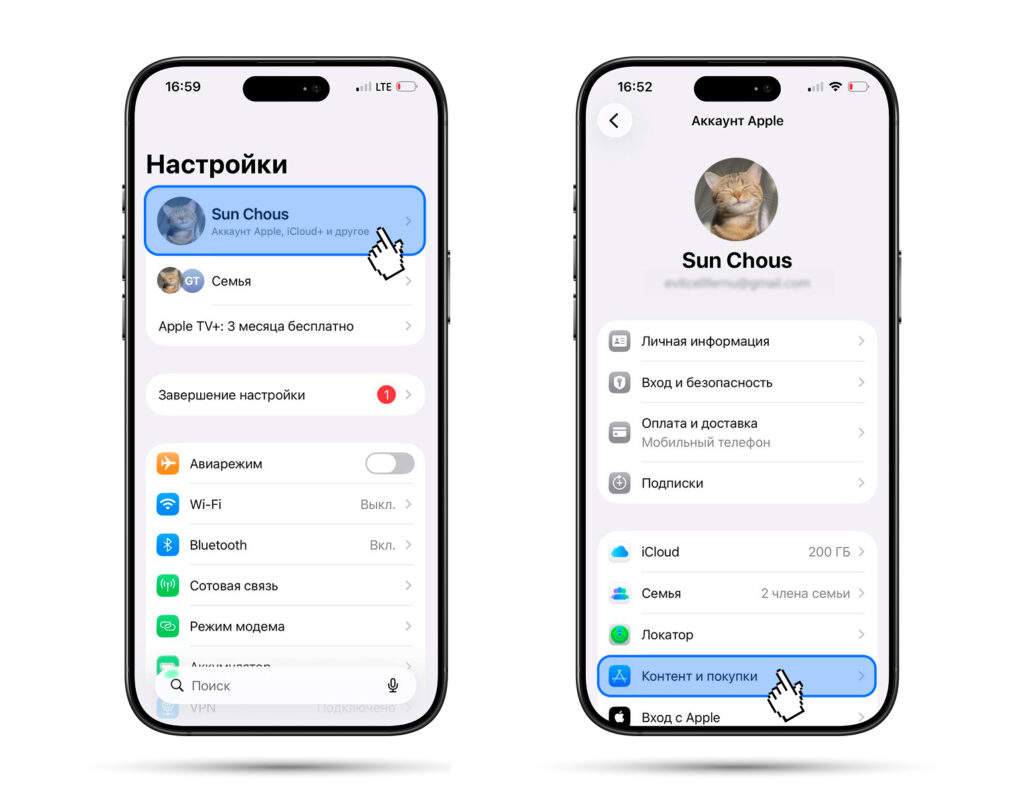
Go to your Apple account
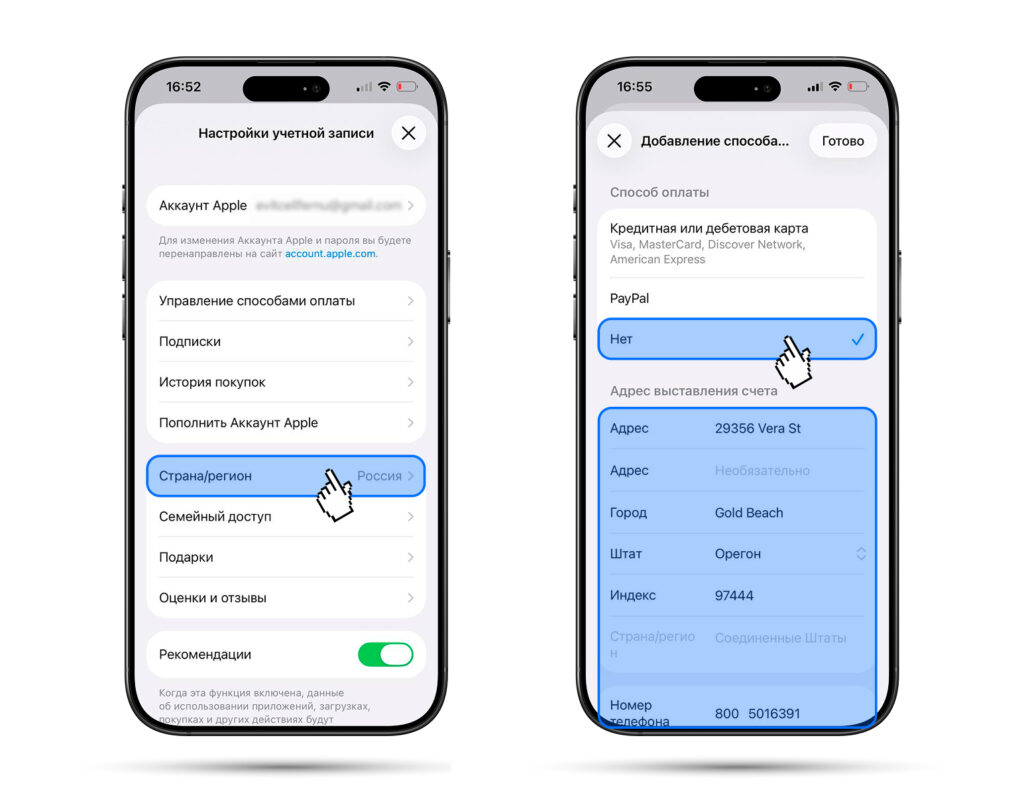
Change the Apple account region
Next, you need to enter a billing address and phone number.
- You can use any real data (for example, the address of a store or a house)
- You can generate your address using these websites — they will provide ready-made data in a couple of seconds:
USA — https://usaddressgenerator.com/
Turkey — https://www.fakexy.com/fake-address-generator-tr
After that, tap “Done.” You have successfully changed your App Store region!
How to Buy an App Store Gift Card
After changing your Apple ID region, you can top up your account balance using an Apple gift card. This is one of the most convenient payment methods in Russia in 2026. You buy a gift card in the form of a digital code, activate it in the App Store, and the money is immediately credited to your Apple ID balance. From this balance, you can pay for apps and subscriptions.
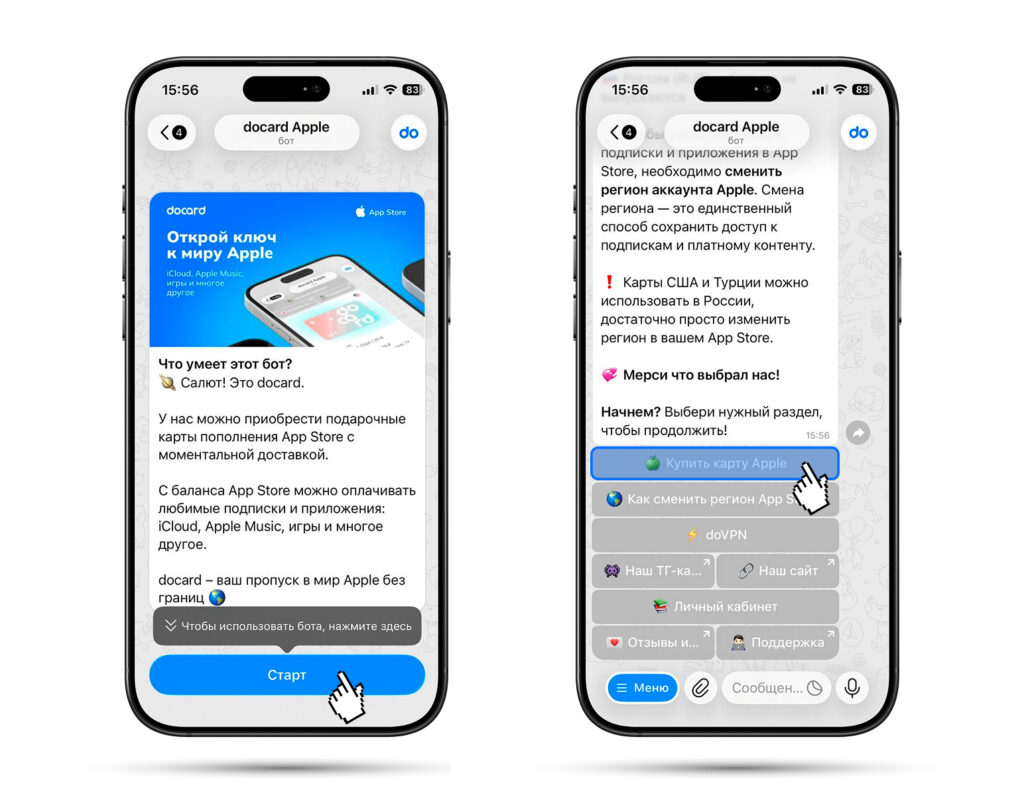
Open the bot, explore
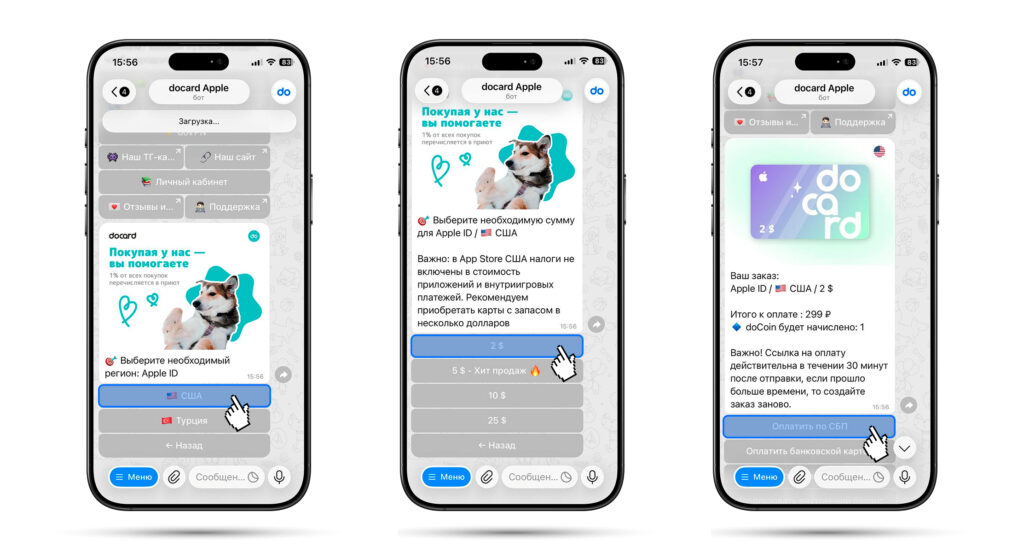
Choose region and denomination, pay, enjoy!
Done! After payment, you will receive a code that can be activated in the App Store, along with activation instructions.
How to Activate an App Store Gift Card
Activation instructions:
- Open the App Store app
- Tap on the profile icon


