Malware on Android rarely announces itself. It runs in the background, harvests personal data, reaches for accounts and money, and loads the processor and network while the owner notices nothing. That means infections usually have to be caught through indirect symptoms — and, according to a security executive quoted by Hi-Tech Mail, the built-in battery, data-usage and app-list screens in Android settings are enough to spot most of them without a third-party scanner.
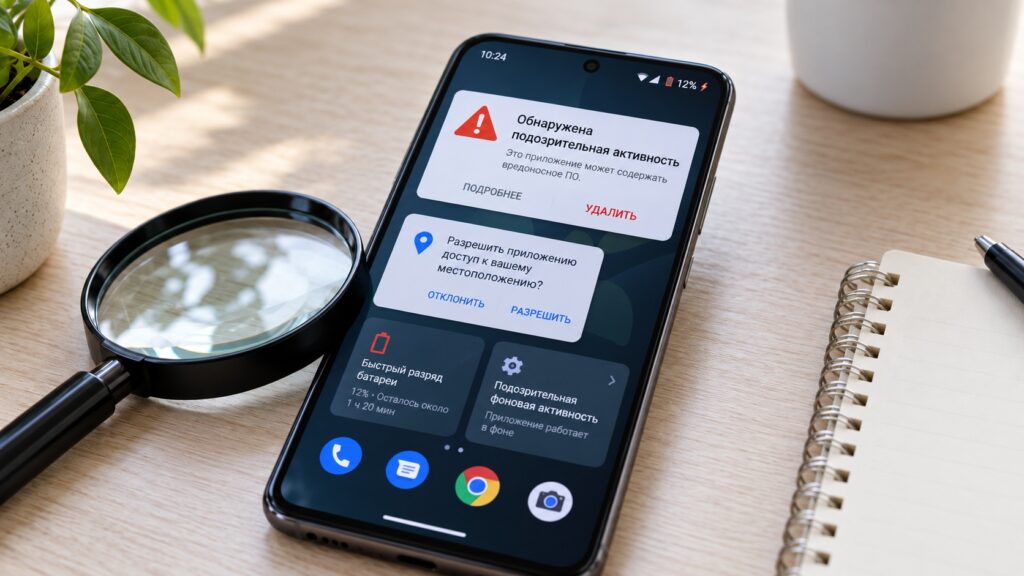
Signs of malware on an Android smartphone
What you need to know
- Secure-T CEO Khariton Nikishkin, speaking to Hi-Tech Mail, says the first warning is usually the battery: faster drain and heat while the phone is idle.
- Other red flags include unexplained mobile-data spikes, pop-up ads outside the browser, apps you did not install, unknown account logins, and unauthorized charges.
- The expert’s recommended first step is cutting the phone off from the internet (airplane mode), then removing unknown apps, scanning, and changing passwords from a different device.
- If the malware cannot be removed, a factory reset — after backing up data — is described as the most reliable option.
Symptoms you can see without an antivirus
Khariton Nikishkin, CEO of Secure-T, told Hi-Tech Mail that the first alarm usually comes from the battery: the phone starts draining noticeably faster and gets warm even when nobody is using it. That is how a background process that does not sleep along with the screen behaves.
Heat and rapid battery drain can have other causes, however, so it is worth looking for additional symptoms of infection:
- a sharp rise in mobile data consumption without any change in your habits — this is what data being sent to attackers’ servers looks like;
- pop-up ads outside the browser, for example over the home screen or other apps;
- apps you did not install;
- sudden freezes and apps closing on their own;
- account logins from unfamiliar devices or locations;
- messages you did not send;
- charges you did not make;
- odd connectivity behavior — calls or SMS to short numbers sent without your involvement.
None of these checks require special software: the system itself shows battery, data usage and the app list, while unfamiliar logins and charges show up in notifications from email, banking and social media services.
Built-in Android settings stand in for a scanner
The simplest place to start is the battery section in the phone’s settings, which shows which apps consumed the most charge over the day. If something unfamiliar — or an app you have not opened in a long time — sits near the top, that is a reason to take a closer look. Menu names differ slightly between Samsung, Xiaomi and other manufacturers, but the section exists in every Android skin.

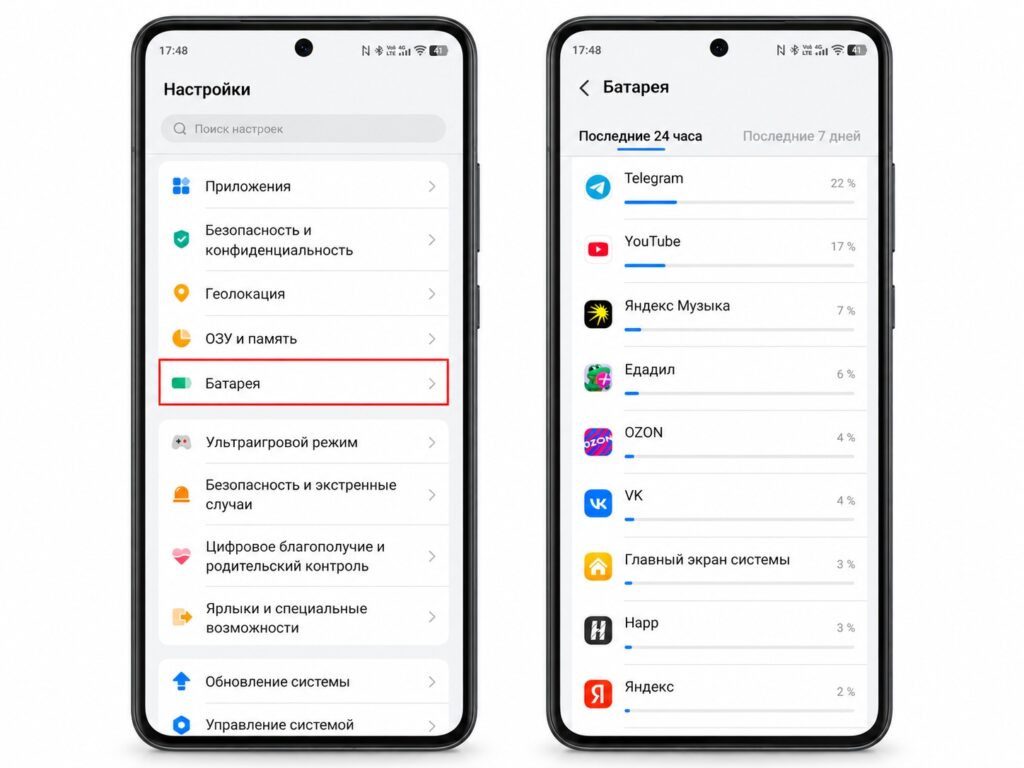
Checking which apps drain the battery on Android
Data usage is checked the same way: the network or mobile data settings include per-app consumption statistics. A sudden spike from an app that has no reason to send anything to the internet is exactly the sign the expert describes.
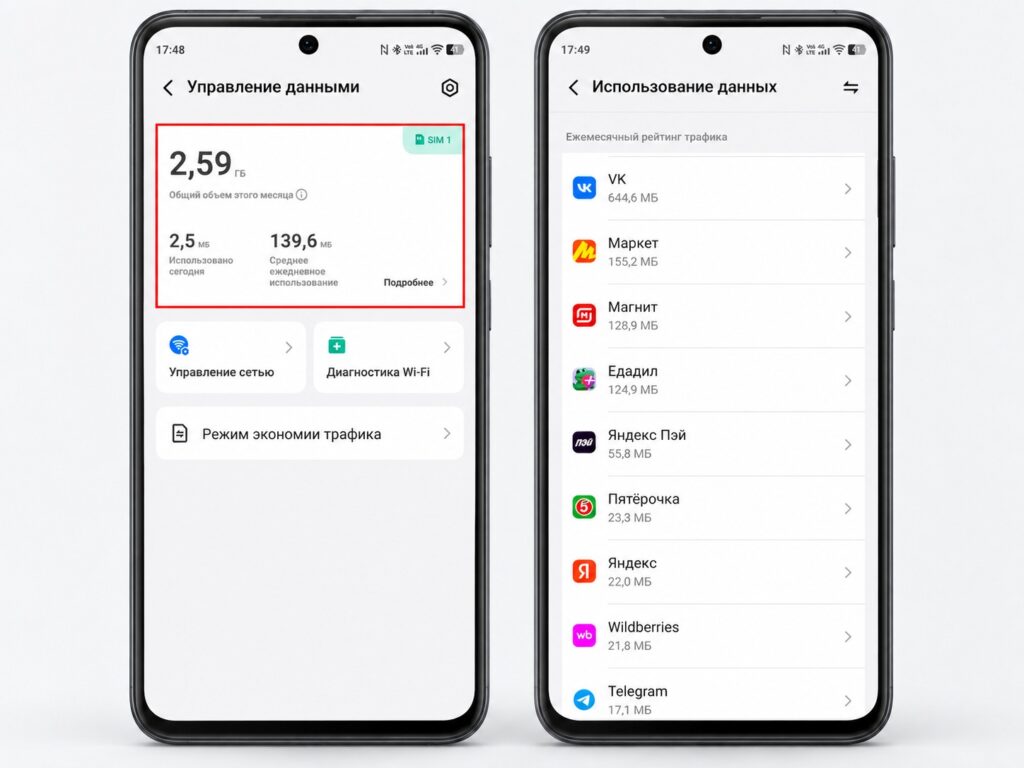
Checking mobile data usage on an Android phone
The third mandatory check is the full list of installed apps in settings — not just the icons on the home screen, since malware often hides its shortcut. If you still want an automated check, Google Play includes a built-in feature, Google Play Protect, which scans installed apps; a separate antivirus is not required for this. Nikishkin does mention running a check with a trusted antivirus as one of the steps, but according to the source it complements the symptom-based diagnosis rather than replacing it.
First steps if you suspect an infection: cut the internet first
The expert proposes a specific sequence, and the order matters. While the phone is online, malware keeps sending data and receiving commands, so the first action is to disconnect it.
The steps Nikishkin recommends:

- Turn off the internet and enable airplane mode.
- Open the full app list in settings and delete everything unfamiliar.
- Run a scan with an antivirus you trust (or the built-in Google Play check).
- Change passwords for email, banking and social media — and do it from a different device.
- Enable two-factor authentication wherever it is not yet active.
- Update the operating system and all apps.
The last point is easy to underestimate. Updates close the holes through which the malware may have gotten onto the phone; without them, the same story risks repeating after a cleanup.
Factory reset as the last resort
Sometimes malware cannot be removed: the app does not appear in the list, comes back after deletion, or blocks access to settings. In that case, according to the expert, the most reliable option is to reset the phone to factory settings, which wipes the entire contents of storage along with the infection. Before resetting, back up important data — photos, contacts, message history. The source describes the following path, though menu labels vary by manufacturer and Android skin:
- Open the phone’s settings.
- Go to the system management section, then to the reset option.
- Confirm deletion of all data.
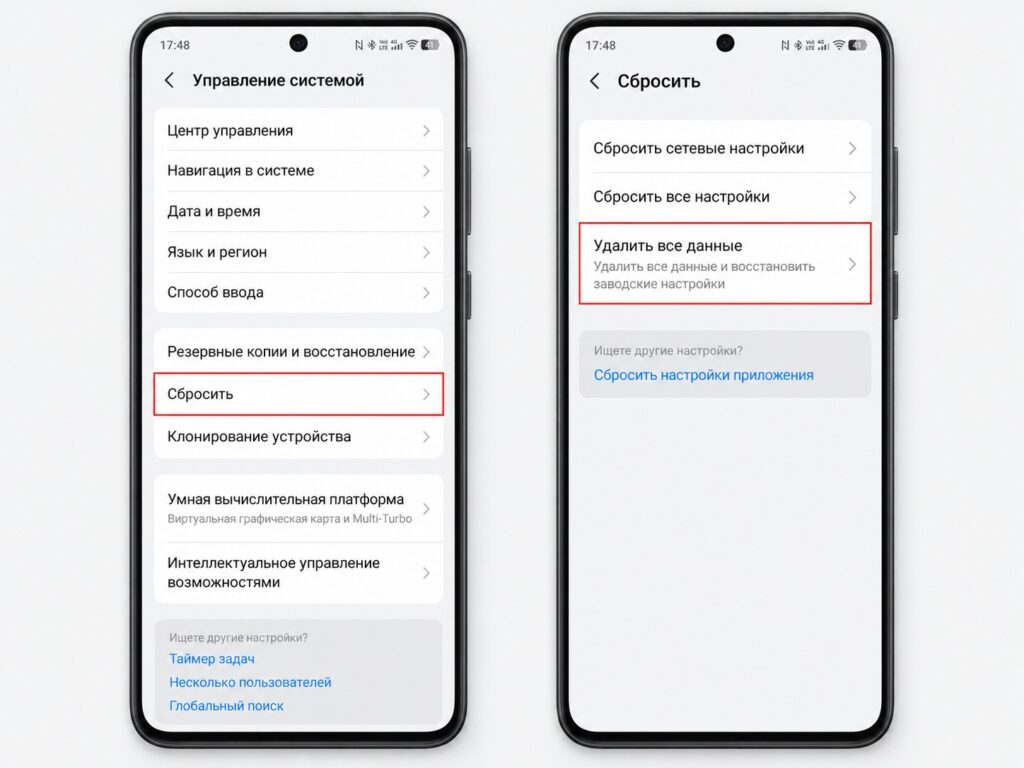
Resetting an Android smartphone to factory settings
A reset is inconvenient, but the source notes it is not a reason to rush out for a new device.
The mistake that undoes the cleanup
The most common slip is changing passwords on the very phone you suspect is infected. If the malware intercepts input or reads the screen, the new password lands with the attackers immediately. That is why the expert insists passwords be changed from another device, with two-factor authentication turned on right away so that a single stolen password is no longer enough.
The second mistake is delaying the check. Fast battery drain and heat feel like minor annoyances — an unknown charge does not. As the source puts it, five minutes in the battery and data settings cost less than sorting things out with the bank afterwards.


