The MAX messenger silently downloads photos, preloads voice messages, and auto-plays videos as you scroll through chats. On Wi-Fi this goes unnoticed, but on mobile data it can burn through your allowance and drain your battery in half a day. The native MAX app for iPhone has a dedicated settings section that lets you control all of this in a few minutes — but these options are only available in the native app, not in the browser-based version.
What you need to know
- The data-saving and battery-saving settings are only available in the native MAX app for iPhone — the web version in Safari has no such controls.
- Four content categories can be configured independently: Photos, Video, GIFs, and Audio Messages, each with its own auto-download or auto-play toggle.
- The MAX app cannot be updated on iPhone because it is not available in the App Store, so the current set of settings is what you get — no new options will appear via updates.
Where to find the data-saving settings
The relevant section exists only in the native MAX app. If you are using MAX through Safari or as a home-screen web shortcut, the data-saving options will not appear — the browser version cannot manage media downloads at that level.
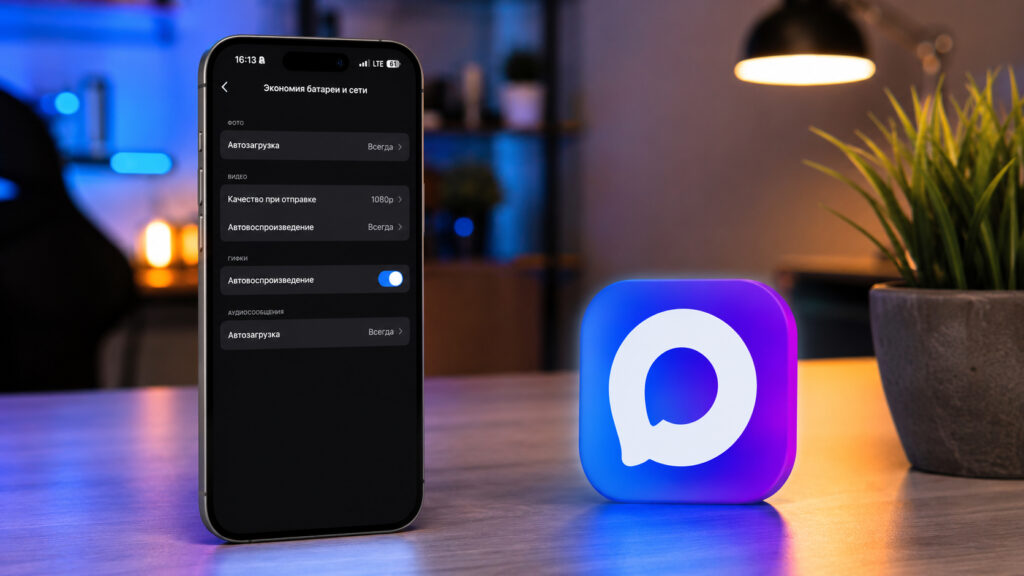
An overview of useful MAX settings
In the app, the settings are not deeply buried but are easy to miss because they sit as a separate item in the general list rather than inside the media block. Here is how to get there:
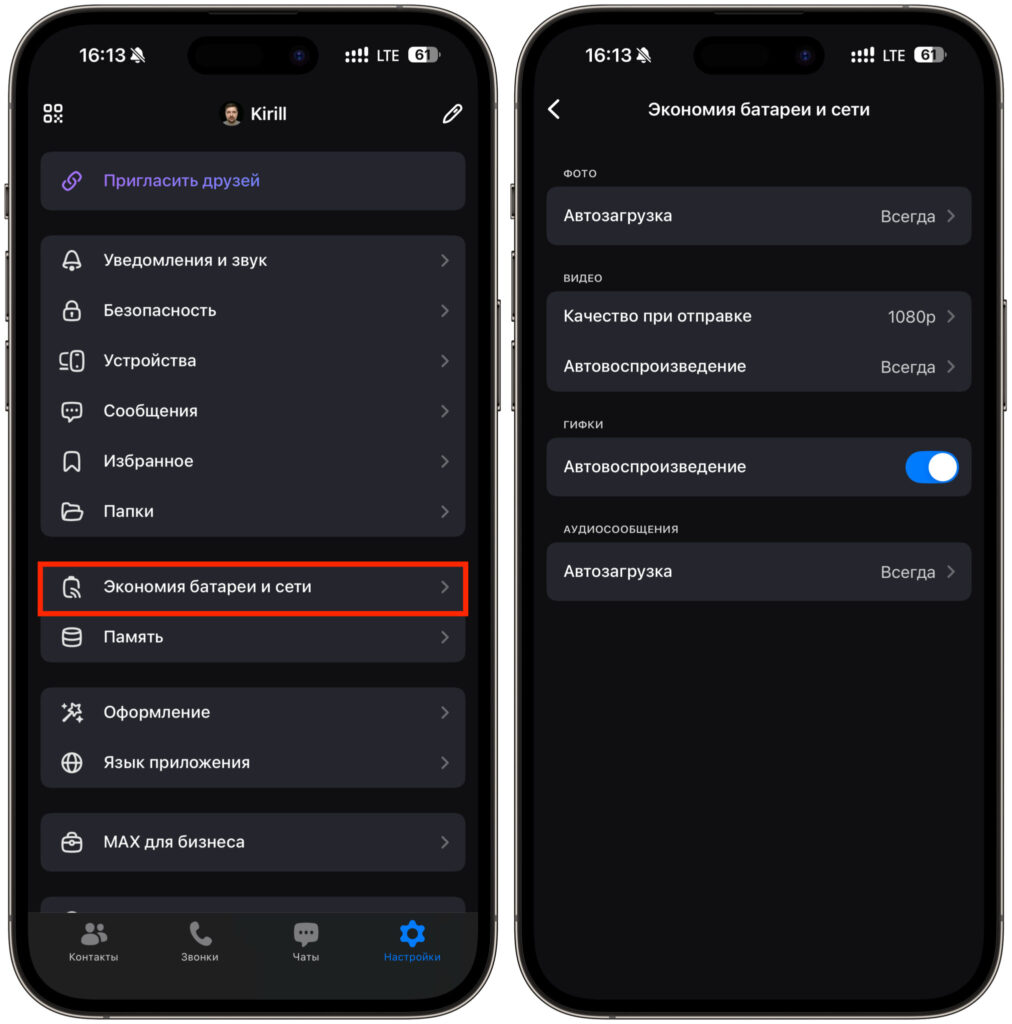
All the relevant settings are located here
- Open the MAX app on your iPhone.
- Tap the Settings tab in the bottom-right corner.
- Scroll past the notifications, security, and folders sections.
- Find and tap “Battery and Network Saving”.
Inside you will see four blocks: Photos, Video, GIFs, and Audio Messages. Each controls its own content type independently, which is more flexible than a single master switch — you can keep instant photo loading while blocking heavy video downloads on mobile data.
Nearby there is also a “Storage” item, which controls how downloaded content is retained on the device. Do not confuse the two: network saving governs what gets downloaded, while storage governs what stays on the phone.
How to stop MAX from downloading photos over mobile data
By default, photos and voice messages download regardless of connection type. In active chats this can mean tens of megabytes per day; in busy group chats with many participants, the figure can reach hundreds of megabytes. Here is how to change it:
- In the “Battery and Network Saving” section, tap “Auto-download” under the Photos block.
- Choose one of three options: “Always,” “Wi-Fi Only,” or “Do Not Download.”
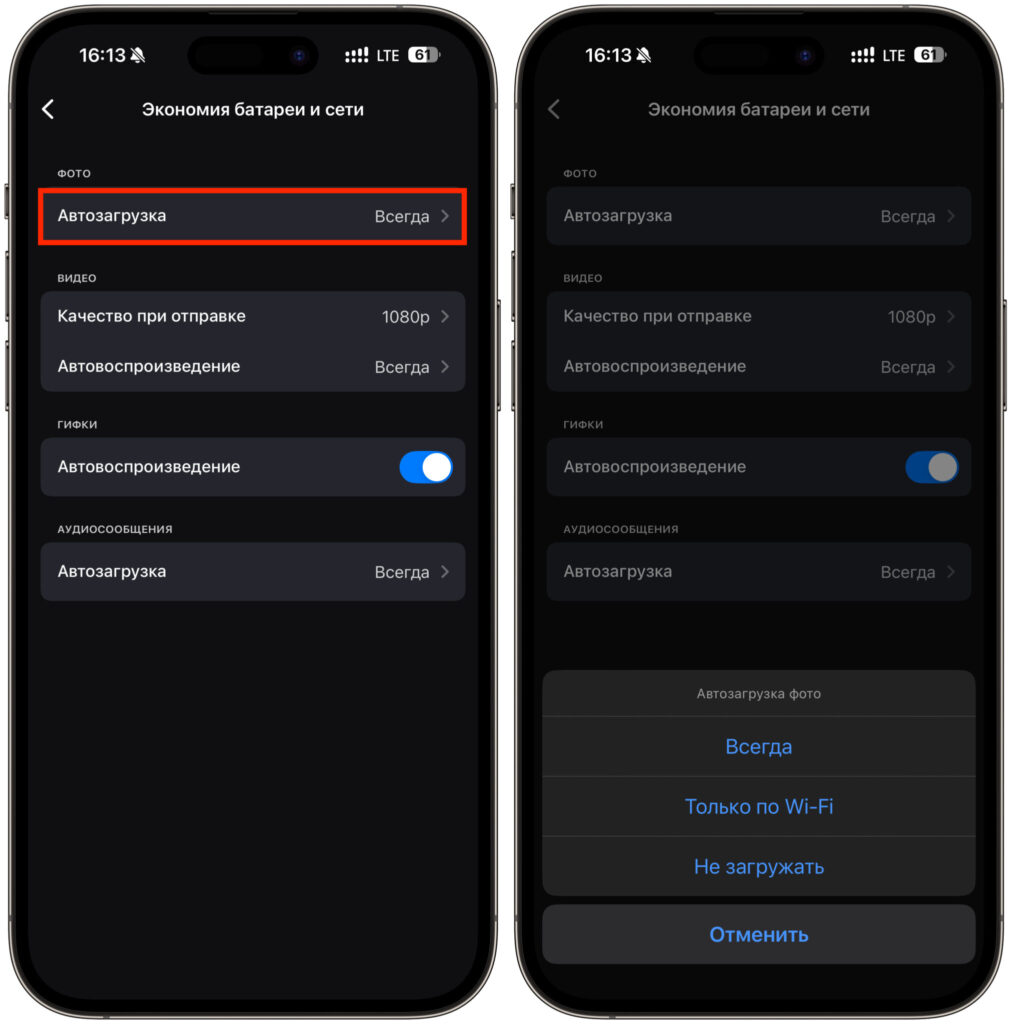
Configure photo auto-download or disable it entirely
- Go back to the list and scroll down to the Audio Messages block.
- Tap “Auto-download” and select the appropriate mode in the same way.
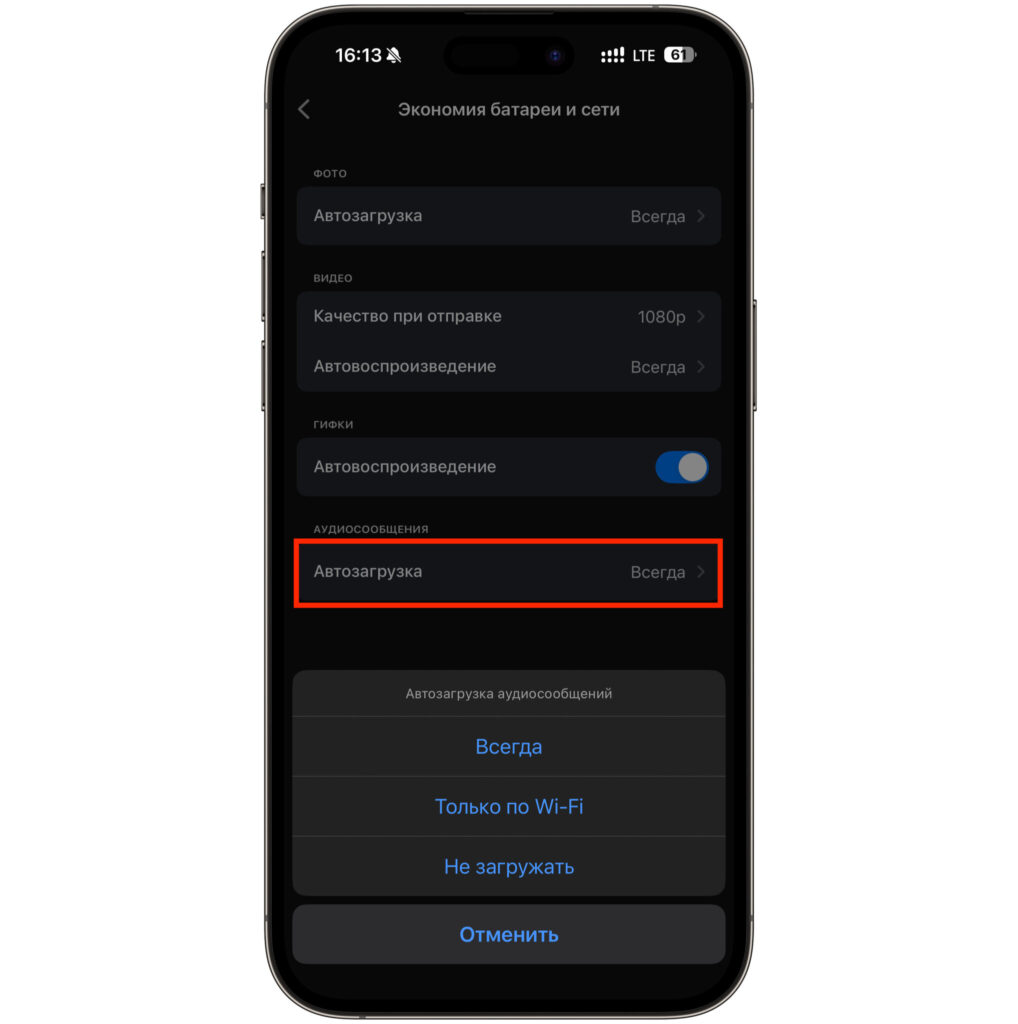
Apply the same setting to audio messages
- The setting takes effect immediately — no confirmation or save step is needed.
“Wi-Fi Only” is the best option for most users. At home or in the office everything loads instantly, while on mobile data photos only download when you tap on them. The “Do Not Download” option is only worth choosing if you have a very strict data cap, since manually downloading every image quickly becomes tedious.
Voice messages are individually small, but they are often sent in bursts. On a weak signal, the app can noticeably heat the phone as it tries to pull all files at once. If MAX consistently appears at the top of your battery usage list, this setting is a good place to start.
Video and GIF settings for saving data
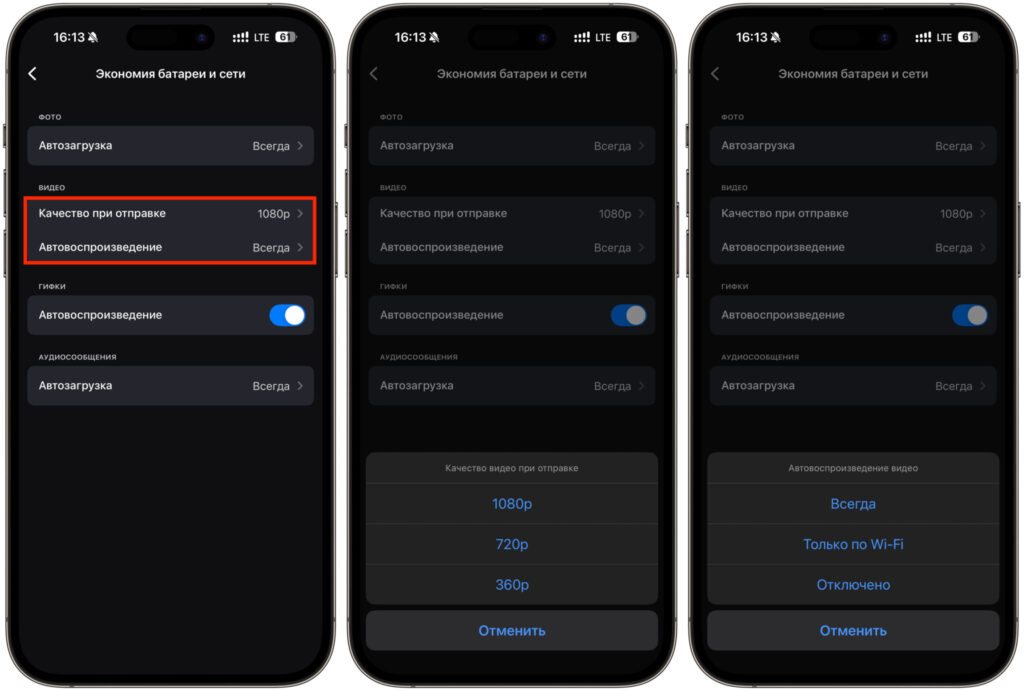
The Video block controls two things: the quality at which your outgoing videos are sent, and whether incoming videos auto-play. Both significantly affect data usage and battery life.
- Tap “Quality when sending” in the Video block.
- Choose a resolution: 1080p, 720p, or 360p.
Video auto-download settings in MAX
- Then open “Auto-play” in the same block.
- Select “Always,” “Wi-Fi Only,” or “Disabled.”
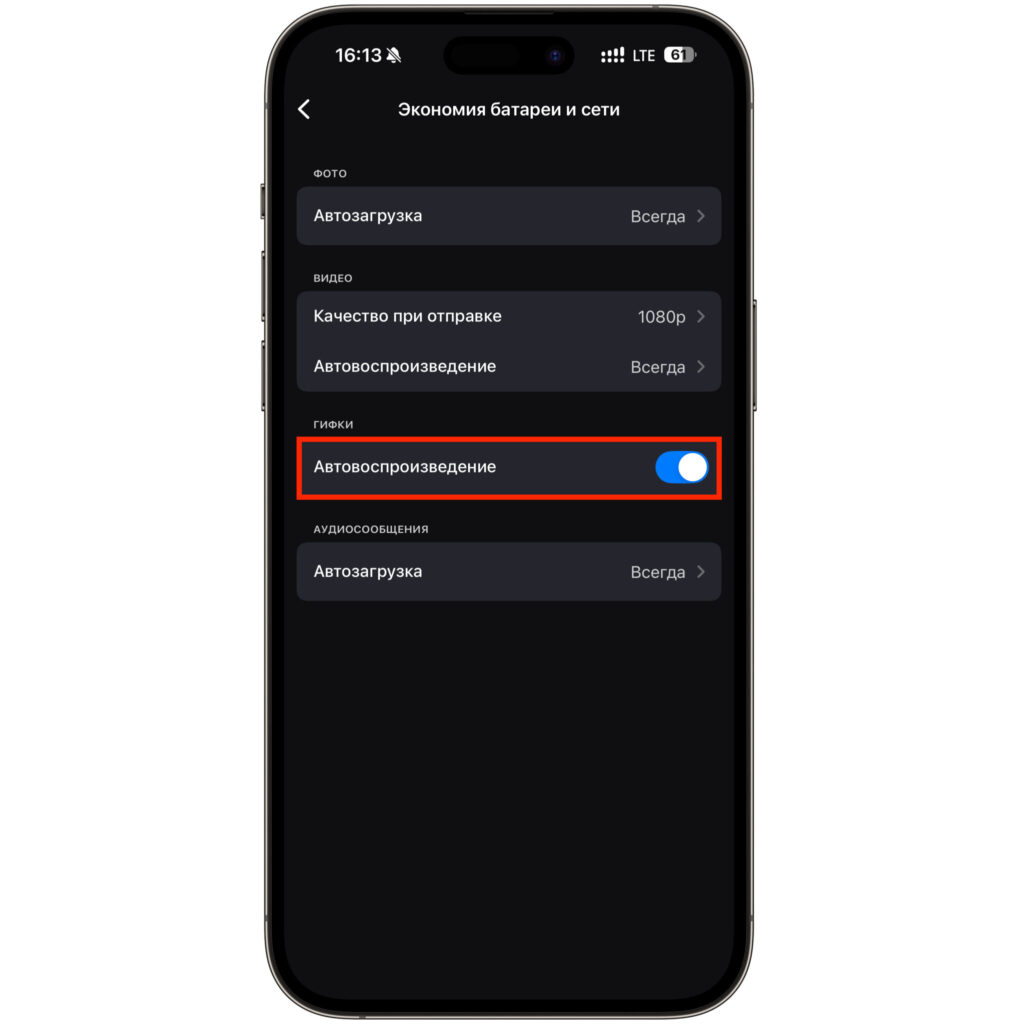
Don’t forget about GIF settings
- Separately, check the GIFs block: auto-play there is controlled by a simple toggle switch.
By default, video is sent at 1080p. While this looks good, a one-minute clip from an iPhone camera can easily approach 100 MB, and uploading it on mobile data takes a long time while draining the battery. 720p provides nearly the same visual quality on a smartphone screen at roughly half the file size, which is more than adequate for everyday messaging. 360p should be reserved for situations where delivery matters more than detail.
Auto-play for videos and GIFs may seem minor, but it is often the most common culprit behind background data and battery drain. As you scroll through a chat, the app loads and plays every clip that appears on screen. Disabling auto-play outside of Wi-Fi saves both megabytes and battery percentage without affecting communication speed.
Recommended settings for most users
For those who do not want to evaluate each option individually, here is a configuration that offers a good balance of savings and convenience:
- Photo auto-download — “Wi-Fi Only”
- Audio message auto-download — “Wi-Fi Only”
- Video sending quality — 720p
- Video auto-play — “Wi-Fi Only”
- GIF auto-play — toggle off
This combination delivers noticeable savings without breaking the chat experience: images open with a single tap in about a second, and data consumption drops significantly. You can verify the results by checking iPhone’s built-in data usage monitor under Settings → Cellular, which shows data consumed per app.
Important limitations
All of these settings exist only in the native app. The web version of MAX in a browser cannot manage auto-downloads, sending quality, or auto-play — it delivers content however the server decides. The only data-saving option for web users is disabling image loading in the browser itself, which breaks much of the interface.
There is one more caveat worth noting: on iPhone, MAX cannot be updated at all because the app is not available in the App Store. It cannot be updated or reinstalled through standard means. This means the set of settings you see now is what you will continue to have — no new options in the data-saving section will appear through updates. This situation is unlikely to change in the near term.


