MAX was removed from the App Store, there’s still no full-fledged app on the iPhone, and you still need to use the messenger somehow. But there’s a bright side to this story: the removal of MAX from the App Store unexpectedly brought a feature many of us could only dream of. Through the web version, you can have multiple MAX accounts on a single iPhone. Personal, work, family, for a channel — as many as you want. Each one lives its own life, with its own chats and its own notifications. I set up several MAX instances on my phone and never mixed them up.
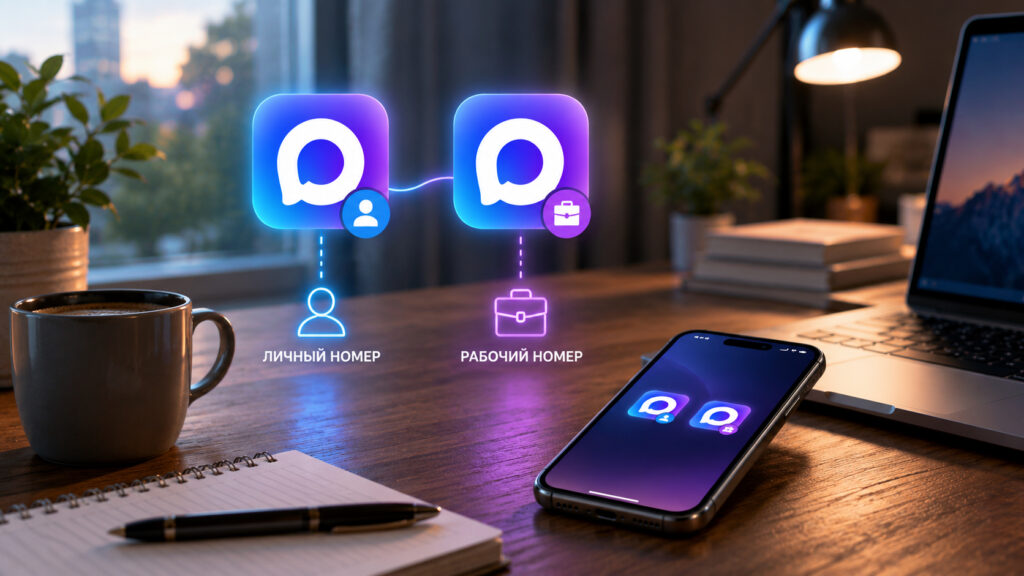
Now you can add multiple MAX accounts to one smartphone
How Multiple MAX Accounts Work on One iPhone
The whole trick is that the MAX web version can be added to the home screen as a standalone app. This is a so-called PWA — a web application with its own icon that opens without the address bar and browser panels. Visually, it’s almost indistinguishable from an App Store app.
The most interesting part comes next. You can add such a web app not just once, but as many times as you want. Each icon on the screen is a separate, independent copy with its own storage and its own session. So you log into one with your personal number, into another with your work number, and they don’t interfere with each other.
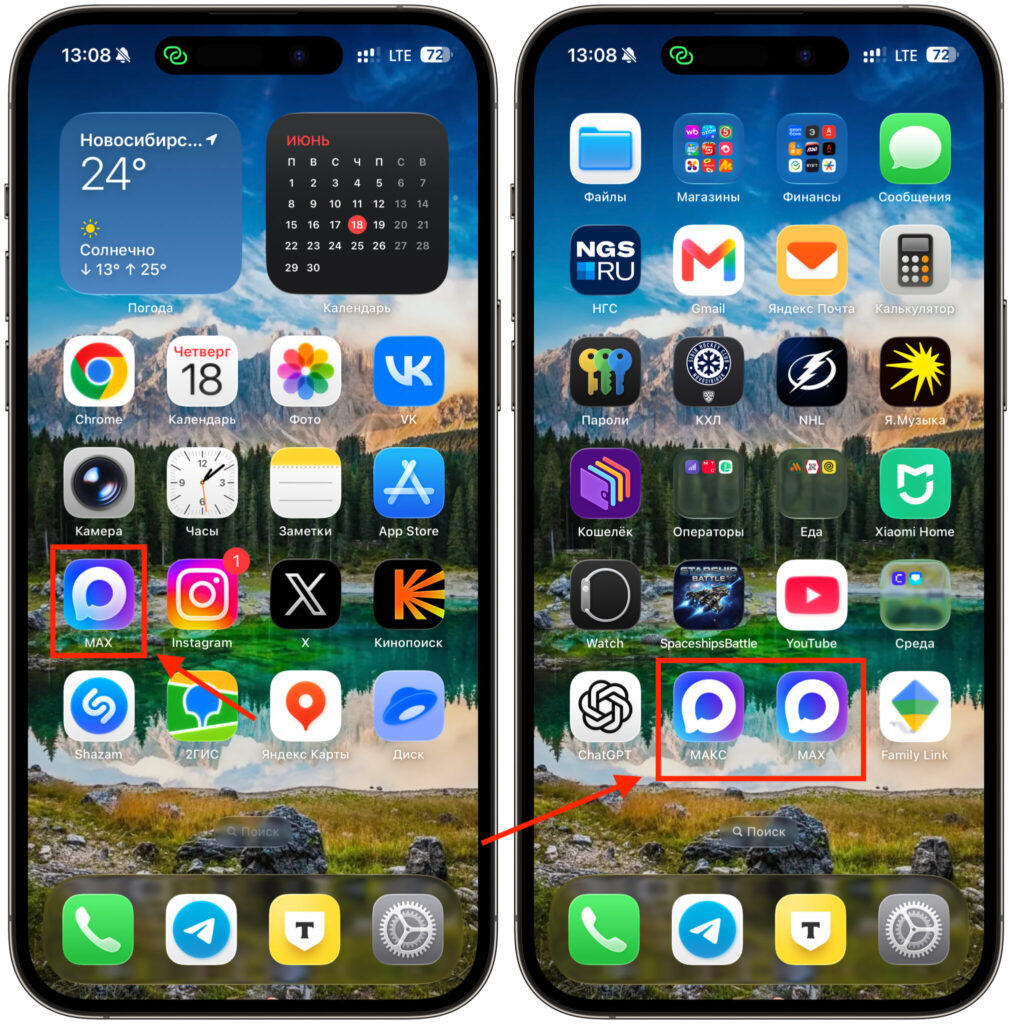
I actually have three MAX instances on my iPhone: the app and two web versions
MAX itself doesn’t resist this arrangement. The messenger natively supports simultaneous login from multiple devices with full chat synchronization. For MAX servers, each copy of yours appears as just another device. Chats, channels, and favorites in each copy are pulled up automatically because the history is stored in the cloud, not on the phone itself. The result is an analog of dual SIM cards, but for a messenger. One iPhone, and as many MAX instances inside as you need for life and work.
How to Install a Second MAX on iPhone via the Web Version
The process is simple and repeats for each new copy. I recommend doing everything through Chrome rather than Safari. The reason is the icon: Chrome pulls the proper messenger logo, while Safari sets an unremarkable, generic shortcut. At least that’s how it works for me, although other users report that everything adds normally for them. It doesn’t affect functionality, but when you have several copies, neat icons make life noticeably easier.
From here, everything is done step by step, and the process is the same every time:
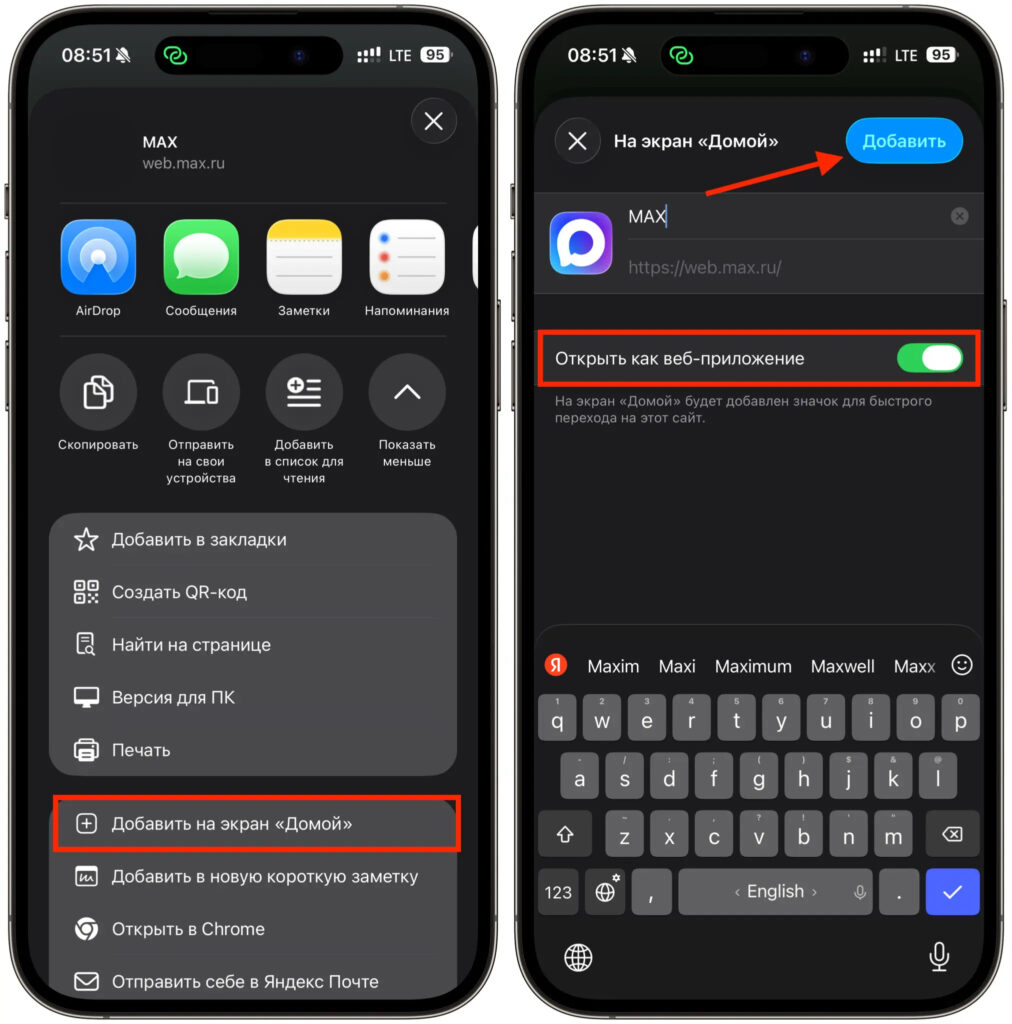
The shortcut is added in less than a minute
- Open the address web.max.ru in Chrome.
- Tap the “Share” button in the bottom panel.
- Select “Add to Home Screen.”
- Set the shortcut name, for example MAX Personal.
- Confirm the addition and launch the app from the home screen.
- Log in with your phone number, just like a regular sign-in.
The first account is ready. Now repeat the same steps, opening the same address again, and log in with a different number. The second icon will appear next to the first. Need a third and fourth — do the same thing. It’s important to launch each copy from the icon on the screen, not from a browser tab.
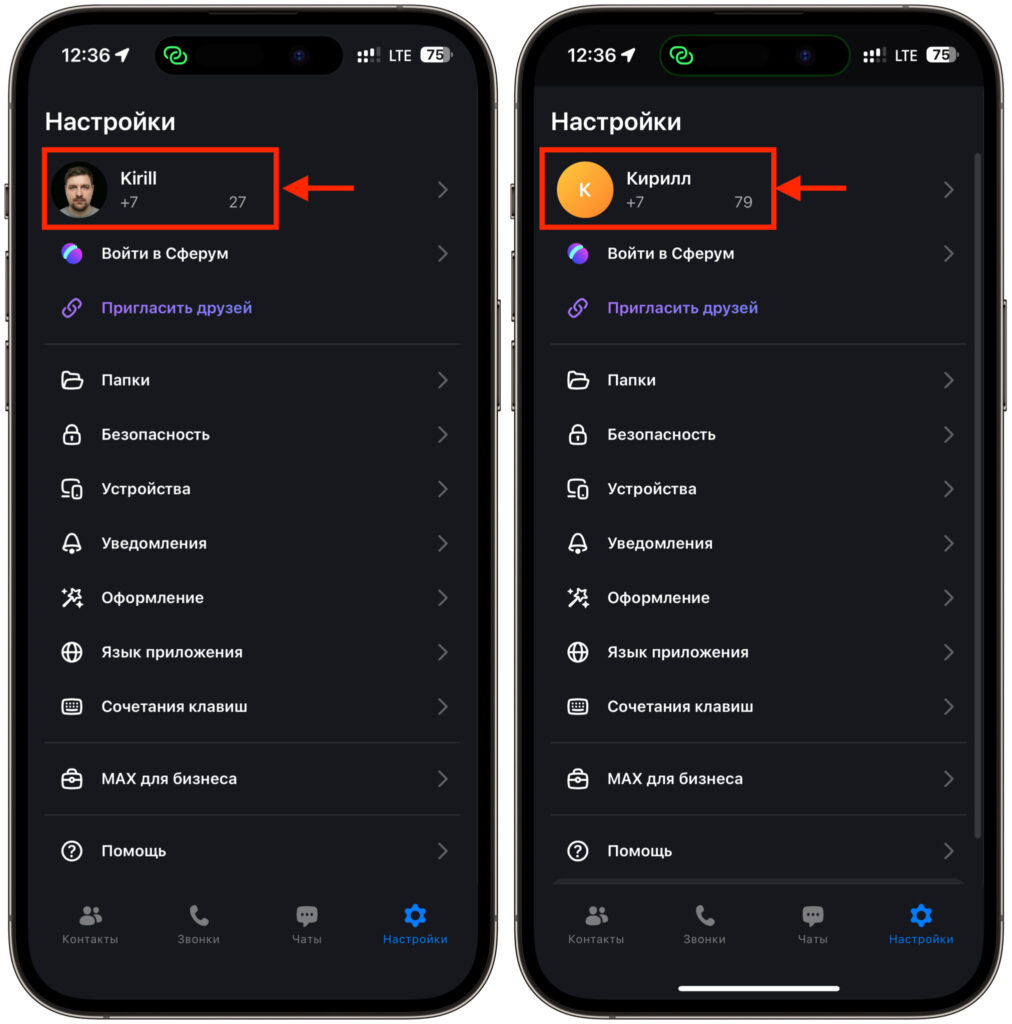
Two working web versions with different numbers on one smartphone
How to Separate Personal and Work MAX on One iPhone
Here’s the most important point — the very reason this article was written. When you have two or more copies, they’re easy to mix up because the icons are identical and labeled with the same word MAX. You open the work one and find personal chats. This is solved during the adding step, literally in five seconds.
At the step where iOS asks you to set the shortcut name, type in a meaningful name instead of the default MAX. For me, these are MAX Personal, MAX Work, MAX Channel, and MAX Family. The label is visible right under the icon, so you immediately know where you’re tapping, even before launching.
A couple of tips from experience. Keep the names short and distinct from each other — iOS will truncate long ones. Spread the copies across different locations: put the work MAX in a folder with work apps, leave the personal one on the main screen. If you accidentally add an extra duplicate, delete it right away so you don’t have to guess later.
How Notifications Work Across Different MAX Accounts on iPhone
Now for the pleasant part. Since each copy is a standalone web application, its notifications are its own. A push from work MAX will arrive tagged with the work icon, and from personal MAX — with the personal icon. However, you won’t see a badge counter on the icon, unfortunately. Why this feature doesn’t fully work is unclear, but that’s how it is.
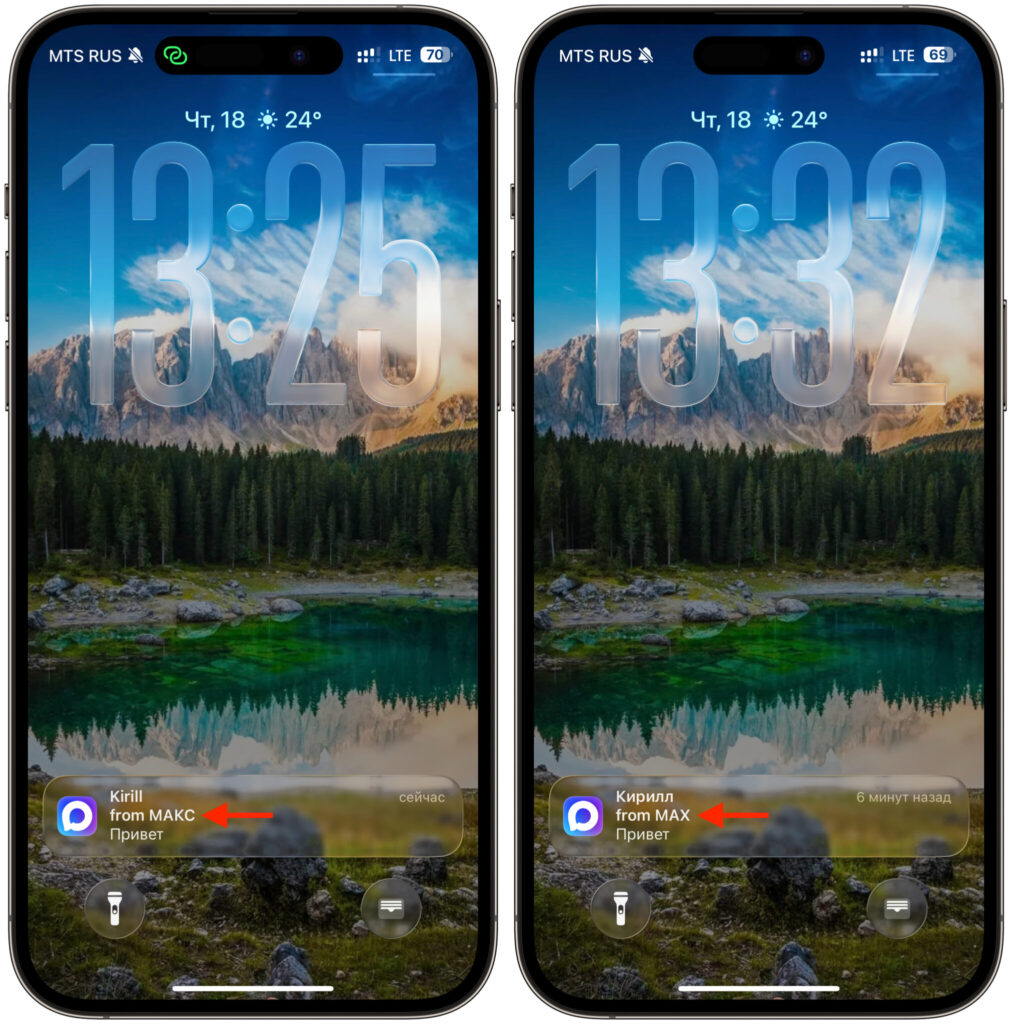
If you name the shortcuts correctly, you’ll be able to separate notifications too
For push notifications to work, allow notifications for each copy when the system asks during the first launch. The key thing to remember is that permission is granted in each copy separately.
They’re also configured separately. Go to “Settings,” then “Notifications,” and you’ll see all your MAX copies as different entries. Keep sound and banners for the work one, and set the personal one to silent at night. Push notifications also reach Apple Watch, and with the same icon, so even on your wrist it’s clear which account is calling for your attention.
The bottom line is this. There’s no full-fledged App Store app yet, but something has appeared that the regular app never even had: as many independent MAX instances as you want on a single iPhone. A couple of minutes per copy through Chrome, a clear name when adding, and you keep personal and work in one phone without mixing anything up or missing anything.