If you regularly connect an external SSD, flash drive, or SD card from your camera to your Mac, and then manually launch Final Cut Pro, Photoshop, or another editor every time — this routine can be easily automated using macOS’s built-in tools. No third-party utilities are needed: everything is done through the standard Shortcuts app. The setup takes less than a minute and works with any external storage device — from a portable SSD to a memory card.
Launch any app you need automatically
What Can You Automate When Connecting an External Drive on Mac
First and foremost, this is useful for those who work with photos and videos. A typical scenario: you insert an SD card from your camera or connect an external SSD with projects, and your Mac automatically opens the editor you need — Pixelmator, Lightroom, DaVinci Resolve, or any other application.
Automation removes one extra step from a repetitive workflow. It’s a small thing, but when you do it every day, the time savings are noticeable.
However, the scenarios aren’t limited to creative tasks. You can, for example, automatically open Finder, a backup application, or Terminal — it depends on what you usually do with that drive.
Setting Up Automation in Shortcuts on Mac
Before you begin, make sure your Mac has the latest version of macOS installed and the external drive you need is at hand.
- Connect the external SSD, flash drive, or SD card to your Mac.
- Open the Shortcuts app and select the “Automation” section in the left sidebar.
- Click the “+” icon to create a new automation.
- In the list of conditions, select “External Disk” and click “Next.”
- Check the box for “Specific External Disk,” click “Choose Disk,” and select the connected drive. If you want the automation to trigger when any disk is connected, leave the “Any External Disk” option selected.
- Make sure the condition “Is Connected” and the mode “Run Immediately” are selected — this way Mac won’t ask for permission every time. Click “Next.”
- Click “New Quick Shortcut.”
- Search for and double-click the “Open App” action, then select the desired application in the “App” field. Close the window — the automation will save automatically.
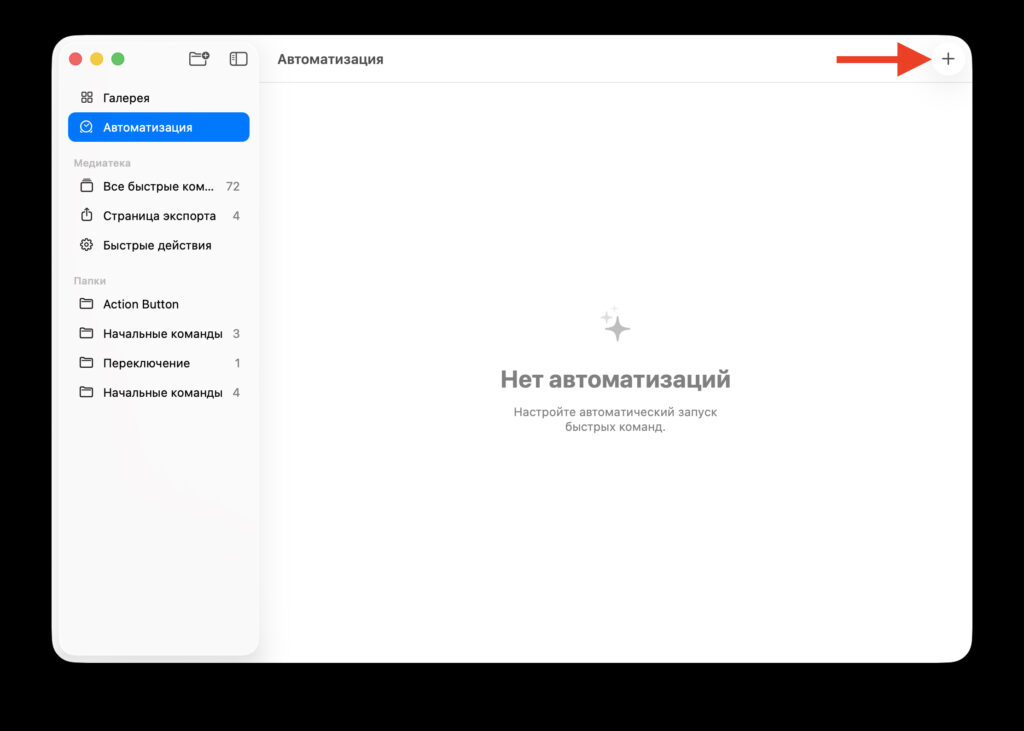
Start creating a new automation
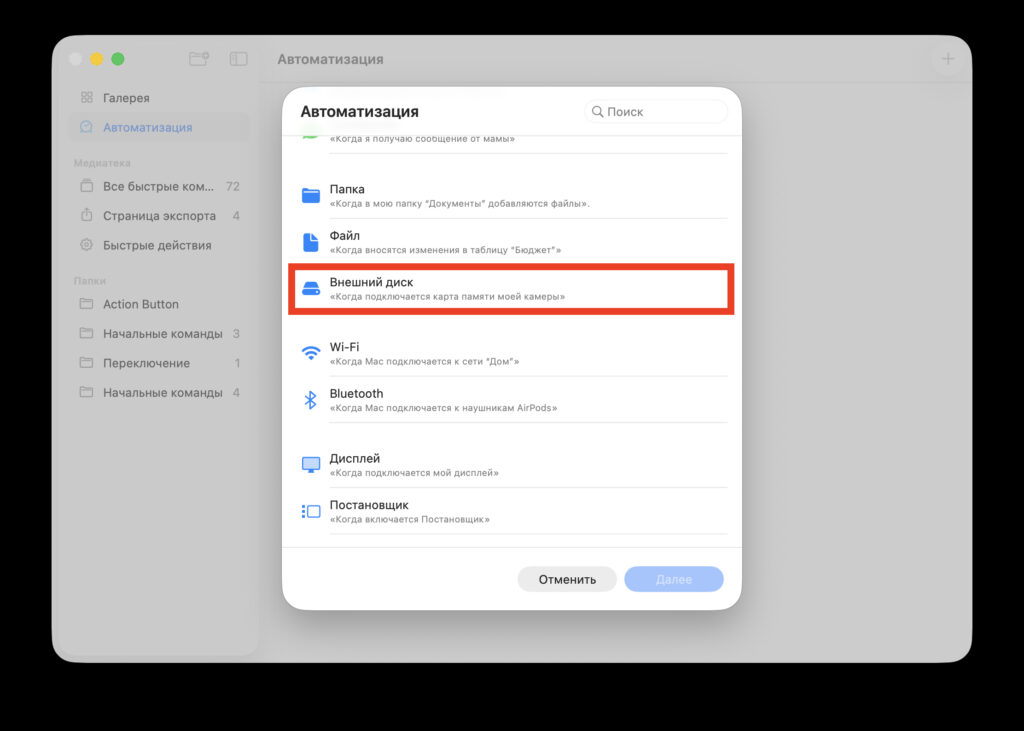
Select the “External Disk” option
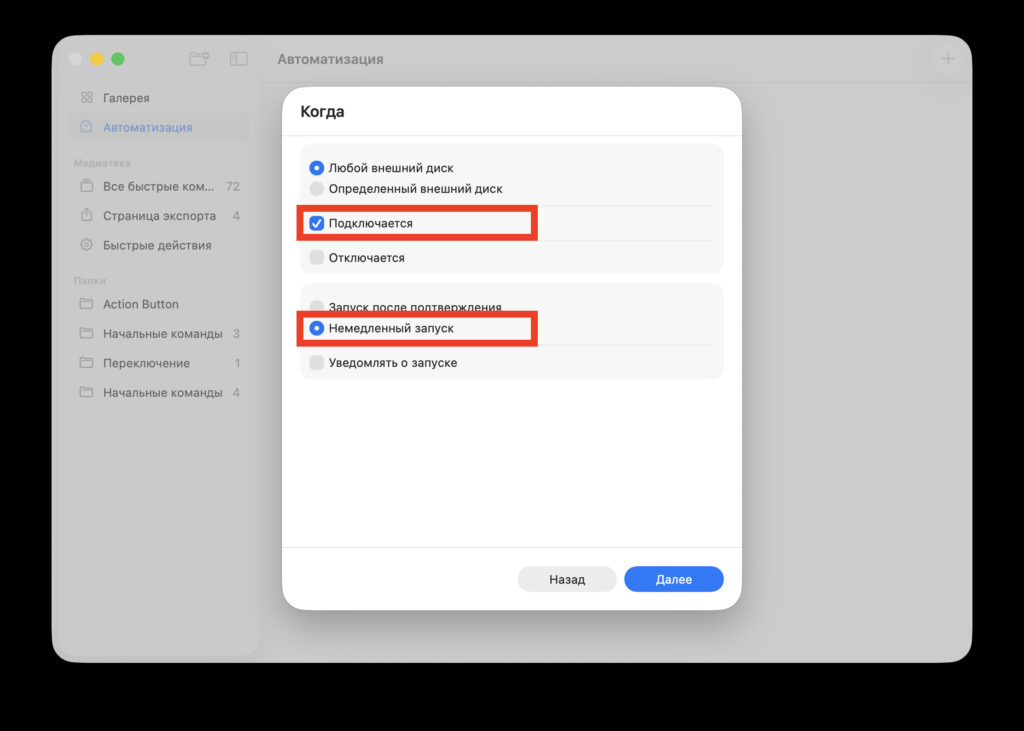
Choose which external disk will open the selected app and check the boxes for immediate launch
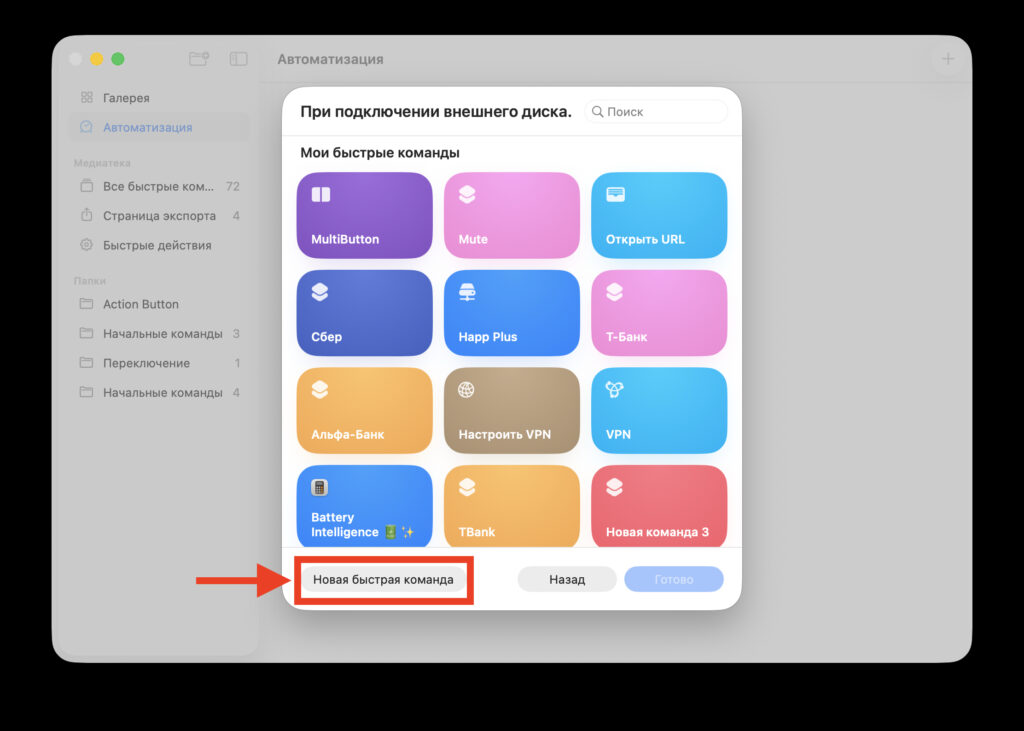
Add a new command
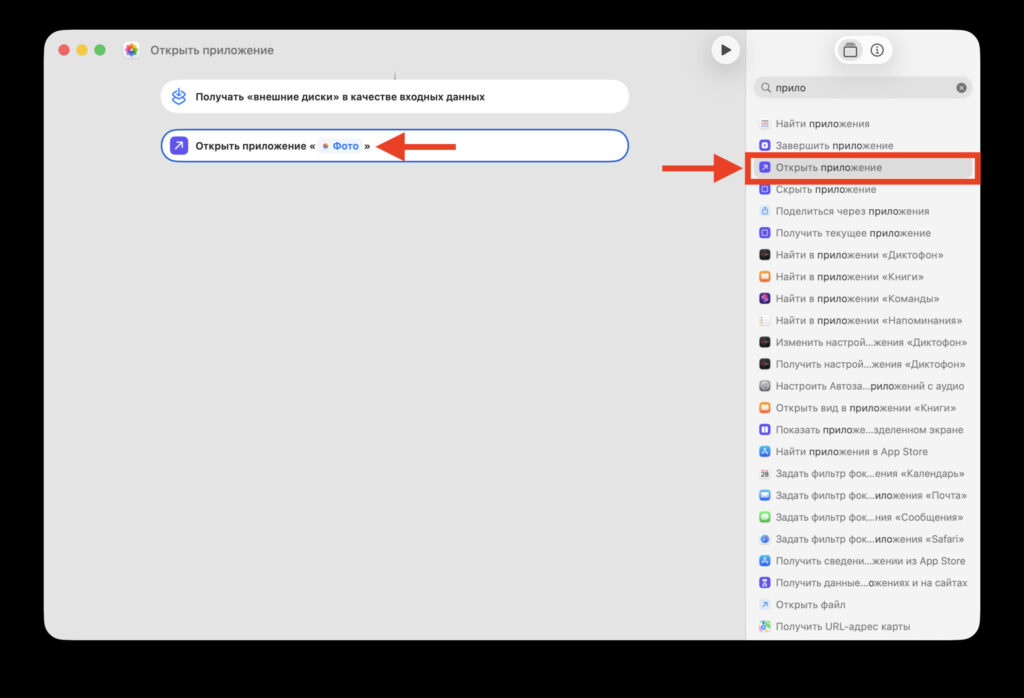
Add one action to the shortcut
Done. Now every time you connect the selected drive, your Mac will automatically launch the specified application.
What to Do If Shortcuts on Mac Doesn’t Launch the Selected App
The method is simple: safely eject the drive, wait a few seconds, and connect it again. If everything is set up correctly, the application will open automatically without any confirmations.
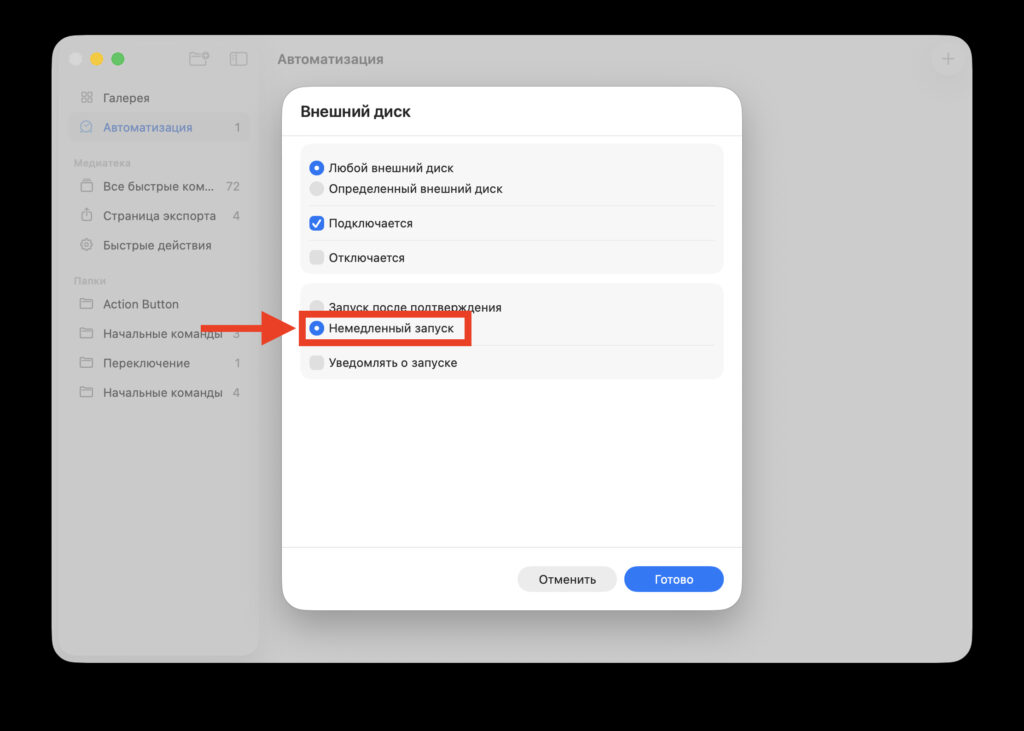
If the shortcut doesn’t trigger, check this line
If that didn’t happen, go back to the “Automation” section in the Shortcuts app and verify that the “Run Immediately” mode is selected, not “Ask Before Running.”
Auto-Launching Apps on iPhone and iPad When Connecting a Drive
Unfortunately, on iPhone and iPad this capability is not yet available. The iOS version of the Shortcuts app lacks the “External Disk” condition, so it’s not possible to set up a similar automation for USB-C or Lightning drives on Apple mobile devices.
Apple may add this feature in future versions of iOS, but for now, auto-launching apps when connecting an external drive is only available on Mac.
Which Apps Can You Launch Through Shortcuts on Mac
This setting is especially useful for those who work with external drives daily — photographers, videographers, and editors. But for any Mac user who regularly connects the same drive, it will save a few seconds and eliminate routine tasks.
The setup takes less than a minute, doesn’t require third-party apps, and works on any Mac with the latest macOS. If you manually open the same program every day after connecting a drive — try automation, and the difference in convenience is immediately noticeable.


