A familiar situation for everyone: you’re capturing a great moment at a concert, and then you realize that for stories you needed a vertical video, while a horizontal one would have looked great on YouTube. You either have to choose one format or reshoot the same thing multiple times. It turns out there’s a way to record both versions at once, with a single tap. Just recently, the iPhone 17 learned to shoot simultaneously with the main and front cameras, and I stumbled upon an app that pulls off a similar trick, only with frame orientation. The app is called SnapEdit, and the mode you need is hidden so well that you won’t find it right away. Let’s figure out how to enable it and why you’d even need it.
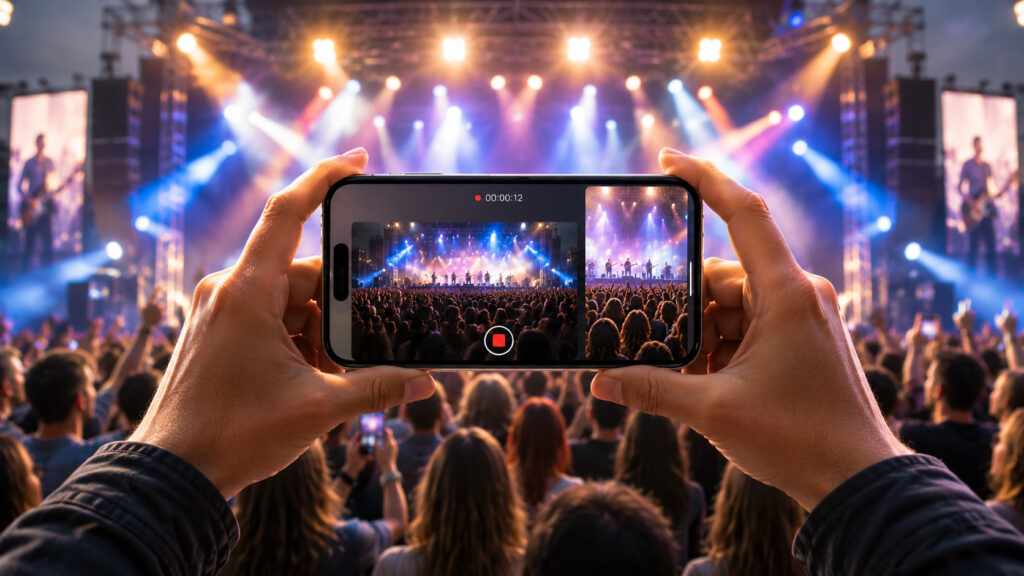
You can now record video in two formats at once
Dual Camera Mode in SnapEdit: What It Can Do
Many people know SnapEdit as a photo editor with AI-powered object removal. But over the past year, the developers have packed the app with cameras to the brim: there are film filters, a Polaroid mode, and even RAW shooting. Hidden among all this treasure is the “Dual Camera” mode, which alone makes the app worth installing.
It works in a very straightforward way. The app simultaneously records two streams from the same camera: one clip in vertical orientation and the other in horizontal. As a result, you get two finished videos shot at exactly the same moment. There’s no need to manually crop anything afterward and lose quality by cutting a wide frame down to a vertical format.
The main beauty here is saving time. Usually, to get a clip in two orientations, you either have to shoot two takes in a row or drag the source file into an editor and cut a vertical version out of the horizontal one. Both options are extra hassle, and in the case of a live event, there’s also the risk of missing the right moment. Dual camera eliminates this headache completely: one tap, two files, zero editing.
How to Simultaneously Record Video in Two Formats on iPhone
Now for the most important part — how to actually set it all up. The instructions turned out to be as short as possible; even someone opening the app for the first time can figure it out.
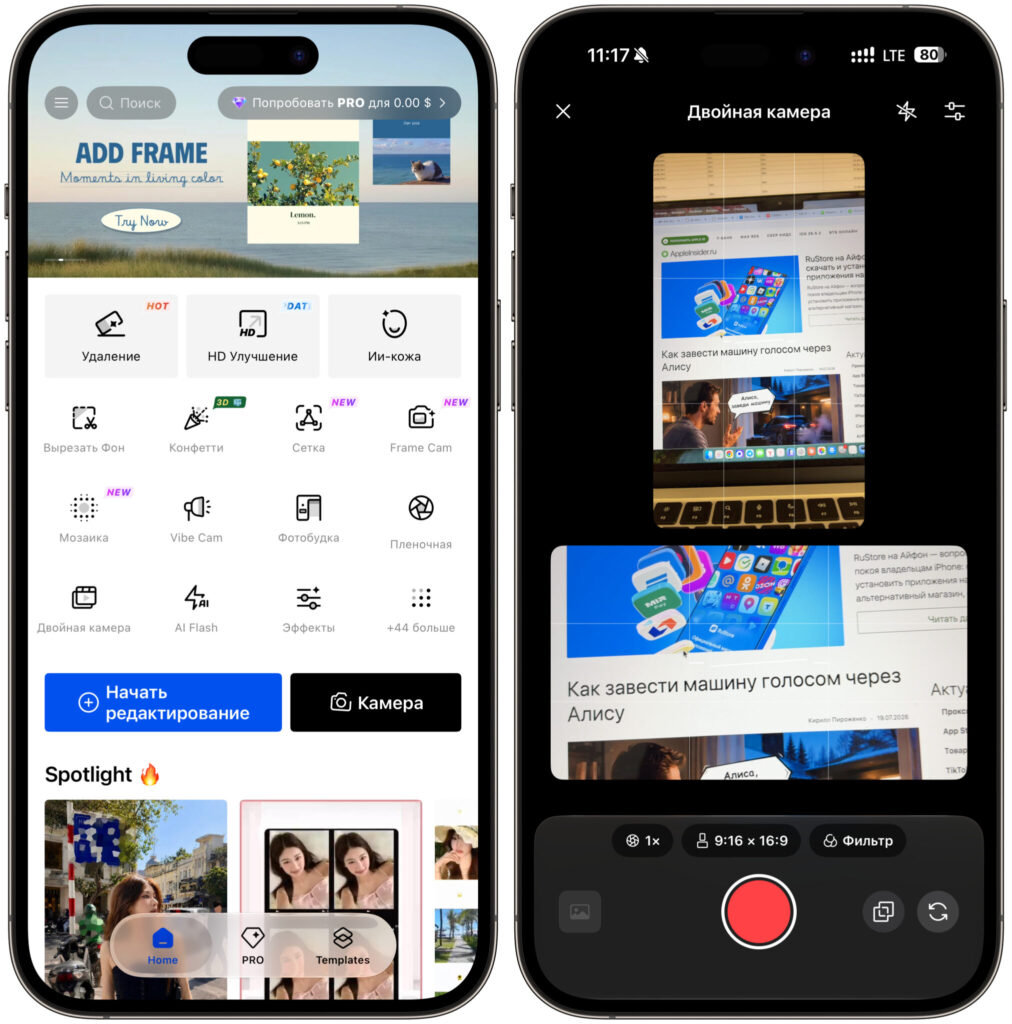
Select the “Dual Camera” mode and go ahead
- Download and open SnapEdit from the App Store.
- Skip all the subscription offers. Just close the pop-up windows with the X in the corner — you don’t need to pay anything for shooting.
- On the main screen, find and select the “Dual Camera” mode.
- Point the camera at your subject and press the record button.
- Stop recording when you’re done. Both clips will be saved to your gallery automatically.
That’s the whole secret. After the first launch, you can shoot as much as you want, and the subscription pop-ups won’t be as intrusive anymore. The only thing worth keeping in mind: the battery drains noticeably faster during dual recording, so keep a power bank handy for long shoots.
Who Benefits from Dual Video Recording
First in line, of course, are bloggers and anyone who manages social media. Previously, you had to guess in advance where exactly the video would go and shoot for a specific platform. Now you can record an interesting moment once and then calmly decide: vertical for Reels and stories, and save the wide frame for YouTube or editing.
I tested the mode on my iPhone 16 Plus during a regular walk, and the difference from the usual approach is immediately noticeable. No fussing with flipping the phone, no ruined takes. Shot once — got two neat files for different purposes. It’s especially convenient at concerts and events where the moment won’t repeat and reshooting is simply not an option.
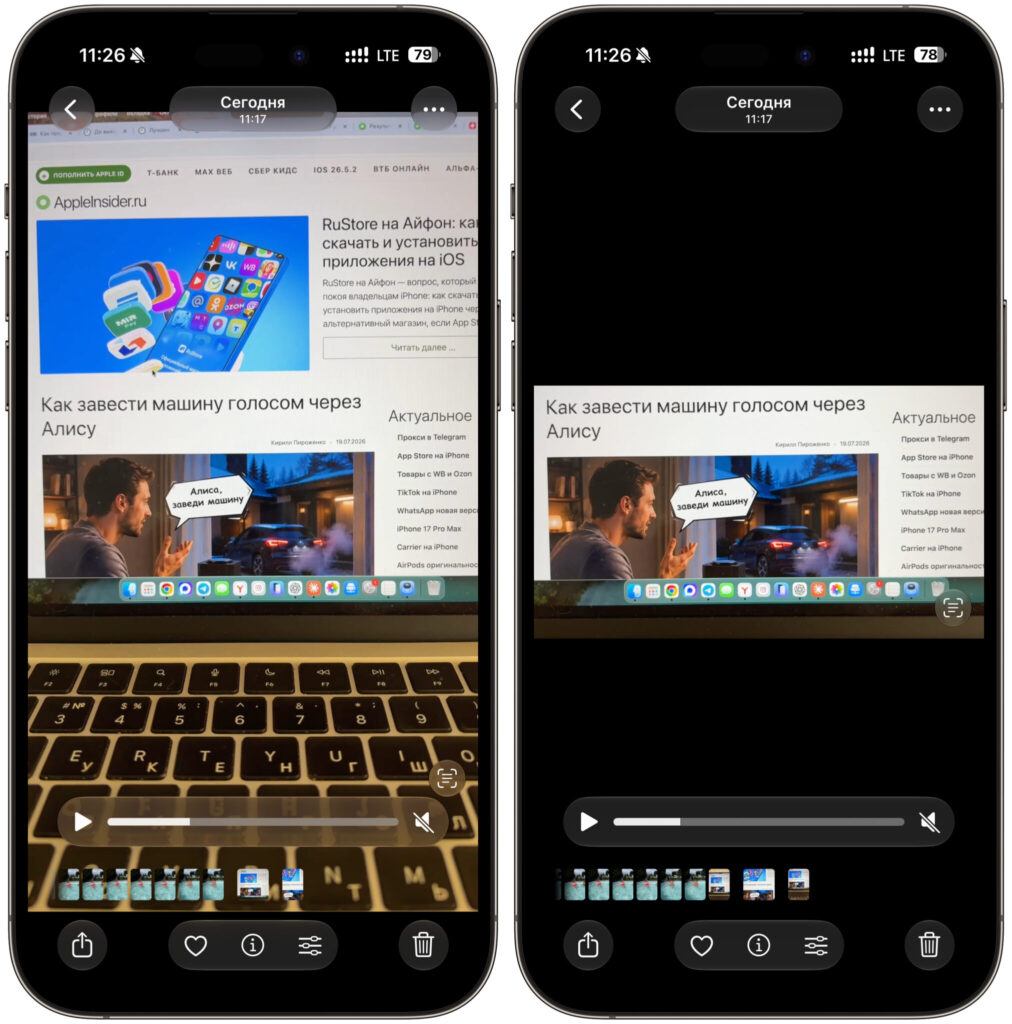
You’ll get two files as output
Travelers and those who shoot family videos will especially appreciate dual camera. You went to the mountains or headed to the countryside, caught a beautiful sunset shot — and you already have a vertical clip ready for stories and a wide video that will be enjoyable to rewatch on a big screen at home. No need to rack your brain on location about which format is more important. The decision can be safely postponed until later, when you’re sorting through your footage.
It’s also useful for those who simply like keeping their gallery organized.
Limitations of Dual Recording in SnapEdit
A couple of honest disclaimers so there are no disappointments later. SnapEdit is a freemium app, and they’ll offer you a subscription at every opportunity. You don’t need to pay for dual recording, but some additional filters and editor features are locked behind a subscription, and the free version also shows ads periodically.
In terms of quality, dual recording is slightly inferior to the native iPhone camera. This is expected: the app handles two streams simultaneously and splits processor resources between them. For stories and short clips, the picture quality is more than enough, but for something serious and detail-demanding, it’s better to use the native camera and crop manually.
And a small caveat from personal experience: third-party camera apps in general tend to act up after system updates. So don’t be surprised if after the next update some mode temporarily glitches out. Overall, though, the concept is excellent, and for quick content in two orientations at once, SnapEdit handles the job brilliantly. A dream come true for all bloggers, no matter how you look at it.