Rating photos with stars right in the Photos app on iPhone wasn’t possible before. Now it is: the star rating feature has appeared in iOS 27 and works exactly like track ratings in Music.
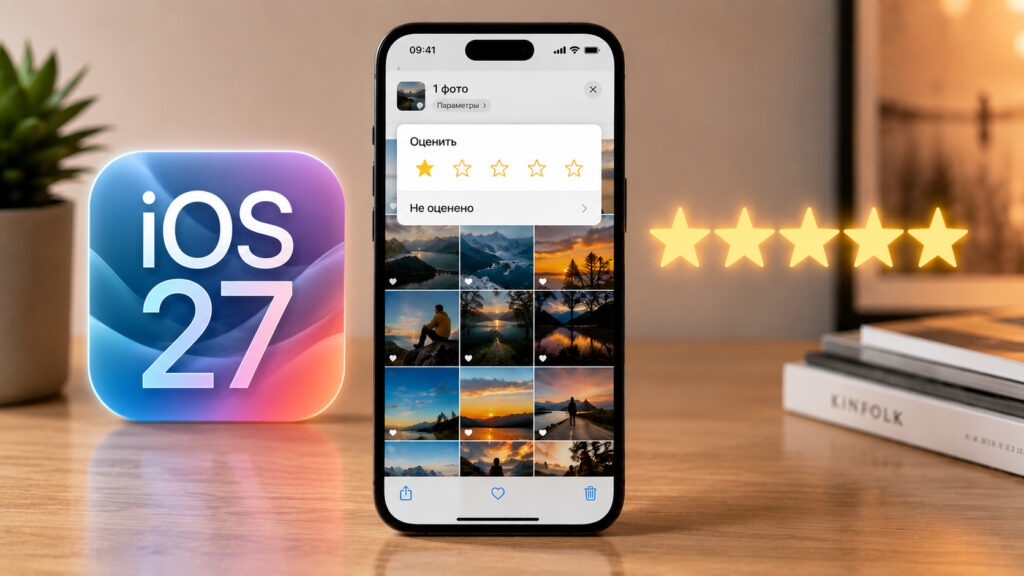
Now you can assign ratings to photos and videos
Usually, people search their media library using the search bar. You type “food” — and Photos shows all shots with food. If you have Apple Intelligence set up, search understands even long descriptions like “person in a red shirt on the beach”. By the way, Siri AI has learned to work in Russian, so searching for photos by voice has also become easier.
But stars follow a different logic. The rating is set by you, not by an algorithm. You mark the best family shots with five stars, and screenshots you’re not ready to delete yet — with one. Then with a single filter, you separate one from the other. No neural network, no guessing: the system remembers exactly what you told it.
How to Enable Photo Ratings on iPhone
There’s a catch here that causes many people to simply not find the feature. Ratings are not enabled by default: until you allow the app to show the controls, there will be no stars in the interface. It looks as if the feature was removed from your version, even though it’s right there.
The steps are simple:
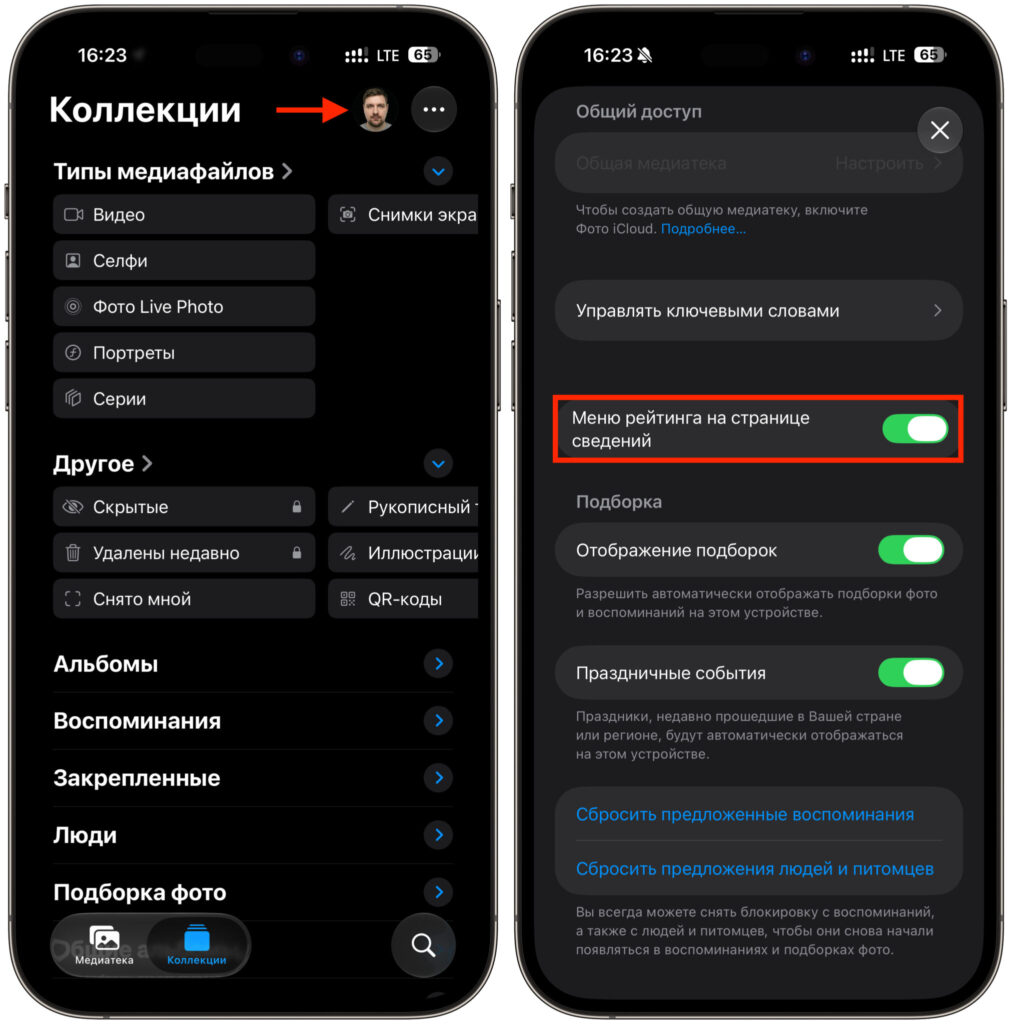
You’ll only need to flip one toggle
- Update your iPhone to iOS 27.
- Open the Photos app and go to the “Collections” tab.
- Tap your Apple account profile photo in the upper right corner.
- Turn on the “Rating menu on details page” toggle and close the screen.
Rating Photos and Videos in the Photos App
From here, everything is done in two taps. Open a photo or video in full screen, tap the small star icon at the top, and choose the number you want — from one to five. The rating is saved instantly and syncs via iCloud; you don’t need to confirm anything separately.
There is one limitation, though. You can’t rate photos from iCloud shared albums. Stars are only available for your own files in the media library and in regular albums, so sorting someone else’s shots from a family album won’t work.
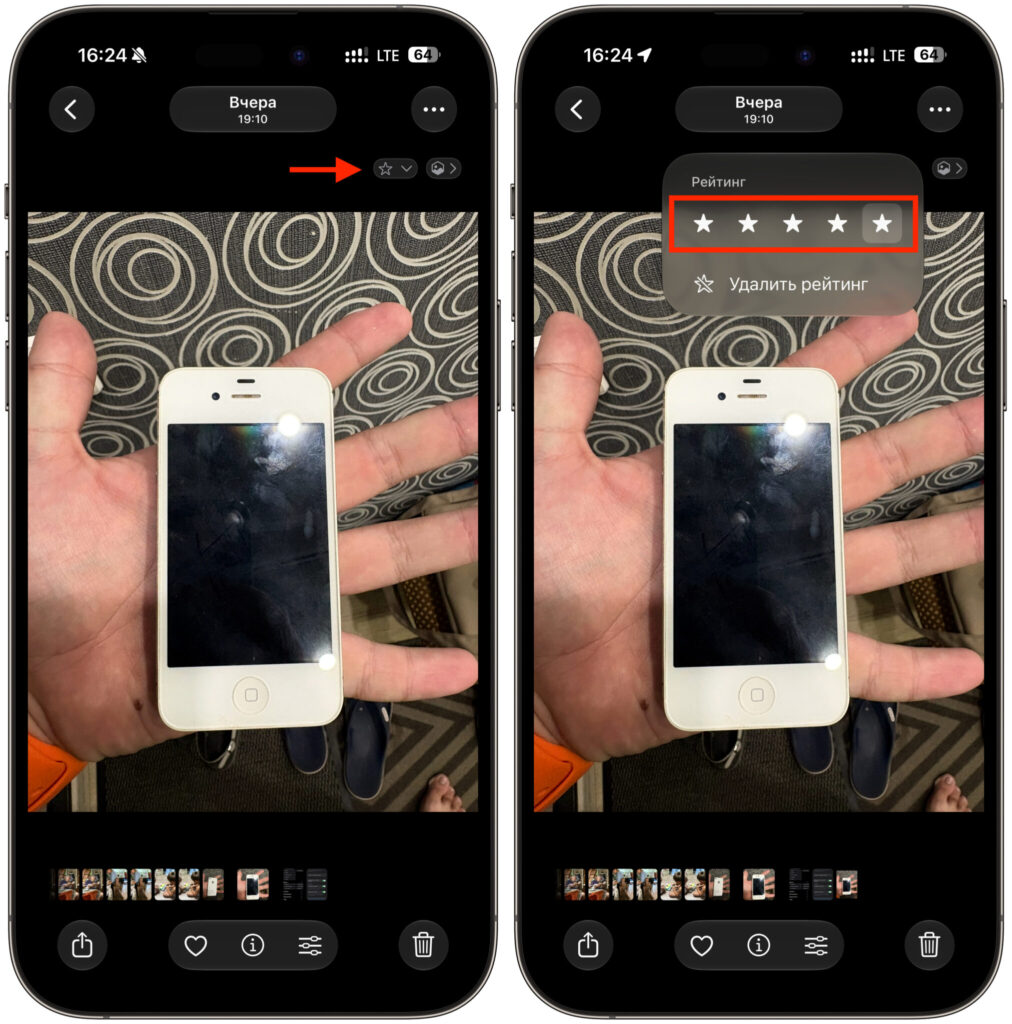
The rating is set here
What scale to use is up to you. Five stars usually go to the best shots, while one star often works as a “to delete” tag: you mark everything unnecessary throughout the month, and then clean up the media library at once using the filter. The main thing is to stick to one system, otherwise in six months you won’t remember what a three-star rating meant.
If you rate photos on the go rather than sitting on the couch, you’ll need to get used to the new logic quickly. Ratings are most convenient to assign right after shooting, while you still remember why you took that particular shot.
By the way, if you generally like keeping your media library organized, also check out how to make a cool avatar from a photo using Apple Intelligence’s neural network. A couple of minutes — and you have a new avatar for your messengers.
Filtering Photos by Rating on iPhone
This is what it was all about. The purpose of ratings is revealed in filtering: once the stars are assigned, the media library shows only what you need right now, and nothing else.
Here’s how to do it:
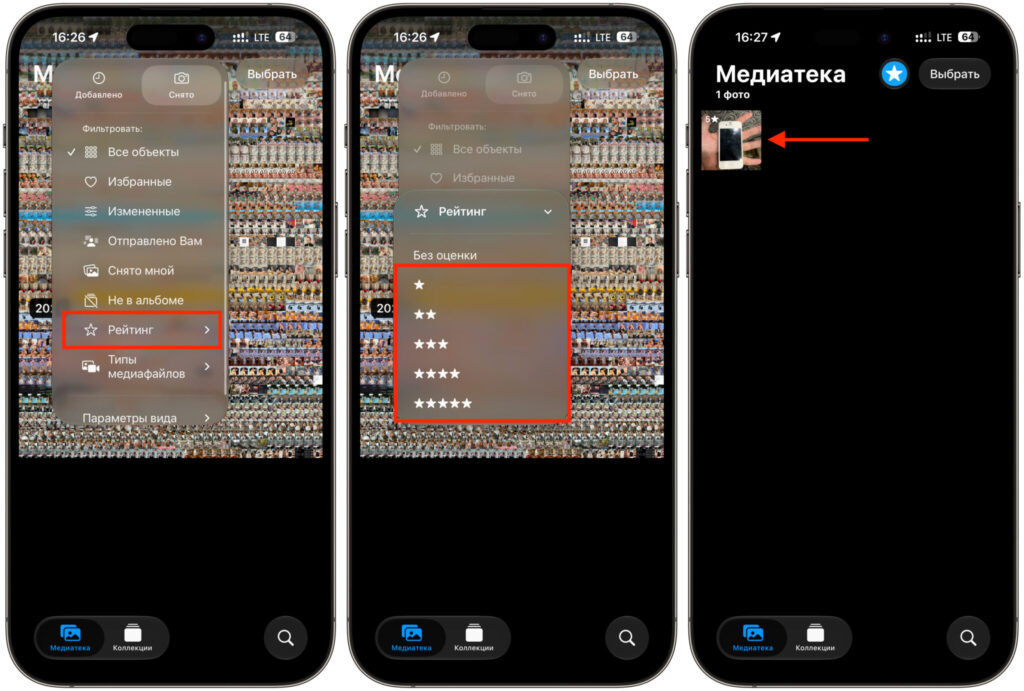
You can filter by ratings
- Open the Photos app and make sure you’re on the “Library” tab. The filter also works inside albums or categories.
- Tap the filter icon (three lines) at the top and select “Rating.”
- Check one or more ratings to see all photos and videos with those stars.
- To return to the full view, uncheck all marks. Or tap the same icon and select “All Items” or “Remove Filters.”
The filter is remembered within an album, and this is a non-obvious point. You entered a vacation album, left only five-star shots, exited, came back a week later — and wonder where half the photos went. Nothing is lost; it’s just that nobody removed the filter.
How to Make Stars Visible Right in the iPhone Media Library
It’s more convenient to scroll through the feed when you can see what’s already rated and what isn’t. In iOS 27, this visibility can be turned on manually — and ratings will appear right on the photo thumbnails, without opening each shot.
Steps:
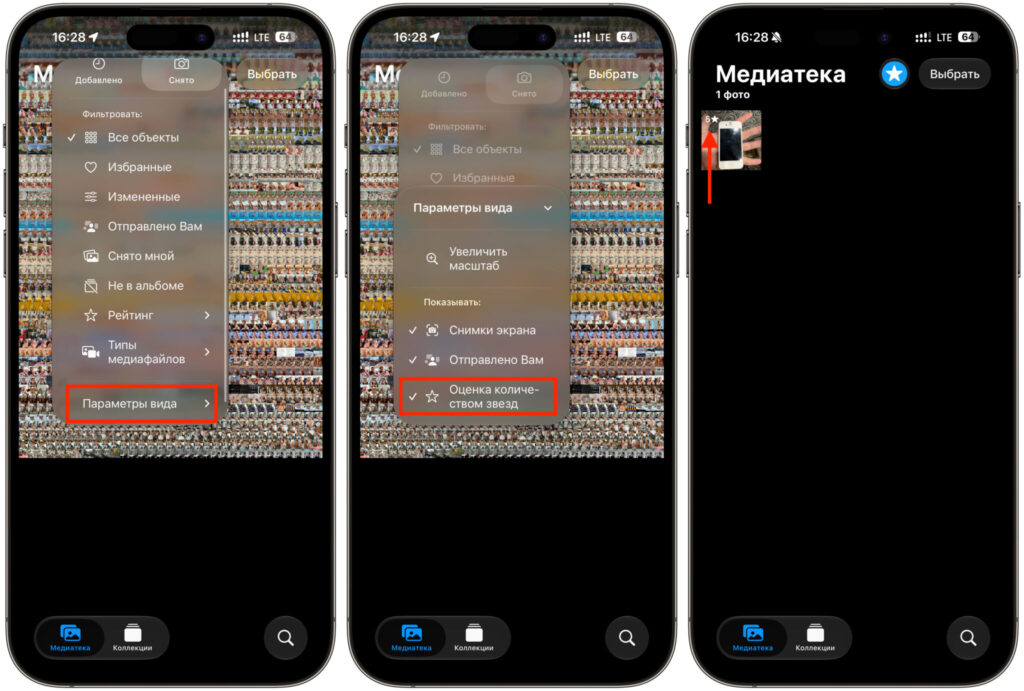
You can also display them in the corner of each photo
- Open the Photos app and go to the “Library” tab.
- Tap the filter icon (three lines).
- Select “View Options” and turn on the “Star Rating” option.
Small star badges will appear next to rated photos — similar to the heart icon on favorited photos.