All the basic functions are in place, including message pinning — a quite popular feature in Telegram. I’m breaking down all the scenarios for pinning messages in MAX: direct chats, groups, and channels.
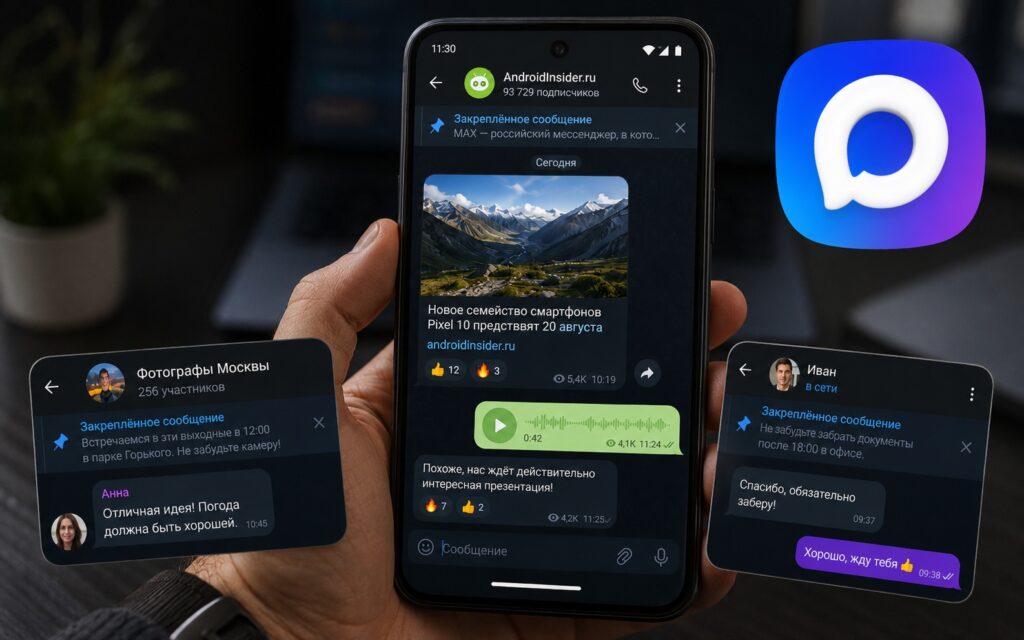
Learning how to pin messages in MAX
Why Pin Messages in MAX
A pinned message in MAX provides quick access to important information without searching through conversations. A meeting address in a direct chat, an important announcement in a group, a link to a document you always need at hand.
Pinned messages in MAX work the same way across all platforms — all chat participants see them as a banner at the top of the screen. It’s convenient for keeping important information from getting lost in the flow of messages.
How to Pin a Message in a MAX Direct Chat
Let me be honest right away: it’s impossible to pin a message in MAX direct messages. The pinning function in the MAX messenger is only available in group chats — it’s completely absent in direct conversations. This is a limitation of the app itself, not a setting that can be changed.
Messages cannot be pinned in direct chats.
If you need to save important information from a direct chat — copy it to notes or forward it to your Favorites, if this feature is available in your version of MAX. An alternative is to take a screenshot. Not ideal, but a working option until developers add pinning to direct chats.
How to Pin a Message in a MAX Group
Only an administrator or group creator can pin a message in a MAX group. Regular members cannot do this:
- Make sure you have administrator rights in the group.
- Long press on the desired message in the MAX messenger.
- Select “Pin” from the context menu.
- Confirm — all group members will see the pinned banner at the top.
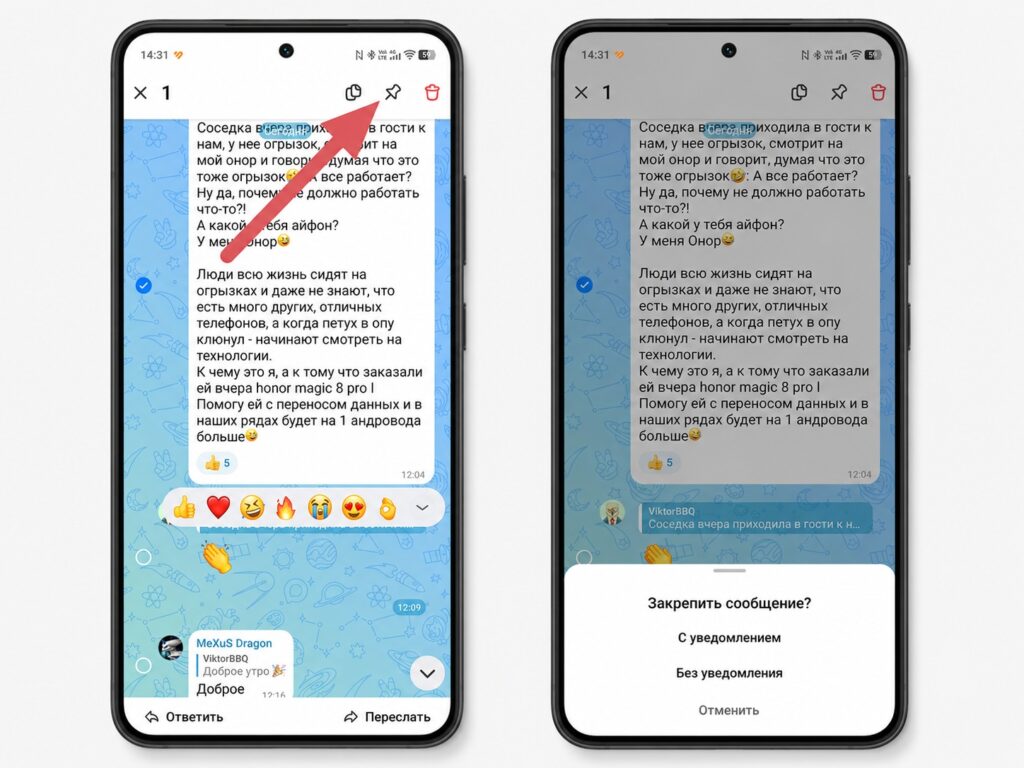
A special pin icon is created for pinned messages
If you want to give another member the right to pin messages — you need to make them an administrator. To do this, go to group settings, select the member, and tap “Make Administrator.” After that, they’ll be able to pin a message in a MAX chat on their own. If you need to pin multiple messages — repeat the procedure for each one. In MAX, you can pin a message multiple times — all of them will appear in the banner, which you can scroll through.
How to Pin a Message in a MAX Channel
Only the channel owner or an appointed administrator can pin a message in a MAX channel. The process is the same as in a group:
- Open the MAX channel on Android under the owner’s or administrator’s account.
- Long press on the desired post.
- Select “Pin” — the post will appear in the banner at the top of the channel.
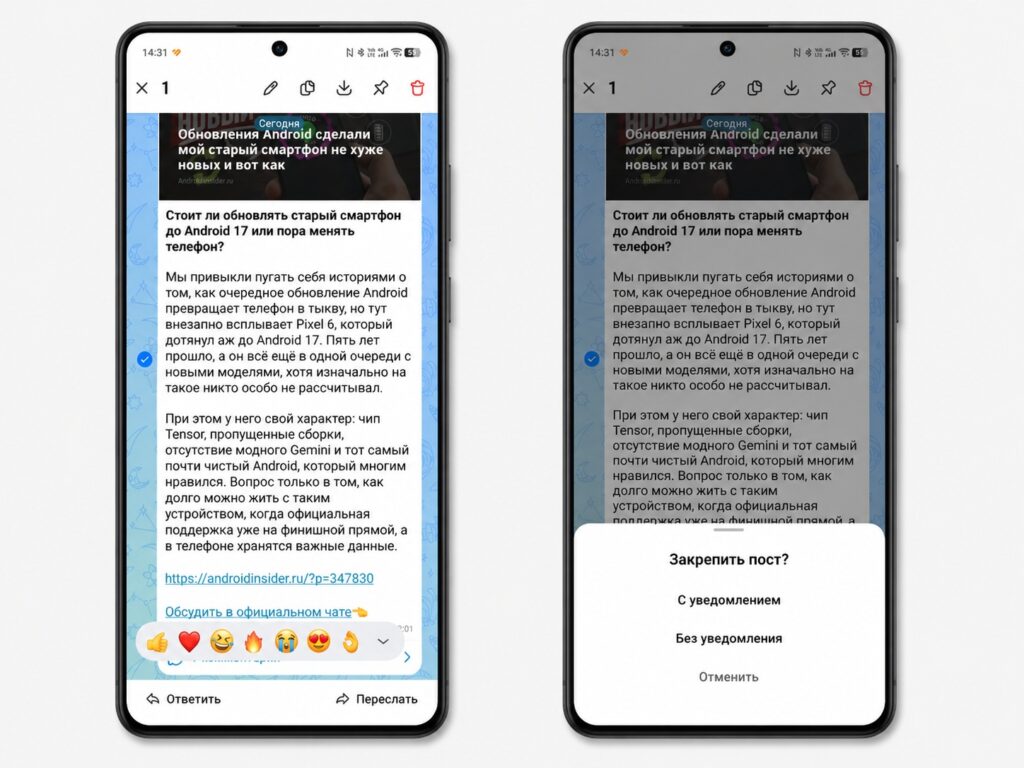
Messages are pinned in a channel in a similar way
Pinning is especially useful for channels: it helps new subscribers immediately see an important welcome message or rules.
How to View a Pinned Message in MAX
A pinned message in MAX is displayed as a banner right below the chat or group header. Tap on the banner — and you’ll jump to the message itself in the conversation.
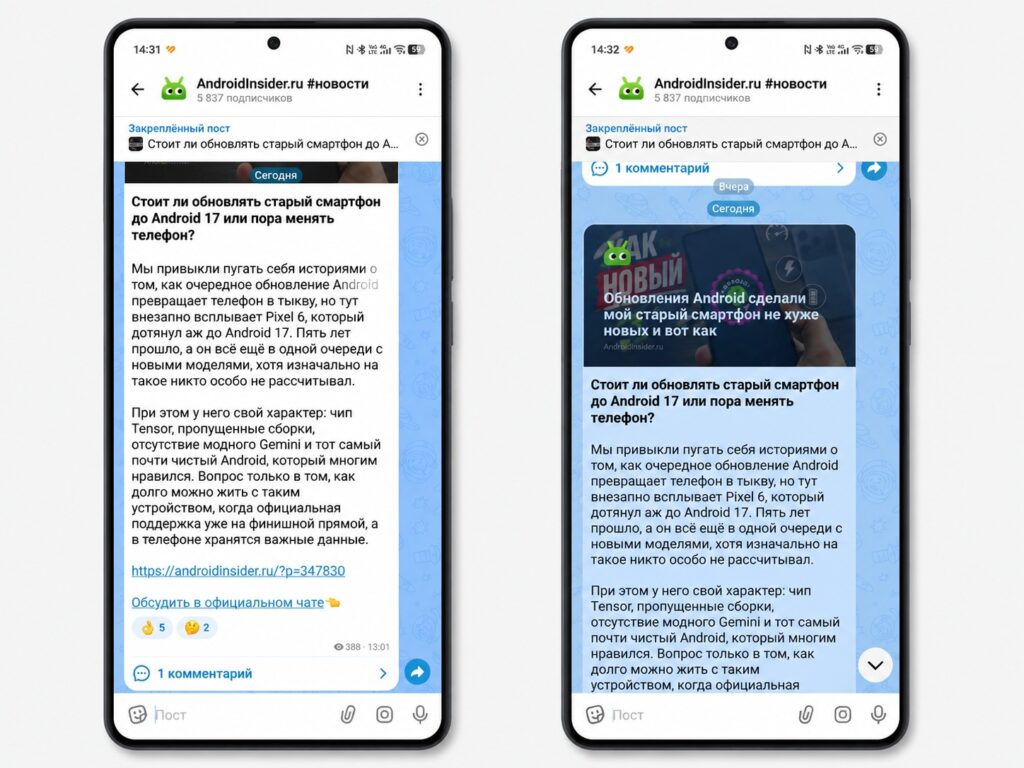
Pinned messages are displayed below the channel header
If multiple messages are pinned — you can scroll through the banner. Each tap switches to the next pinned message in chronological order. This is convenient when a group has several important announcements at the same time.
How to Unpin a Message in MAX
Removing a pinned message in MAX is just as easy as pinning it. The unpinning permissions are the same as for pinning:
- Tap the pinned message banner at the top of the chat — you’ll jump to the message in the conversation.
- Long press on that message.
- Select “Unpin” from the menu.
- Confirm — the banner will disappear.
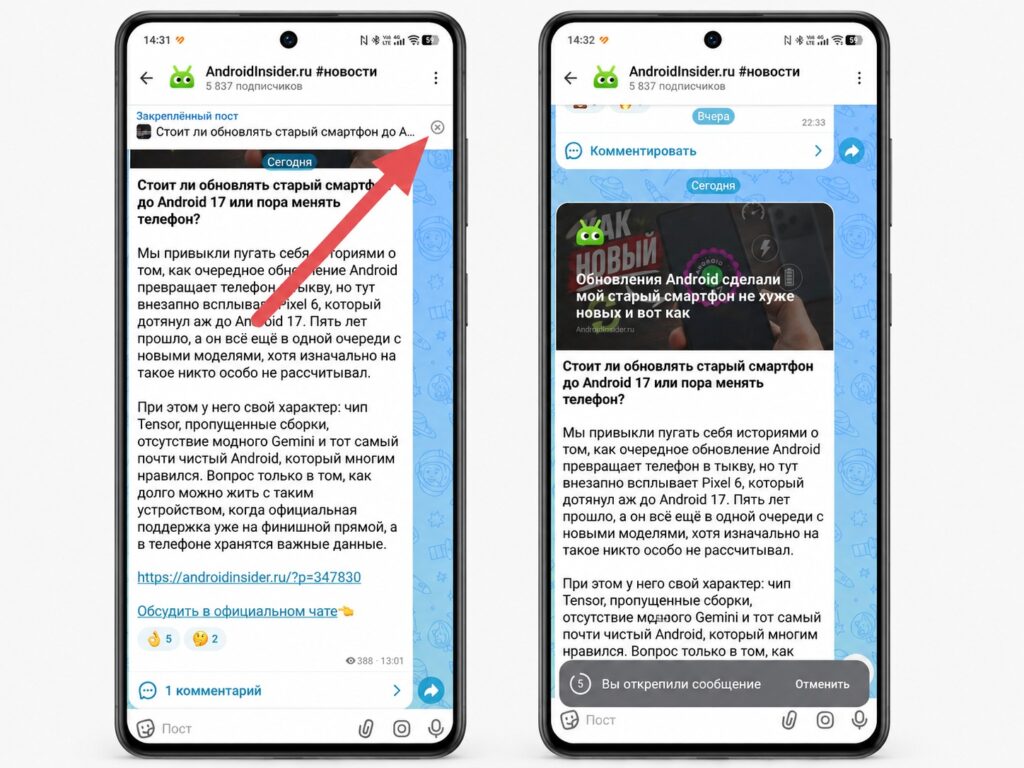
Messages are unpinned by tapping the X button
Only an administrator can unpin a message. Group members will receive a system notification that the message has been unpinned.
Why You Can’t Pin a Message in MAX
You’re in a direct chat. The most common reason. You can only pin a message in a MAX group chat — the function is unavailable in direct conversations at all.
No administrator rights in the group. In a group chat, only administrators and the group creator can pin messages. If there’s no “Pin” button — check your status in the group settings.
Outdated app version. Update the MAX app through Google Play or RuStore — in older versions, the function may not work correctly.
Technical glitch. Restart MAX and try again. If that doesn’t help — reboot your smartphone.


