If video on your Apple TV is stuttering, music is buffering, and Siri responds with a delay — the first thing to do is check the internet speed right on the set-top box. The entire process takes less than a minute and will help you understand whether your ISP is to blame or if the problem lies elsewhere. tvOS has no built-in speed test, but there are several free apps in the App Store that handle the task.
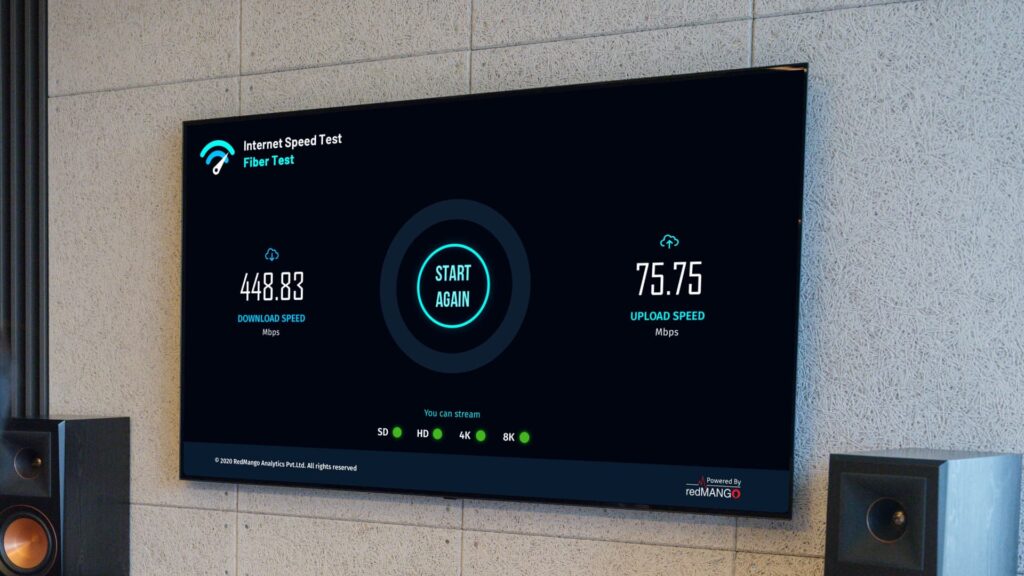
How to check internet speed on Apple TV
When You Need to Measure Internet Speed
A speed test on Apple TV isn’t always necessary — it’s useful in specific situations. Here are the main ones:
- Video on streaming services is stuttering or losing quality
- Live sports broadcasts have a delay
- Downloading apps from the App Store takes too long
- tvOS updates download unusually slowly
- Siri takes a long time to process voice commands
It’s important to check the speed specifically on the Apple TV, not on an iPhone or Mac. The set-top box may be connected to a different network, placed farther from the router, or using a wired Ethernet connection — and the results will differ from what your phone shows.
Apps for Measuring Internet Speed on Apple TV
Several internet speed measurement apps are available in the tvOS App Store. Here are three proven options, each with its own feature:
- Speedtest by Ookla — the most popular speed measurement app on any platform. If you’ve already used it on iPhone or Mac, the interface will be familiar. It allows you to manually select a server for testing, although the automatic selection is usually optimal. Keep in mind that Speedtest is blocked in Russia and will only work with a foreign IP address.
- Internet Speed Test — displays a visual scale with hints showing whether your speed is sufficient for SD, HD, 4K, or 8K streaming. Convenient if you don’t want to dig into numbers.
- SpeedTest — saves measurement history, which is useful when you need to track connection stability over several days.
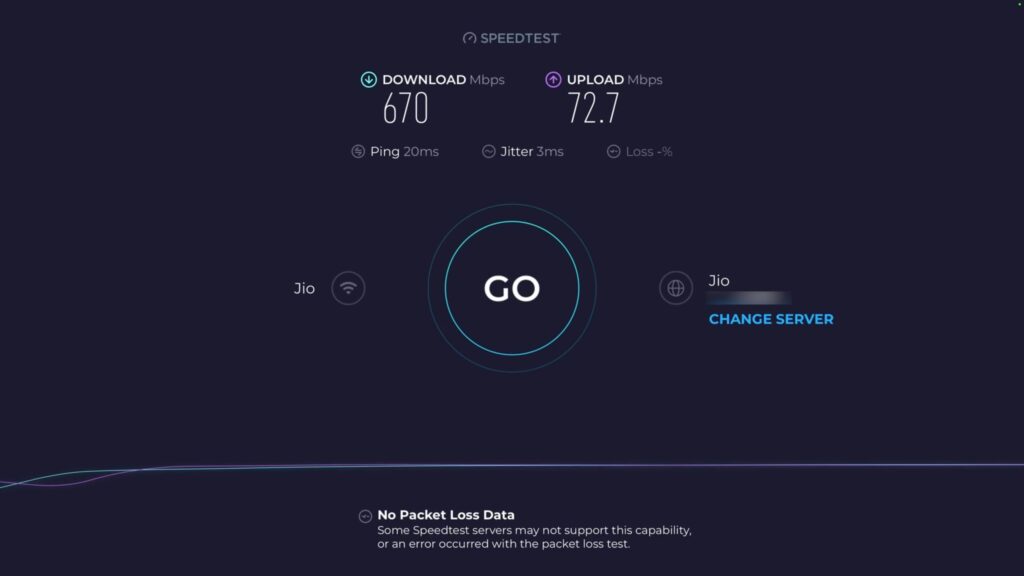
We’ve grown accustomed to this app on iPhone over the years
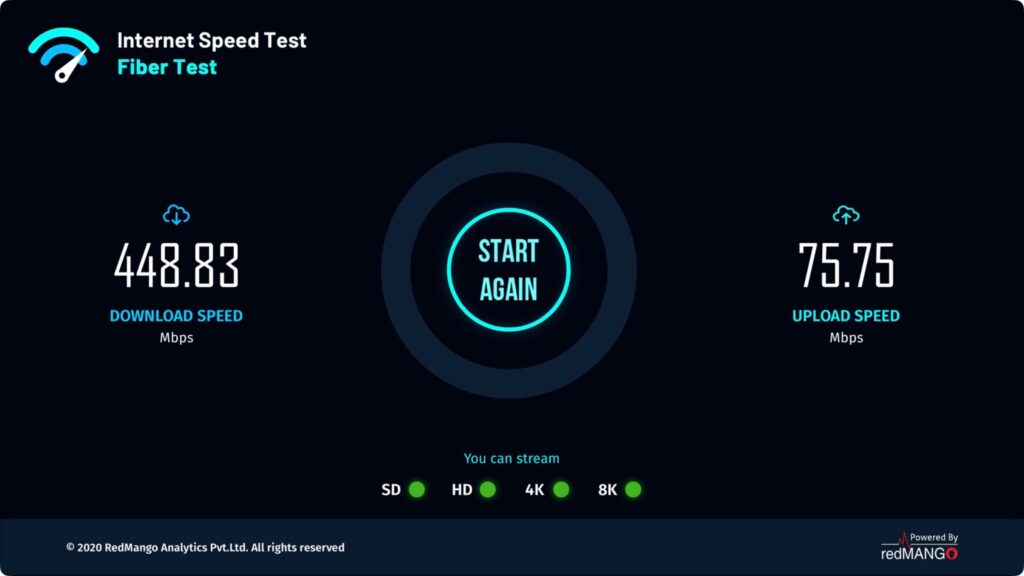
A decent alternative for measuring internet speed
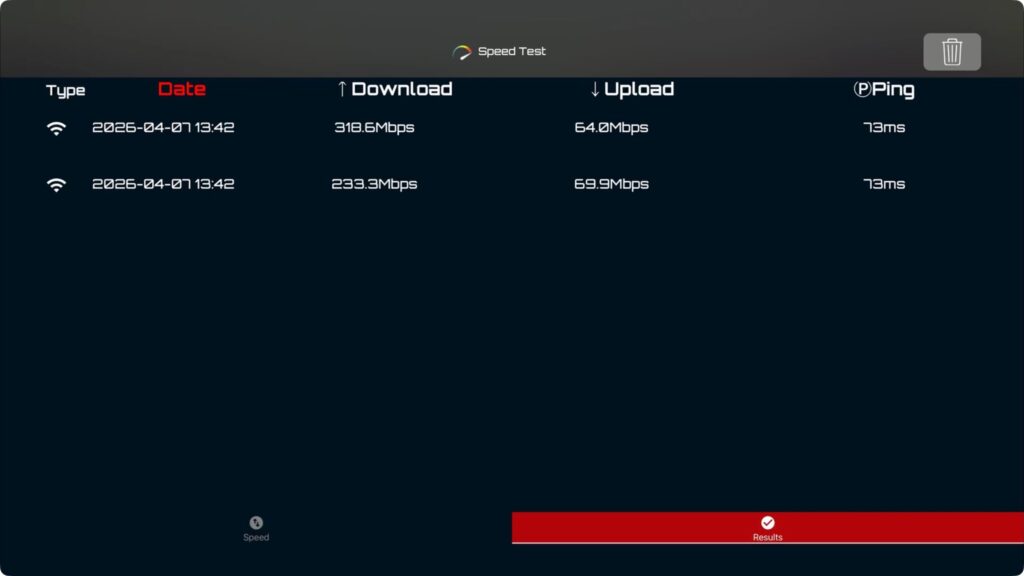
Another app to check internet speed on Apple TV
All three apps are free. For a basic check, installing any one of them is sufficient.
How to Check Internet on Apple TV
The process is simple and takes about 30 seconds:
- Open the App Store on Apple TV and type “speed test” in the search.
- Download one of the recommended apps — for example, Speedtest by Ookla (remember about the foreign IP).
- Launch the app and press the start test button.
- Wait for it to finish — in about 30 seconds you’ll see three metrics: download speed, upload speed, and ping (signal latency).
If you’re using Speedtest by Ookla, you can change the server manually, but the automatically selected server usually gives the most accurate result.
Please note: none of these apps can display speed in the tvOS Control Center. You need to open the app each time.
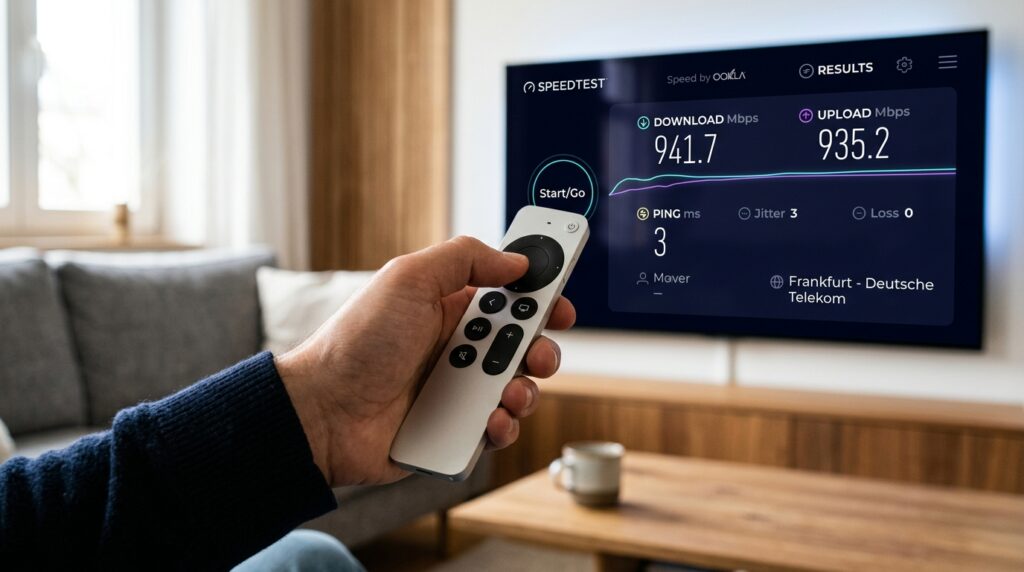
Speed test results in the Speedtest by Ookla app on Apple TV
Internet Speed Requirements for Video
The numbers themselves don’t mean much if you don’t know how much is needed for specific tasks. Here are approximate benchmarks for streaming:
- SD video (480p) — from 3 Mbps
- HD video (1080p) — from 5–8 Mbps
- 4K HDR — from 25 Mbps
- 8K — from 50 Mbps
If test results are significantly below these values, the problem is most likely with the Wi-Fi connection or with your ISP. Try switching to Ethernet (wired connection) or restarting your router.
Internet Speed on Apple TV vs. iPhone
Many users check the speed on their iPhone and wonder why Apple TV is lagging despite good results. There are several reasons:
- Apple TV may be placed in a different spot in the room — farther from the router or behind a wall
- The set-top box may be connected to a different Wi-Fi band (2.4 GHz instead of 5 GHz)
- A wired Ethernet connection on Apple TV and a wireless one on iPhone are different channels with different bandwidth
That’s why the test should be run on the exact device where the problems occur. A measurement on iPhone is useful for comparison but does not replace a check on the set-top box itself.
Checking speed on Apple TV takes just two minutes, including downloading the app. If streaming consistently stutters, this is the first thing you should do before calling your ISP or digging into router settings. For those whose everything works without issues, there’s no point in checking speed just in case.