In the MAX messenger, you can not only chat and make one-on-one calls but also use video communication, bringing several people together in a single video chat. Group video calls in MAX work via a link, don’t require a limit on the number of participants, and are suitable for both family calls and work meetings. We’ll walk through step by step how to enable this on Android, what settings are available, and what limitations exist.
Video calls — one of the best features of MAX
How to Make a Video Call in MAX
If you’ve already installed MAX and completed registration, that’s not enough.
First, you need to add the person you plan to video call to your contact list. Save them in your phone’s address book, then find them using search:
- Launch MAX on your smartphone and go to the Chats tab;
- In the upper right corner, tap the magnifying glass icon and enter the contact’s name;
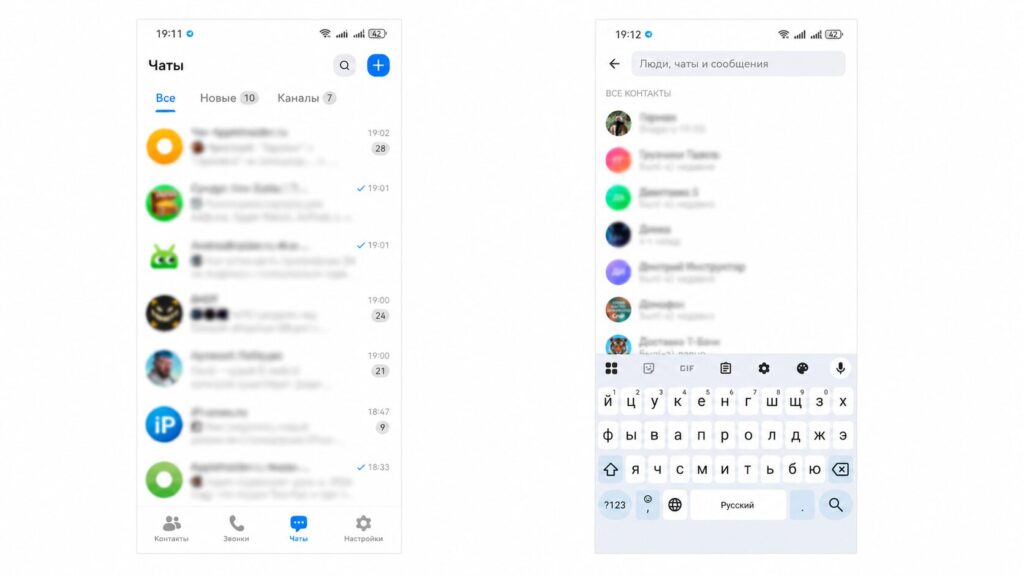
Found your contact? Great, you can call them now
- Tap on their profile icon, then in the upper right corner — tap the video call button;
- If the app asks for access to the microphone and camera — grant permission;
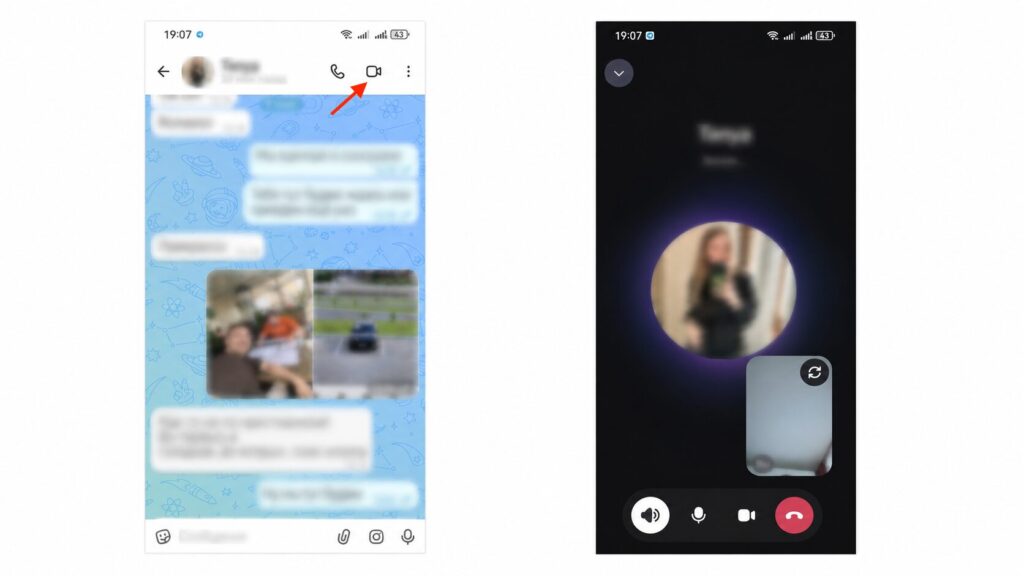
Tap the video call button and wait for an answer
- Wait for the person to answer and start talking.
This is how one-on-one calls work. You can’t add a third person to such a call. For that, you need to create a group call, which is built around a special link. Even those who don’t have the messenger installed can join it.
How to Make a Group Call in MAX
- Open MAX and tap “Calls” with the phone icon at the bottom of the screen, then select “Create Call.”
- The app will generate a link to the video chat. Copy it, send it to participants, and tap “Start Call.”
- You start the call as an administrator — wait for the others to connect.
- Participants follow the link, tap “Join Call,” and you can start communicating.
- To end the conversation, tap the red phone icon.
And still, you might say, a group call is not the same as a video conference, and you’d be absolutely right.
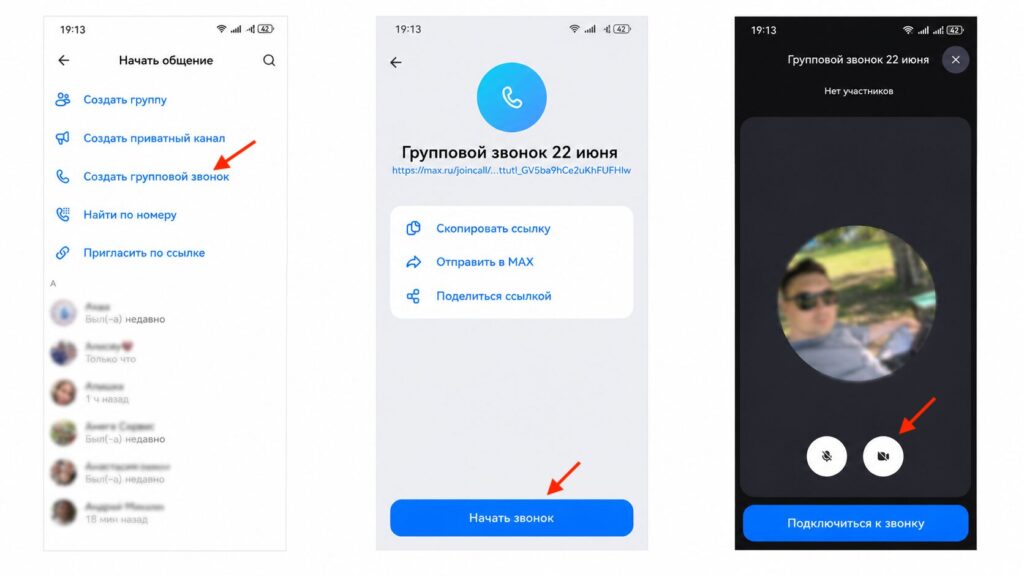
You can also join the call with your camera on
How to Enable Group Video Calls in MAX
There is no separate button to “enable group video chat” in MAX: the group call combines both voice and video communication features. All participants who join via the link can turn on their camera and show themselves at their own discretion. According to the developers, MAX has no limits on the number of participants or the duration of the conversation, so you can gather a small family or an entire work department in one call.
When there are many people in a call, the “raised hand” feature comes in handy. The person who wants to speak taps the hand icon in the bottom menu, and their thumbnail moves above other participants. This way the administrator can see who wants to speak, and tapping again “lowers the hand.”
How to Configure Participant Permissions in a Group Call
The administrator can manage what other participants are allowed to do right during the conversation. This is useful for work meetings and webinars where you don’t want everyone turning on their camera and microphone at the same time.
- Tap the icon with people at the top of the screen — the participant list will open.
- Tap the gear icon to go to “Call Settings.”
- Specify whether others can turn on their camera and microphone, share their screen, and record the call. Here you can also enable the “Waiting Room” — then people can only connect after your approval.
- Through the three dots at the top, additional features are available: display the speaker in full screen, share your screen, or record the conversation.
The “Waiting Room” option is especially useful if you’ve shared the link widely and don’t want random people joining the call.
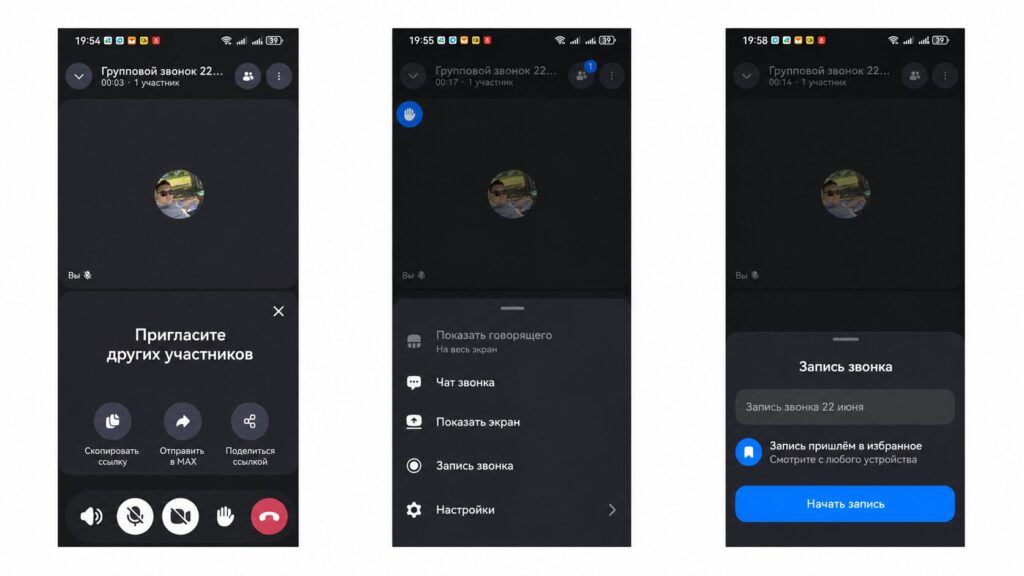
Video calls in MAX are a real video conferencing solution
Recording a Video Call in MAX: Where to Find the File
A video call in MAX can be recorded directly from the call menu. After the call ends, the file is sent to the “Favorites” folder, which you’ll find in the “Profile” tab in the messenger. There’s no need to download it separately or look for it in the gallery.
If you’re the administrator, remember that the ability for other participants to record is controlled in the same “Call Settings.” If desired, you can restrict recording to yourself only.
Are Video Calls in MAX Free or Paid?
According to the source, neither the number of participants nor the duration of a group call in MAX is limited, and there is no mention of any charges for video communication. Essentially, it’s a regular internet call: only mobile data or Wi-Fi is consumed.
There is one access requirement: only an authorized MAX user can participate in a call. You can’t connect without registration, and if you’ve logged out, you’ll need to re-enter your phone number and SMS code before the call. However, you can send the link to any number — the person doesn’t need to be in your contacts, they just need to be logged into MAX.
Why Video Calls in MAX Don’t Work and What to Check
If the call won’t start or you see a notification saying “Could not connect via MAX,” it means your contacts aren’t receiving your call for some reason. Most likely, they simply aren’t getting the notification because notifications are disabled on their iPhone. But just in case, go through this simple checklist yourself:
- Camera and microphone access. Open Android settings and make sure MAX has both permissions.
- Authorization. Only a logged-in user can join a call — verify that you’re signed in.
- Internet. Video calls happen in real time, so you need a stable Wi-Fi or mobile connection.
- Waiting Room. If you can’t join someone else’s call, the administrator may not have approved your connection yet.
By the way, during a conversation you can freely use other apps: the call won’t be interrupted, and the messenger window will remain on top of other apps.
Who Will Find Group Calls in MAX Useful
A group video call is a video meeting tool built right into the messenger.