Folding an iPhone Duo does not lock it. When you close the phone after using the inner display, the interface moves to the outer screen and the app you were using keeps running in a smaller view. Apple has not added a dedicated setting to change this. However, iOS 27.1 includes a new Shortcuts automation trigger that detects when the phone is opened or closed. You can use it to lock the Duo when it is folded, lock it only when you are on the Home Screen, or open a chosen app when it is unfolded. Below are the three setups, along with their trade-offs.
What you need to know
- iOS 27.1 adds an “Open or Closed” automation trigger in Shortcuts. MacRumors reports that it sits under the Display section.
- A basic automation locks the Duo every time it is folded, which also cuts off apps like navigation on the outer screen.
- A variant credited to blogger Stephen Robles locks the phone only if it is folded while on the Home Screen.
- The same trigger can open a chosen app when the Duo is unfolded, and it can be limited by time of day or Focus mode.
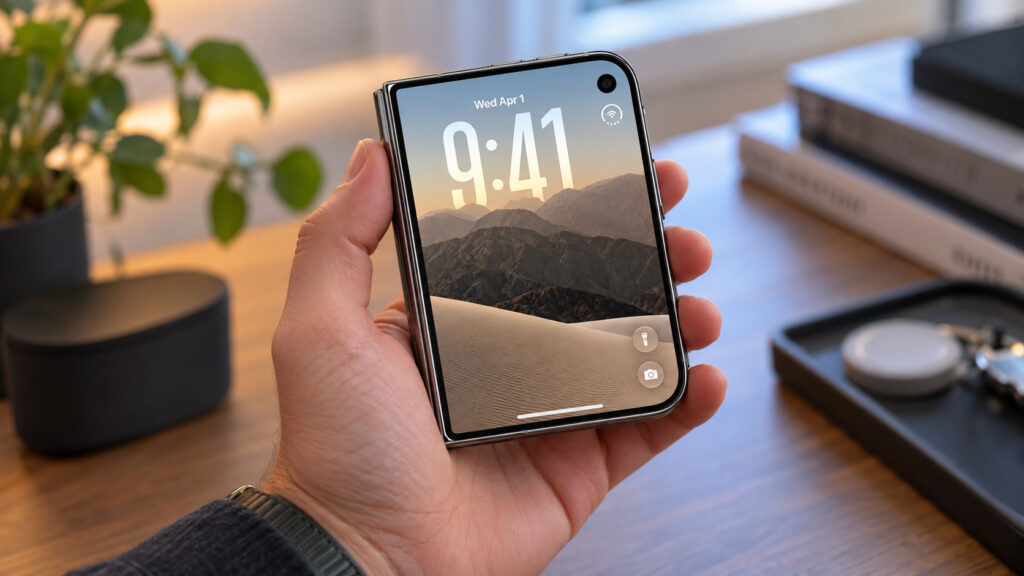
A folded iPhone Duo in a hand, with the lock screen and clock on the outer display
Why a folded Duo keeps running
Closing a MacBook’s lid puts the laptop to sleep, so many people expect the same from a foldable phone. The iPhone Duo behaves differently. When it is folded after use on the inner screen, it stays unlocked and moves the current app to the outer display.
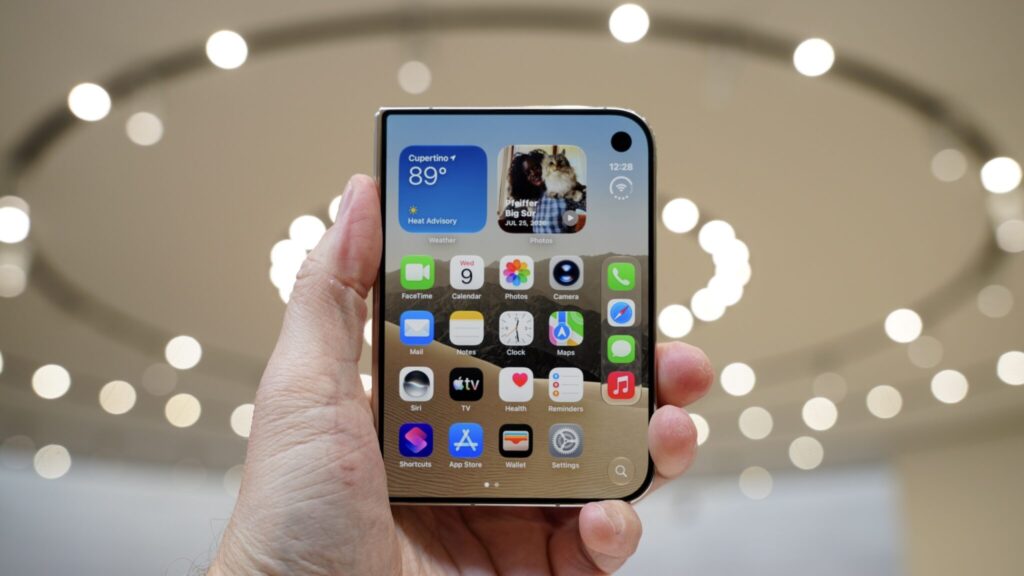
A folded iPhone Duo in a hand, with the Home Screen, app icons and widgets on the outer display
Apple’s reasoning is easy to see. You might unfold the phone to check a route on a map, fold it again, and keep walking with navigation on the smaller screen. But people often fold the phone because they are finished with it. In that case, an unlocked phone in a pocket can register accidental taps, such as opening a Telegram story, calling the last number dialled, or liking an old photo. The author of the johnpe.art blog made the same comparison to a MacBook: a closed laptop goes to sleep, but a closed Duo does not.
You can press the side button to lock the phone manually. However, folding the Duo quickly becomes automatic, while remembering the button often does not.
Method 1: Lock the Duo every time it is folded
Both locking methods use a new Shortcuts trigger that arrived in iOS 27.1 specifically for the foldable iPhone. It detects whether the phone has been opened or closed and runs a chosen action in response. MacRumors reports that in the updated editor the trigger appears under the Display section, not among the familiar time- or location-based triggers.
The steps are as follows:
- Open the Shortcuts app. On the All Shortcuts screen, tap “+” in the bottom-right corner.
- On the screen asking what your shortcut should do, tap Edit in the top-right corner.
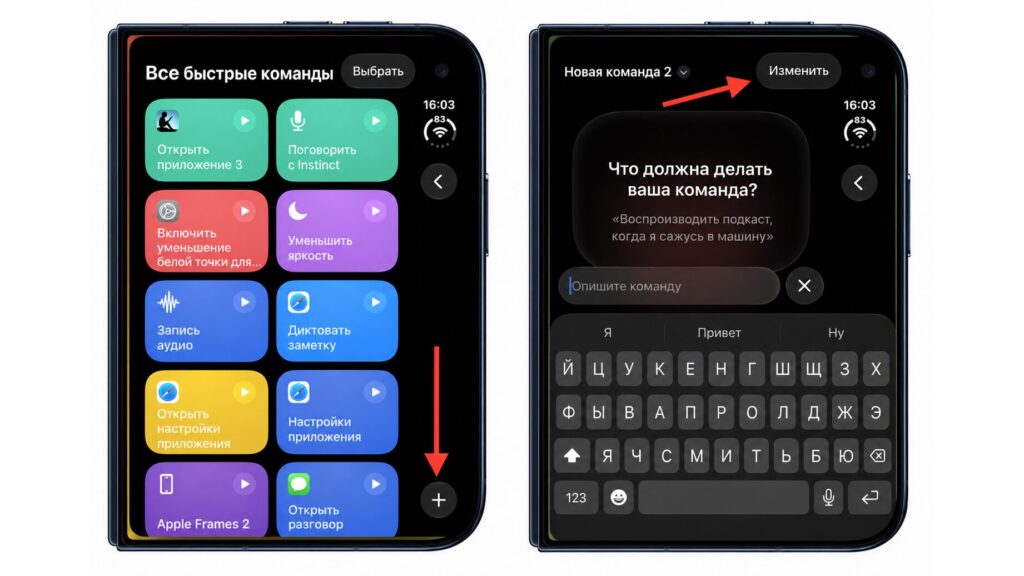
The All Shortcuts screen with an arrow pointing to the plus button, and a new shortcut window with an arrow pointing to the Edit button
- Search for “Automation” and, under Display, choose “Open or Closed”.
- Tap the blue word in the trigger and select “closed” so it reads “When iPhone is closed”. The automation will then run only when the phone is folded.
- Search the actions for “Lock Screen” and add it.
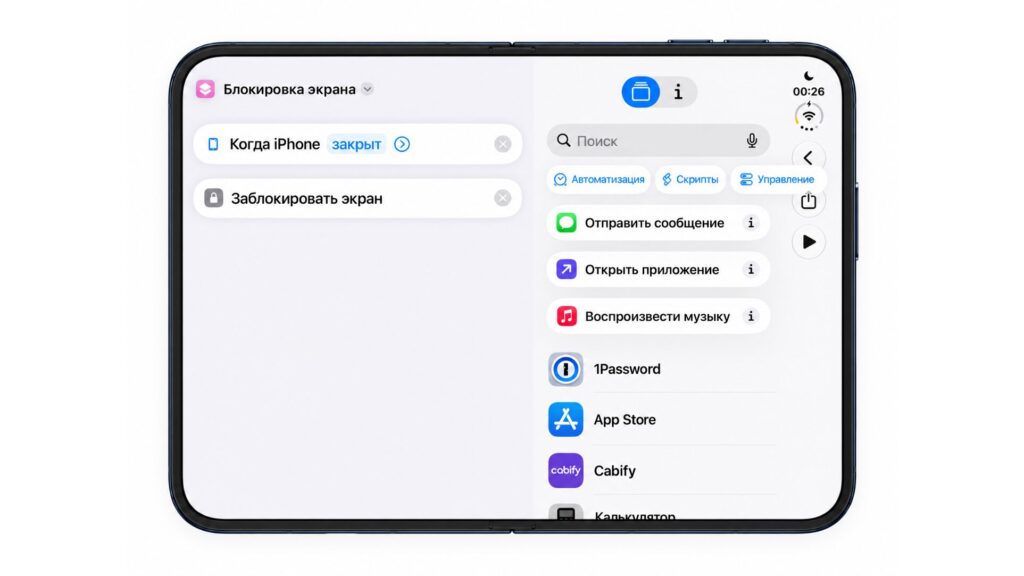
An unfolded iPhone Duo showing a Lock Screen automation with the trigger When iPhone is closed and the action Lock Screen
- Exit the editor. The automation saves and turns on automatically. You can give it any name, such as “Lock Screen”.
Once this is set up, folding the Duo turns the screen off. If the iPhone asks for confirmation the first time the automation runs, check the shortcut’s own settings: there is an option in the privacy section that allows it to run without asking. Without that setting, the automation just creates another notification to dismiss, and the point is lost.
This simple version has one notable drawback. It always locks the phone, even when you fold it on purpose to keep working on the outer screen. Navigation, a music player showing album art, or an open chat will all switch off with the display.
Method 2: Lock only when folded from the Home Screen
Blogger Stephen Robles came up with a workaround. His version checks what is on screen when the phone is folded. If an app is open, the Duo keeps running it on the outer display. If you were on the Home Screen, the automation assumes you are done and locks the phone. In practice, this makes the Duo behave much like a MacBook without breaking the map scenario.
It uses the same trigger with a few more actions:
- Create a “When iPhone is closed” automation as described above.
- Add the “Get Current App” action.
- Add an “If” block and set the condition to: the current app’s name has any value.
- Leave the first branch empty. If an app is open, nothing needs to happen.
- Move the “Lock Screen” action into the “Otherwise” branch.
The result is locking from the Home Screen only. The habit forms quickly: when you finish, swipe home and then fold. If you want to continue on the small screen, just fold the phone while an app is open.
An alternative: Fold to lock
The johnpe.art author takes the opposite approach and has published a ready-made shortcut called Fold to lock. It runs a “Go to Home Screen” action before locking, so it closes whatever app is open and locks the iPhone every time it is folded. The author calls this approach crude and acknowledges that it does not work with games such as Duoman, where folding is part of the gameplay. The original article’s author prefers Robles’s version because it is more forgiving of mistakes.
Method 3: Open an app when you unfold the Duo
Locking is the most visible use, but the same trigger also fires when the phone is opened. MacRumors suggests using it to launch a chosen app right away, so that, for example, a reading app, YouTube or work email is waiting on the large screen when you unfold the Duo. MacRumors used Kindle as its example, but any app in the list can be selected.
The setup is almost the same as for locking. Only the trigger and action change:
- Create an “Open or Closed” automation using the first three steps above, and set the trigger to “opened” so it reads “When iPhone is opened”.
- Search the actions for “Open App” and add it.
- Tap the blue App field and choose the app that should launch when the phone is unfolded.
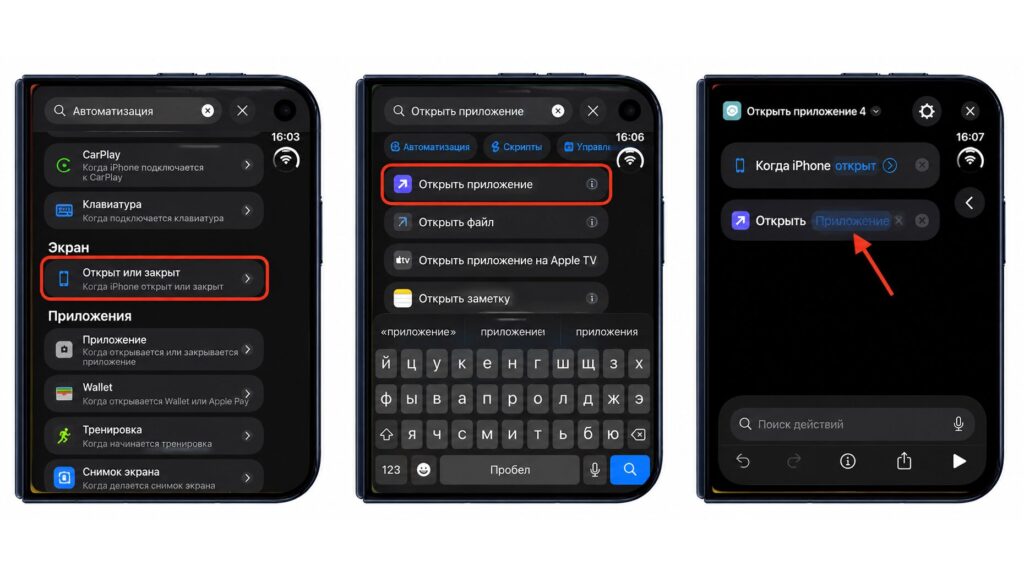
Three Shortcuts screens: the Open or Closed trigger under Display, a search for the Open App action, and an arrow pointing to the App field in the finished automation
If you select the full “opened or closed” option, the automation runs in both directions, which is unnecessary for most actions. To check that it works, fold the Duo and open it again. The chosen app should appear on the inner screen.
Conditions and combined actions
Conditions are arguably the most useful part. An automation can be limited by time or by Focus mode. For example, the unfolded Duo could open your calendar on weekday mornings and a book in the evening, and do nothing in Driving mode. A few more ideas suit the folding trigger:
- pausing music or a podcast, if you usually fold the phone when you finish listening;
- toggling orientation lock, which on the Duo is set separately for each screen. This idea came from MacRumors readers in the comments, and the site itself did not test it.
Actions can be combined in a single automation. For example, locking the screen, pausing music and lowering brightness can all run together when the phone is folded.
Troubleshooting: why the automation may not run
Check your iOS version. The open/close trigger arrived in iOS 27.1, so it will not appear on a Duo still running its original out-of-the-box software. Update via Settings > General > Software Update.
Check the confirmation prompt. If the iPhone asks for permission every time, the automation technically works but is of little use. Turn on the option that lets it run without asking, as described above.
Plan for more frequent unlocking. Locking on every fold means you will need to unlock the Duo more often. Two things make this easier. The first is unlocking with a single touch of Touch ID without pressing the button, which is controlled by a toggle in Settings > Touch ID & Passcode. The second is unlocking with an Apple Watch: if unlocking with nearby devices is turned on for the watch, you only need to wake the Duo and swipe up.
If locking gets in the way, for example while navigating on a trip, you do not need to delete the automation. You can turn it off temporarily and turn it back on with one tap. For Duo owners who still pocket the phone unlocked, Robles’s smarter version is a good place to start, and it takes about five minutes to set up.