If your wireless headphones are too quiet even at maximum phone volume, the issue might not be with the device itself, but with how Android manages sound. In Developer Settings, there’s a toggle called “Disable absolute volume” that separates the phone’s volume from the connected headphones’ volume. After disabling it, you can noticeably increase the sound. However, this solution does come with its own caveats.
I increased the volume using a hidden setting
What Is Android Absolute Volume
By default, Android links the phone’s volume and Bluetooth headphone volume into a single slider: raise the volume on the phone — it goes up in the headphones too. This is convenient but doesn’t always work well. Some headphones and speakers have a different maximum volume level by design, and the linked sliders prevent you from getting the most out of them.
This is exactly the issue I ran into. My old headphones often played too loud, but after switching to HUAWEI Freebuds 6, the problem reversed: even at maximum, the sound wasn’t enough. The solution is to unlink the phone’s volume from the headphones’ volume so you can adjust them independently.
An important clarification: disabling this setting doesn’t take away your ability to control the Bluetooth speaker’s volume from your phone. It simply gives headphones and speakers their own independent volume level. In the case of HUAWEI Freebuds 6, this method of increasing volume fully satisfied me.
Developer Settings in Android — How and Why to Enable Them
The setting itself is hidden in the developer menu — a section with advanced options that is hidden by default. First, you need to activate it:
- Open the “Settings” app.
- Scroll down and tap “About phone.”
- Find “Build number” (“Software version”) and tap it seven times in a row until a notification appears saying developer mode is enabled.
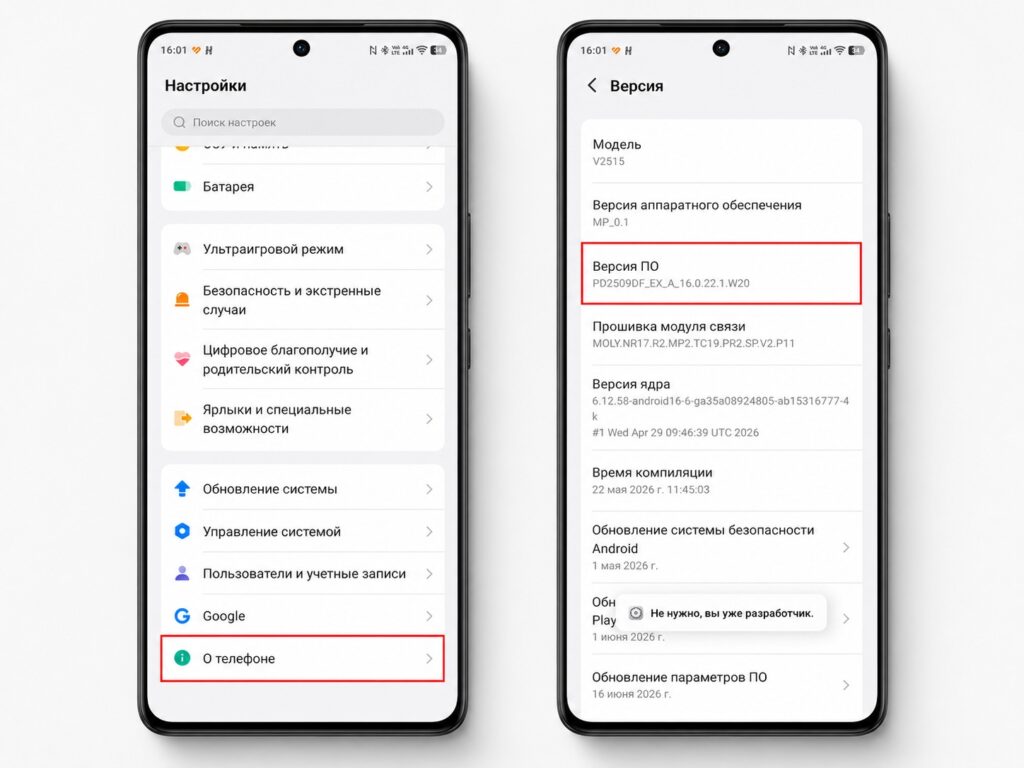
Volume issues are resolved through developer mode
After this, a developer options item will appear in the “System” section of settings. There’s no need to be intimidated: you just need to find one toggle and leave everything else alone.
How to Increase Headphone Volume on Android
Go to the developer menu, scroll down or use the settings search, and find the toggle “Disable absolute volume”. Turn it on. Note: the toggle you need is hidden in the developer menu — it’s the only one you need; you don’t have to touch anything else.
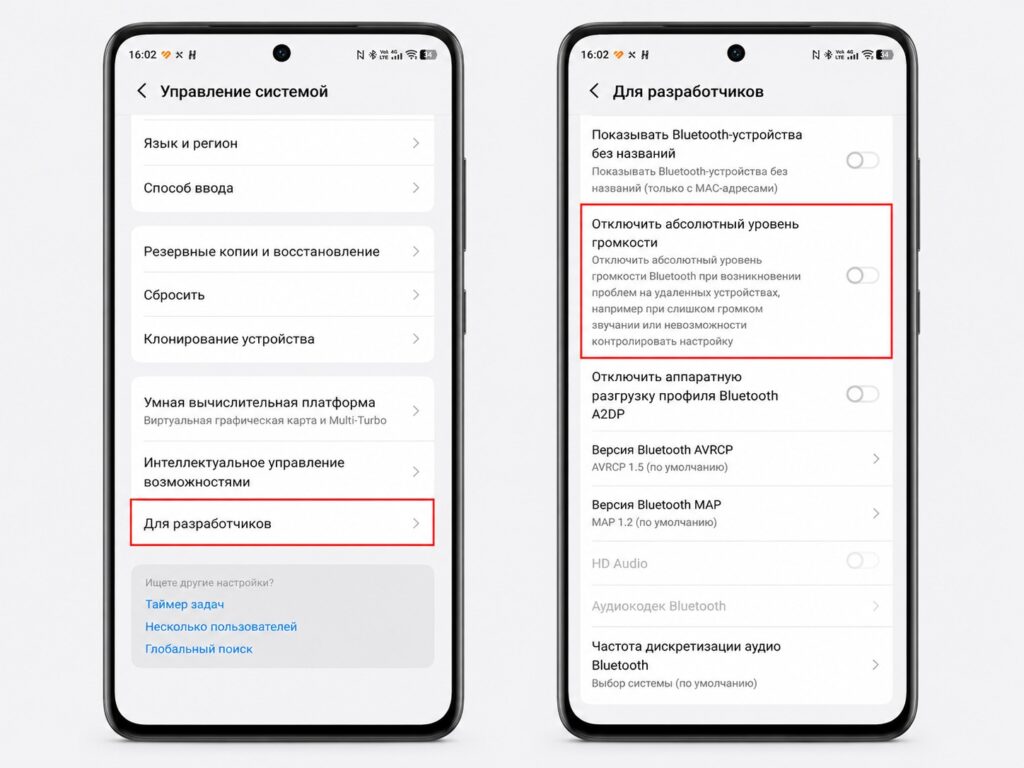
This is the setting that solves volume issues
Now the headphone volume is adjusted separately from the phone volume. In practice, it works like this: to get the maximum, raise the media volume on your phone to the limit, then separately raise the volume on the headphones themselves.
How Much Volume Do Android Settings Add
I tested the effect in practice: I placed the headphones next to the phone’s microphone and compared the volume before and after disabling the setting on the same song excerpt.
The measurement results were as follows: with absolute volume enabled, the headphones maxed out at 51.4 dB and averaged 44.7 dB. After disabling the setting, they reached a maximum of 60.2 dB and averaged 50.7 dB. That’s a volume increase of almost 20%. And while it’s hard to determine the exact level, the difference is clearly noticeable to the ear.
Should You Disable Android Absolute Volume
It’s not just about volume. Separating the phone and headphone volumes is convenient for everyday situations that usually require constantly diving into sound settings:
- You listen to music through headphones and play podcasts at home through the phone speaker — now you don’t have to readjust the volume every time you take out the headphones.
- You listen to old recordings with very different track volumes — you can comfortably boost quiet tracks.
- A Bluetooth speaker plays noticeably louder than the phone — you can turn it down without bringing the phone volume almost to zero.
The change itself is small, but convenience is made up of exactly these little things.


