Many users want to turn their MacBook into a regular desktop computer: connect an external monitor, keyboard, and mouse, and close the laptop itself. This scenario is called Clamshell mode — it’s officially supported by Apple, but it has strict requirements. If those don’t work for you, there are workarounds: free apps and a Terminal command. And yes, it’s much more convenient than carrying an open MacBook around the street while something is running on it.
Have you tried working with a closed MacBook?
Why Use a MacBook With the Lid Closed
There are several reasons, and they’re all practical. Some people save desk space by placing the laptop in a vertical stand or dock. Others want to work with a full-sized keyboard and mouse, considering the built-in ones a compromise. And some simply don’t want to interrupt a download, a Time Machine backup, or music playback while the laptop is closed.
When connected to an external monitor, it’s easier to close the MacBook, but it may stop working
There’s also a less obvious scenario: support for multiple external monitors. On some base Apple Silicon Macs — for example, MacBook Air with M3 and certain 14-inch MacBook Pro models with M3 — two external displays only work when the built-in lid is closed. The system disables the internal screen and frees up resources for the second monitor. This requires macOS Sonoma 14.6 or later.
Why MacBook Goes to Sleep When the Lid Is Closed
This is the default behavior, and it’s not designed to annoy the user. Closing the lid puts the MacBook into low power consumption mode — this saves battery and protects the hardware from overheating when the laptop is in a bag or an enclosed space.
Apple officially doesn’t allow disabling sleep with the lid closed without an external monitor and power. But workarounds exist — more on those below. If you’re constantly having issues specifically with Clamshell mode, first check your macOS version: on newer systems, the process works noticeably more stable than on old Intel-based Macs.
MacBook Clamshell Mode: What It Is and How It Works
For the Mac to work with the lid closed in the standard way, according to Apple’s recommendations, you need the full set:
- Power from an adapter. Some Apple Silicon models continue to work in Clamshell mode on battery, but behavior depends on the model, macOS version, and connected peripherals. The most reliable option is to keep the laptop plugged in.
- External monitor. Without one, Clamshell mode won’t activate.
- External keyboard and mouse. Wired or Bluetooth will work. If you’re using Bluetooth, make sure the devices are already paired with the Mac.
- Up-to-date macOS version. Newer versions fix many bugs that plagued owners of older Intel MacBooks.
An important note about safety: if your Mac is running in Clamshell mode, don’t put it in a bag or enclosed space. Under load and without ventilation, it can overheat significantly.
Closed Mode MacBook With an External Monitor
How to stop MacBook sleep mode when the lid is closed
The procedure itself is simple:
- Connect an external monitor, keyboard, and mouse to the MacBook.
- Turn on the laptop and wait until the desktop appears on the external monitor.
- Close the lid.
- The monitor may go dark for a second and then show the desktop again. If this doesn’t happen, press a key on the external keyboard or move the mouse — the Mac will wake up.
- If the image still doesn’t appear, connect the power adapter.
If there’s no external monitor, closing the lid will put the Mac to sleep — this is the main problem that all the workarounds exist for.
How to Prevent MacBook From Sleeping With the Lid Closed
This is needed when you don’t want to connect a display but want the Mac to keep doing something with the lid closed: downloading a file, syncing a backup, playing music. By default, macOS doesn’t support this configuration, so you’ll need one of four solutions.
Download continues while the lid is closed — if the system is configured correctly
Option 1. Free App Amphetamine to Keep MacBook Awake
The most convenient method. Amphetamine is a free app from the Mac App Store that overrides sleep settings. It has a pill icon in the menu bar and flexible scenarios: keep the Mac awake indefinitely, while a file is downloading, or while a specific app is running.
To set up the closed-lid scenario specifically:
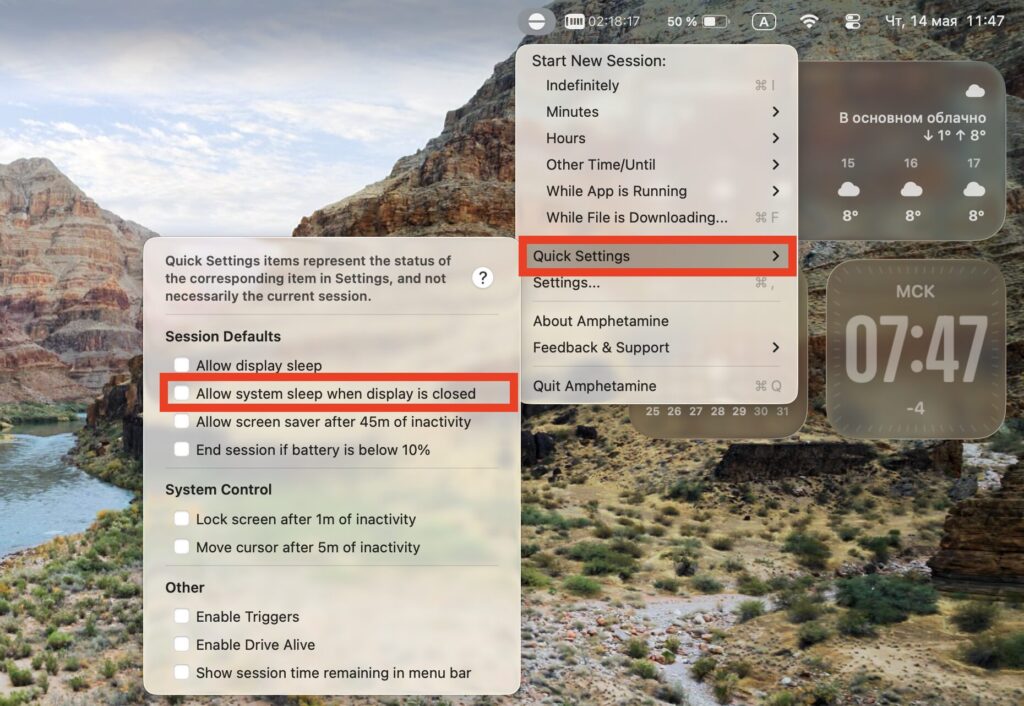
Uncheck this option
- Download and open Amphetamine.
- Click the pill icon in the menu bar.
- Select Quick Settings.
- In the Session Defaults section, uncheck “Allow system sleep when display is closed.”
- Start a new session — for example, Indefinitely, While File is Downloading, or While App is Running.
For a stable long download, it’s better to connect the charger. An alternative is the paid app Caffeinated for $3.99, which works on the same principle.
Option 2. Disable MacBook Sleep via Terminal
If you don’t want to install third-party programs, sleep can be disabled system-wide:
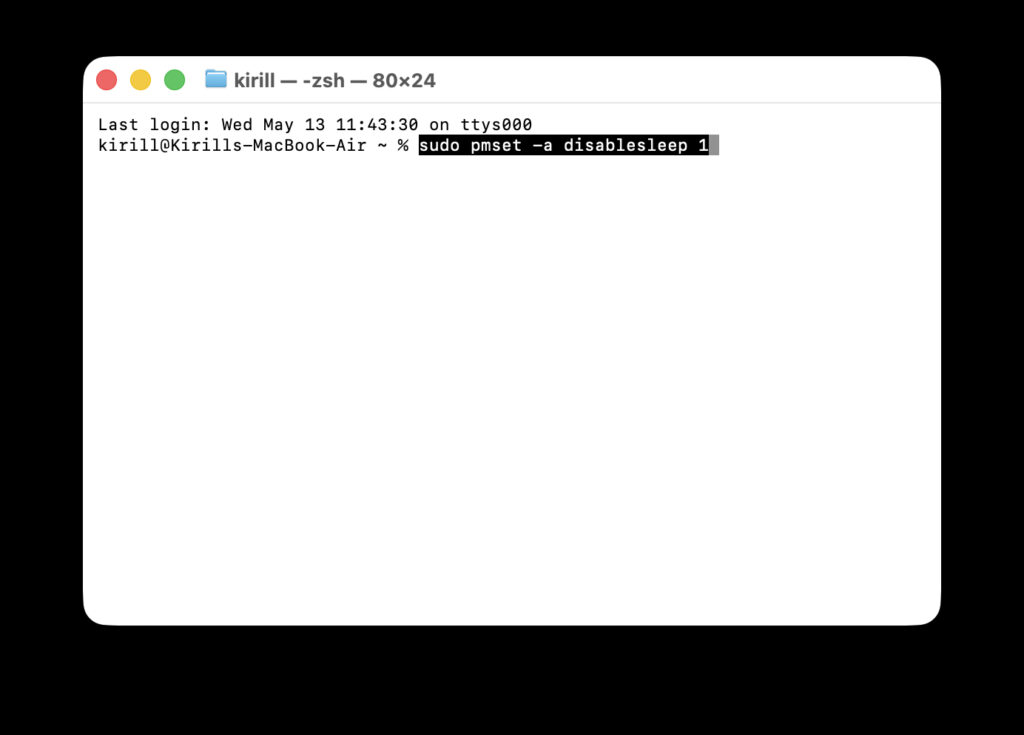
Terminal allows you to completely disable sleep mode


