To log out of the MAX messenger on an iPhone, open the Settings tab, tap the pencil icon in the top-right corner and choose “Log out of profile”. The option is not in the main settings list. It sits in the profile editing screen, next to the more drastic “Delete profile” option. According to the source, MAX’s official help documentation gives the same path for iPhone and Android. Logging out on one device does not sign you out anywhere else. To close every other session at once, use the “Devices” section in Settings. The steps below cover the iPhone app, the web version and all sessions at once, along with what happens to your chats and what to check before you try to sign back in.
What you need to know
- On iPhone, “Log out of profile” is reached through the pencil icon on the Settings tab, not the main settings list.
- Logging out on an iPhone does not sign you out of the web version or desktop apps. Those sessions stay active until you close them.
- Settings → Devices → “End all sessions except the current one” signs you out everywhere except the phone you are using.
- Chats are stored on MAX’s servers, so logging out does not erase them. “Delete profile” removes the account permanently after 30 days.
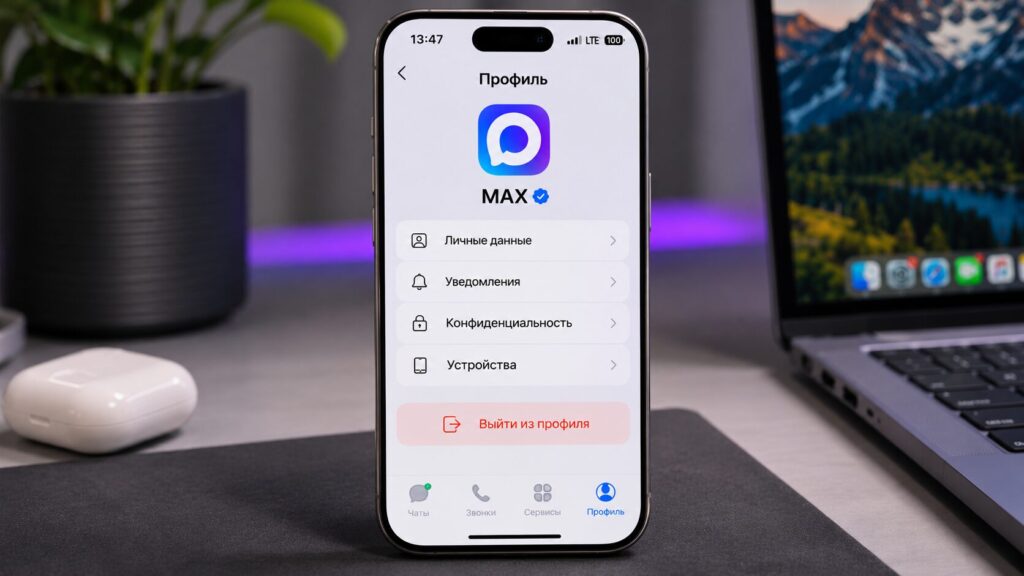
An iPhone showing a MAX profile with a red “Log out of profile” button, on a desk next to a MacBook and AirPods
The source lists several common reasons to log out:
- preparing to sell an iPhone;
- after signing in on someone else’s laptop;
- when someone who shouldn’t be there has gained access to the account.
It also warns that signing back in can be complicated if the messenger is still open on another device.
Logging out on iPhone: the option is behind the pencil icon
In the MAX app for iPhone, the logout option is in profile editing mode rather than the general settings list. The source notes that this is an unusual place for it, since people normally open that screen to change their photo or name. It says MAX’s official help describes this path for both iPhone and Android.
- Open MAX and go to the “Settings” tab in the bottom-right corner.
- Tap the pencil icon in the top-right corner.
- In the window that opens, select “Log out of profile”.
- Confirm that you want to log out.
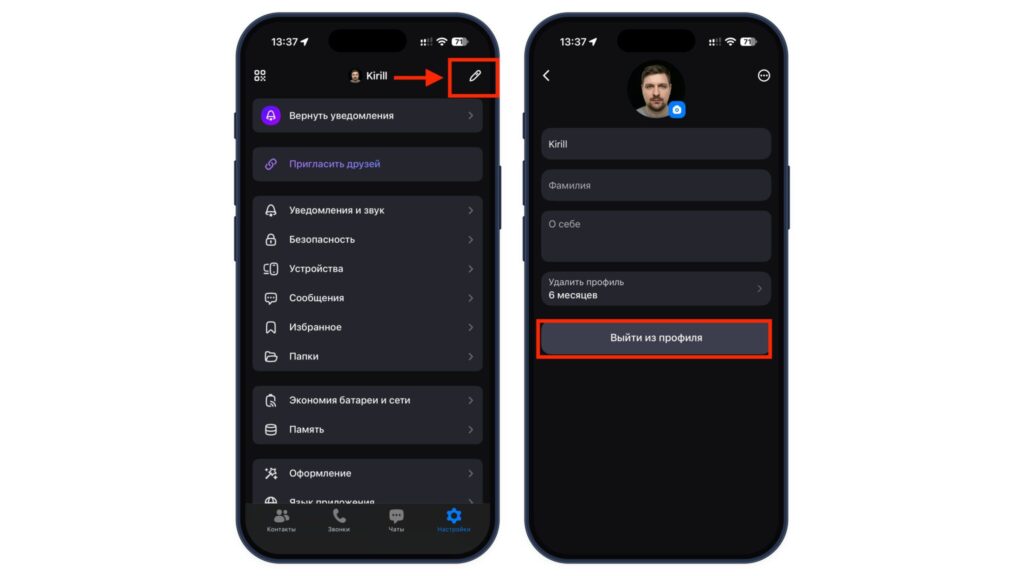
Two MAX screens on iPhone: the pencil icon in the top-right corner of Settings and the “Log out of profile” button below the name fields
After you confirm, the app returns to the sign-in screen and asks for a phone number. The app itself stays on the iPhone. This matters because, according to the source, MAX has been missing from the App Store for some time, so it advises against deleting the app unnecessarily. The source also acknowledges that the menu may look different in some app versions.
Computers and browsers need a separate logout
Logging out on an iPhone does not affect other devices. If you used MAX on a work laptop or in a browser on someone else’s computer, you stay signed in there. The source warns that simply closing the browser tab is not enough. The browser remembers the session, so the next person at that computer could open your chats without entering a code.
The web version uses a slightly different path, without the pencil icon:
- Open web.max.ru and go to “Settings”.
- Click your name at the top.
- Scroll down the page that opens and select “Log out of profile”.
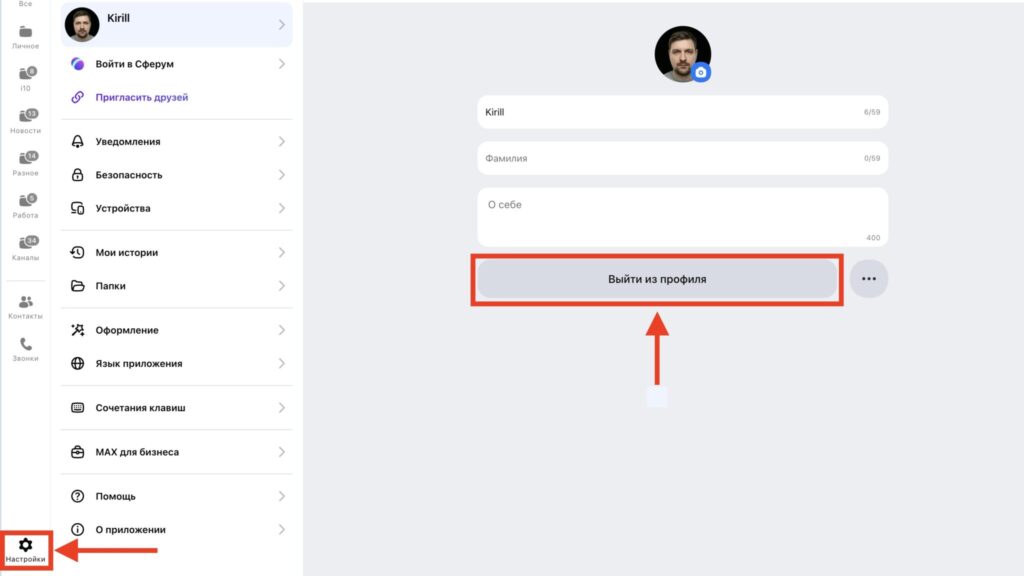
The MAX web version, with arrows pointing to “Settings” in the bottom-left corner and the “Log out of profile” button on the profile page
According to the source, the help documentation describes this path specifically for the browser version. For the Mac and Windows apps, the source suggests looking for the same option in the profile settings. If you can no longer reach the computer, for example because you signed in at a hotel or at a friend’s workplace, you can end that session from your iPhone.
Ending all sessions from one screen
MAX treats every device you have signed in on as a separate session. The list of sessions is in the settings and shows each device type and its last login time. The source recommends treating any session you do not recognize as someone else’s and ending it.
To log out of MAX on every device except the one you are holding:
- Open the “Settings” tab.
- Go to the “Devices” section.
- Review the list of active sessions.
- Tap “End all sessions except the current one”.
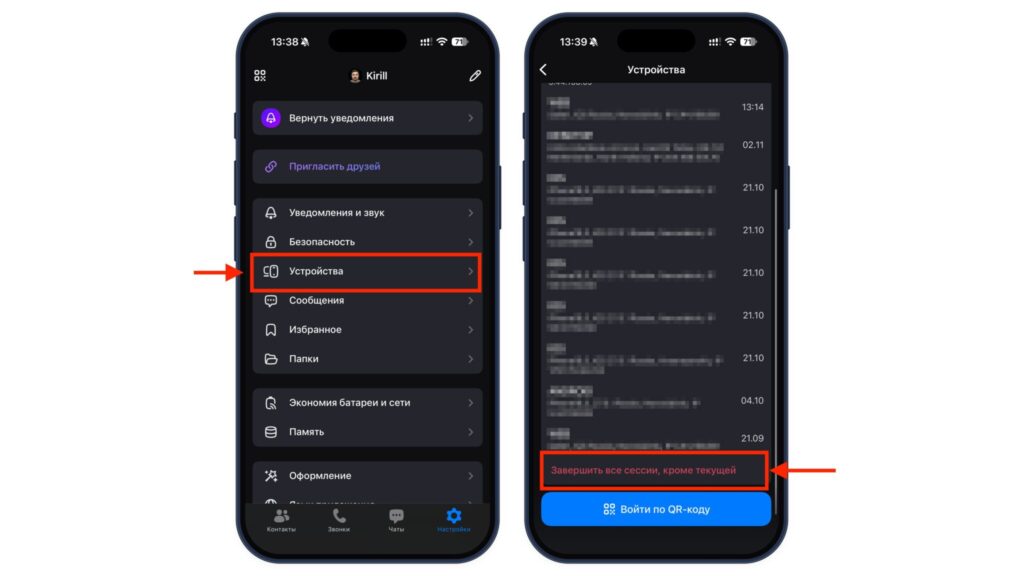
The “Devices” section in MAX settings on iPhone, with the “End all sessions except the current one” button below the session list
The iPhone you use for this stays signed in. To leave the account everywhere, first end the other sessions, then log out on the iPhone using the steps in the first section.
If you cannot get into the app
MAX also offers a page for resetting active sessions. You enter your phone number and confirm it with a six-digit code, and all logins are reset. The source notes an important limitation from the help documentation: this can only be done from a phone.
The source recommends checking “Devices” every couple of months even without a specific reason. If it shows a smartphone you have never owned, the source says you should treat that as a possible sign the account has been compromised and check it.
Your chats survive a logout, but signing back in can be tricky
According to the source, MAX stores conversations on its own servers rather than in the iPhone’s memory. Logging out of your profile therefore deletes nothing. When you sign back in with your number, your chats, channels and folders load again. You may need to download large photos and videos again, but the messages themselves remain.
Signing back in is where problems can arise. A normal login asks for your phone number and then a six-digit code. How the code is delivered depends on your other sessions:
- No other active sessions: the code arrives by SMS.
- Another active session with a password set: the code is sent to a chat on that other device.
- Another active session without a password: MAX first asks you to set a password there. The source says many users get stuck on this screen, which tells them to set a password on the device where they are already signed in.
Check these before you log out
- Make sure you have the SIM card for the account’s phone number with you.
- If you set a login password, make sure you remember it and the email address linked to it. According to the source, you cannot reset a forgotten password without that email.
- Setting a password signs you out of every session except the one where you set it. You will then need to sign in again on your laptop and iPad.
Logging out, deleting the app and deleting the profile are different things
These three actions are often confused, but their consequences differ significantly:
| Action | What happens | Chats |
|---|---|---|
| Log out of profile | The account is closed on this device only | Kept and restored when you sign back in |
| Delete the app | MAX is removed from the iPhone, but the account keeps working | Kept on the server |
| Delete profile | The account is permanently removed after 30 days | Lost once that period ends |
The source calls logging out the safest choice if you simply want to clear your iPhone or hand it to someone else. It warns that deleting the app is riskier than it looks, because MAX is not in the App Store and reinstalling it would require workarounds.
The “Delete profile” option is on the same profile editing screen, below the “About” field. After you submit a deletion request, you have 30 days to change your mind using a “Don’t delete profile” button.
If you are logging out before selling an old iPhone, the source advises doing it before resetting the phone. It also recommends ending any unnecessary sessions in “Devices” at the same time.