The VKontakte social network remains the main one for the Russian-speaking audience, and the query “how to log into my page” consistently stays at the top of search results. At first glance, everything is simple: open the website or app, enter your password — and you’re in. But in reality, passwords get forgotten, mobile and full versions get mixed up, logging in on a new device doesn’t always work right away, and sometimes your page gets blocked altogether. Below are all the working ways to log into VK in 2026: from a computer, Android smartphone, iPhone, and tablet.
Let’s figure out how to log into VKontakte in 2026
My VKontakte Page — Logging In from a Computer
The simplest way — to log into VKontakte from a computer, you just need to type vk.com in the address bar. If you’ve already logged in before and didn’t log out, the site will immediately show your news feed. If not — a login form will appear.
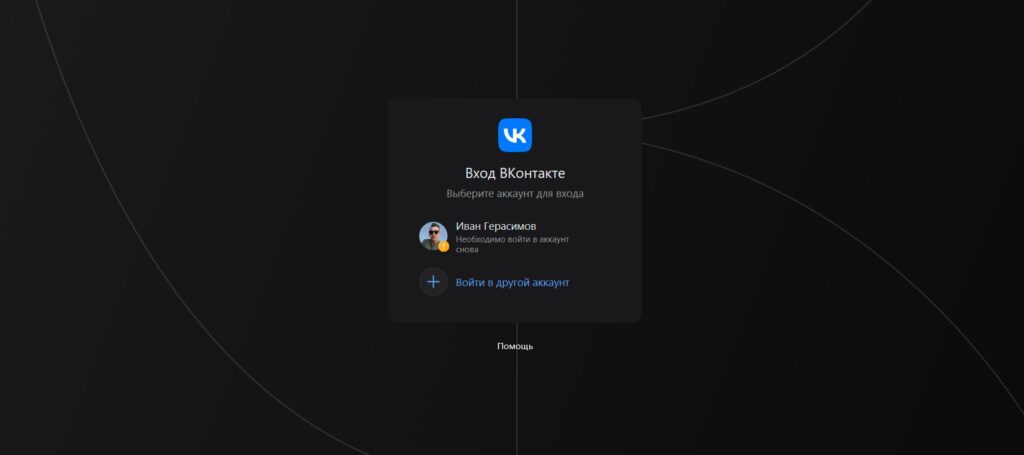
The web version is still one of the relevant ways to use VK
In the login field, you can enter a phone number, email address, or username linked to your account. Then — your password and the “Log In” button. After that, you’ll be taken to your page.
If you don’t remember the exact website address, simply type “VKontakte” or “VK” in Yandex or Google and click the first link. It almost always leads to the official website. The main thing is to make sure the address bar shows exactly vk.com, and not a fake site with a similar name.
How to Log Into Your VKontakte Page from a Phone on Android and iOS
On smartphones and tablets, there are two main methods: through the official VKontakte app and through a mobile browser. The app is the most convenient option for everyday use. Download it from Google Play (for Android) or from the App Store (for iPhone), launch it, and log in with your username and password. After the first login, your credentials are saved — you don’t need to enter them every time.
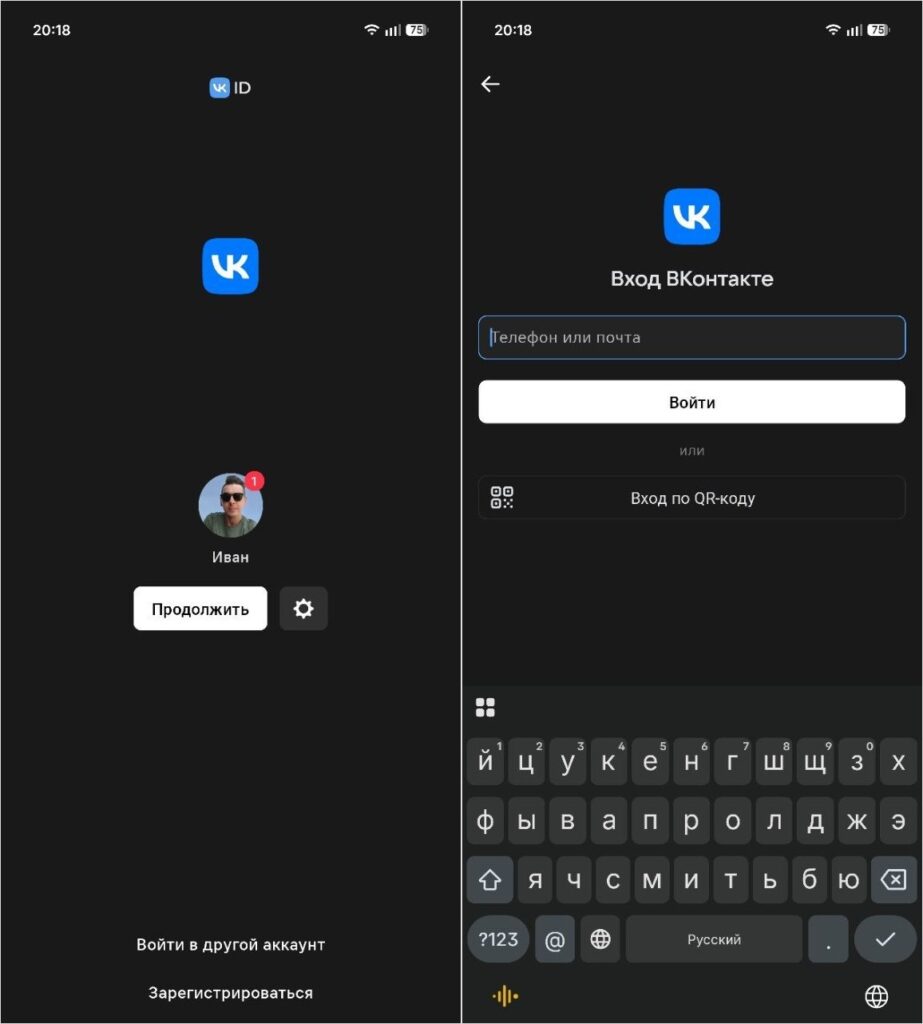
Using the app is much more convenient since it’s optimized for smartphones
Mobile browser — suitable if you don’t want to install the app. Open Chrome, Safari, or any other browser and go to vk.com. By default, the mobile version of the site (m.vk.com) will load with a simplified interface adapted for small screens. For everyday chatting and browsing the feed, this is enough.
If you’re logging in from a new device, VKontakte may request additional verification — a code via SMS or push notification. This is a normal security measure, not a sign of a problem with your account.
Logging Into VKontakte via VK ID and Other Authorization Methods
In 2026, the main authorization method is VK ID — a unified account for logging into VKontakte, Odnoklassniki, VK Music, VK Video, and other ecosystem services. Essentially, it’s the same VKontakte account but with a shared authorization system.
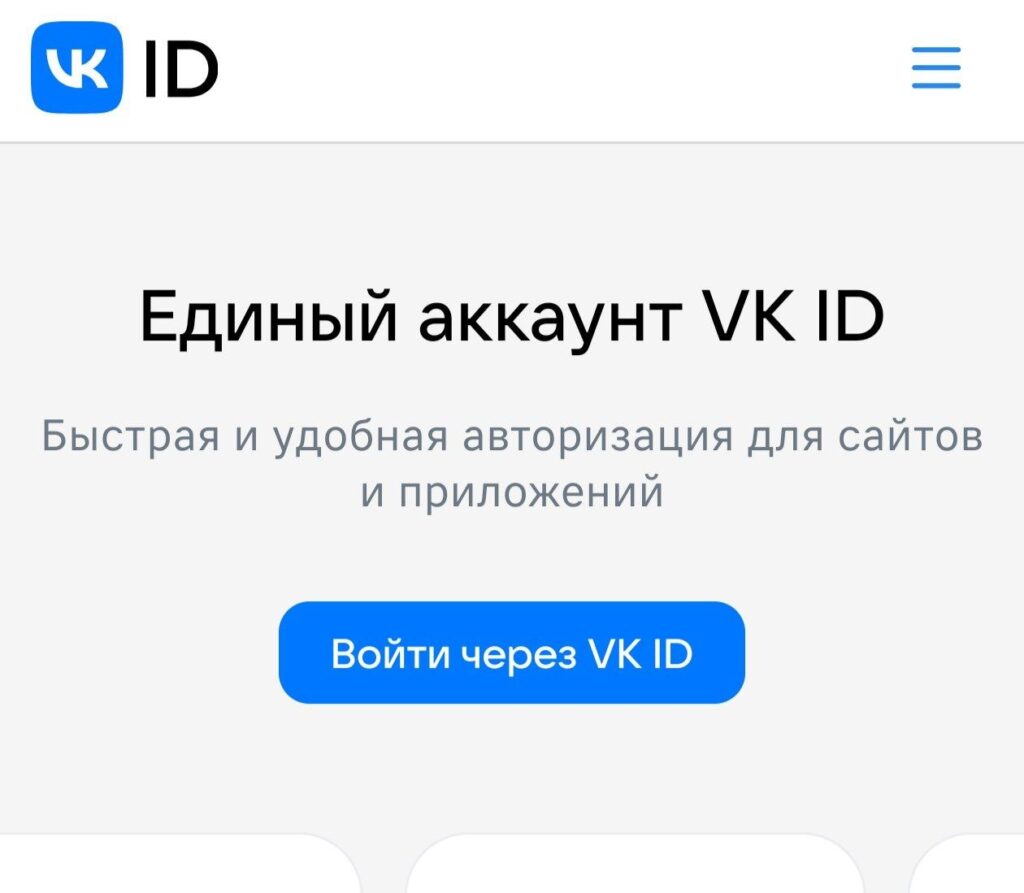
Authorization via VK ID is much simpler if you use multiple devices
When logging in via VK ID, you enter your phone number, receive a confirmation code, and access your page without needing to remember a password. This method is more convenient than the classic login with username and password, especially if you frequently switch devices.
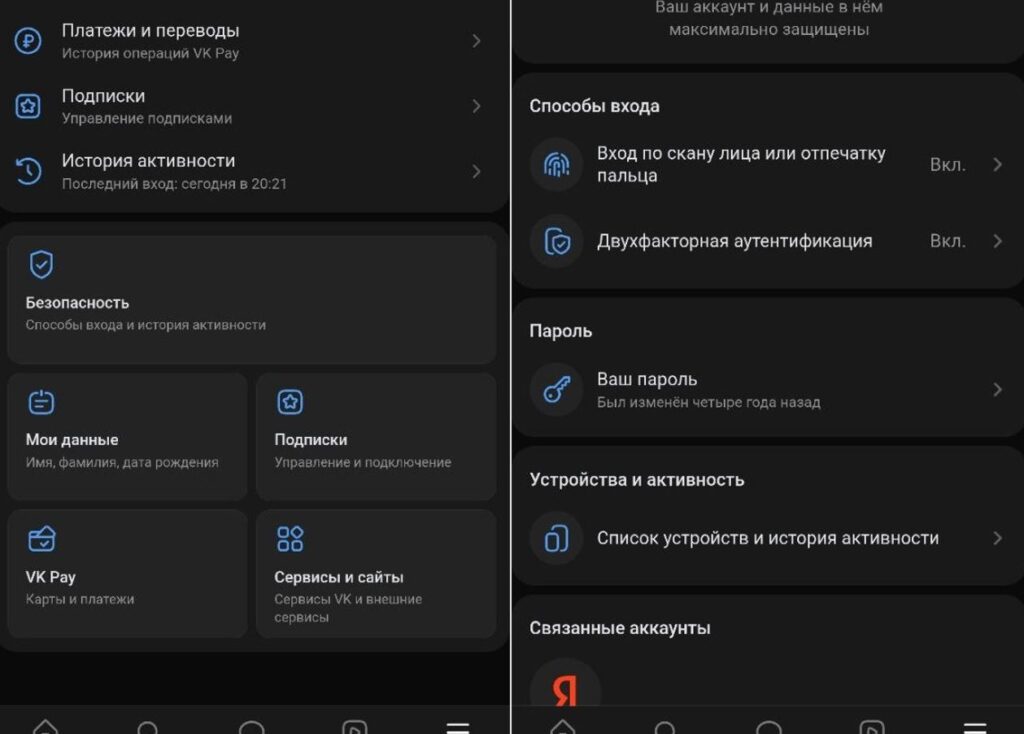
Make sure to enable 2FA on VKontakte if you haven’t done so already!
Additionally, VKontakte supports two-factor authentication — where in addition to a password, you need to enter a one-time code. This is an extra barrier for anyone trying to access your account without permission. You can enable it in your profile’s security settings.
- Log into VKontakte.
- Tap the menu at the bottom right, then the three dots at the top.
- Select “Manage VK ID” and tap “Security” at the bottom.
- Then go to “Two-factor authentication.”
Full Version of VKontakte on a Smartphone
The mobile version of VKontakte is convenient for quick browsing, but not all features are available in it. Some profile settings, tools for community administrators, and advertising capabilities are only available in the full version. You can even open it on a PC if the main version loads slowly.
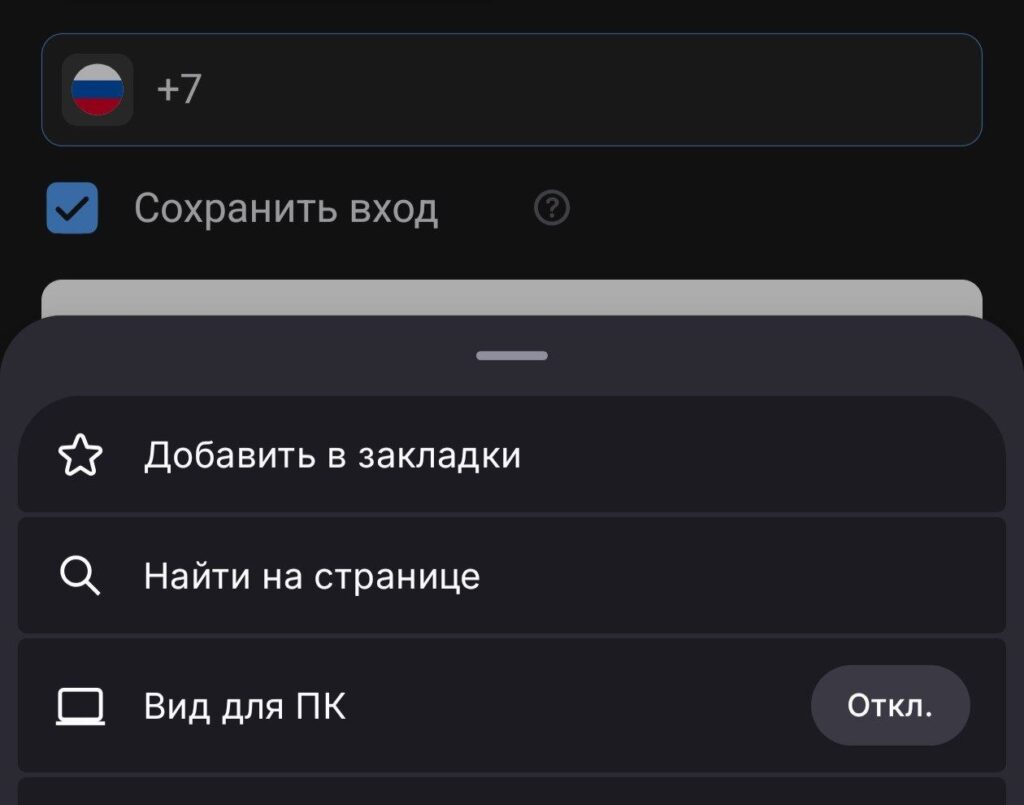
If the page won’t open even this way, you need to clear your browser cache
- Through the browser menu. Open vk.com in your mobile browser, tap the menu (three dots in Chrome or a similar button in another browser) and select “Desktop site” or “Desktop version.” The page will reload, and you’ll see the full interface, just like on a computer.
- Manually through the address bar. If you see m.vk.com in the address, simply delete the “m.” and refresh the page. Sometimes the browser still redirects to the mobile version — in that case, use the menu method.
- Why does the mobile version keep opening? The browser on your smartphone detects the device type and automatically redirects to the lightweight version. The cause may also be a saved cache or a bookmark with the m.vk.com address.
To solve the problem, clear your browser cache and create a new bookmark with the vk.com address in the full version. You can add a shortcut to your home screen for quick access.
How to Log Into VKontakte If You Forgot Your Password and Login
Losing access to your VKontakte account is quite easy. Yes, the situation is unpleasant, but it can be resolved.


