Admit it, you’ve already gotten used to MAX on your Android smartphone? Then I have good news: you can continue your conversations on a computer — without installing a client or jumping through hoops. MAX Web opens right in a browser tab, and it’s convenient when your phone is lying somewhere in another room. Especially for those who are still hesitant about using MAX, the web version is a great way to test the messenger without any extra commitment. Let me break down how to log in, what limitations the browser version of MAX has, and how it differs from the full app.
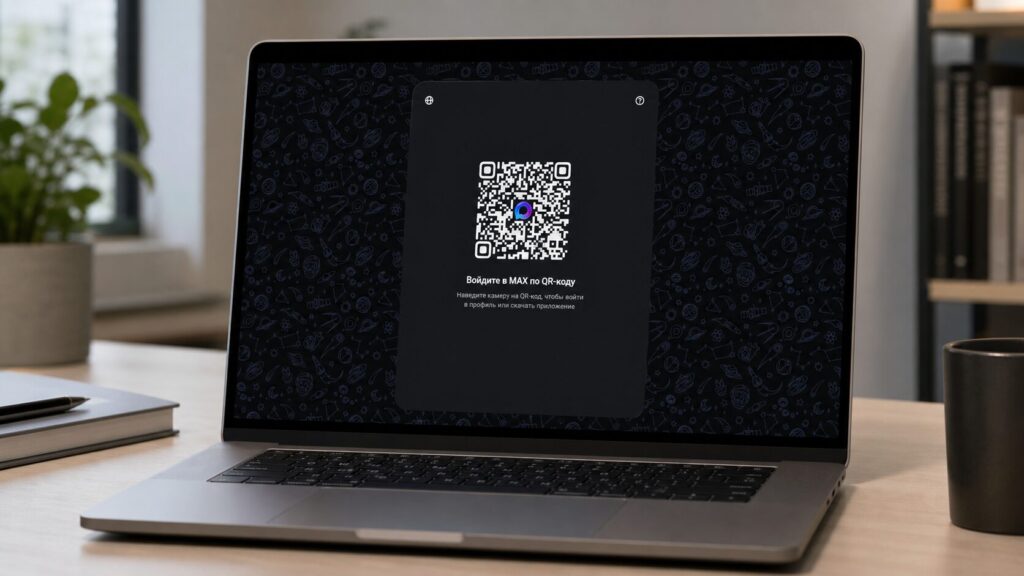
How to log in to MAX Web: by phone number, on computer and phone
What Is MAX Web and Why Do You Need It
MAX Web is a version of the MAX messenger for computer that opens in a regular browser at web.max.ru. You don’t need to install anything: no extensions, no separate programs. This is convenient if you’re sitting at a work computer where you can’t install applications, or you simply want to reply to messages from a big screen. Key features of the MAX messenger web version:
MAX on a computer is suitable for cases when you can’t download the app
- Works in any modern browser — Chrome, Yandex Browser, Firefox, Safari, Edge
- Syncs conversations with the MAX mobile app on Android or iOS
- Doesn’t take up disk space — unlike the desktop client, which weighs about 700 MB after installation
- Supports chats, calls, appearance settings, and security
Essentially, MAX Web is suitable for anyone who already uses the messenger on an Android smartphone and wants to continue chatting on a computer without downloading a separate program.
How to Log In to MAX Web on a Computer via QR Code
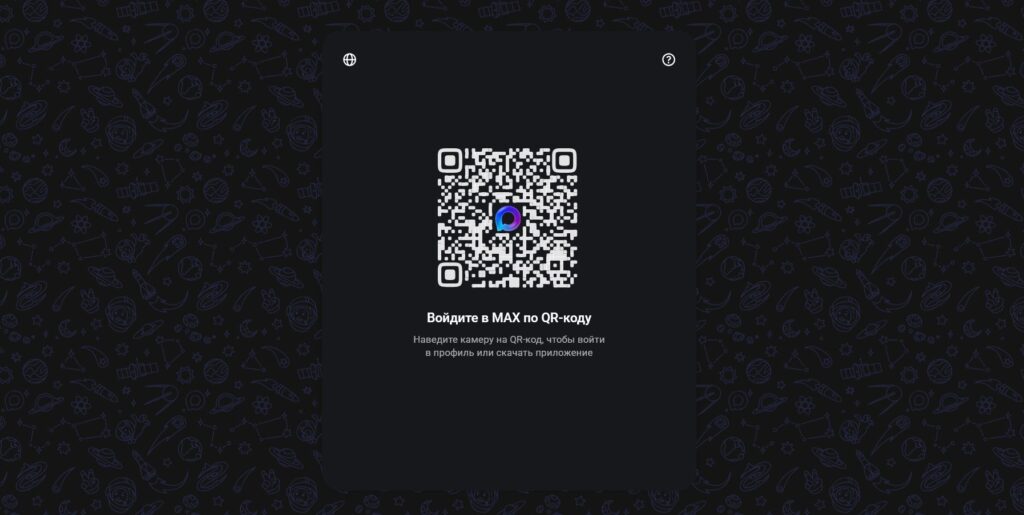
Logging into MAX on a computer is very easy
The main and currently the only confirmed way to log into the web version of the national messenger is scanning a QR code through the MAX mobile app. Here’s a step-by-step guide:
- Open any browser on your computer and go to the messenger’s website
- Click the “Log in to web version” button in the upper right corner of the page
- A QR code will appear on the screen
- Open the MAX app on your Android smartphone
- Go to the “Devices” section and select “Log in via QR code”
- Point your phone’s camera at the QR code on the computer screen
After successful scanning, you’ll immediately land on the start page with all your chats. Keep in mind that the QR code is valid for a limited time. If it has “expired” — the image will become blurred, and you simply need to refresh the page to get a new code.
How to Log In to MAX Web by Phone Number
This is one of the most common queries, and the answer is ambiguous. According to the main source, logging into the MAX web version by mobile phone number is not available — you can only authorize in MAX through a QR code from the app. In the mobile app itself, login by phone number works, but in the browser — it doesn’t.
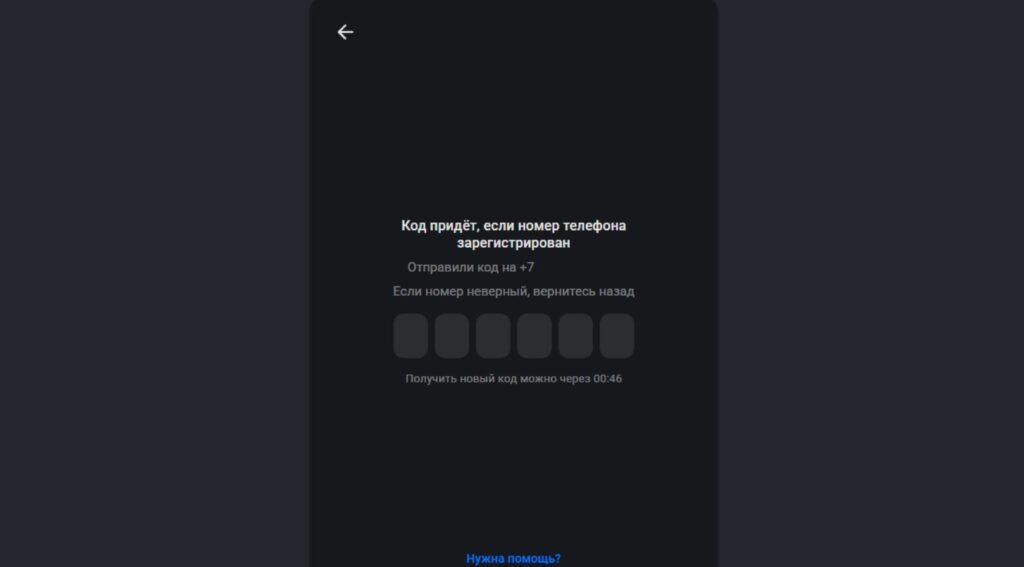
You can’t log in to MAX Web by phone number, but an SMS code is needed
At the same time, some third-party resources claim that the web.max.ru page has a link for logging in by phone number, after which a code is sent via SMS or in the messenger’s system chat. This feature may be in testing or available to some users, but in the main source at the time of publication, it is listed as unavailable.
If you don’t have a smartphone with MAX installed nearby, you most likely won’t be able to log into the web version. To use the messenger on a computer in that case, it’s better to install the desktop application.
How to Launch MAX Web on an Android Smartphone
In short — you can’t. When trying to open the MAX web version in a browser on Android, the transition button in the site header is absent. Switching the browser to “Desktop site” mode doesn’t help either — the site either shows an error or displays incorrectly.
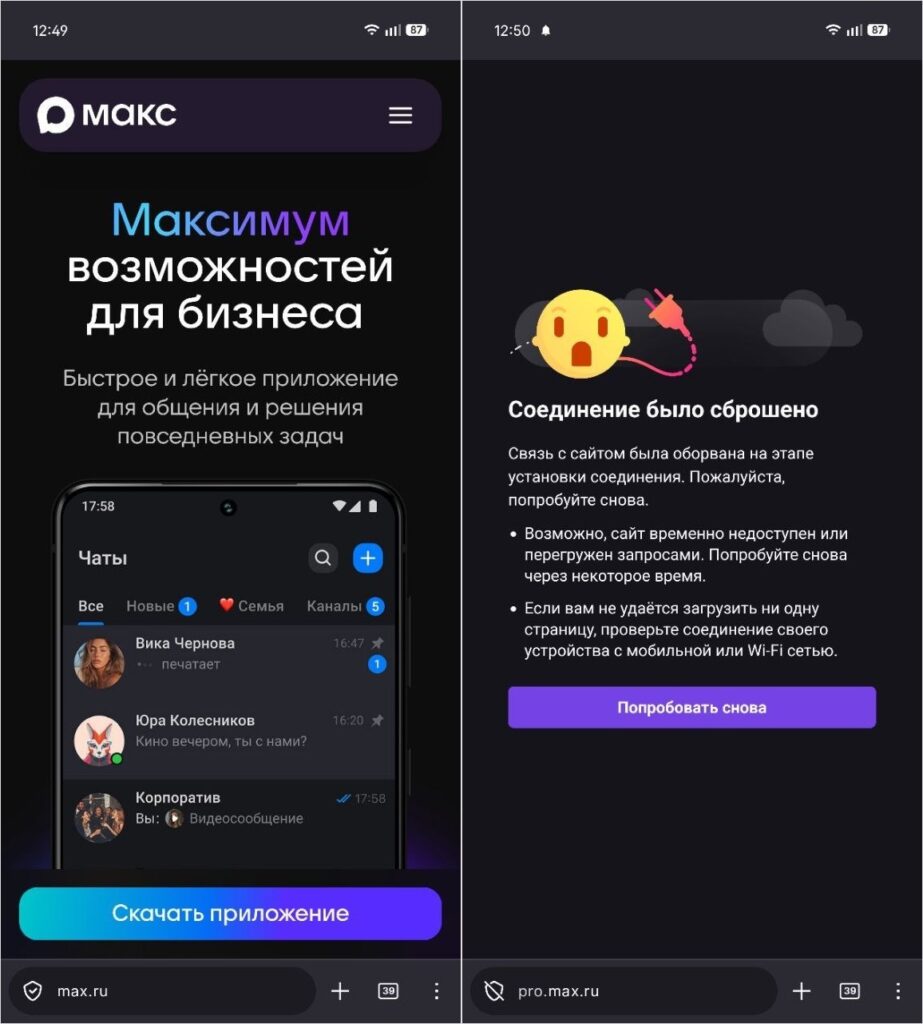
You can’t open MAX Web from a phone
This is expected: the MAX web version is designed for use on a computer with a large screen and a full keyboard. On an Android smartphone, it makes more sense to use the regular MAX app, which is available on Google Play, RuStore, and the MAX website.
Can’t Log In to MAX Web — What to Do
If you can’t log in to MAX Web, there are several reasons why this might happen. First and foremost, the most common issue is that the QR code has expired. Simply refresh the page — a new code will appear. Here are a few more reasons and solutions.
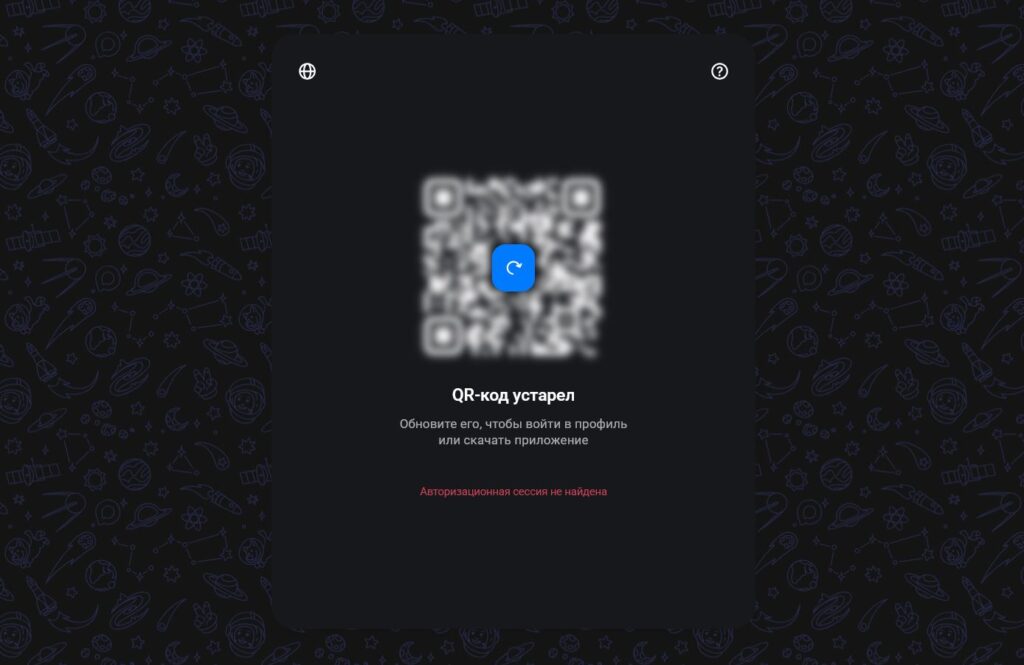
You need to scan the code as quickly as possible, otherwise it will expire
- QR code won’t scan. Check if a forced dark theme is enabled in the browser — it can invert the QR code colors. Try increasing the screen brightness or disabling the dark theme
- The page takes a long time to load or freezes


