Apple is generous with beta versions once again. After three developer test builds, the company has opened the first public beta of macOS 27 Golden Gate. Now anyone can try the new system on their Mac, not just those with a paid developer account. At the same time, Apple released a public version of iOS 27 for iPhone owners, so everyone can update today. Let’s figure out how to install the beta and whether it’s worth the risk.
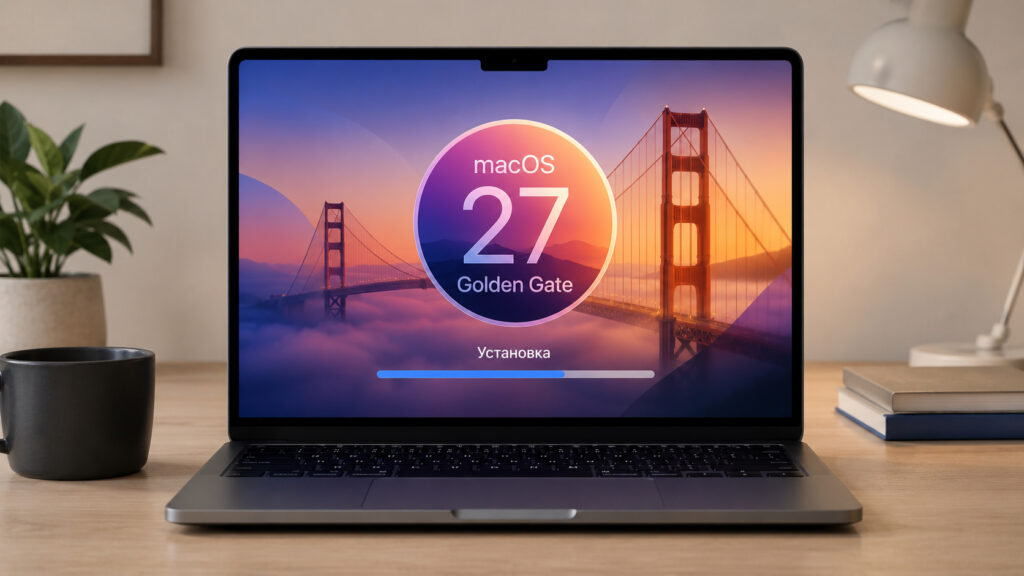
You can install the public beta right now
Where to Download the macOS 27 Public Beta
First, the main warning. Any test build is a stability lottery. Bugs in betas vary: from minor cosmetic glitches to problems that can turn a working Mac into a brick. I wouldn’t recommend installing such a system on your main computer that your work depends on.
That said, the macOS 27 betas are holding up pretty well. Among the noticeable rough edges are occasional slowdowns and memory leaks in Safari, as well as unstable behavior of the Spaces feature, which Apple is reworking under the hood. Minor things, but worth keeping in mind.
There’s another nuance. As new builds come out, what worked yesterday might break tomorrow, since Apple is constantly making significant changes to the system’s foundation. Stability fluctuates from beta to beta, so install with a cool head. And if something goes wrong, you can always roll back to macOS 26 Tahoe.
The installation itself takes just a couple of minutes. Here’s a step-by-step guide:
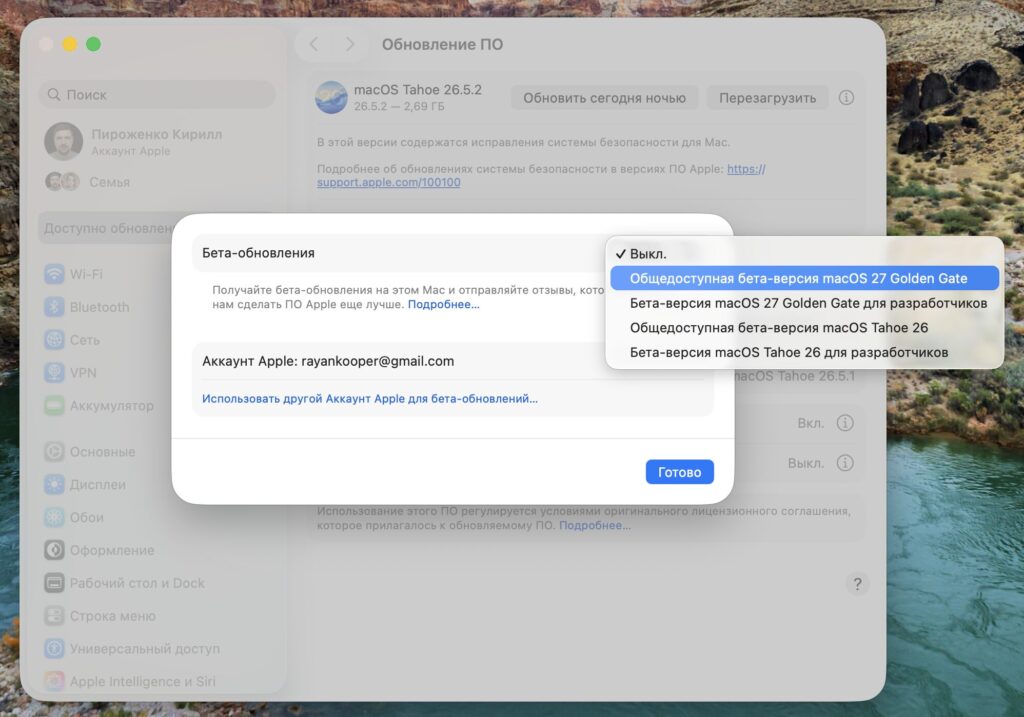
Select the public beta version
- Register your Mac in the beta testing program at beta.apple.com
- Open “System Settings” — “General” — “Software Update”
- Click the “i” button next to “Beta Updates”
- In the dropdown menu at the top right, select macOS 27 Golden Gate Public Beta
- Click “Done”
After that, the system will automatically pull the update — all you need to do is download and install it. If the beta option doesn’t appear, make sure you’re signed in with the same Apple ID you used to register for the program.
New Features of macOS 27 Golden Gate
The main star of all Apple’s fall updates is the new Siri and the smart assistant based on artificial intelligence. After the system indexes your data from Messages, Mail, and other apps, the assistant will learn to answer questions about your content, execute requests, and understand context. This is exactly why Apple initiated the entire large-scale system overhaul.
Siri AI is the main feature of the new macOS
macOS 27 Golden Gate has also significantly improved system-wide search. On macOS Tahoe 26, Spotlight was hit-or-miss and frankly annoying: sometimes it couldn’t find a file, other times results came with a delay. In the new version, the problem has been mostly fixed, and search is once again fast and predictable. A caveat: during the beta anything is possible, so no one guarantees perfect performance just yet.
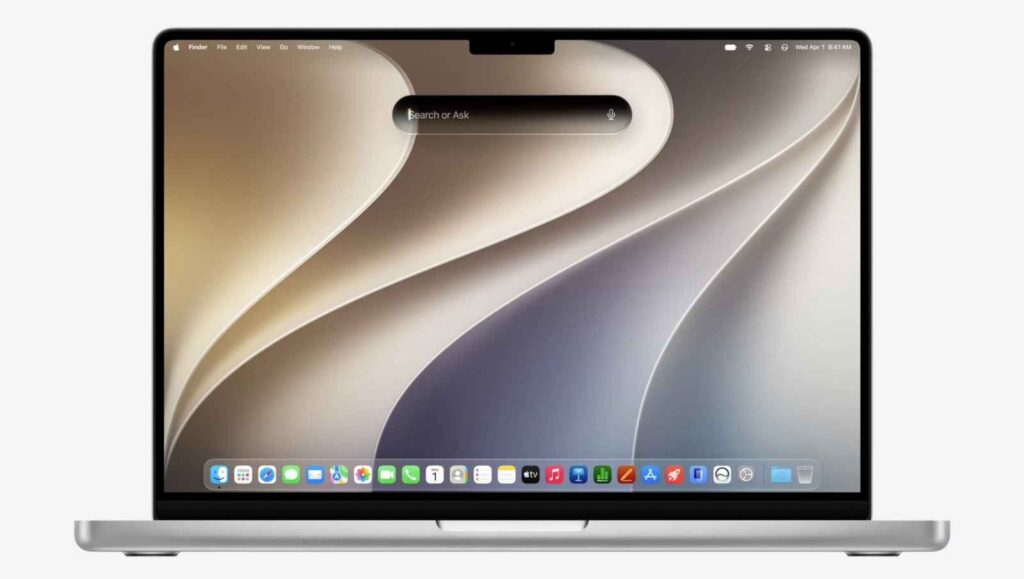
System search has been improved too
The visual appearance got attention too. Apple reworked the Liquid Glass effect, which many felt was half-baked on macOS Tahoe 26. Plus, there’s now a uniform corner radius for windows and apps — previously it varied depending on menu content, but now it’s consistent everywhere.
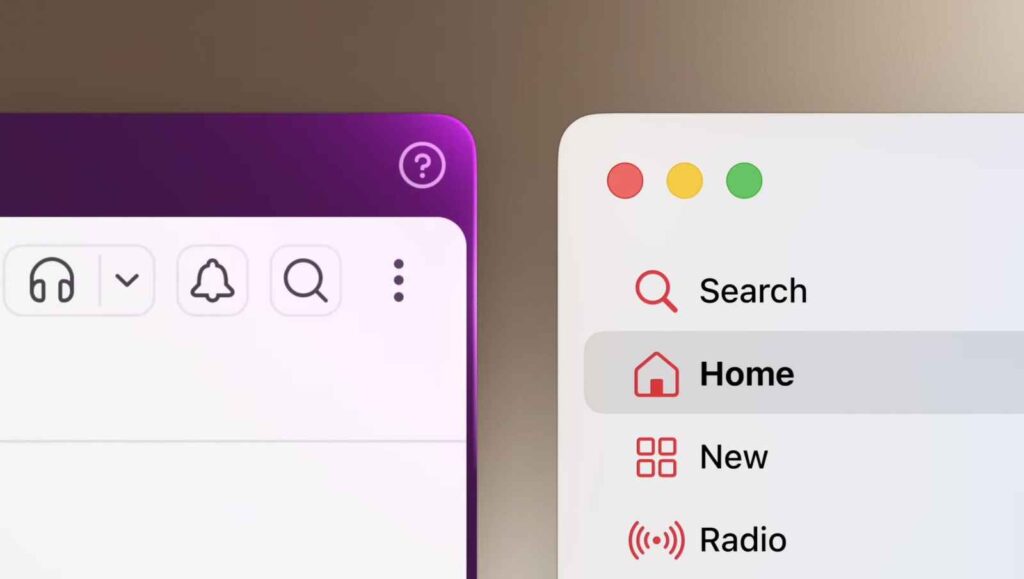
Window design has been slightly refined
Apple Intelligence and Other macOS 27 Features
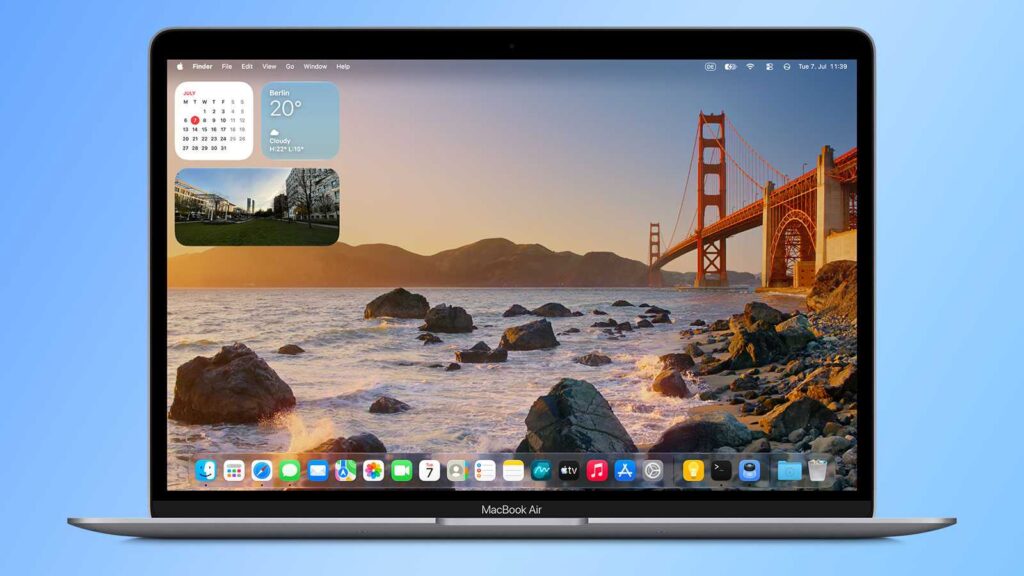
New wallpapers have been added too
Apple Intelligence features in the new system have also been upgraded. Text tools have become faster and more convenient, Visual Intelligence has been improved, and there’s a new Safari extension builder that creates add-ons directly from plain text commands. You describe what you need in words, and you get a ready-made extension.
Similar magic has been brought to Shortcuts as well. Now you can build a scenario from a text description rather than manually stacking steps one after another — for beginners, the previous approach was often overwhelming.


