If you type in two languages on a Mac, you’ve likely noticed a brief but annoying delay every time you switch keyboard layouts. You press the shortcut, the cursor freezes for a moment, letters stop appearing, and only then does the new language kick in. Over a full workday, hundreds of these micro-delays add up and break your flow.
The good news: the fix takes about two minutes, uses only built-in macOS settings, and requires no third-party software or Terminal commands. The cause is a conflict between the language-switching shortcut and the Quick Note hotkey tied to Mission Control. macOS briefly pauses to determine whether your keypress is the start of a different command, and that “safety pause” is what you feel as lag.
What you need to know
- The keyboard-layout switching delay is not caused by aging or underpowered hardware — even new Macs exhibit it.
- The likely culprit is the Quick Note shortcut under Mission Control, which shares key combinations and forces macOS to wait before committing to an action.
- Disabling the Quick Note shortcut in System Settings → Keyboard → Keyboard Shortcuts → Mission Control can eliminate the lag — no restart required.
- Results vary: the source author reports an immediate improvement on a MacBook Air M2, but notes that an acquaintance saw no change on a MacBook Pro.
Why language switching is slow on Mac
The delay has nothing to do with your Mac’s processing power. macOS intentionally introduces a tiny pause when you press the layout-switching shortcut because some key combinations overlap. The system waits to see whether a follow-up keypress will turn the input into a different command entirely.
Language switching on Mac often happens with a noticeable delay
The most common offender is the Quick Note feature and its associated Mission Control hotkeys. macOS reserves a small window of time for these shortcuts, and the cost is paid in layout-switching responsiveness.
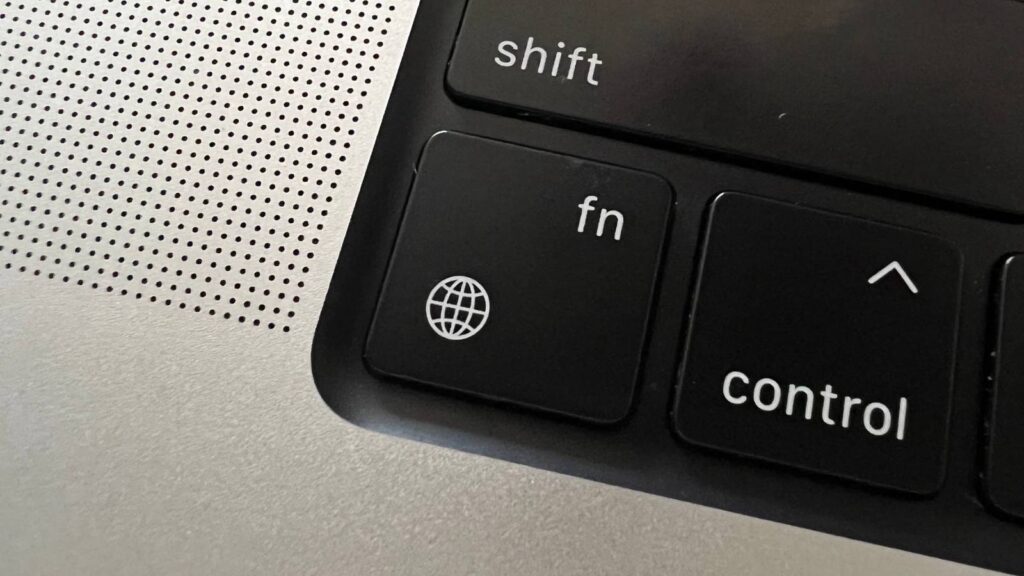
The Fn key is tied to Quick Note creation, which can cause the Mac to hesitate before switching languages
How to speed up language switching on Mac
The entire fix uses built-in macOS settings. No third-party apps or Terminal commands are needed. Note: if you are running a beta version of macOS, menu labels may differ slightly, but the overall logic is the same.
- Open System Settings on your Mac.
- Navigate to Keyboard, then click Keyboard Shortcuts…
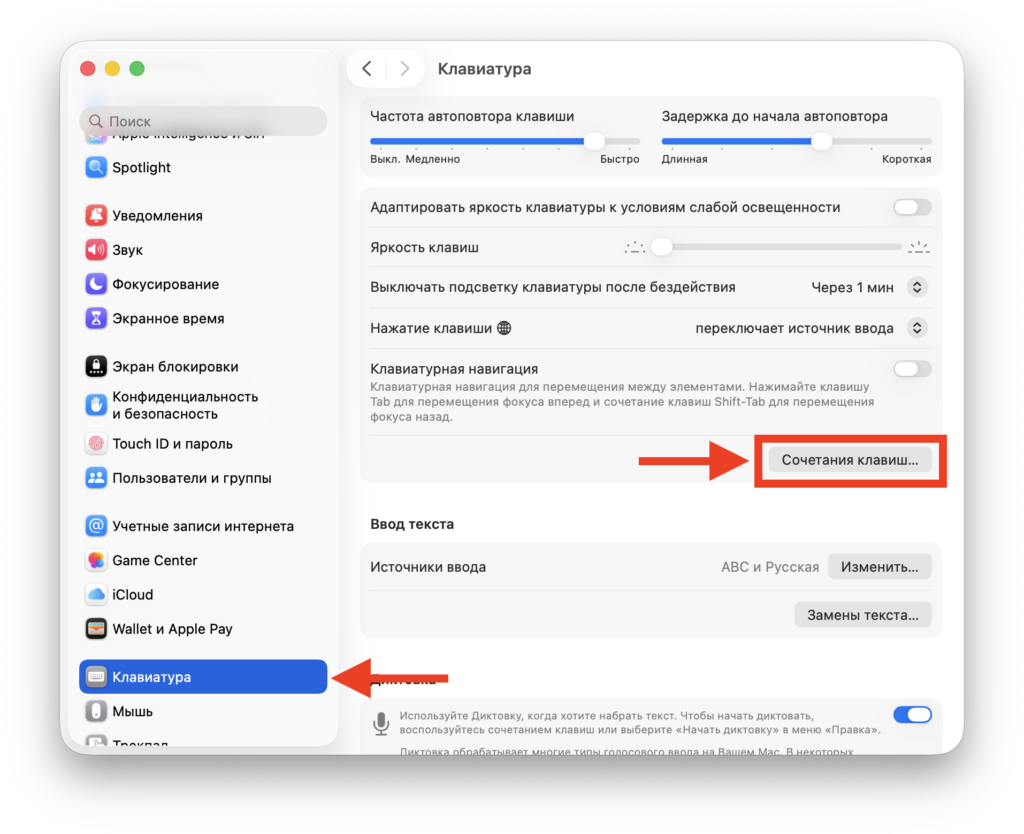
Find this setting in System Settings → Keyboard → Keyboard Shortcuts
- In the left-hand sidebar, find and expand Mission Control.
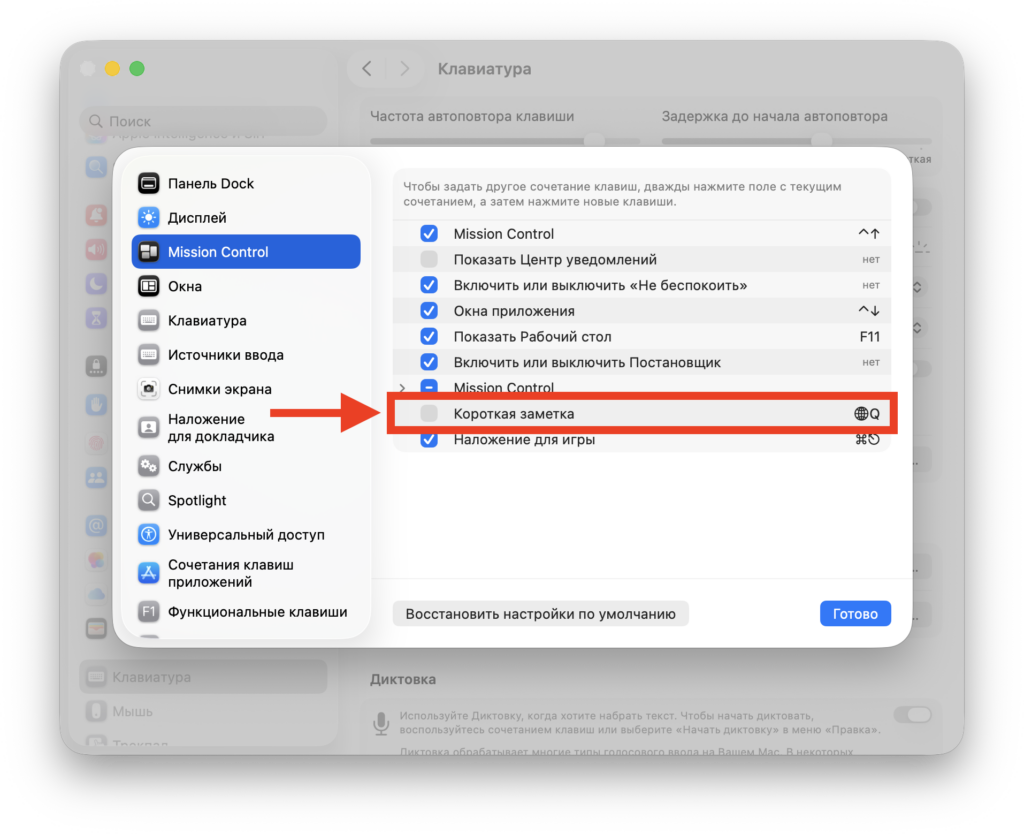
Uncheck the Quick Note shortcut here
- Locate the entry for Quick Note and uncheck the box next to it.
- Click Done and close System Settings.
A restart is typically not required — the change takes effect immediately. Open any text editor and try switching languages back and forth to test the result.
Results vary — what to expect
The effect of this tweak is not the same for everyone. The source author reports that on a MacBook Air M2, language switching became noticeably faster right away after disabling the Quick Note shortcut. However, the author also notes that an acquaintance saw no improvement at all on a MacBook Pro after following the same steps. The exact reason for this inconsistency is unclear — it may depend on the specific Mac model, macOS version, or background processes running at the time.
In short, this is not a guaranteed fix for every Mac user, but it is worth trying given how quick and reversible the change is.
Is it safe to disable the Quick Note shortcut?
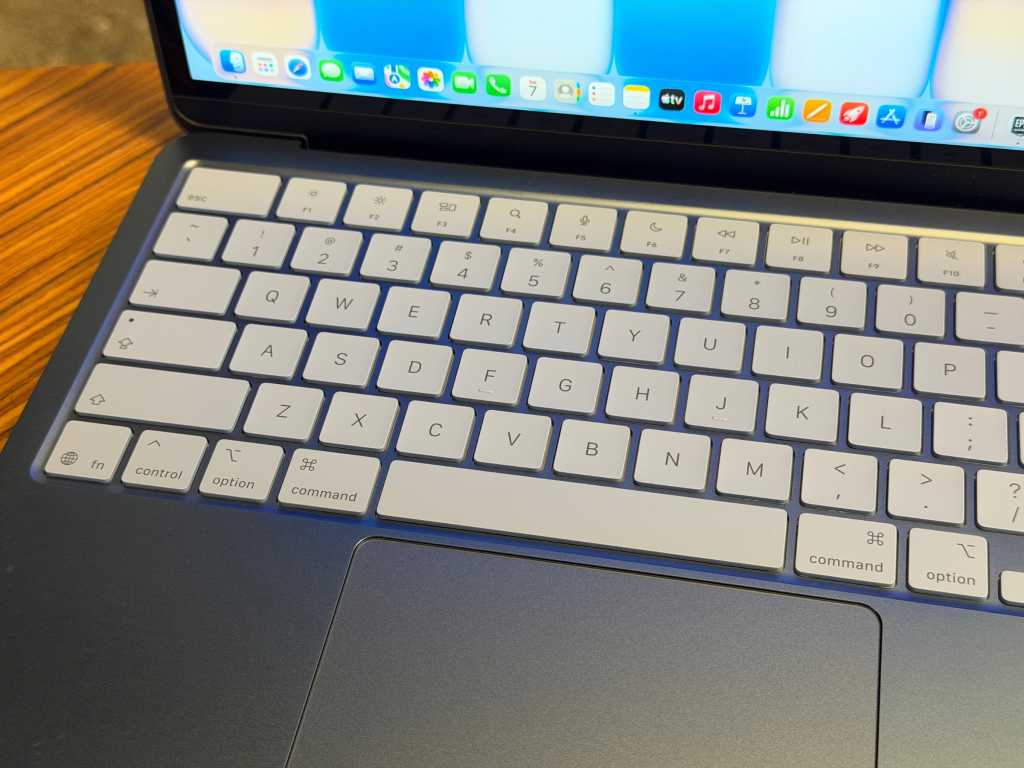
Check whether this setting helped eliminate the language-switching delay on your Mac
The change is completely safe and fully reversible. The only thing you lose is the ability to trigger Quick Note via its keyboard shortcut — the Quick Note feature itself remains available through other methods. If you decide you want the shortcut back, simply return to the same settings pane and re-enable the checkbox.
The entire process takes roughly two minutes. In the best case, you get a noticeably more responsive keyboard layout switch. In the worst case, you spend a couple of minutes and simply revert the change.


