You open your iPhone in the morning, and VK is silent. No messages, no calls, not a single badge on the icon. At first you think your friends have just gone quiet, but then it hits you: there are no notifications at all. That’s right — after the VK apps were removed from the App Store, push notifications on iPhone no longer come through. The good news is that you can get them back in a couple of minutes, and I’ll show you how.
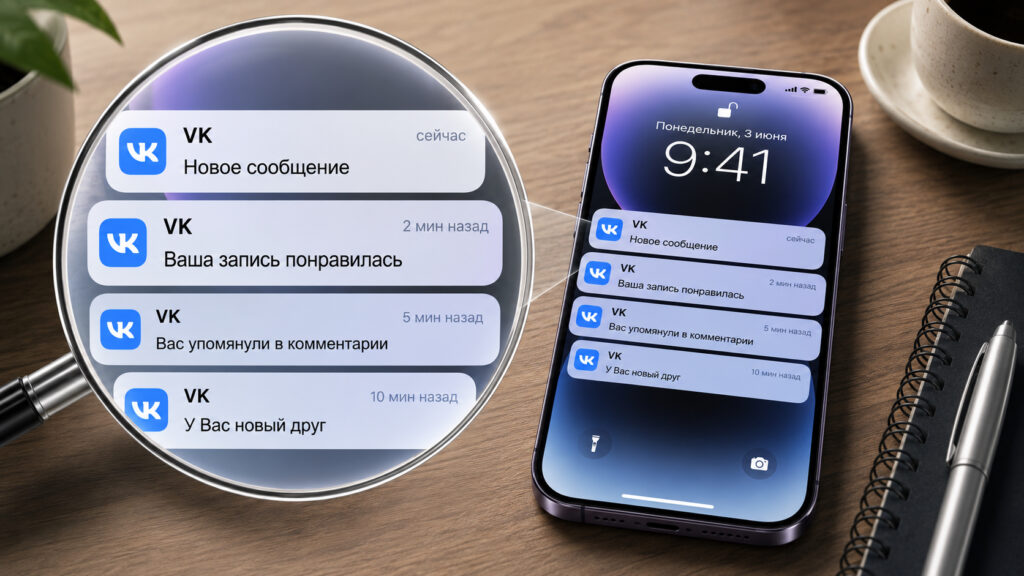
VK notifications can be restored in a minute
What Actually Happened to VK on iPhone
On June 25, almost all apps from the VK holding disappeared from the Russian App Store at once. The removal affected VKontakte itself, VK Video, VK Music, VK Messenger, VK Dating, Dzen, Odnoklassniki, Mail.ru Mail, Mail Cloud, Marusya, and about a dozen more services. Apple removed them unilaterally, without warning and without a clear explanation. VK called the situation unmotivated and unacceptable, pointing out that the company has never been under sanctions.
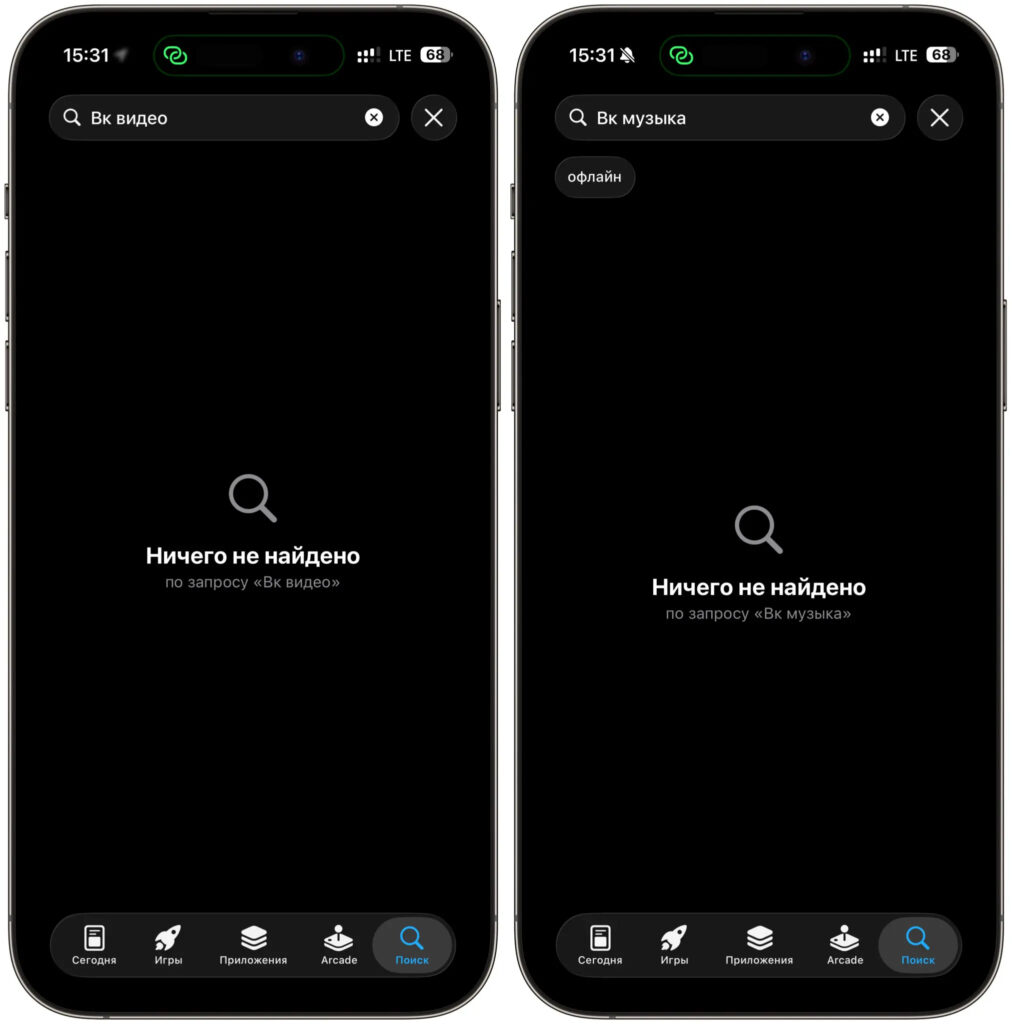
All VK apps were successfully removed from the App Store
If the app is already installed on your iPhone, it will continue to work. However, you can no longer download or update it through the App Store. And the main pain for most people isn’t even that — it’s the fact that push notifications have stopped. The mechanics here are simple and unpleasant: as soon as the app disappears from the store, iOS revokes the token through which notifications were delivered. VK’s server simply can no longer reach your device.
Exactly the same thing happened in early June with the Max messenger. It was removed earlier, and users immediately noticed that calls and messages stopped coming through. The team’s only advice at the time was: open the app more often. Although in reality, notifications in Max can be restored without that workaround. On Android everything is fine — VK is distributed through RuStore, Google Play, AppGallery, and official websites with all updates. But iPhone owners will have to find workarounds.
Fortunately, there is a workaround. VK has a full-fledged web version that supports push notifications right through the browser. Add it to your home screen, enable push notifications, and your iPhone will start buzzing again when a new message arrives. Let’s go through it step by step.
Adding the VK Web Version to Your Home Screen
Here’s the idea. Modern Safari can turn a website into something like an app — a so-called PWA. Visually, it’s an icon on your home screen that opens the site without the address bar or toolbars, just like a real app. And most importantly, such a PWA can send notifications.
The procedure itself takes less than a minute:
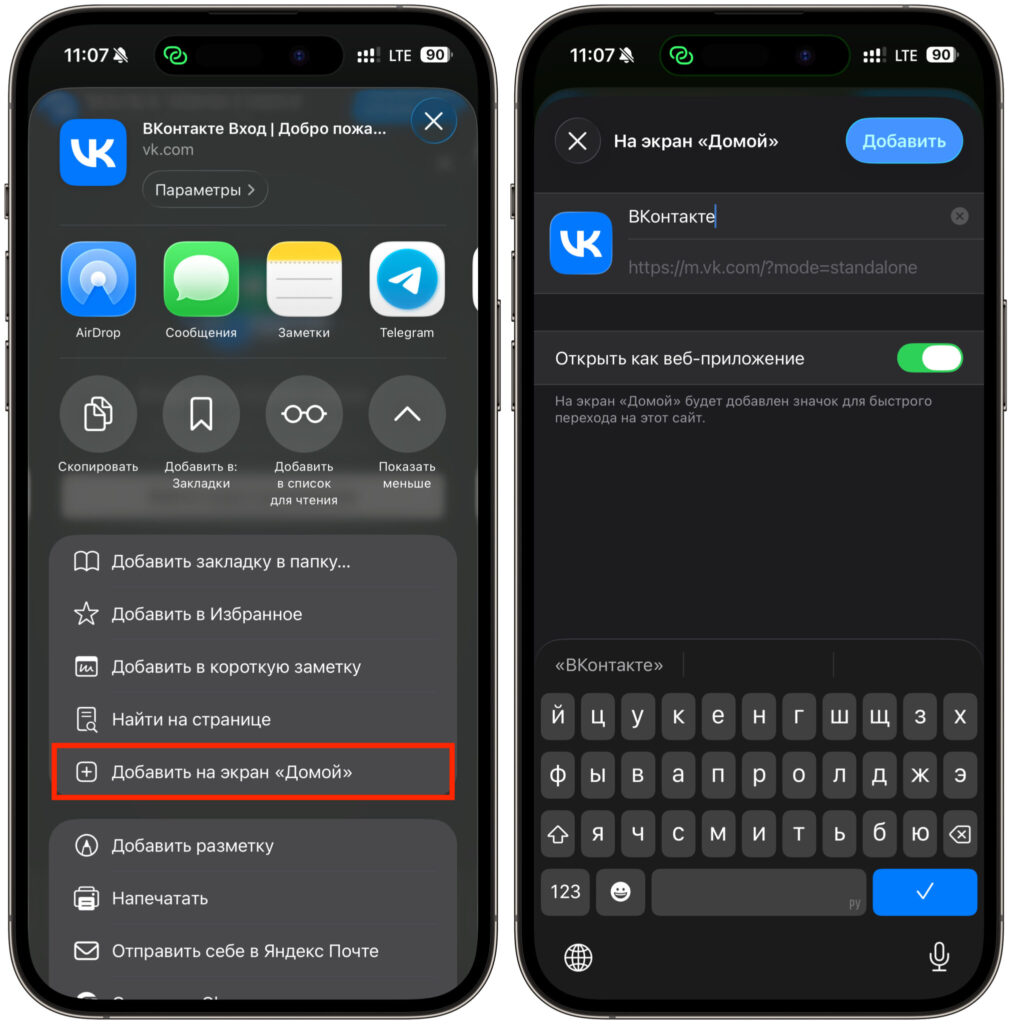
Add the PWA to your home screen
- Open Safari and go to vk.com. For some reason, notifications didn’t work in Chrome, so use Safari.
- Wait for the page to fully load, then tap the “Share” icon at the bottom of the screen — the one that looks like a square with an upward arrow.
- In the menu that appears, scroll through the list of actions and select “Add to Home Screen”.
- The system will offer to name the shortcut. You can keep the default name or type your own so you don’t get confused later.
- Tap “Add” in the upper right corner, and a fresh VK icon will appear on your home screen.
It looks almost like a native app, and many people wouldn’t even tell the difference visually. The same trick works with any service from the holding. Need Mail.ru mail, Dzen, or music? Go to their websites through Safari and repeat the procedure.
Enabling Push Notifications in the Added PWA
The icon alone doesn’t deliver push notifications yet — they need to be separately enabled. The process is simple, but there are enough small details, so let’s go strictly by the list:
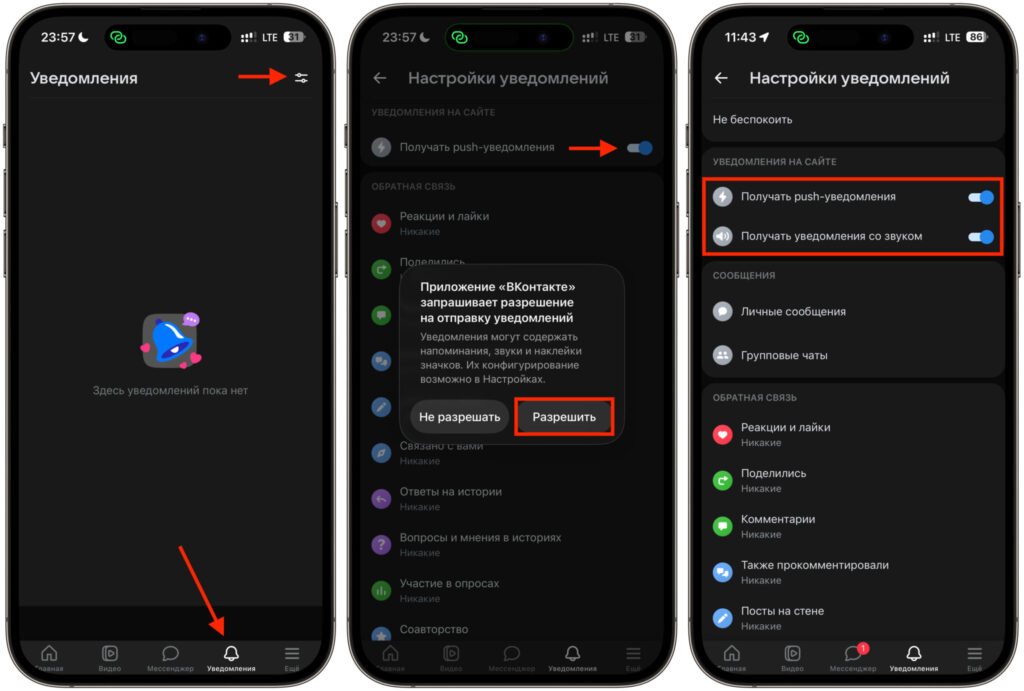
Turn on notifications and configure them
- Open the PWA you just added from the home screen — not through Safari, but specifically the shortcut.
- Log in with your account. The username and password are the same as in the app.
- Go to the “Notifications” tab at the bottom.
- Tap the settings icon in the upper right corner — the gear icon.
- Toggle on “Receive push notifications”.
- Allow push notifications in the pop-up window. It’s important to tap “Allow” here, otherwise nothing will work.
- Configure which notifications you want to receive: direct messages, replies, mentions, likes. It’s best to turn off unnecessary ones right away so you don’t drown in a flood later.
After that, your iPhone will start showing VK notifications again, just like before. They’ll arrive slightly differently than from the native app, and sometimes with a small delay, but you won’t miss messages and important alerts anymore. For most use cases, this is more than enough.
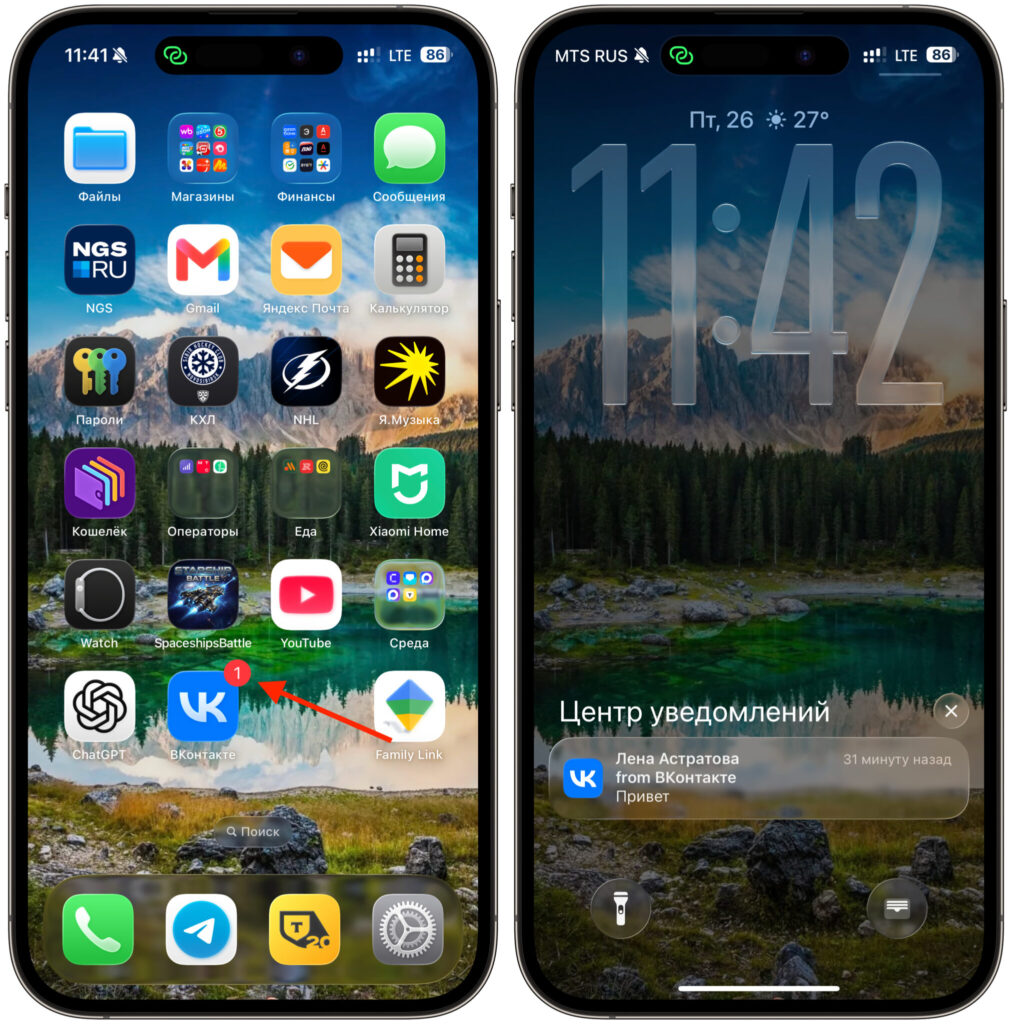
Even the badge on the icon appears. Max can’t do that
If push notifications are still silent, check two things:
- In the system “Settings” under the “Notifications” section, find the VK shortcut and make sure everything is enabled for it.
- Turn off “Do Not Disturb” mode and check “Focus” — sometimes notifications are being silenced by that.
Create a Separate Folder for These Shortcuts
And here’s my main tip for the future. Judging by how things are developing, you’ll have more and more PWAs like this on your iPhone. First Max, now all of VK — and who’s next is hard to predict. To keep your home screen from turning into a mess of icons, create a separate folder for them.
It’s easy to do: long-press any icon until edit mode activates, drag it onto another similar one, and the system will automatically create a folder. Name it something clear, like “Web Services” or “Push,” and put all your added shortcuts there. This way you’ll keep your screen tidy and won’t get confused about where the real app is and where its browser twin lives.
Also keep this folder handy. Until the App Store situation settles down, web versions will be your main way to stay connected. And if something else disappears from the store tomorrow, you’ll already know what to do: Safari, “Add to Home Screen,” flip the push toggle, and you’re done.
The VK removal story itself looks like another twist in the long-standing standoff between Apple and Russian services.


