I was transferring data from my wife’s old iPhone 15 Plus to a brand-new 17 Pro Max. Everything went smoothly, but at some point I caught myself thinking: where did the MAX messenger go? The app is no longer in the App Store, and my wife is used to it. Previously, we used to install the web version of MAX on iPhone, and that’s a working option, but the full-fledged app has advantages that the website doesn’t. Here’s how I got the proper app back on iPhone in 10 minutes.
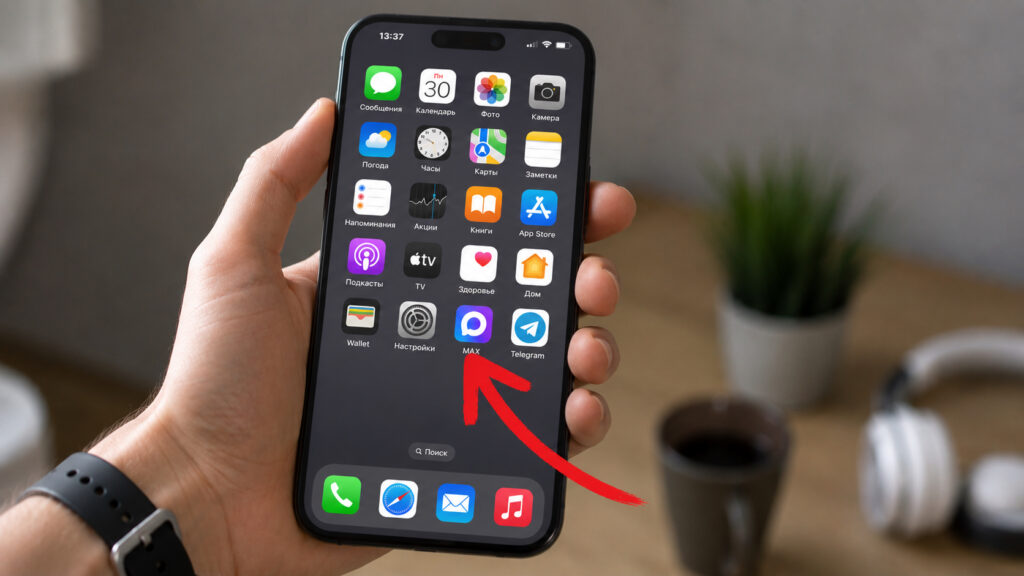
MAX can be installed on iPhone, but you’ll need a workaround
Why the MAX App Is Better Than the Web Version
Let me start with the main question I get asked most often: why bother if there’s a website. The answer is simple — the web version can’t do everything. It doesn’t have a digital ID, and this is no longer just a checkmark in your profile but a full-fledged document that is gradually being accepted in Russia in place of a passport in stores and beyond.
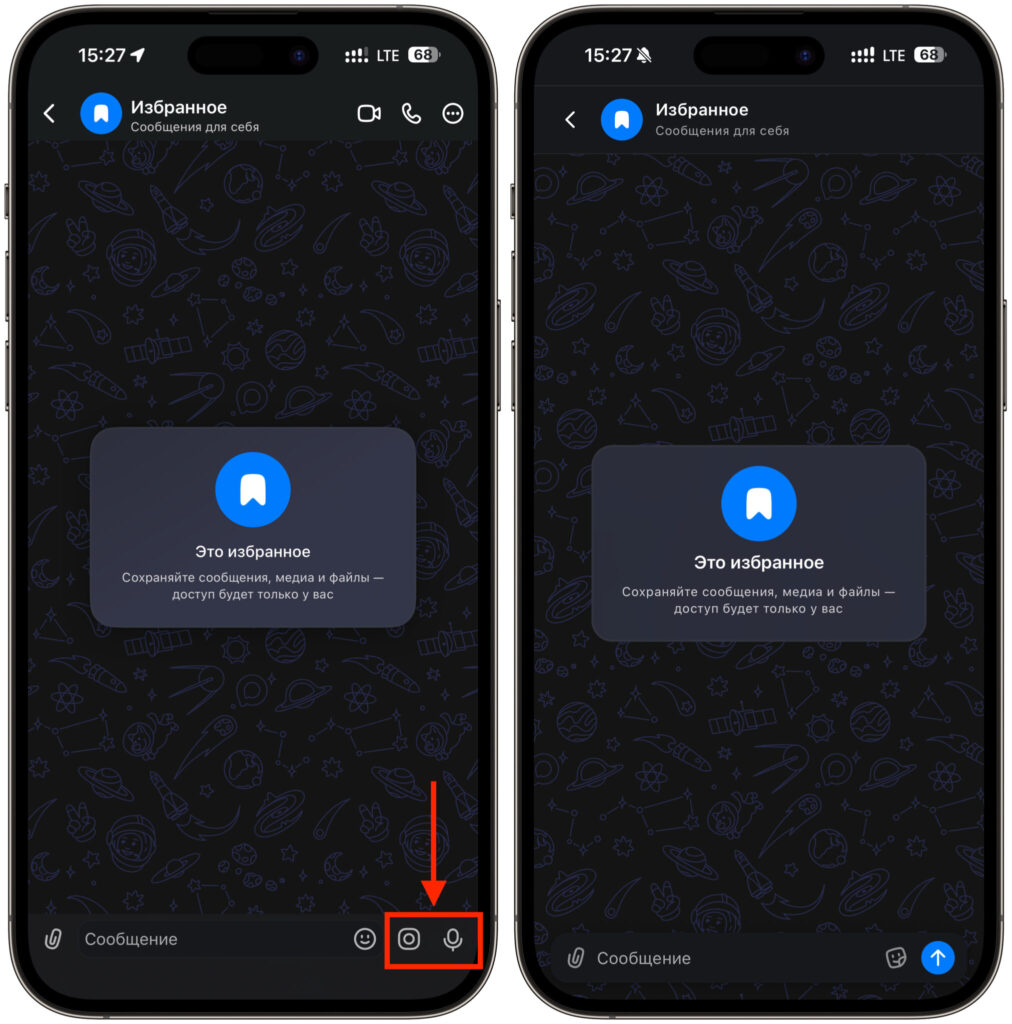
The app is worth installing at least for video circles and voice messages
The second point is about communication. In the browser version, you can’t record a video circle or a voice message, and that’s exactly what my wife uses constantly. Plus the interface on the website feels like a compromise: scrolling sometimes lags, the keyboard behaves strangely, and switching between chats takes extra seconds. The native app has none of these issues — it simply works the way the developers intended.
There’s also a third nuance. Push notifications work differently on the web, so even after installing the app, it still makes sense to keep the web version as a backup option. If you’re having trouble with notifications, check out the separate guide on how to enable notifications in MAX on iPhone — everything is laid out step by step there.
What You Need to Install MAX via iMazing
Spoiler: no jailbreak, third-party stores, or dubious profiles. All you need is a computer and the iMazing app, which is available for both macOS and Windows. After that, it all comes down to one question: whether you’ve ever downloaded MAX on your account before.
If the app was downloaded at least once on your Apple ID, consider it done. The app stays in your purchase history forever, even if it’s been removed from the store. iMazing will simply download it and install it back — no additional conditions.
If you didn’t manage to download the messenger before it was removed, you’ll need to ask for help. Ask friends, colleagues, or relatives who still have MAX in their library and borrow their account for a couple of minutes. Yes, it looks a bit odd, but in practice you’re simply confirming someone else’s purchase on your device. That’s exactly what I did when installing the app for my wife.
Step-by-Step Installation of MAX on iPhone
Now for the instructions themselves. I tested them yesterday on a real device — everything worked on the first try without any errors.
- Download iMazing from the developer’s official website and install it on your computer. The free version is sufficient for our purposes. If you already had the app installed, make sure to update it to the latest version. I was getting an error when downloading the app due to a missing update, but as soon as I updated it, everything went smoothly.
- Launch the program and connect your phone with a cable. It’s better not to use a wireless connection here — it tends to act up with large files.
- Select your device in the list on the left and click “Manage Apps”.
- Look at the upper-right corner of the window and make sure the correct Apple ID is being used — the one that has the MAX messenger.
- If a different account is logged in, click “Sign Out” and then sign in with the correct account.
- Go to the “Library” tab and find MAX in the list. The easiest way is to type the name in the search bar.
- Click the arrow next to the name to start downloading the app to your computer.
- Wait until the arrow changes to a bucket icon. This means the file has been fully downloaded and is stored locally on your computer.
- Right-click on the row and select “Install”. After that, just wait — the process takes a couple of minutes.
- Unlock your iPhone and launch MAX from the home screen. The icon will appear in the same place as regular apps from the store.
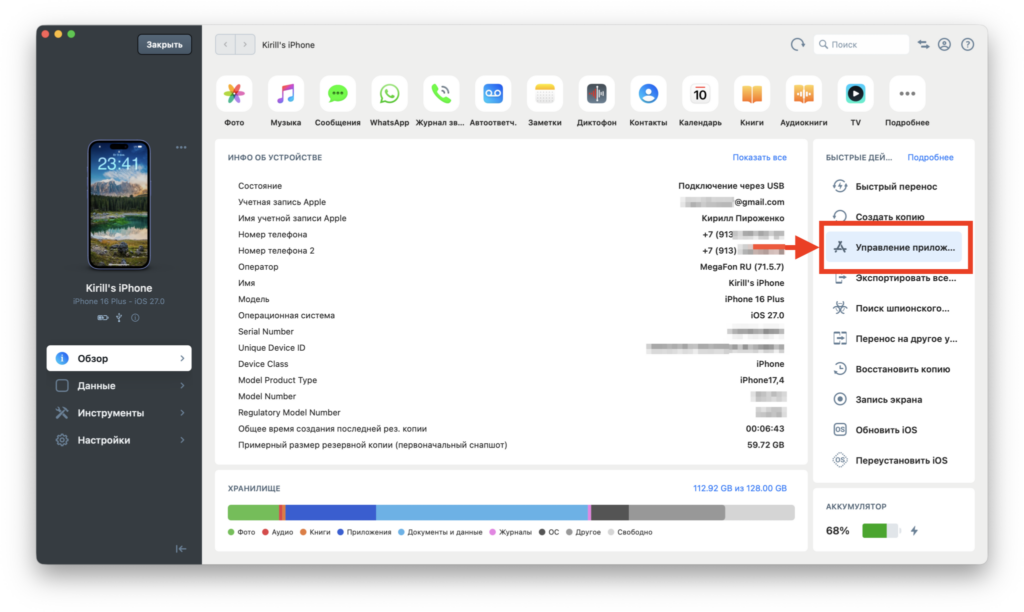
Go to app management
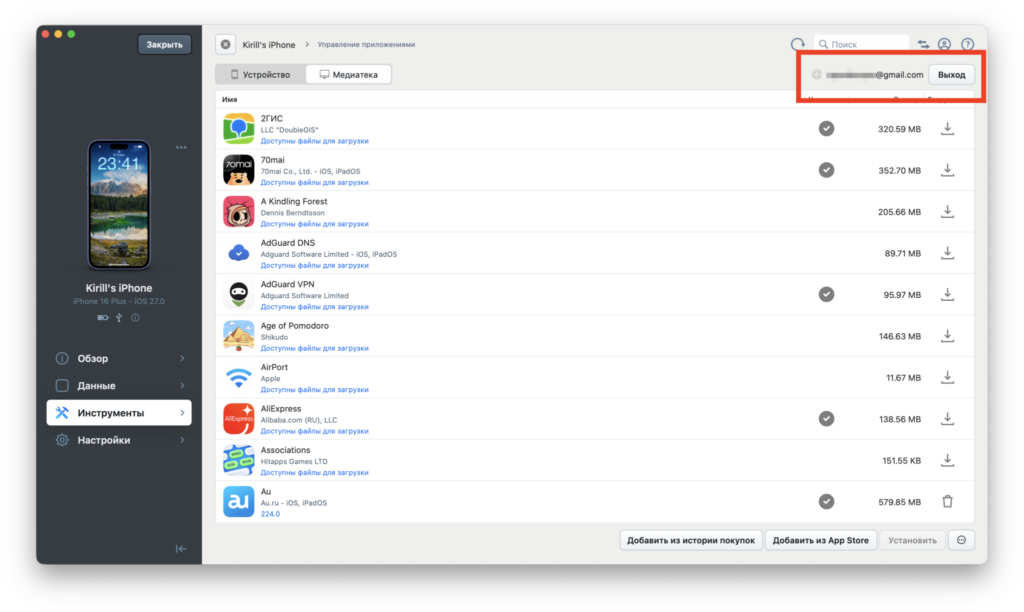
Switch Apple ID if needed
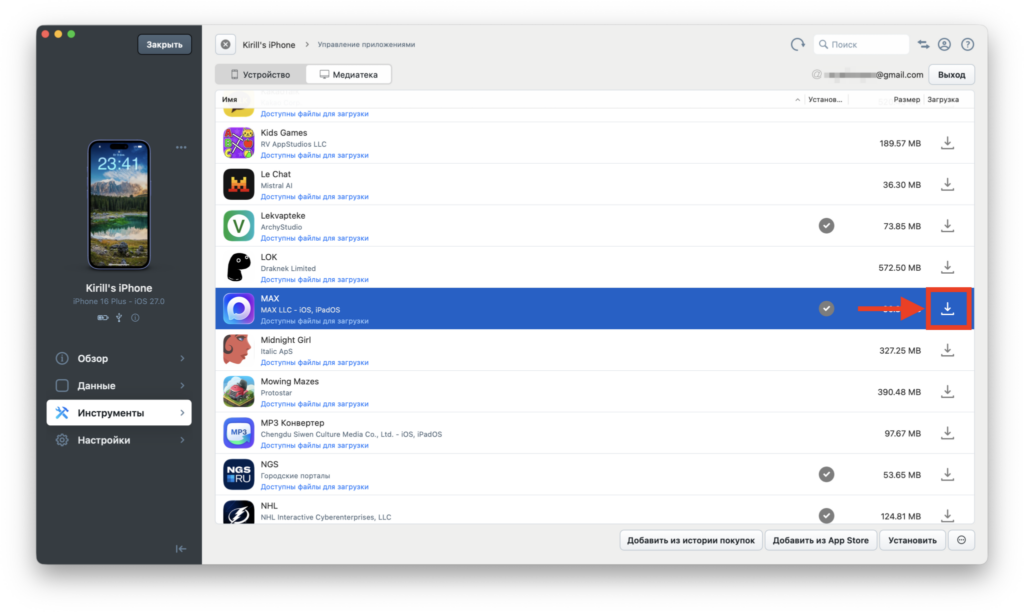
Download the installation file
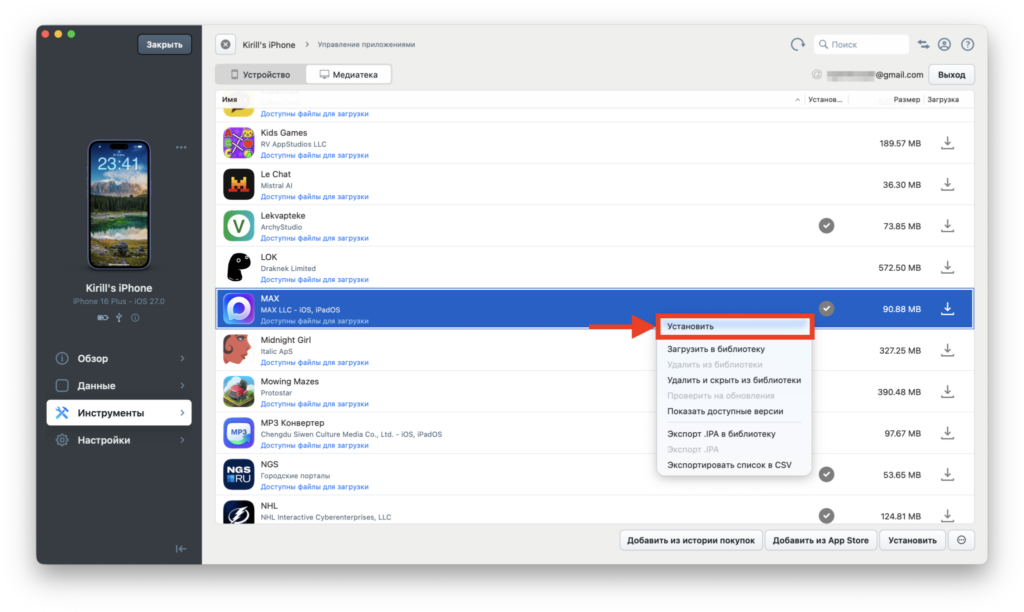
Install the app on iPhone
If you installed the app using your own Apple ID, it will open right away and only ask you to log into the messenger itself. If you used someone else’s account, the system will ask for the Apple ID password on first launch. Enter it, confirm the sign-in, and after that the app will work normally. The password is needed exactly once — after that, the system will forget about it.
What You Should Know After Installing MAX
First thing to keep in mind: there will be no updates through the App Store. The store no longer sees this app. New versions of MAX will likely be released under different names, if they come at all, so you’ll just have to wait.
Second, the app won’t disappear from your phone on its own. It behaves like a regular app, surviving reboots and system updates without issues. The only thing is that if you do a full device reset, you’ll have to repeat the procedure, so it’s best to keep the downloaded file on your computer.
Third, and the most pleasant part: the same trick works with other removed apps. As a test, I installed Avito (Au.ru) the same way, and everything went identically: library, arrow, bucket, install. So iMazing essentially becomes a personal archive of apps that are no longer in the store.
And finally, about security. If you’re using someone else’s Apple ID, agree on it in advance and don’t save the password in the keychain. After installation, the account owner can safely change their password — the app won’t go anywhere because of it.


