Instagram* stubbornly doesn’t want you to save videos you like. There’s no “Download” button in the app and never has been: the most you can do is send a video in a DM or save it to bookmarks. But what if you need the video in your gallery to forward to a friend, clip a segment, or just rewatch it offline? Today we’ll figure out how to save videos. There’s a method that takes just a couple of seconds and doesn’t require a single third-party app. It all comes down to one quick shortcut.
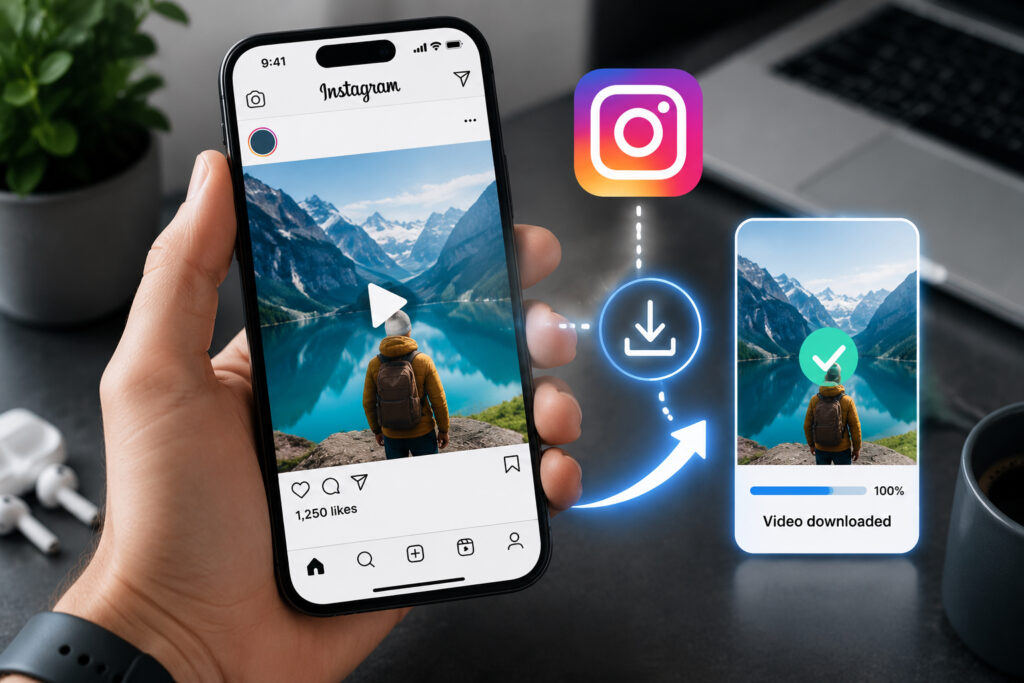
Downloading videos from Instagram* is easier than you think
Why Websites for Downloading Instagram* Videos Are Inconvenient
Instagram* deliberately prevents you from saving other people’s videos directly — this is content creator protection. In practice, this means there’s simply no familiar “tap and download” path here.
You could, of course, search for third-party downloader websites. But it’s always the same hassle: copy the link, open the browser, paste it, scroll through banners and pop-up ads, and then try to guess which of the five “Download” buttons is the real one. It’s slow, tedious, and unsafe — half of these sites survive on intrusive ads and subscriptions.
A screenshot doesn’t work for video for obvious reasons. Screen recording is also a mediocre option: the app interface gets in the way. You want something fast and clean — and that’s where iOS Shortcuts come in. This is a built-in Apple tool that can automate routine tasks right on your phone, and downloading videos is exactly its specialty.
Installing a Shortcut to Save Videos on iPhone
First, let’s install the shortcut itself. The Shortcuts app is already installed on every iPhone out of the box, so there’s nothing extra to download. Follow these steps:
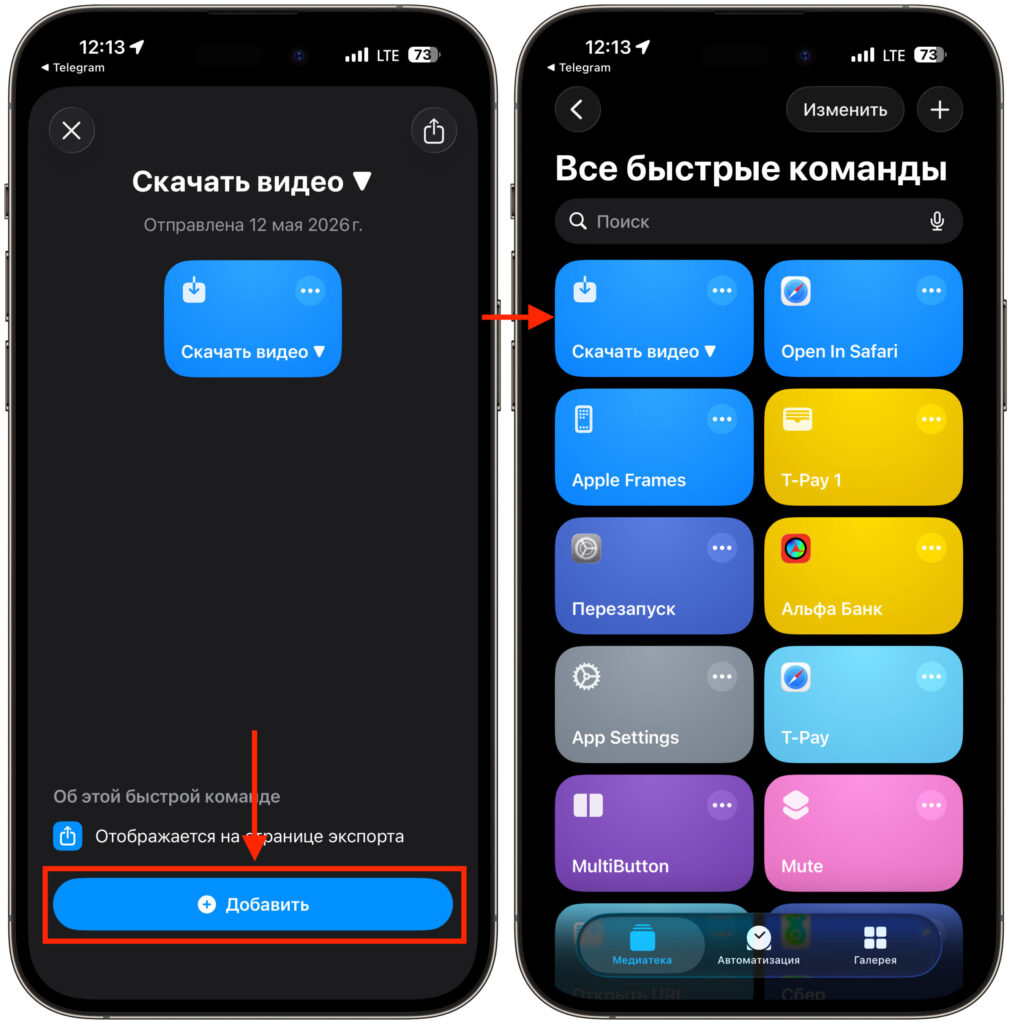
The shortcut is added in just a couple of taps
- Open this shortcut link on your iPhone — the phone will automatically offer to open it in the Shortcuts app.
- On the shortcut card “Download Video ▼”, scroll down and tap the “Add” button.
- Make sure the shortcut appears in the “All Shortcuts” section alongside your others — that’s where it will live.
One important note about trust. On the very first launch, iOS may ask for permissions a couple of times — for access to content from apps and to your media library. This is normal; without them, the shortcut physically cannot save the video to your gallery. Grant permission once — and the system won’t ask again.
How to Save a Video from Instagram* to Photos on iPhone
Now for the most interesting part — the process itself. It’s short, but the first time it’s worth following the steps carefully so you don’t get confused:
- Open the desired video in Instagram* and tap the “Share” icon below the video.
- In the Instagram* menu, select “Share to…” — that’s the iOS system share menu with the upward arrow, not the “Download” option from the app itself.
- In the share sheet that opens, scroll down the list of actions and tap your shortcut “Download Video ▼”.
- In the “Choose option” window, select Continue using (May have errors) — this way the shortcut will skip the update check and get right to work.
- In the “Select download method” window, tap MP4 HD 1 to grab the video in high quality.
- Wait for the Download successful!! message and tap Open Recent Album — the video is already in your gallery.
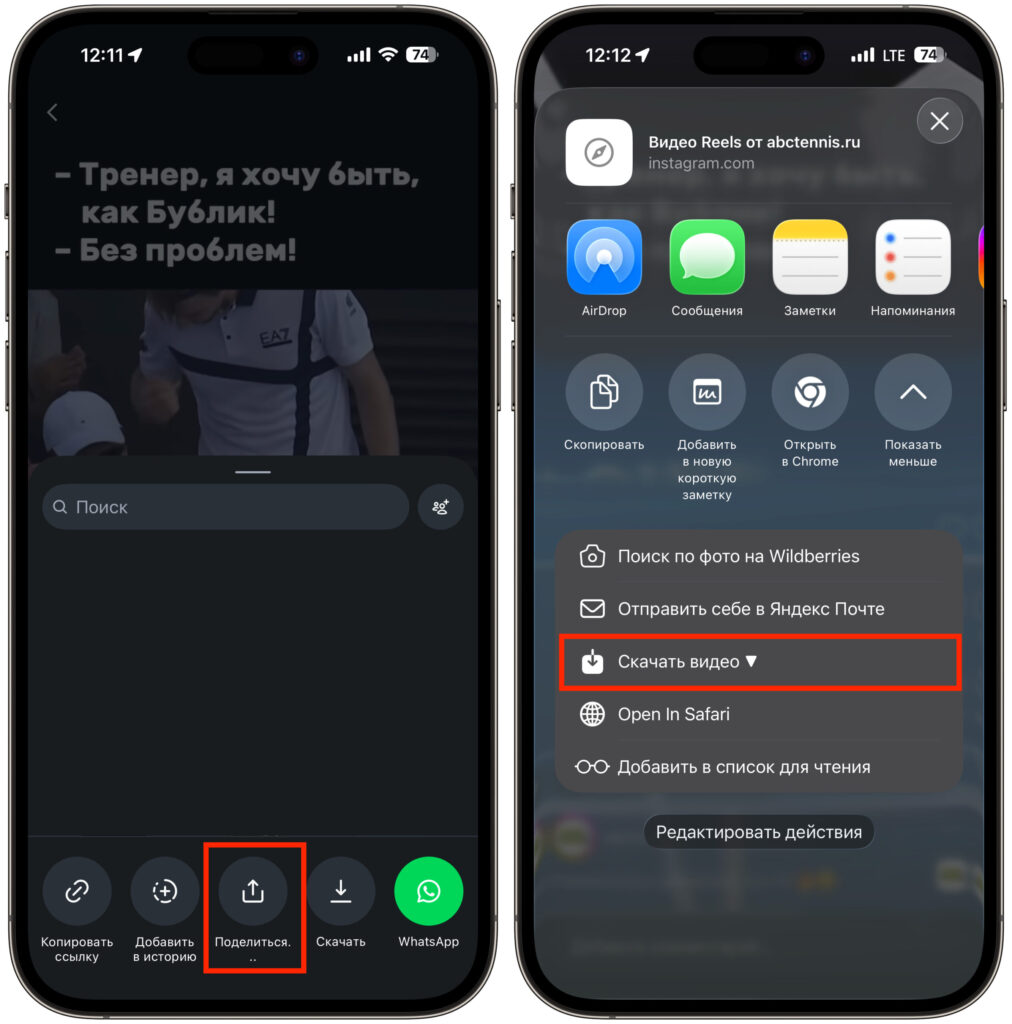
The shortcut integrates right into the Share menu
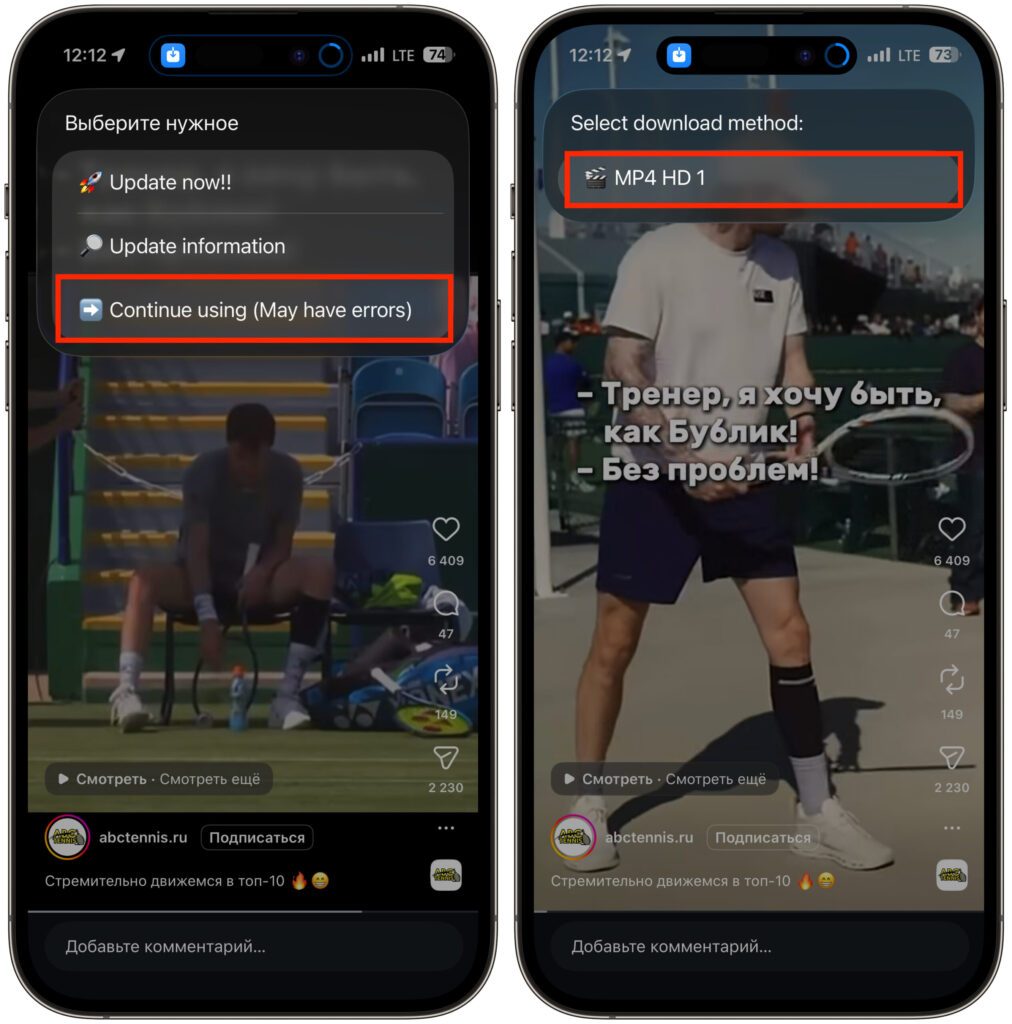
Complete the download
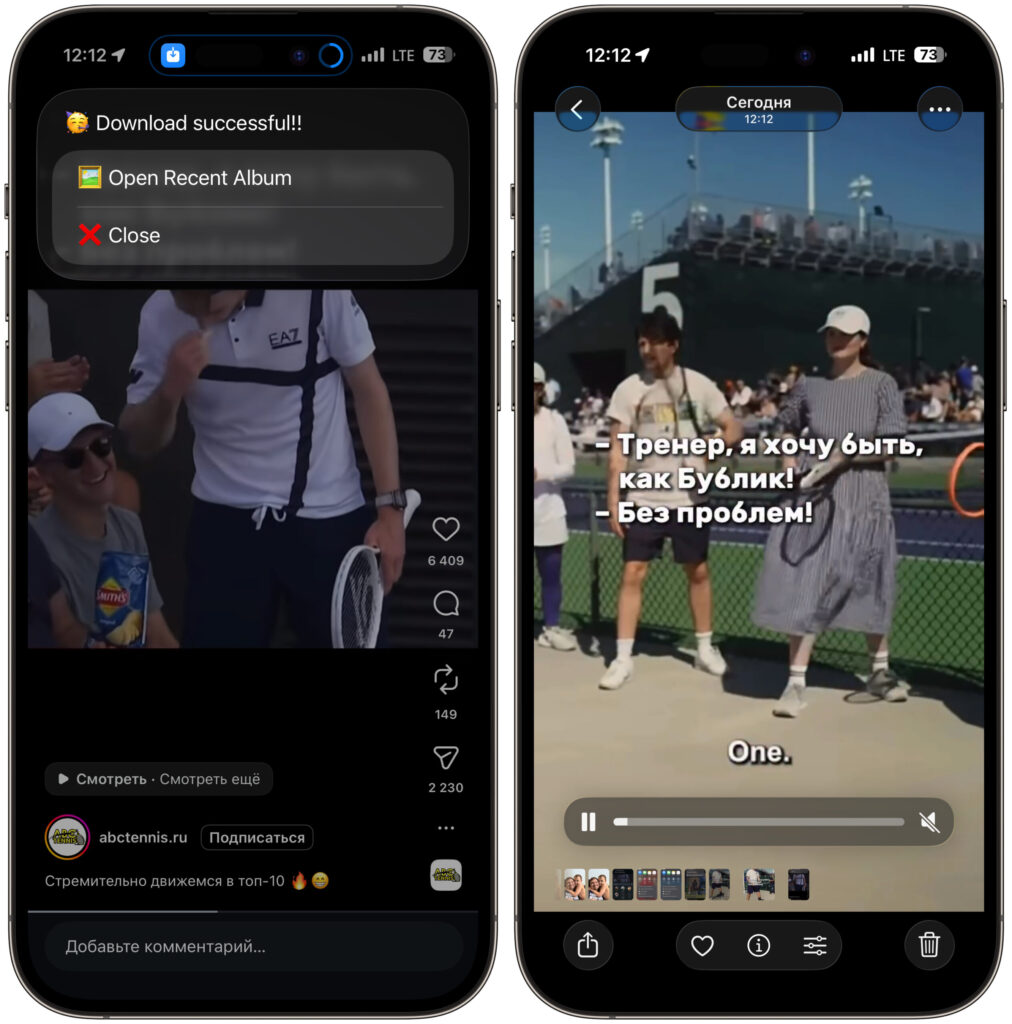
The video will immediately appear in your iPhone gallery
The video downloads with sound, in normal quality, without watermarks, and without interface elements over the frame. That’s it — you can forward it, edit it, or watch it offline.
Download Instagram* Videos by Link for Free
There’s also another way to download videos from Instagram* completely for free. For this, you’ll need a Telegram bot. Here’s how it works:
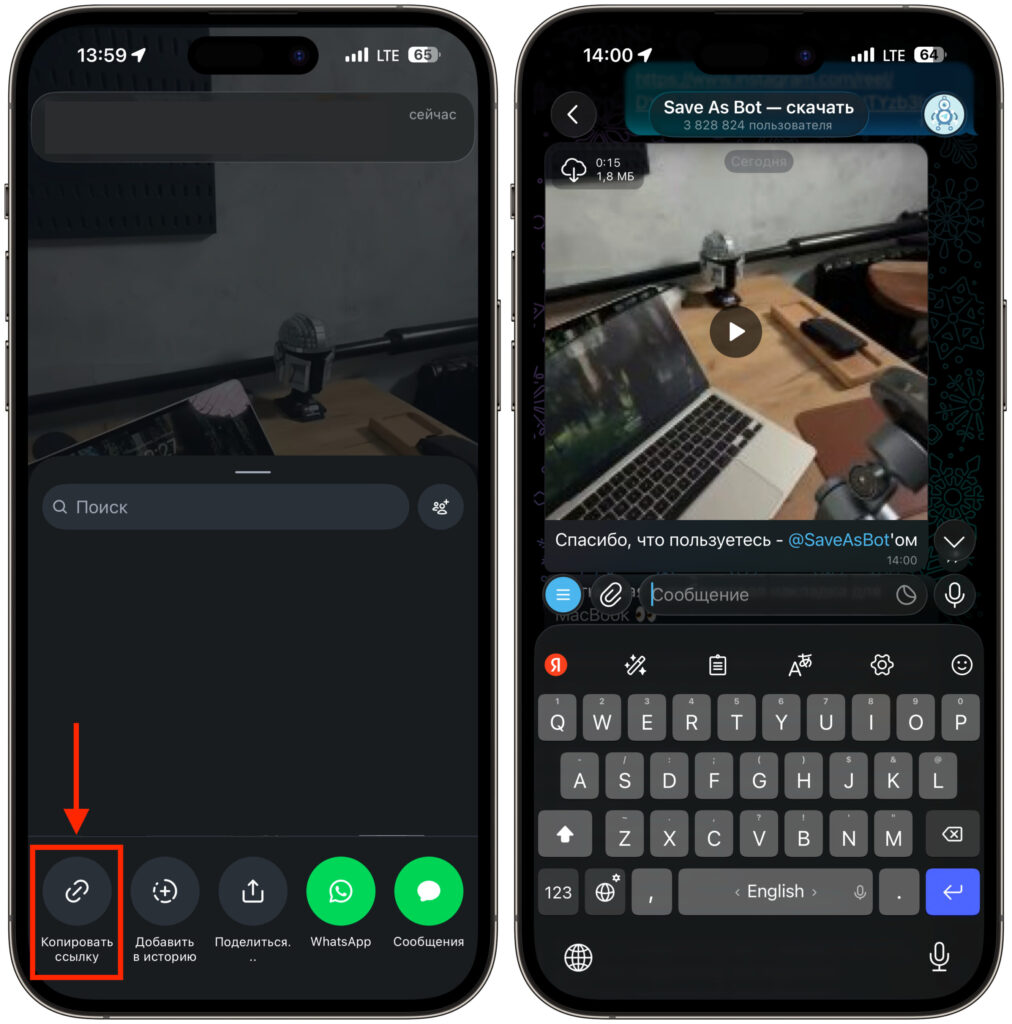
Not the fastest, but still a working method
- In Instagram, open the video you want to download and tap the “Send” button.
- Tap “Copy link”.
- Go to Telegram and send the link to the download bot.
- Save the video to your smartphone.
As you can see, while this method works, it’s clearly less convenient than the shortcut. That’s exactly why I personally use shortcuts. It’s much faster and simpler.
The bottom line is simple: one shortcut replaces a whole zoo of dubious websites and apps. Set it up once — and Instagram* stops being a “thing in itself” from which nothing can be extracted. The video ends up in your gallery exactly when you need it.
*A social network banned in Russia. Owned by Meta, which has been designated as extremist and banned in Russia.


