If you installed the iOS 27 beta, regretted it, and want to return to stable iOS 26 but have no backup from the older version, there is a workaround. By editing a single file inside an iOS 27 backup, you can trick iOS 26 into accepting it during restoration. The method is not guaranteed to preserve 100% of your data — some information may not transfer — and you proceed entirely at your own risk. Photos, contacts, notes, and calendar entries typically restore successfully, but every app should be checked manually afterward.
What you need to know
- An iOS 27 backup cannot normally be restored onto iOS 26 because Apple blocks restoring backups from a newer OS version onto an older one.
- The workaround involves changing the version number from “27.0” to “26.0” inside the backup’s Info.plist file, making iOS 26 accept it.
- Downgrading is only possible while Apple still signs iOS 26 — typically a week or two after the final iOS 27 release in autumn.
- The method may not restore all data; separately backing up photos, notes, and important files to the cloud or a computer beforehand is strongly recommended.
Why a standard downgrade erases your data
iOS 27 was announced at WWDC in June 2026 and remains in beta until its autumn release. Beta builds can suffer from app crashes, freezes, and faster battery drain. While Apple still signs iOS 26, a downgrade is technically possible — but the window closes shortly after the final iOS 27 release.
The core problem: any downgrade via a computer completely wipes the iPhone. Without a backup, everything is lost. And a backup made on iOS 27 cannot be restored directly onto iOS 26, because Apple’s software refuses backups from a newer version. This limitation is what the workaround described below addresses.
Step 1: Perform the standard downgrade to iOS 26
Before modifying any backup files, you first need to downgrade the iPhone itself back to iOS 26. Here is the procedure:
- Connect your iPhone to a computer and create a backup.
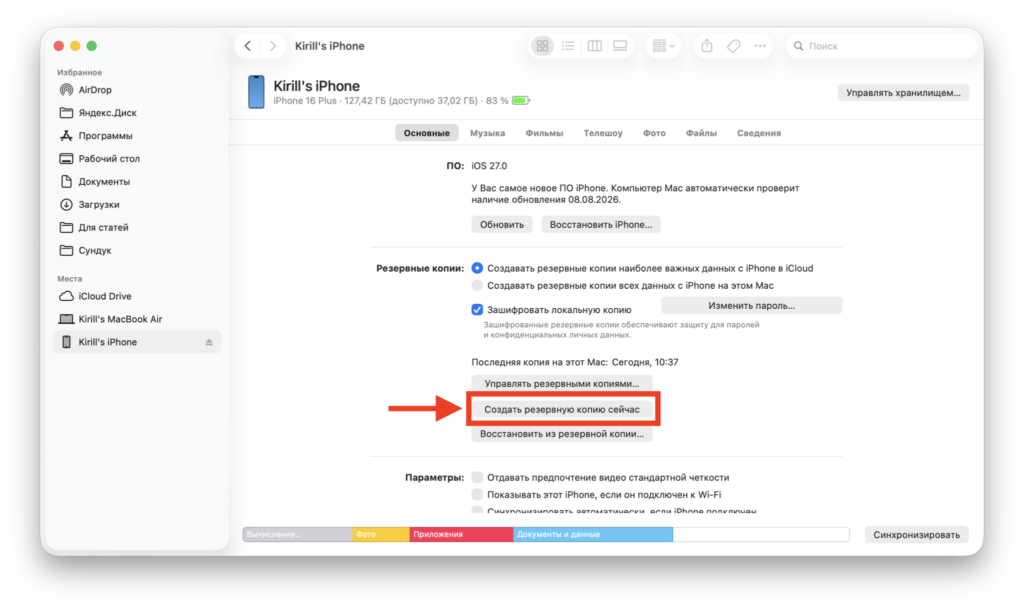
Start by creating a backup
- Disable Find My iPhone. The restore process will not start with it enabled. Go to Settings → your name → Find My.
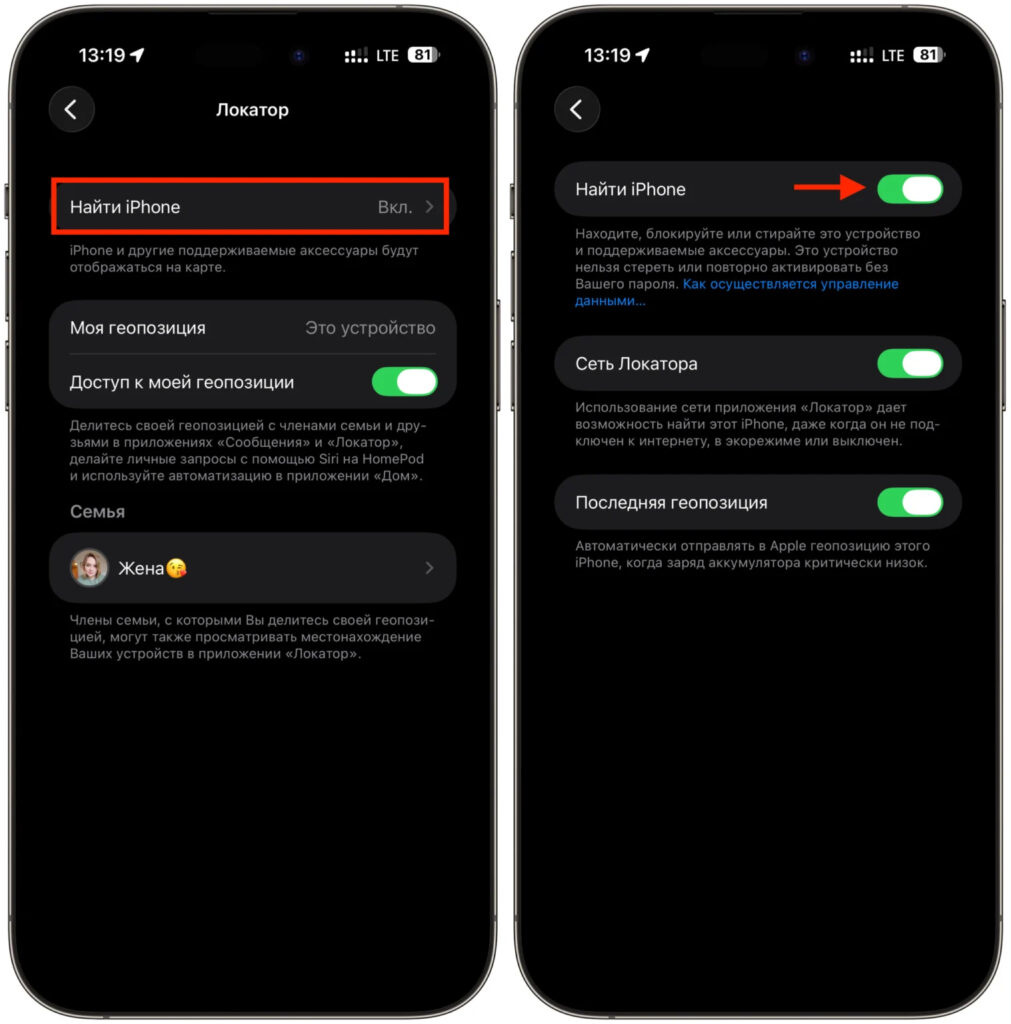
Disable Find My iPhone — the reset will not work with it enabled
- Charge the device to at least 50% and use a reliable cable. A connection drop during the firmware process can brick the phone.
- Update iTunes (Windows) or macOS to the latest version.
- Download the IPSW firmware file for your specific model and confirm that iOS 26 shows a “Signed” status.
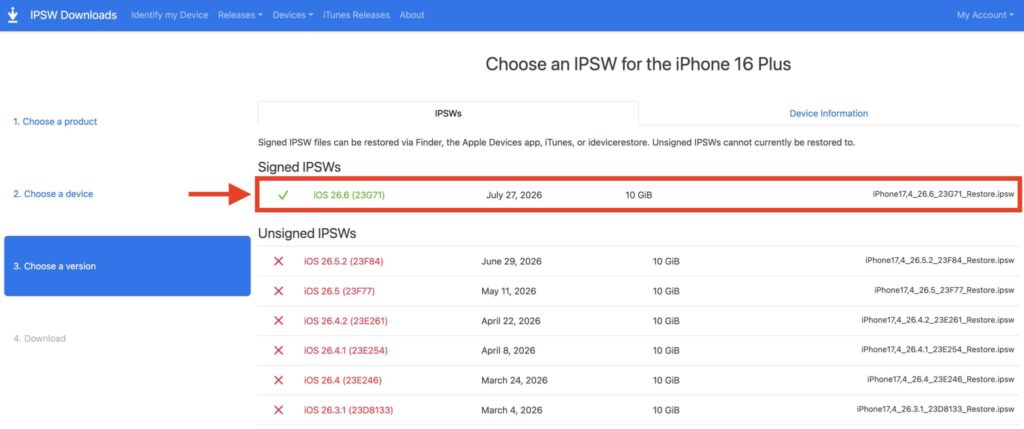
Download the correct firmware file to your computer
- Connect the iPhone to your computer, hold Option (Mac) or Shift (Windows), click Restore, and select the downloaded IPSW file.
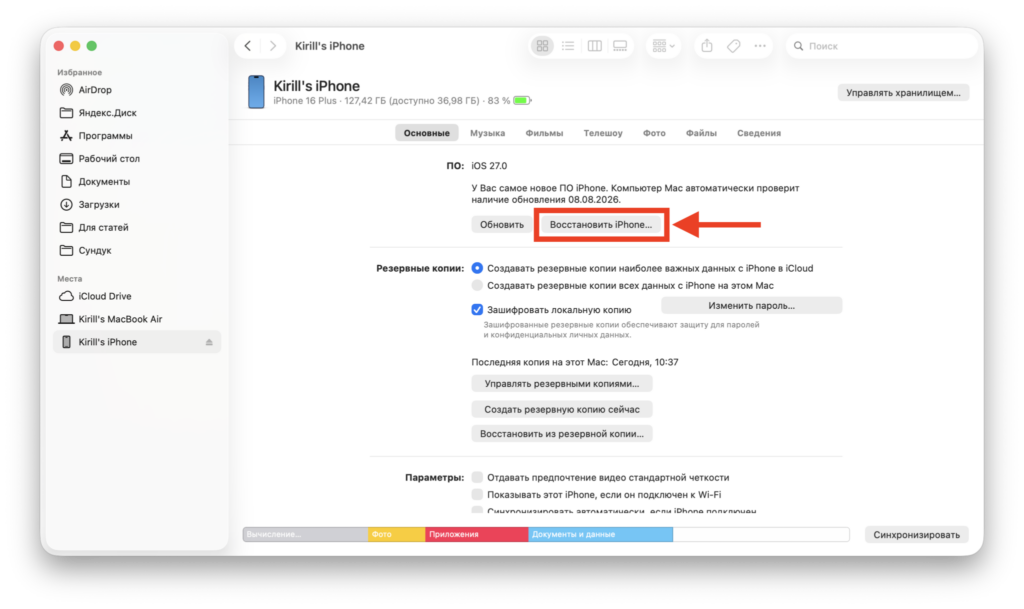
Restore the iPhone to the desired firmware
After this process completes, your iPhone will be running iOS 26 — but it will be wiped clean.
Step 2: Edit the iOS 27 backup to make it compatible with iOS 26
This is the key workaround. Even without an older backup, the iOS 27 backup you created in Step 1 can be modified so that iOS 26 accepts it. The trick is to manually change the version number inside the backup file.
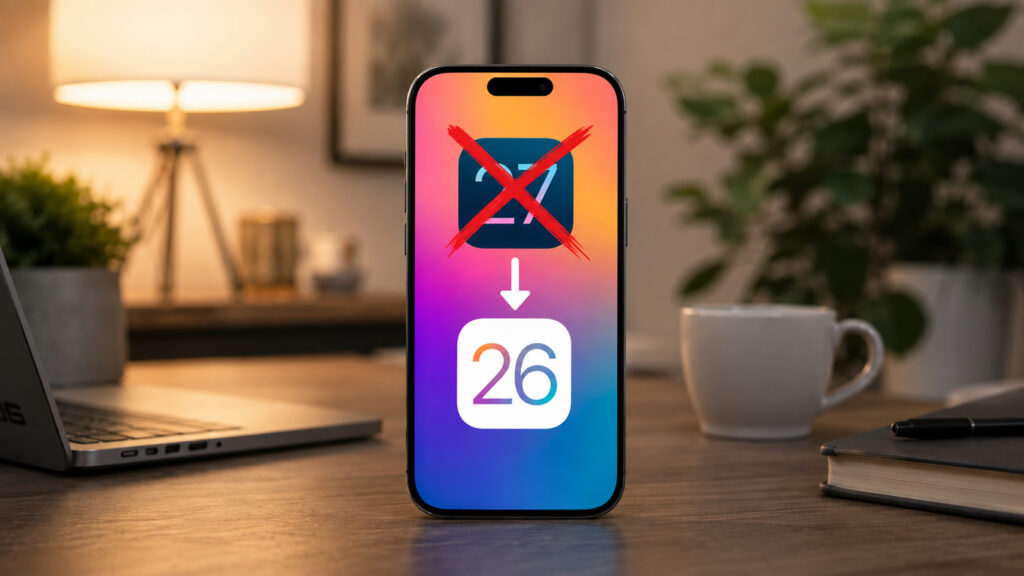
A workaround to downgrade without losing data
First, locate the backup folder on your computer:
- Windows:
C:\Users\YourUsername\AppData\Roaming\Apple Computer\MobileSync\Backup - Mac: Open Finder, press Cmd+Shift+G, paste
~/Library/Application Support/MobileSync/Backup/and press Enter.
Then edit the version number:
- Find the file named Info.plist inside the backup folder and open it with Notepad (Windows) or TextEdit (Mac).
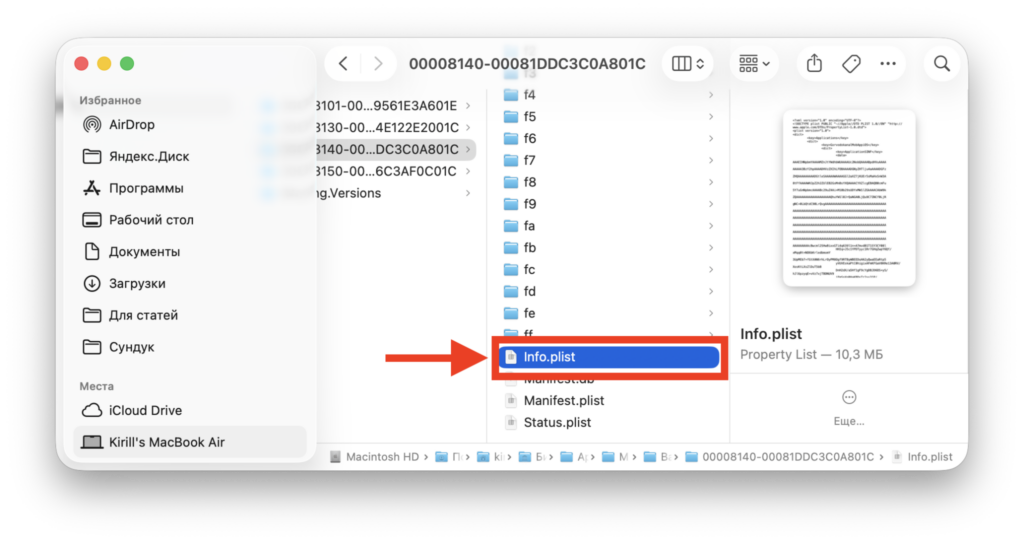
Find this file in the relevant backup folder
- Use the text editor’s search function to find the value 27.0 and replace it with 26.0.
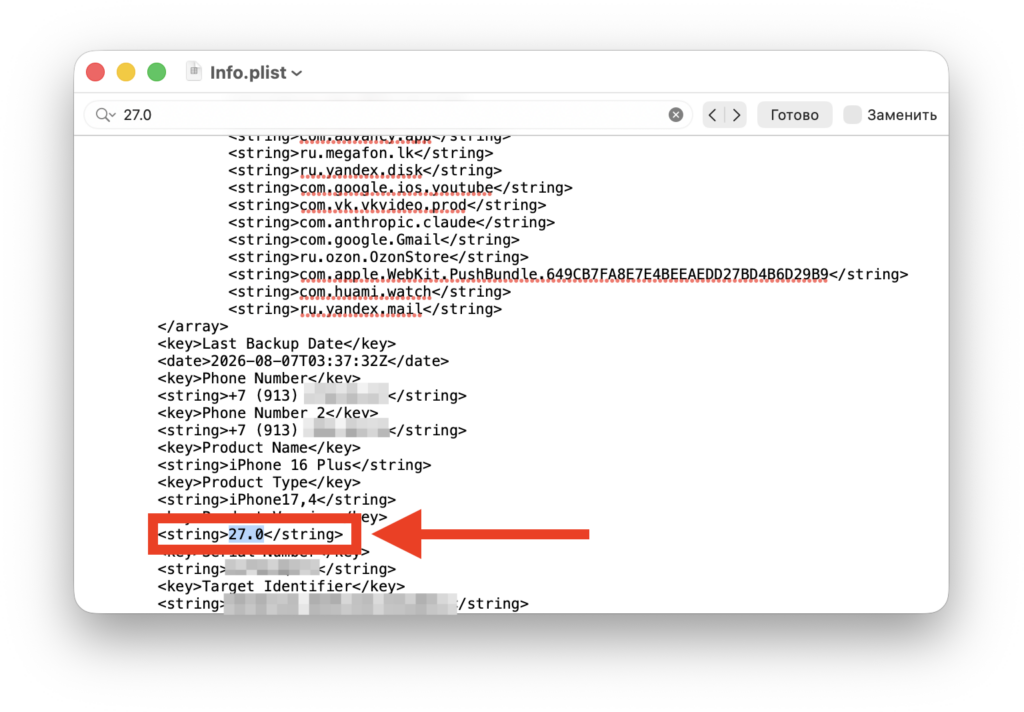
Change the version to 26.0
- Save the file.
- Connect your iPhone (now running iOS 26) and restore from the modified backup.
Limitations and caveats
The procedure usually completes successfully when the steps are followed carefully. However, the internal structure of backups can differ between iOS versions, meaning some data may still be lost. No one can say exactly which data might be affected.
Photos, contacts, notes, and calendar entries typically restore without issues, but every app should be checked manually after the process. It is strongly recommended to separately save photos, notes, and important files to cloud storage or a computer before attempting this procedure — as an extra safety net.
Who should use this method
This workaround is intended as a last resort for users who installed the iOS 27 beta on their primary device and have no iOS 26 backup to fall back on. It should not be treated as a standard rollback procedure.
The ideal approach is to install beta software only on a secondary device and always create a backup on the current stable version before upgrading. That way, no file editing is necessary.
Important: This entire process is performed at your own risk. A connection interruption during firmware restoration can render the device unusable. The version-number edit is an unofficial workaround, not a supported Apple procedure.


