RuStore, an app store that can be useful for installing banking apps and other programs not available on Google Play, sends recommendations, curated collections and promotional offers alongside its update alerts. It has no dedicated switch to turn off ads. The most precise fix is to use Android’s per-app notification categories to disable promotional messages while keeping update reminders, but this works only if RuStore exposes those categories on your phone. If it does not, you can make RuStore’s notifications silent or block them entirely. Blocking them entirely also hides update alerts, so you would need to check for updates manually.
What you need to know
- RuStore’s official help documentation lists three notification types: app update messages, service alerts and recommendations. Recommendations include suggestions to install new apps and curated collections.
- RuStore has no built-in ad toggle. Its developers direct users to Android’s own notification settings instead.
- Turning off RuStore notifications completely does not disable auto-updates, but you may miss alerts about downloaded versions or installs that need your confirmation.
- No Android setting removes the recommendations shown inside the RuStore app itself. System controls only affect notifications.
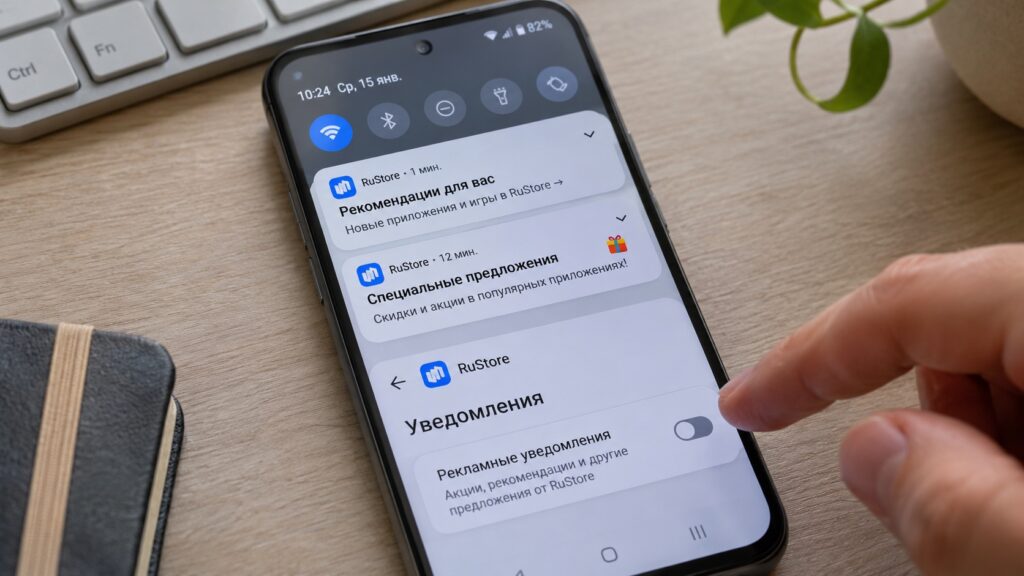
Illustration of turning off RuStore promotional notifications
Why RuStore sends promotional notifications
RuStore’s official help documentation describes three kinds of notifications: messages about app updates, service alerts and recommendations. The recommendations category covers suggestions to install new apps and various curated collections.
As a result, the store may remind you to update a banking app and may also suggest a new game. This is allowed under the service’s rules and is not a bug. RuStore’s own settings do not include a separate switch for ads. Its developers suggest managing these notifications through Android itself, and that approach comes with an important caveat.

Option 1: Turn off promotional categories in Android settings
Since Android 8, apps can sort their notifications into categories. For example, update messages can sit in a different category from promotional offers. If the developer has set up this split, you can turn off only the notifications you don’t want. To check:
- Open your phone’s Settings.
- Go to Apps and select RuStore.
- Open Notifications.
- Look for the list of notification categories, if your phone shows one.
- Turn off the categories for recommendations and promotional offers, and leave update messages on.
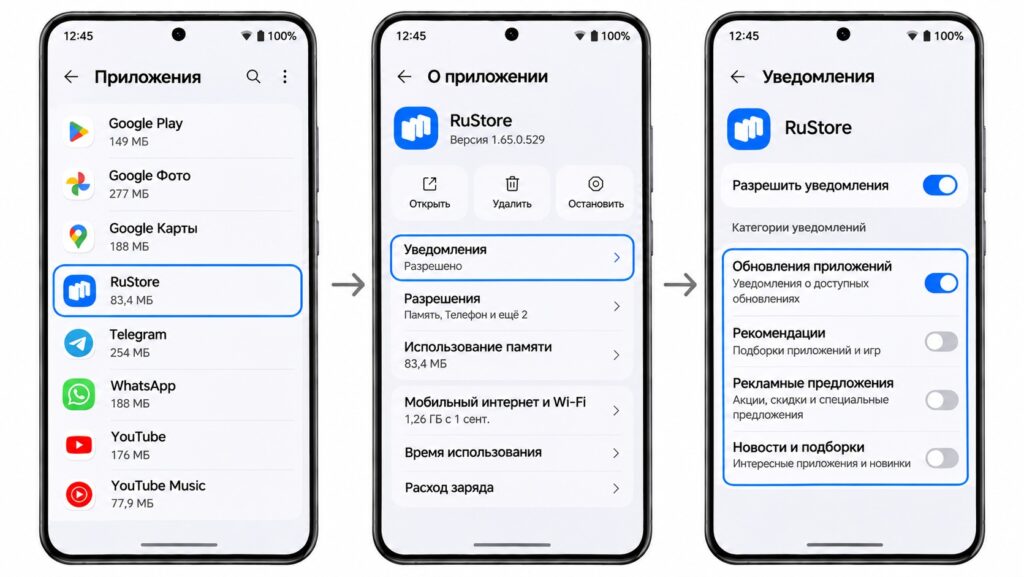
Configuring RuStore promotional notifications on Android
Why you might not see a recommendations category
The list of categories can differ from phone to phone. RuStore also may not show separate switches for ads and for updates, so a missing “Recommendations” option is not unusual. Whether you can turn off categories selectively depends both on Android and on how RuStore has organized its notifications.
Samsung phones with One UI
On Samsung phones running One UI, category controls are sometimes hidden. You can enable them in Settings → Notifications → Advanced settings → Manage notification categories for each app. After that, open RuStore’s notification settings again.

Option 2: Make RuStore notifications silent
If the categories you need aren’t available, there is a compromise: make RuStore’s notifications silent or stop them from appearing over other apps. One way is to wait for the next message from the store and then:
- Pull down the notification shade.
- Press and hold the RuStore notification.
- Open the notification settings.
- Choose silent mode for the available category, if your phone offers that option.
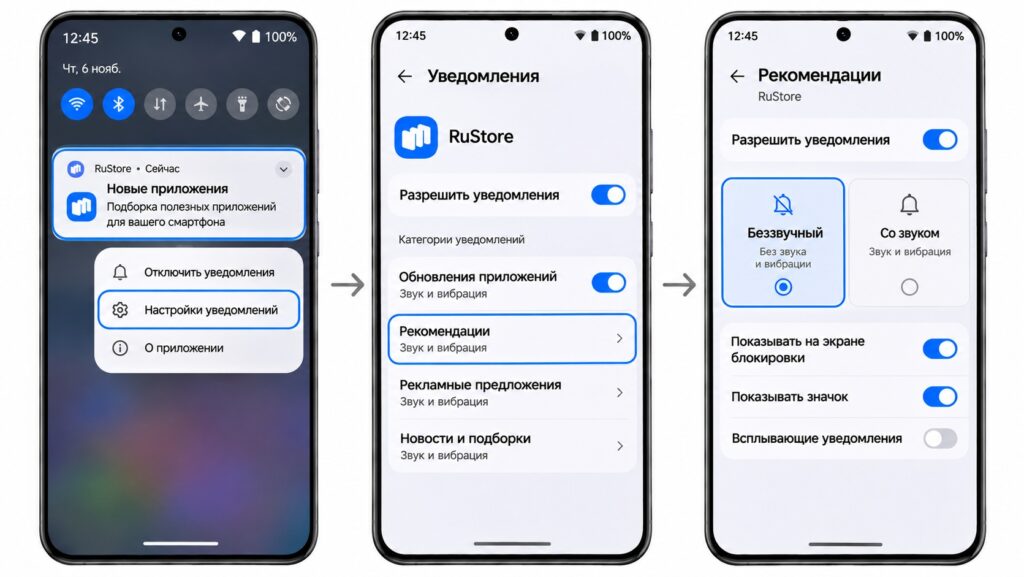
Configuring RuStore notifications from the notification shade
In silent mode, notifications can still appear in the shade, but they won’t play a sound or vibrate. On some phones, you can also turn off pop-up banners separately. This does not block ads, though. If promotional and service messages share one category, both will become silent. The benefit is that the store will be less distracting.
Option 3: Turn off RuStore notifications entirely, with caveats
The most drastic option is to go to Settings → Apps → RuStore → Notifications and turn off the main switch. RuStore will then be unable to send regular notifications to the Android notification shade. However, update messages will disappear along with the ads, which the source author argues is not as harmless as it may seem, and he does not recommend this approach.

Auto-updates work best when the store is allowed to send notifications and run in the background. On some phones, installing updates also requires the user’s confirmation. Turning off notifications does not disable auto-updates, but it can keep you from learning in time that a new version has downloaded or that an installation needs your approval. If you do turn off notifications completely, it is a good idea to check for updates manually from time to time:
- Open RuStore.
- Go to the “My” section.
- Find the available updates.
- Install new versions of the apps you need.
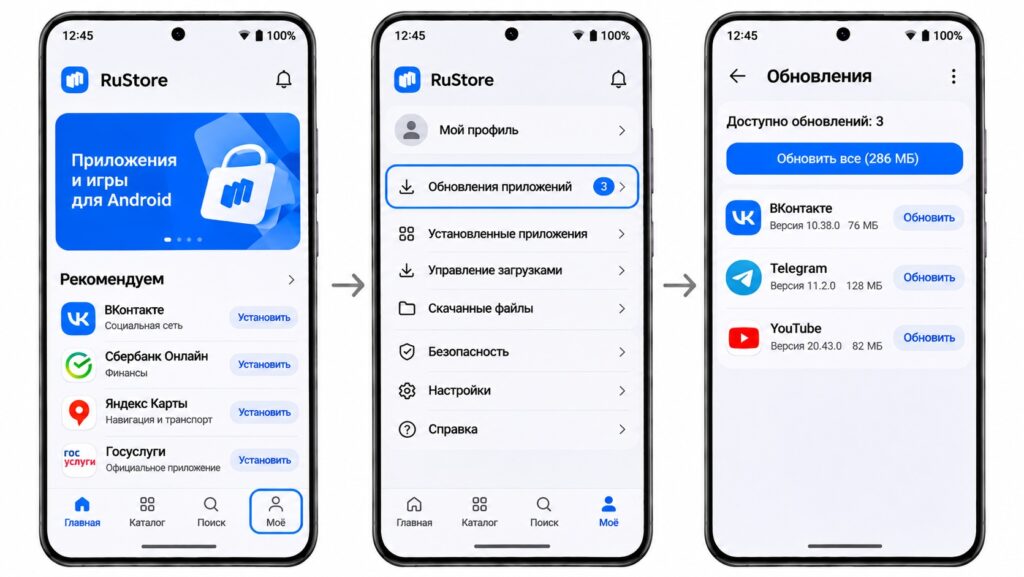
Updating apps manually in RuStore
Another irritation is that RuStore may suggest reinstalling apps that were originally downloaded through Google Play.
What Android settings can’t fix
Even after you turn off promotional notifications, recommendations inside RuStore will remain. Android’s system switches control notifications, not the content of the store itself. The best approach is to turn off the promotional category if RuStore offers one. If it doesn’t, you can make notifications silent or turn them off completely, keeping in mind that you may miss update alerts. For now, RuStore offers no one-tap way to remove ads.