May 9 is one of the most important holidays in our country. And while congratulations used to come in the form of paper greeting cards, today everything is simpler — a smartphone is all you need. The MAX messenger now features a special bot called “Greeting Card Constructor” that lets you put together a beautiful themed Victory Day greeting card in just a couple of minutes. You can send it not only through MAX itself but also through any other messenger.
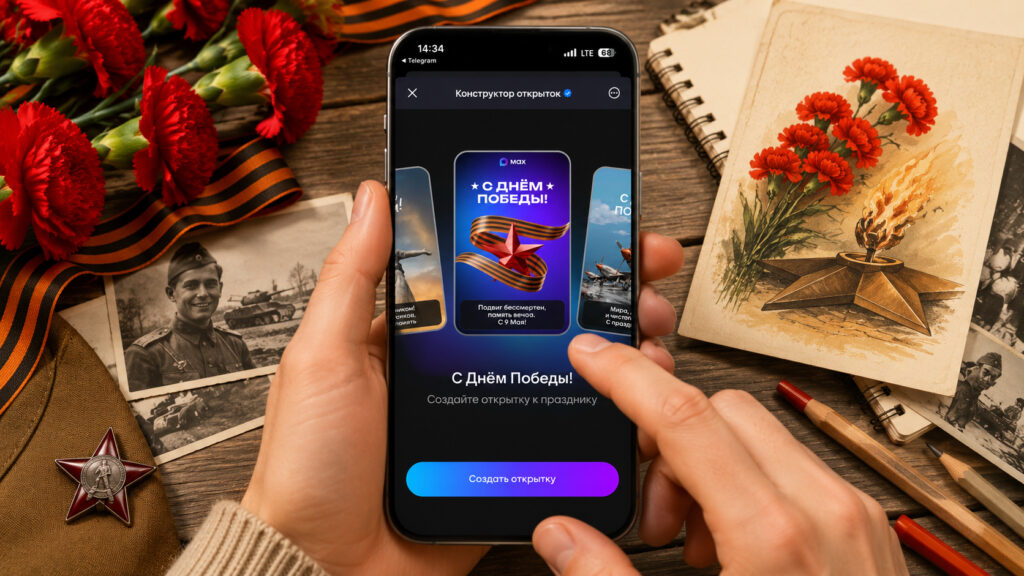
You can make a beautiful greeting card without leaving MAX
Greeting Card Constructor Bot in MAX: What It Can Do
The “Greeting Card Constructor” is a built-in bot in the MAX messenger that launches as a mini-app right inside a chat. It works as a step-by-step editor: you choose a background, an image, a text style, and a greeting message. The output is a ready-made image in PNG format that you can save or forward right away.
The bot is tied to a specific holiday — currently it’s Victory Day. Among the templates are the St. George’s Ribbon, fireworks, historical military vehicles, and recognizable architectural symbols. Everything is neatly designed, without an overload of details. The MAX logo remains at the top of the card but looks unobtrusive.
Victory Day Card in MAX: Step-by-Step Instructions
The entire process takes literally a minute. No complicated settings or registrations — everything is intuitive.
- Open the MAX messenger on your iPhone and find the “Greeting Card Constructor” bot through search. You can also type its name in the contacts search bar.
- Tap the “Start” button at the bottom of the screen. The bot will send a welcome message with a description and a “Launch Mini-App” button.
- Tap that button. A template editor will open — a carousel with several design options.
- Tap “Create Card.” A step-by-step assembly process with four stages will begin.
- In the first step, choose a background. Several options are available: sky with clouds, dark blue with texture, purple gradients, and others. Scroll through the horizontal strip at the bottom of the screen.
- In the second step, choose an image. Themed Victory Day illustrations are offered here: St. Basil’s Cathedral with fireworks, a steam locomotive with a red star, a soldier with a flag, and more.
- The third step is the style of the “Happy Victory Day!” inscription. You can choose a handwritten font, a strict printed one, or an option with stars.
- The fourth step is the greeting text. There are ready-made options like “Peace, kindness, and clear skies. Happy holiday!” You can also write your own text.
- At each stage, tap “Continue” to move forward. If you want to go back, use the back arrow.
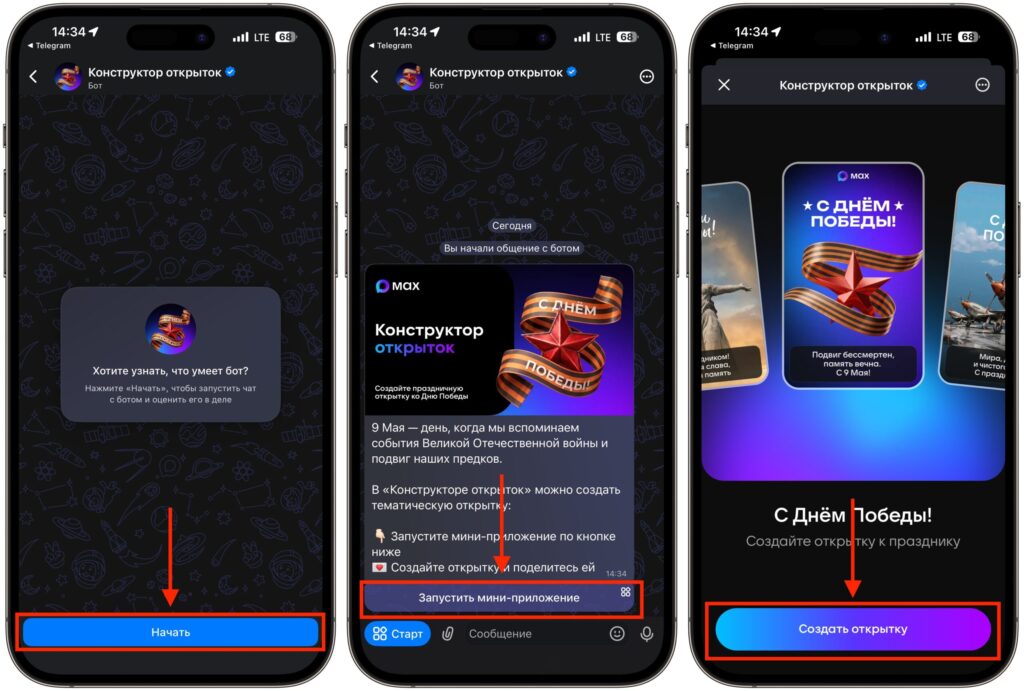
Launch the mini-app for creating cards
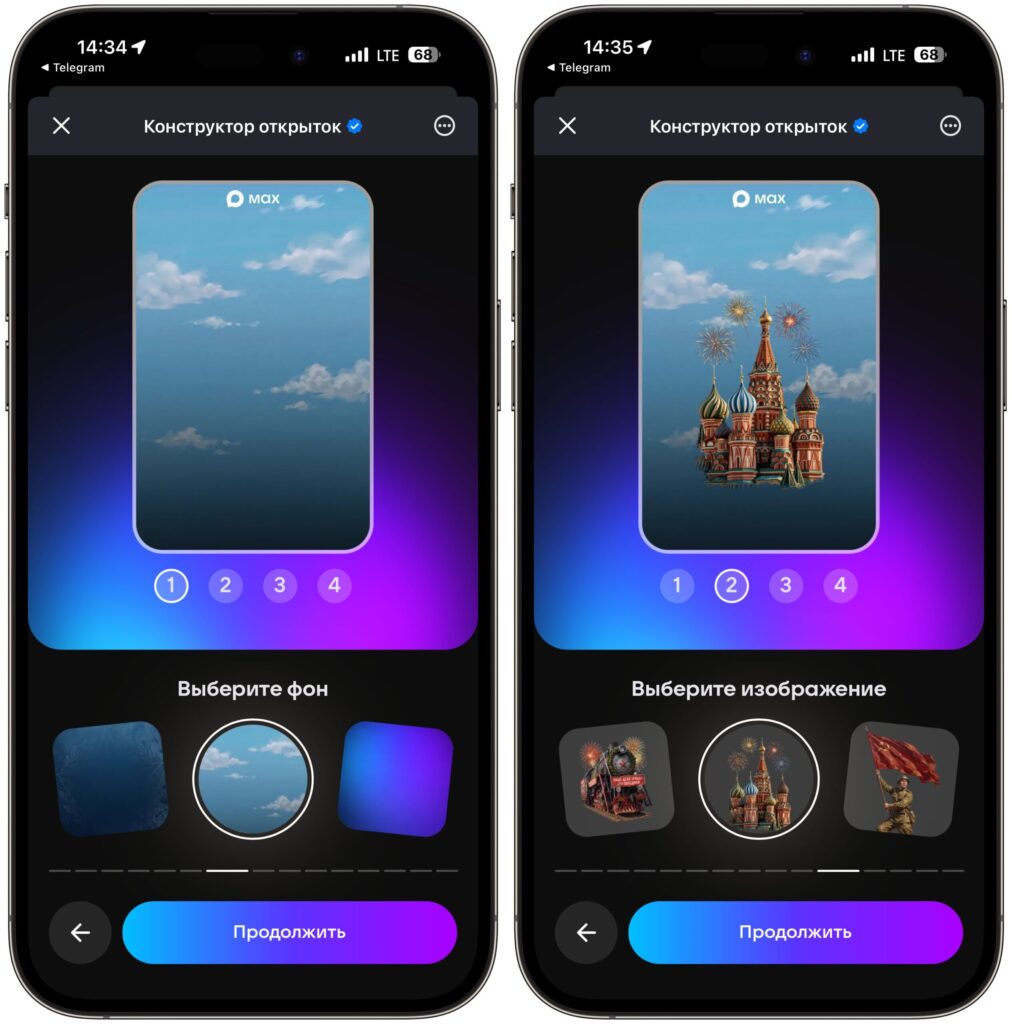
Choose a background and an image
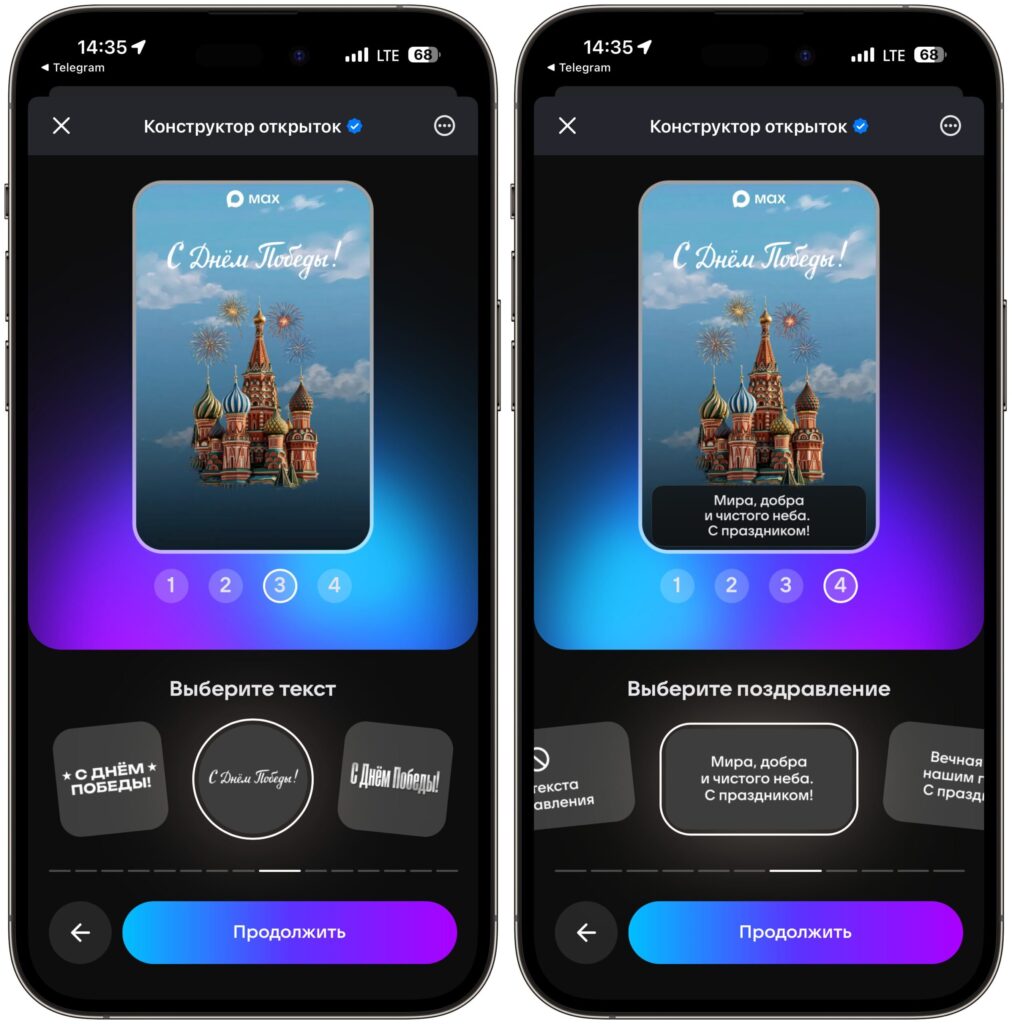
Add text
After the fourth step, the card will be ready. A preview will appear on screen with the message “Your card is ready!”
How to Download a Card from MAX to iPhone
You don’t have to send the finished card right away. You can download it to your phone’s memory and use it later — for example, send it through another messenger or post it on social media.
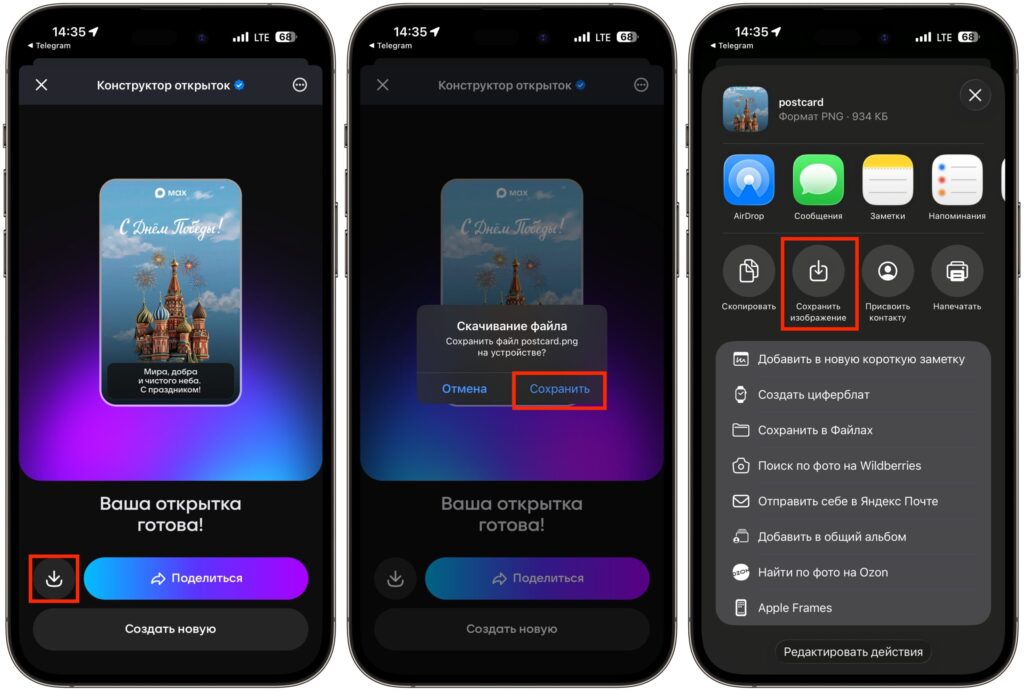
You can send the finished card directly in MAX or save it to your iPhone
- On the “Your card is ready!” screen, tap the download icon to the left of the “Share” button. It’s a small downward arrow.
- An iOS system dialog will appear asking: “Save file postcard.png to device?” Tap “Save.”
- In the pop-up menu, select “Save Image.” This will save the picture to your iPhone gallery.
The file size is about 900 KB in PNG format. The quality is sufficient for sending and even for printing in a small format.
Sending a Card from MAX to Telegram, WhatsApp, and Other Apps
The most convenient way is to use the iOS “Share” menu. It lets you send the image through any installed app, whether it’s WhatsApp, Telegram, or email.
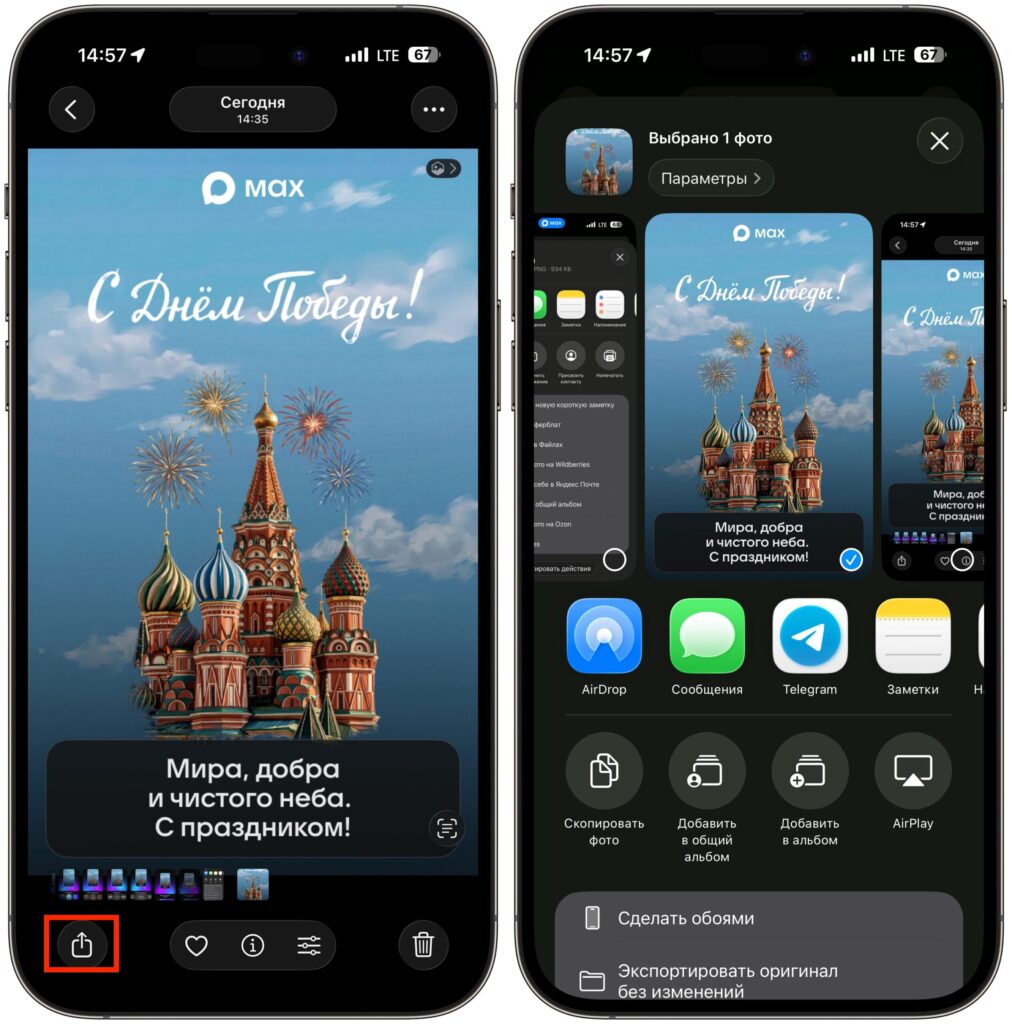
You can send the finished card through any app
- On the finished card screen, tap the “Share” button.
- The standard iOS menu will open. At the top, you’ll see a file preview with the name postcard and its size.
- Choose the desired app: Messages, AirDrop, Notes, or any other from the list.
- You can also tap “Save Image” to save the card to Photos, or “Save to Files” to save it to a specific folder.
Through this same menu, you can also send via email, copy to clipboard, and even print — if your iPhone is connected to a printer via AirPrint.
The Greeting Card Constructor in MAX is a simple and free way to congratulate loved ones on Victory Day (May 9). There’s no need to search for images online, download third-party apps, or tinker with graphic editors. Four steps — and a ready-made card is on your phone. This is especially convenient for those who want to send greetings to the older generation. Save the image, forward it through your usual messenger — and you’re done. Quick, neat, and truly festive.


