After you’ve figured out the proper setup of the MAX messenger, you can start using it for real: not just for chatting, but also for sending greetings. Postcards in MAX are a simple way to make a message warmer than just plain text. Let me break down where to find them, how to download them for free, and how to create a unique postcard right inside the messenger.
Learn how to make cool postcards in MAX
Where to Find Postcards in MAX Messenger
Postcards in MAX are not built into the messenger as a separate gallery, unlike stickers, for example. To send a beautiful postcard in MAX, you first need to get one in one of three ways: download it from the internet, find it in a channel within MAX, or create it yourself.
There is no built-in postcard gallery in MAX: you need to download or create them yourself.
If you just want to quickly send a greeting, the first or second option will work. If you want the postcard to be unique and memorable — go with the third. By the way, besides postcards, there’s another tool for communication in the messenger — you can read about how to use stickers in MAX and where to find them in a separate article. Stickers complement postcards perfectly in everyday conversations.
Where to Download Postcards for MAX for Free
Method 1: Download from the internet. This is the simplest option — find free postcards for MAX through a browser on your smartphone:
- Open the browser on your Android smartphone.
- Enter the desired query in the search bar (for example, “birthday postcards,” “Victory Day postcards,” or “Easter postcards”).
- Go to the “Images” section in the search results.
- Find a postcard you like and tap on it.
- Press and hold the image, and a menu with action options will appear.
- Select “Save image,” and the postcard will be downloaded to your phone’s gallery.
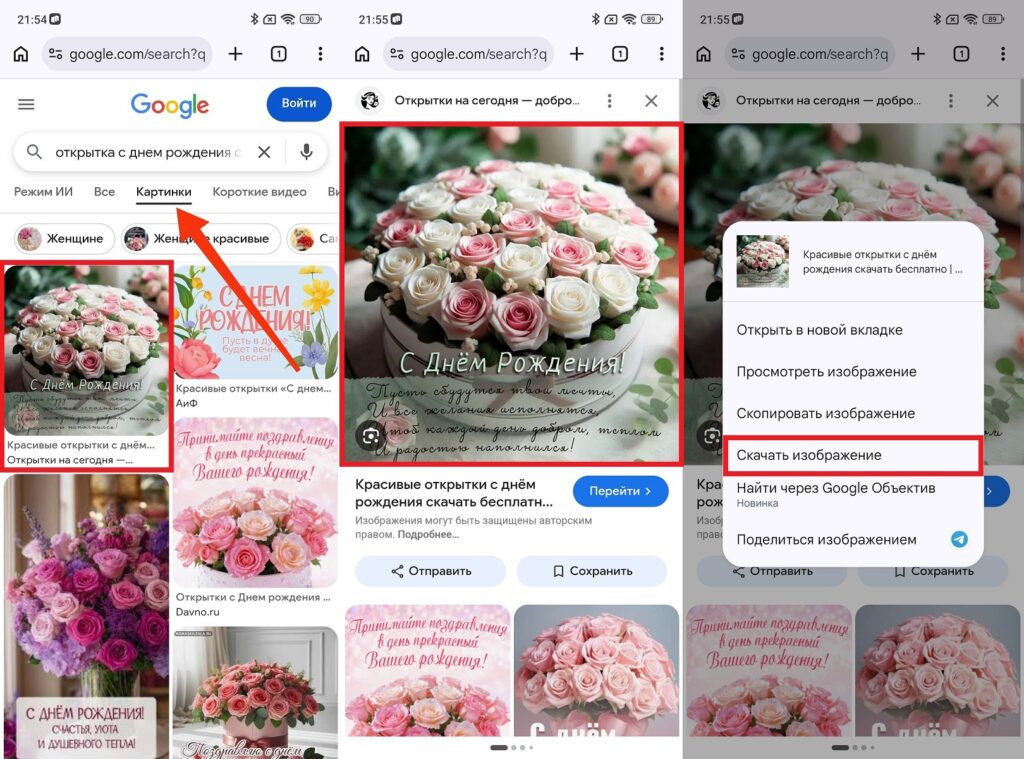
You can download an image directly through Google or Yandex
Method 2: Find a channel with postcards inside MAX. The messenger itself has channels that regularly publish greeting postcards in MAX — for holidays and for every day:
- Open MAX and tap the search icon.
- Enter a query like “postcards,” “birthday postcards,” or “good morning postcards” — a list of channels will appear.
- Choose a suitable channel and subscribe to it.
- Find the desired postcard in the channel’s posts.
- Tap the download button.
- When saved, the postcard will appear in your gallery.
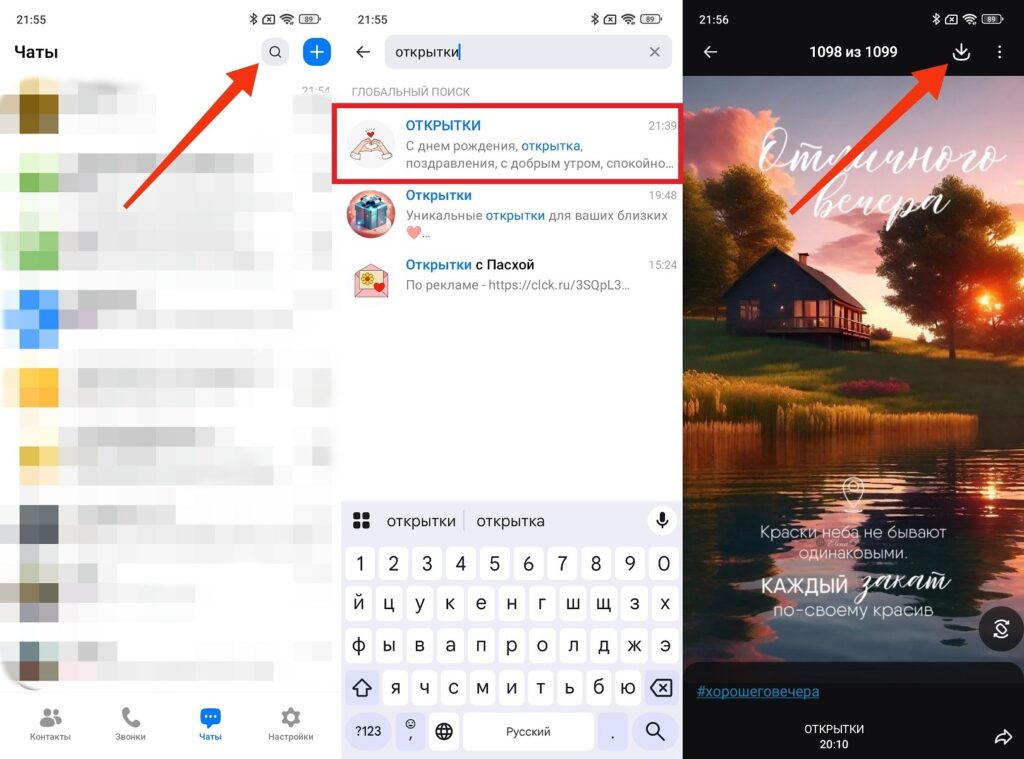
MAX has dedicated channels with postcards
In the messenger’s channels, you can find Victory Day postcards, May Day postcards, New Year postcards, Defender of the Fatherland Day postcards, International Women’s Day postcards, and spring postcards in MAX for every taste. If the person you need doesn’t appear in your contact list when you try to forward a postcard, read about why MAX doesn’t see contacts and how to fix it.
How to Create a Postcard in MAX
A postcard downloaded from the internet is fine. But creating a postcard in MAX using a neural network is even better: no one among your friends will have one like it. MAX has two tools for creating postcards.
GigaChat creates unique postcards from descriptions, while the "Postcard Constructor" is faster but template-based.
Method 1: Using the GigaChat bot. GigaChat is a neural network from Sber that generates images from text descriptions. It’s built into MAX as a bot:
- Launch the official GigaChat bot with the verification checkmark.
- Tap “Start” and wait for the welcome message.
- Describe the desired postcard in text (for example: “draw a Victory Day greeting postcard in watercolor style” or “create a good morning postcard with flowers and sun”).
- Wait for the result — GigaChat will send the generated image.
- If you don’t like the result, refine your prompt and ask it to create again.
- Save the image you like to your gallery.
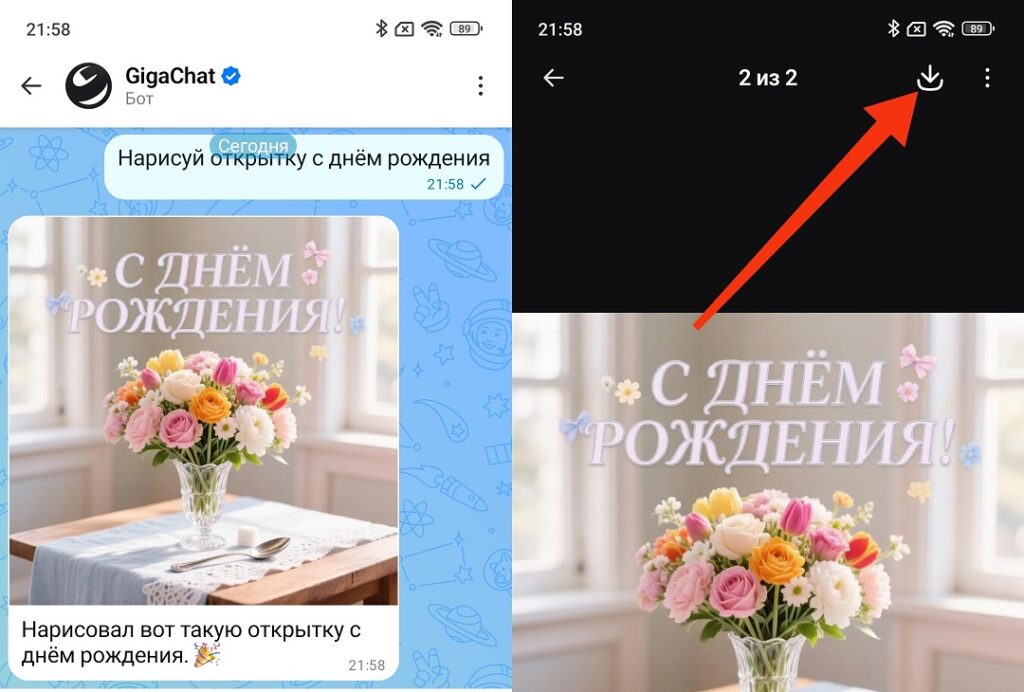
GigaChat creates amazing postcards that you can download
Method 2: Using the official “Postcard Constructor” bot. This is an official MAX tool for creating birthday postcards in MAX and other holiday postcards with ready-made templates:
- Launch the official “Postcard Constructor” bot and tap “Start.”
- Choose the postcard theme from the available options (birthday, holidays, wishes).
- Select a template and add text if needed (recipient’s name or a personal greeting).
- Confirm creation, and the bot will generate a ready-made postcard.
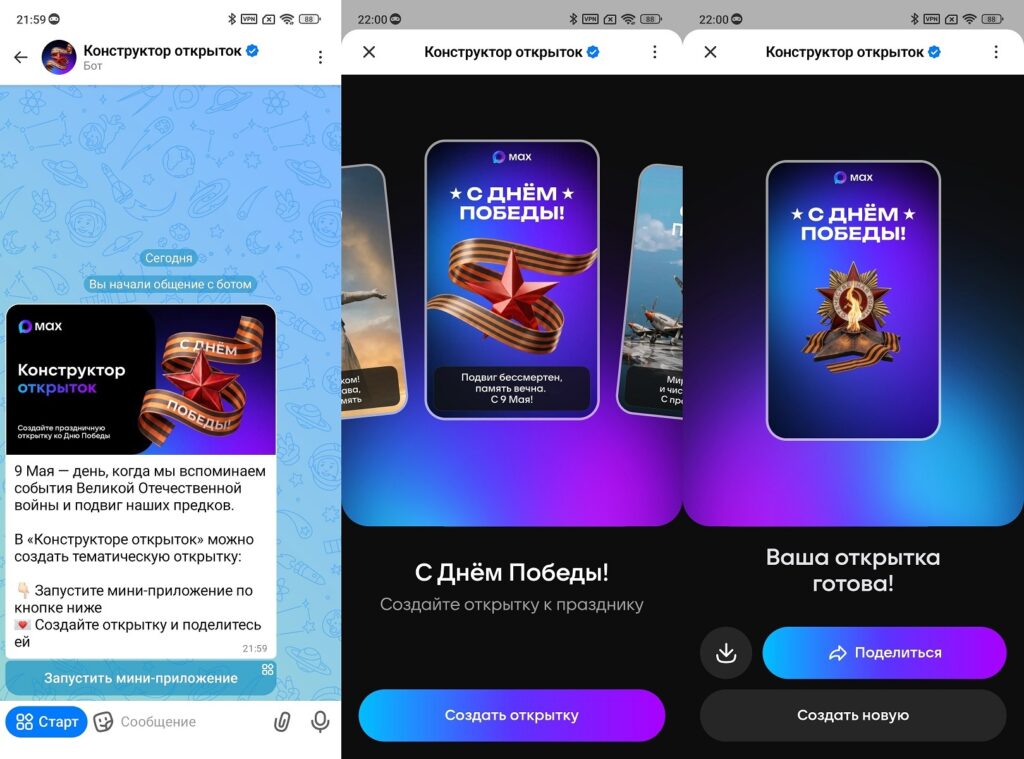
The Postcard Constructor is also great, but it’s simpler
Creating a postcard in MAX through the “Postcard Constructor” is faster than through GigaChat — the templates are ready, you just need to choose and add text. GigaChat offers more creative freedom: you can describe any idea and get a unique result. For autumn postcards in MAX, Easter postcards, or Victory Day postcards, both options work great.
How to Send a Postcard in MAX
Sending a postcard in MAX can be done in two ways depending on where it’s located.
If the postcard is saved in your smartphone’s gallery:
- Open the desired chat in MAX.
- Tap the paperclip or plus icon next to the text input field.
- Select “Gallery” or “Photos and Videos.”
- Find the saved postcard and tap on it.
- If you wish, add a greeting text in the caption field below the image.
- Tap the send button.
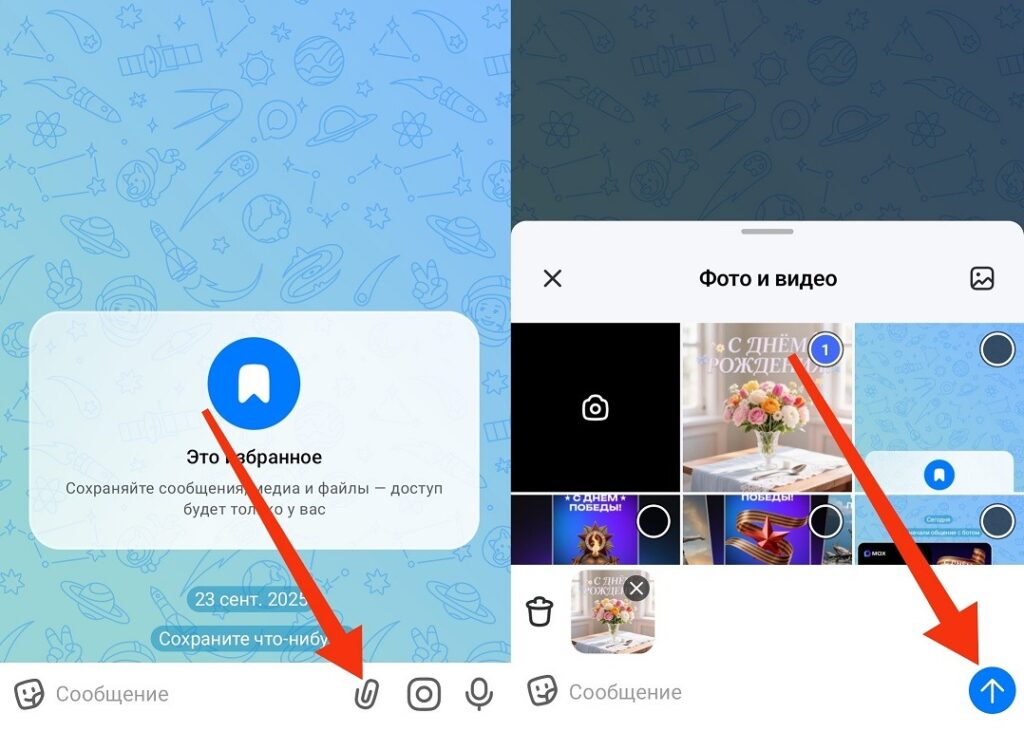
A postcard in MAX is sent as an attached file
If the postcard is in a MAX channel and you want to forward it directly:
- Press and hold the postcard in the channel.


