WhatsApp has started rolling out usernames — short nicknames like @durov and so on, which allow people to find you in the messenger’s database without a phone number. The main benefit is that your number stays hidden from those who don’t have it in their contacts. Let’s break down how to create or pre-reserve a username on iPhone, how to link a nickname from Instagram*, and what rules apply.
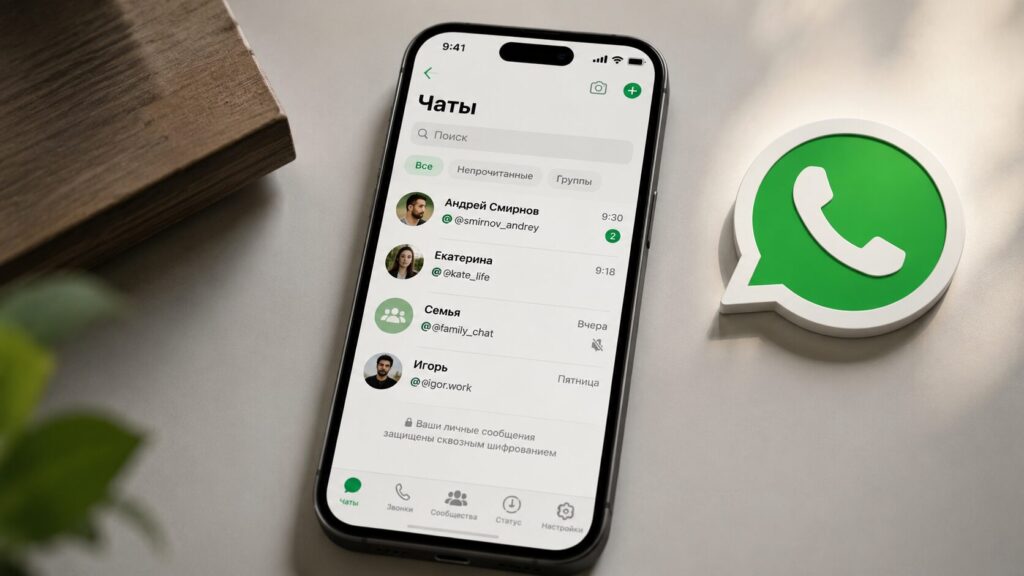
You can already claim your nickname in WhatsApp on iPhone
WhatsApp Usernames — Finding People Without a Phone Number
Until now, finding someone on WhatsApp was only possible by phone number. Now the messenger is introducing an alternative. A username allows you to hide your phone number — others can message you by nickname without knowing your actual number.
The key point for privacy: people who don’t have your number in their contacts will only see the username, while those who already have your number saved will continue to see it as before. In other words, nothing changes for existing contacts — the feature is especially useful for new acquaintances, in public chats, and wherever you don’t want to share your phone number.
An important caveat: the feature is rolling out gradually over several months and may not be available to everyone right away. While the username feature hasn’t reached your region yet, you can only reserve one. To avoid missing the launch, keep your app updated.
How to Create or Reserve a Username in WhatsApp
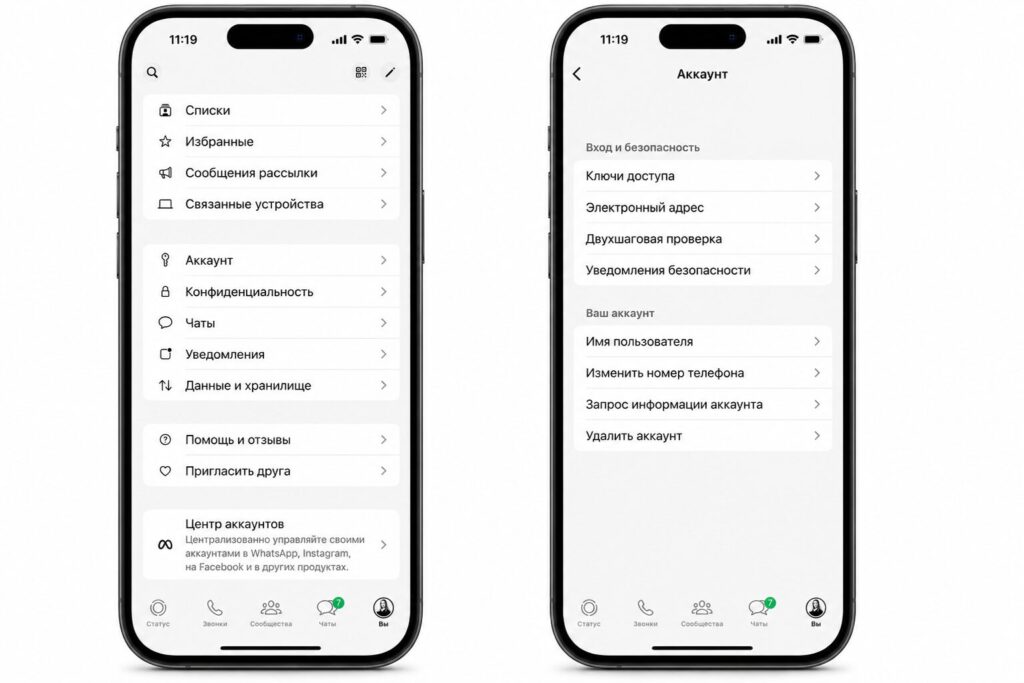
Here you can either register a new nickname or pull an existing one from Instagram or Facebook
The process itself takes less than a minute. Here’s what to do:
- Open “Settings” and tap on your profile.
- Select “Create username” and confirm. If the feature is still rolling out in your region, you’ll see “Reserve username” instead.
- Enter your desired name. If it’s available, you’ll get a confirmation; if it’s taken, the messenger will suggest similar options.
- Tap “Save,” then “Done.”
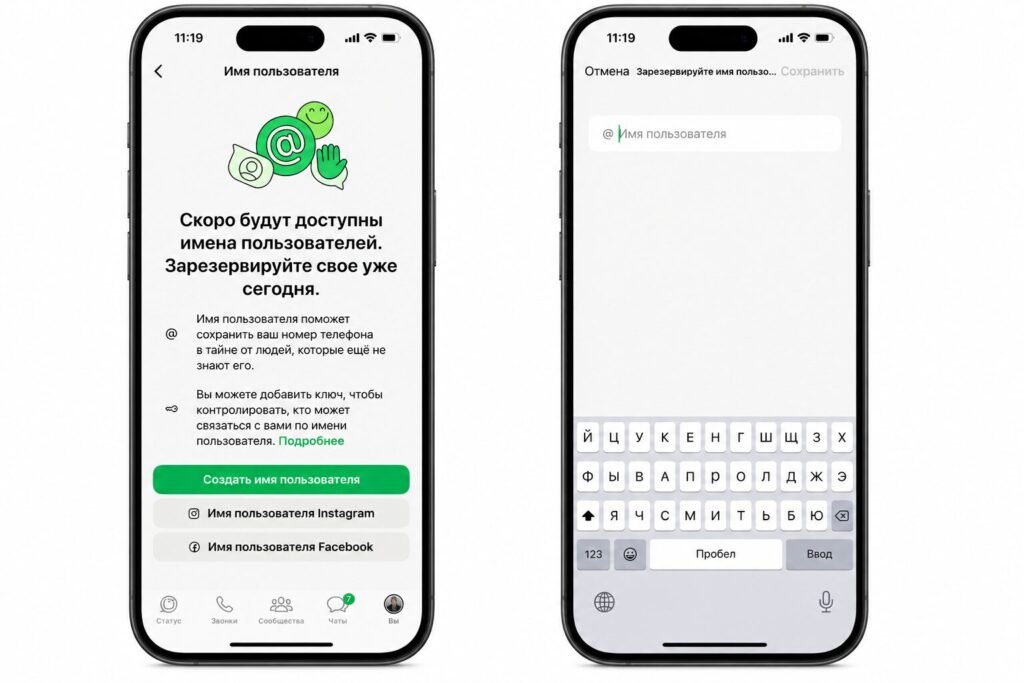
This is how you can create a new nickname
If you’re reserving a name, it will become active after the official launch in your region. You’ll receive a notification when your username is ready — no need to keep checking separately.
How to Link Your Instagram* or Facebook* Username to WhatsApp
If you already have a username on Instagram* or Facebook*, you can transfer it to WhatsApp — provided it’s still available in the messenger. To do this, your accounts need to be added to the shared Accounts Center (Meta’s Accounts Center).
- Open “Settings” and tap the area around your profile photo.
- Select “Create username.”
- Tap “Use Instagram username” or “Use Facebook username.”
- Follow the prompts to add your accounts to the shared Accounts Center.
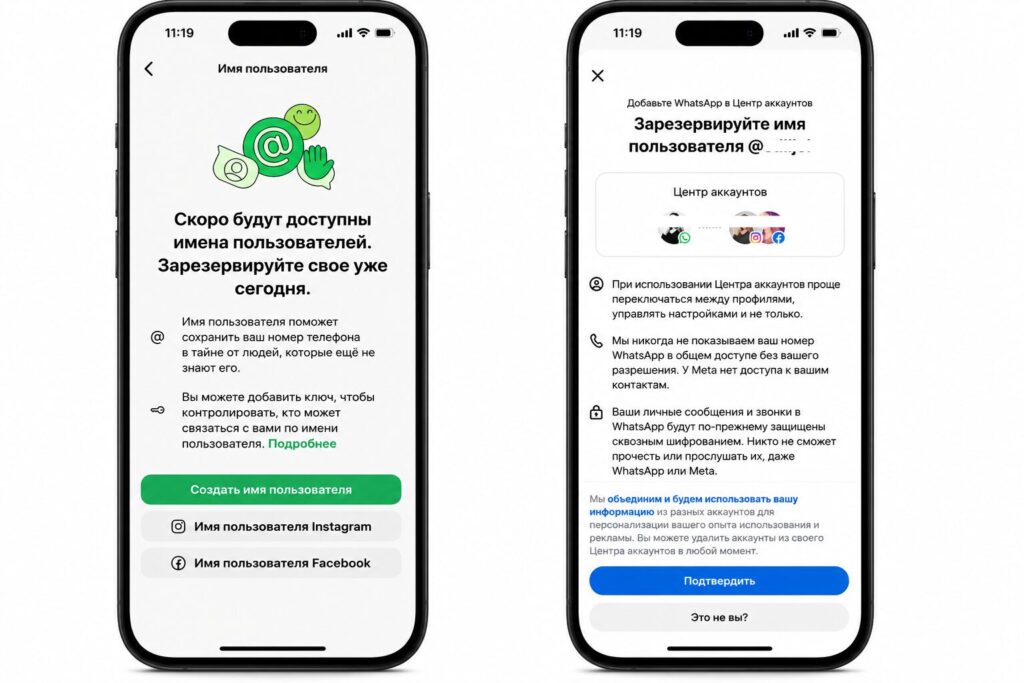
Here you can pull your nickname from Instagram or Facebook
There are a few catches you should know about. Adding WhatsApp to Accounts Center is completely voluntary — you can remove the account from it at any time. If different people use the same username on Instagram and Facebook, the one who claims it first in WhatsApp gets it.
Another nuance: if you later change your username on Instagram or Facebook, it won’t automatically update in WhatsApp — you’ll need to change it separately. And if you reserved a name from a social network but never installed WhatsApp, it may become available to others.
How to Change or Delete a Username in WhatsApp
Your nickname isn’t tied to you forever — you can change or remove it. To change your username, go to “Settings,” tap the area around your profile photo, select “Username,” then “Edit” and “Change username,” enter the new one, and save.
To delete your nickname, on the same screen select “Username,” “Edit,” “Delete username,” and confirm. There are important limitations to keep in mind. The number of username changes is limited, and after changing or deleting, your previous name may become available to others. If you want to get your old nickname back, you can check whether it’s still available using the same steps as when changing it.
After deletion, you have 14 days to reclaim the name before it becomes available to everyone else.
For a username to be accepted, it must meet WhatsApp’s requirements:
- Length between 3 and 35 characters;
- You can use lowercase Latin letters (a–z), digits (0–9), underscores (_), and periods (.);
- The name cannot consist of only digits;
- It must be unique;
- Prohibited words and phrases are not allowed.
There are also some finer details. A username can be transferred to a different phone number by changing the number on the same device, but transferring a username between different devices doesn’t work yet. Some names are reserved for businesses, government agencies, and public figures — if your desired option is taken, the built-in suggestion generator can help.
To control who can message you by username, WhatsApp has a separate “username key.”
* — owned by Meta, recognized as an extremist organization in Russia.


