iPhone owners have found themselves in a strange situation: the MAX messenger works on the phone, channels can be read, comments can be written, but creating your own public channel is impossible. You tap the plus button, see the only option “Create a private channel,” and hit a wall. Now let’s figure out channels and show you a workaround that works right now.
Anyone can now create a channel in MAX
Why You Can’t Create a Public Channel in the MAX App on iPhone
It all comes down to the app version. MAX was removed from the App Store, which means developers physically cannot push an update to those who installed the messenger earlier. Most iPhone users have a build stuck at the moment of removal, and it doesn’t receive new features.
Open the “Chats” section, tap the blue plus in the upper right corner, and look at the list. You’ll see “Create a group,” “Create a channel,” “Create a group call,” “Find by number,” and “Invite via link.” But if you go through the “Contacts” tab and the “Start a conversation” button, the wording changes to the honest version: “Create a private channel.” The system offers no choice of channel type.
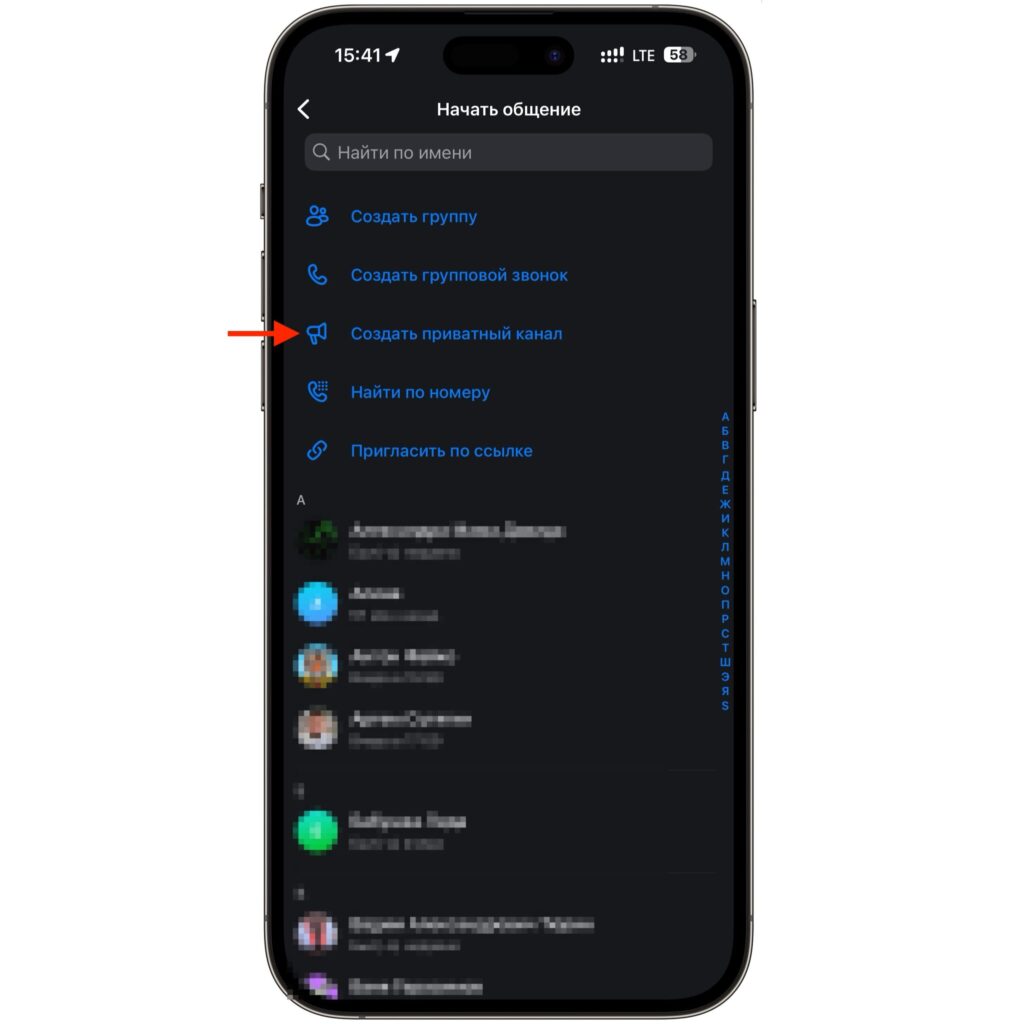
The old app only allows creating a private channel
The scenario from here is predictable. The app creates a channel accessible only via link and stops there. There’s no “Public” toggle in the old build because this feature was added later. Waiting for an update could take a long time.
A private channel isn’t useless either: it’s perfect for family, a work team, or a closed club. The problem starts where you need reach and discoverability. A public channel is visible in the messenger’s general search, it has a human-readable address, and it’s easy to subscribe to from any device. A private one only exists wherever you manually share the link.
There is a way out, and it doesn’t require a jailbreak, installing dubious IPA files, or using an Android phone as a crutch. The web version of the messenger is sufficient — it’s always up to date and updated on the server side. The browser doesn’t depend on the App Store, so all the latest MAX features are available there.
How to Install the MAX Web Version on iPhone
The web version can conveniently be turned into something resembling a full-fledged app. Safari can save websites to the home screen, and the icon looks like a regular app: no address bar, with a separate window in the task list. It also serves as insurance in case the app stops launching someday.
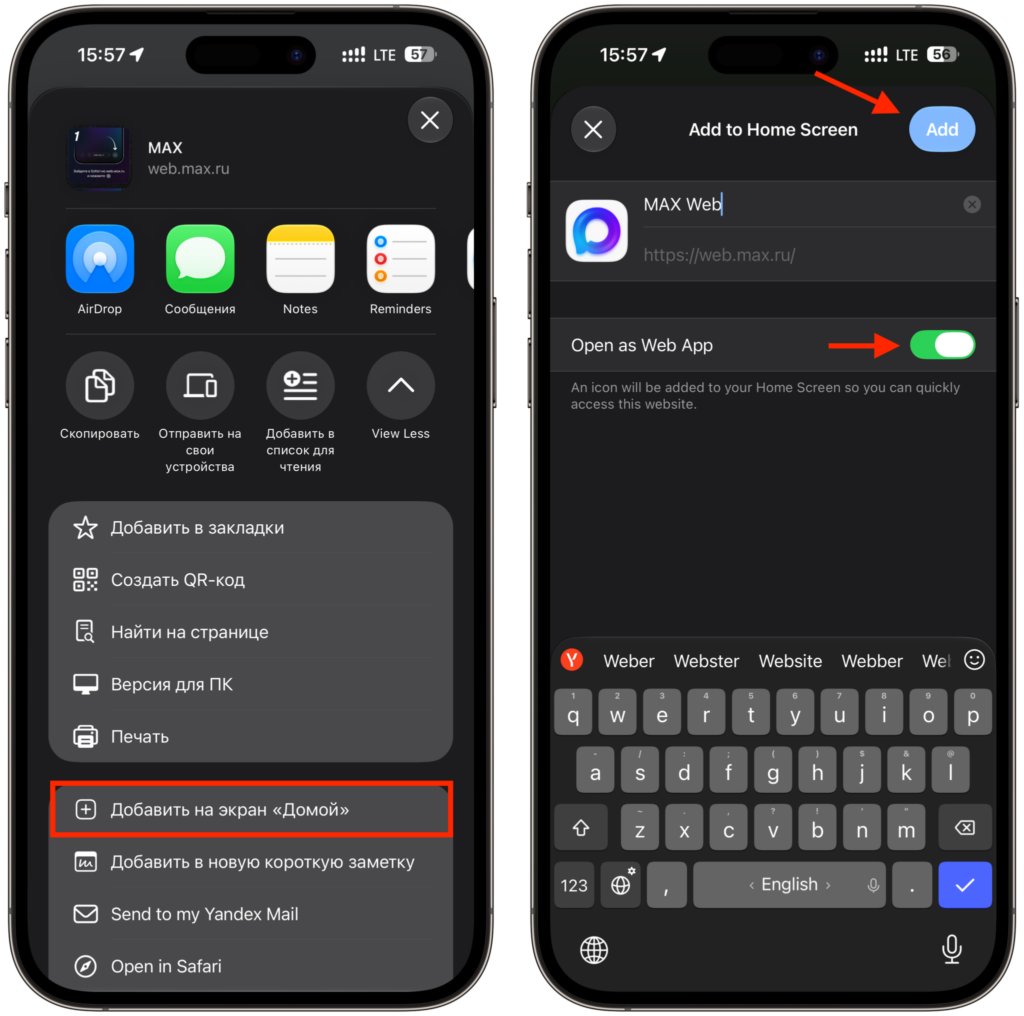
First, add the web version to the home screen
- Open Safari on your iPhone. Chrome also works: it can add shortcuts to the Home screen too — the option is in the same “Share” menu.
- Type web.max.ru in the address bar and wait for the page to load.
- Log in with your phone number. A confirmation code will arrive on your iPhone, or a request will come through the MAX app itself — confirm the login there.
- Tap the “Share” button in Safari’s bottom panel. It’s the square with an upward arrow.
- Scroll down the menu and select “Add to Home Screen.”
- Set a name for the shortcut, for example MAX, and tap “Add” in the upper right corner.
The icon will appear on the home screen, and launching it will open the messenger in a separate window. The session doesn’t expire after a reboot, so you won’t need to enter a code every time. The only downside is that web notifications don’t work as quickly as in the native app, but for managing a channel, it’s more than enough.
How to Make a Channel in MAX Discoverable via Search
From here, everything is done in the browser in a couple of minutes. The interface closely mirrors the mobile version, so it’s hard to get lost.
- Launch MAX from the home screen icon or through Safari.
- Tap the plus next to the “Chats” heading and select “Create a channel.”
- On the “What will your new channel be like?” screen, upload an avatar. The circle with a camera icon opens the photo picker — an image boosts recognizability in search.
- Enter the channel name. The limit is 200 characters, but it’s better to keep it to two or three words.
- Fill in the description — you have 400 characters. Add keywords there: they’ll help people find your channel.
- Tap the blue “Create channel” button.
- The “Channel type and link” screen will open with the message “Private channel created.” Don’t worry: switch the toggle to “Public.”
- Tap “Continue” and publish your first post.
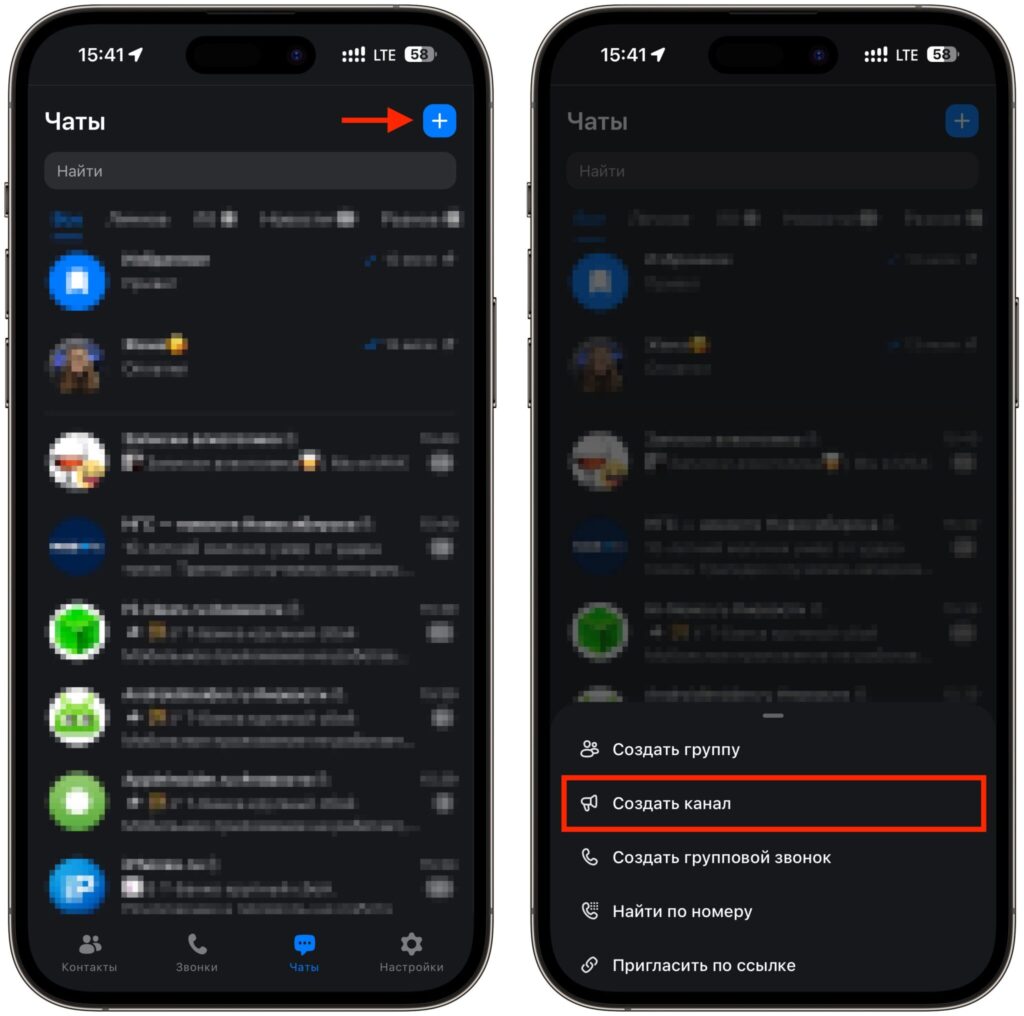
Start creating a channel
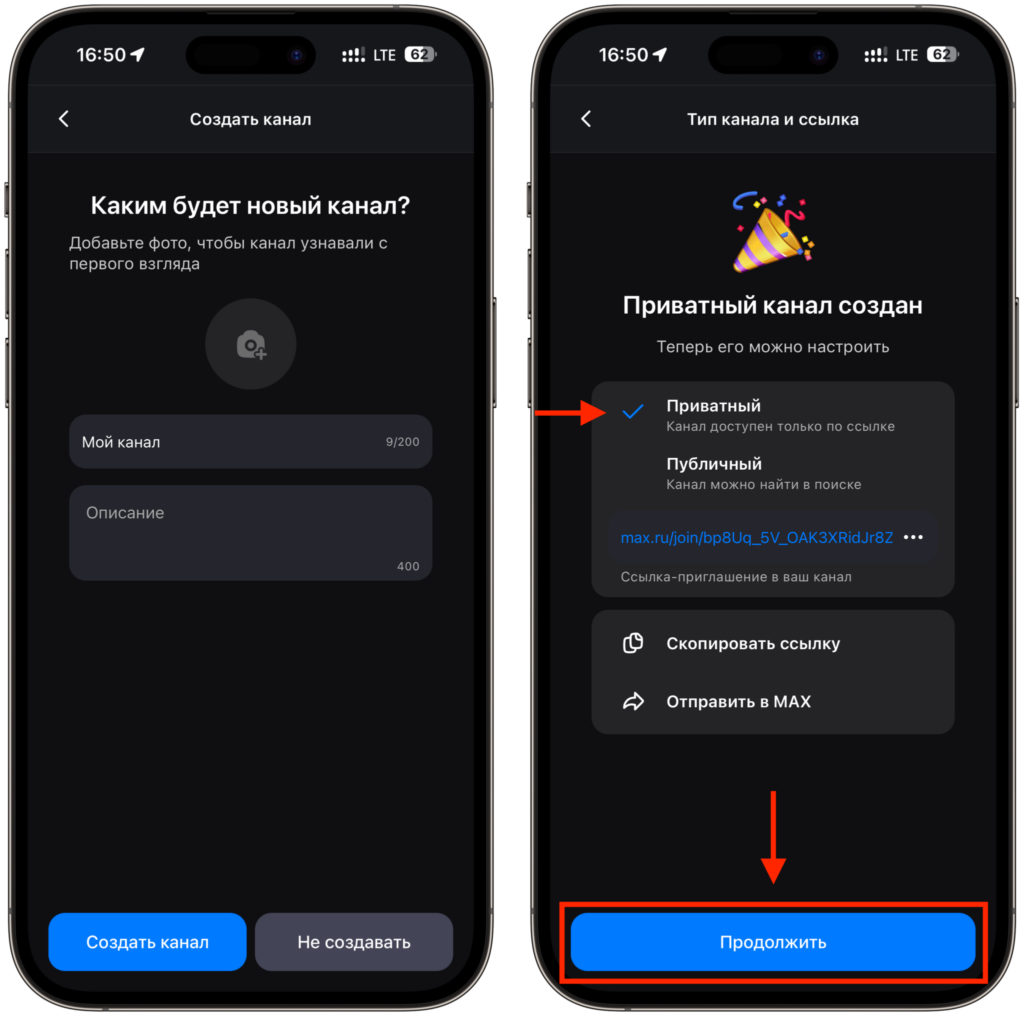
Choose your channel status and start publishing posts
Done. The channel instantly appears in the messenger’s search, and anyone can find it, even those using the old app build. After that, you can manage posts from both the iPhone app and the web version.


