If you’ve decided to use the MAX messenger, you’ll have many questions. How do you invite someone to a chat, share a channel, or send your profile to someone from another messenger? For this, you’ll need a link to MAX. It works the same way as in Telegram: it’s an address that opens the desired object directly in the app. I’ll walk you through all the options in order.
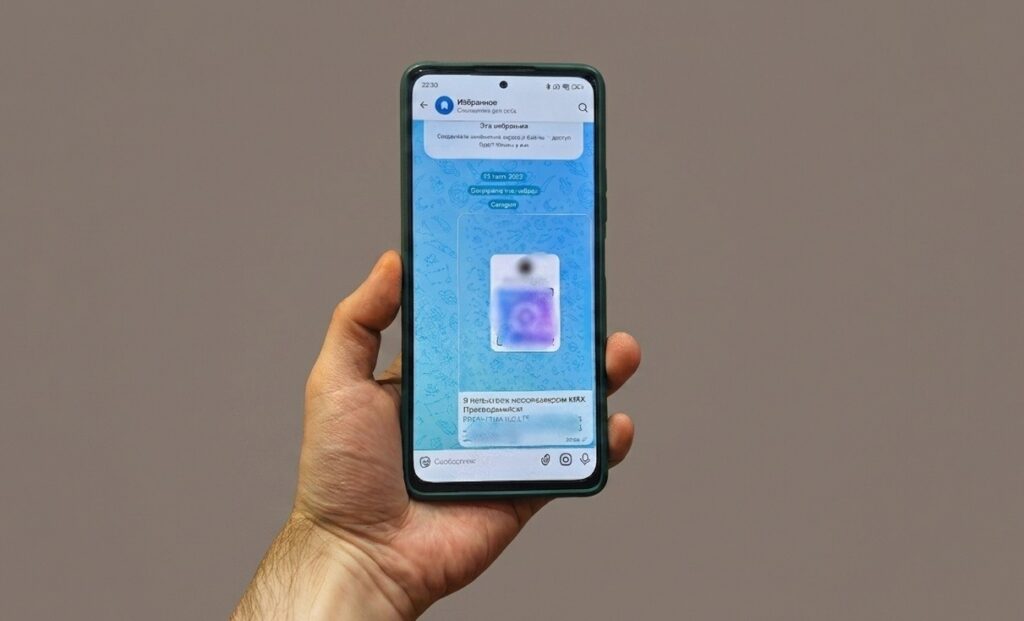
Let’s create a link to MAX together
Why You Need a Link to MAX
The MAX app supports links to most objects within the messenger: profiles, groups, channels, and bots. This is useful in several situations: you need to invite someone to a chat who isn’t in your contacts; you want to share a channel with someone outside the messenger; you need to place a group link somewhere else — a website, post, or newsletter.
A link to the MAX messenger doesn’t look like t.me/username (the Telegram format). In the national messenger, everything is different. But when you tap the link, the system will offer to open the object in MAX if the app is installed.
How to Invite Someone to MAX
If the person you need is already in your contacts, simply find them in the search and send a message. But if MAX doesn’t see your contacts or the person isn’t on the list, read the instructions on what to do about it. The most universal way to invite anyone is to send an invitation link. How to get a personal invitation link for a chat in MAX:
- Launch MAX on Android.
- Open the “Contacts” tab.
- Find the person who isn’t on MAX.
- Tap the “Invite” button.
- Send the link using any convenient method (for example, through Telegram — why not?).
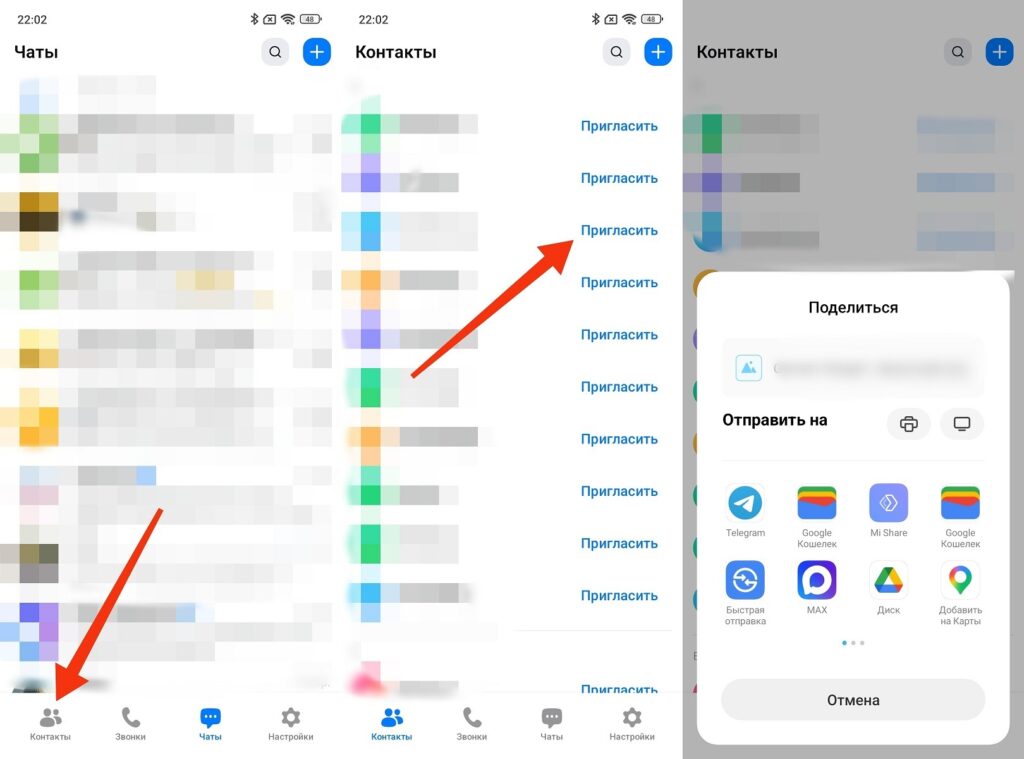
Choose any method to send the invitation
The person who receives the link will be able to open the national messenger and go directly to the desired chat in MAX. If the app isn’t installed, the link will suggest installing it. The link leads to the installation page, after which it automatically opens the desired object.
How to Create a Link to Your Profile in MAX
A link to a profile in MAX is formed from your username. Without it, sharing your profile via a link won’t work. How to find or create a link to an account in MAX:
- Open the app and go to “Settings.”
- Tap the “Invite Friends” button.
- Send the link using any convenient method.
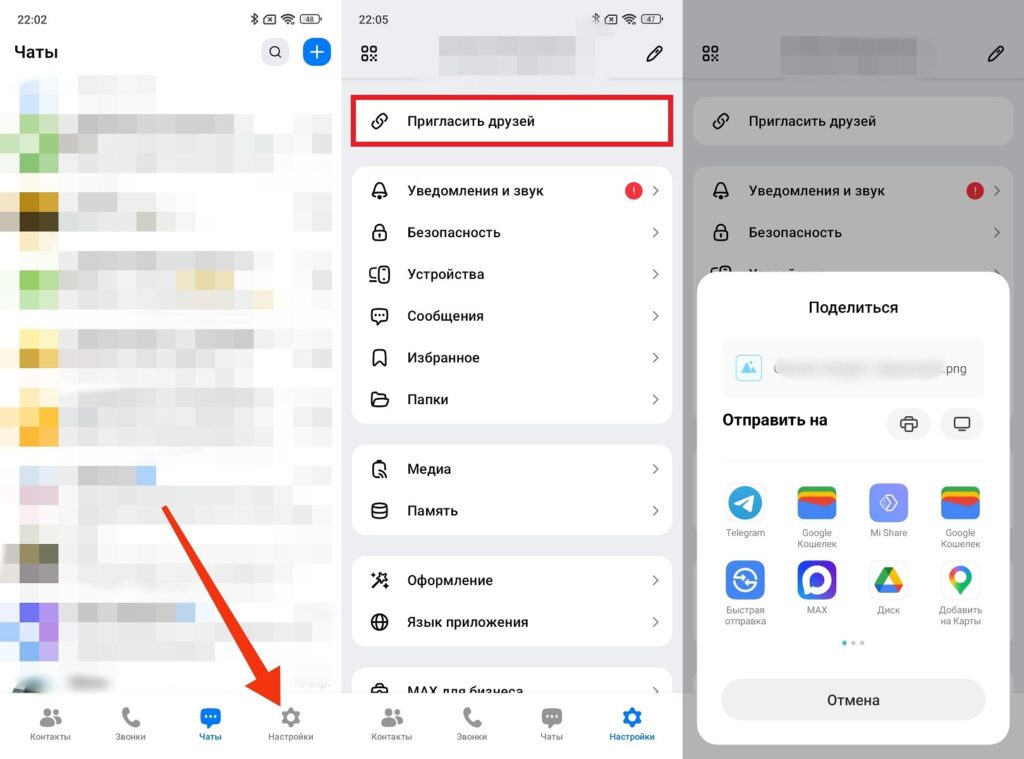
You can also share your profile link this way
A link to a contact in MAX is accompanied by a QR code. So the person can find you using either of these two methods. Share your details wherever you want so the right people can find you in the national messenger.
How to Create a Link to a Group in MAX
A link to a group in MAX is generated through the group chat. The principle here is similar. How to copy a link to MAX for a group:
- Open the group.
- Tap on its name at the top of the screen.
- Tap the “Invite via Link” button.
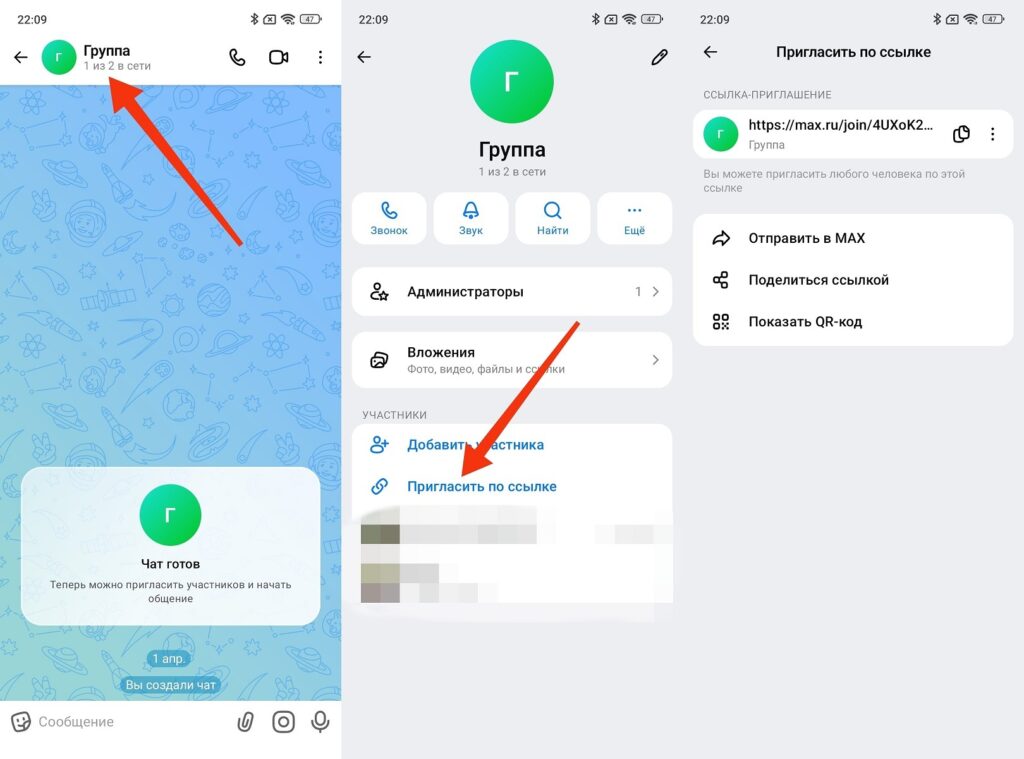
Here you need to access the group settings themselves
Send the copied link using any convenient method. The recipient will open it and join the group or see a join request depending on the group settings.
How to Create a Link to a Channel in MAX
The principle is the same as with groups. A public channel has a permanent address by username, while a private one only has an invitation link. How to create a link to a channel in MAX:
- Open the channel and tap on its name.
- Find the link and tap the “Share” button.
- Send the link or simply copy it.
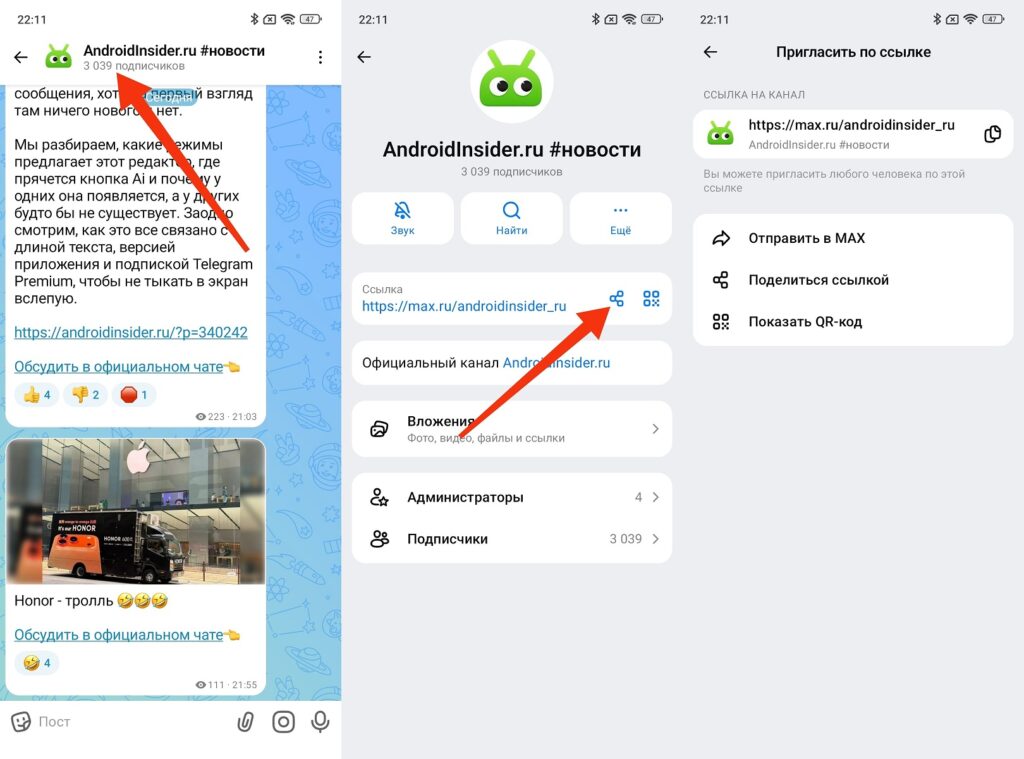
The situation with channels is similar
If the channel in MAX is private, the link will be an invitation link. By following it, the person will see the channel and be able to subscribe. A public channel opens for everyone without any additional steps.
How to Create a Link to a Bot in MAX
A bot in MAX is an account with a username, so the link to it is formed the same way as for a regular profile. The only difference is that the link is made not by the user themselves, but by the bot owner. If you’re creating a bot and want to share it:
- Find your bot in the search or in the chat list.
- Open the bot’s profile.
- Tap the “Share” button next to the link.
- Send it using any convenient method.
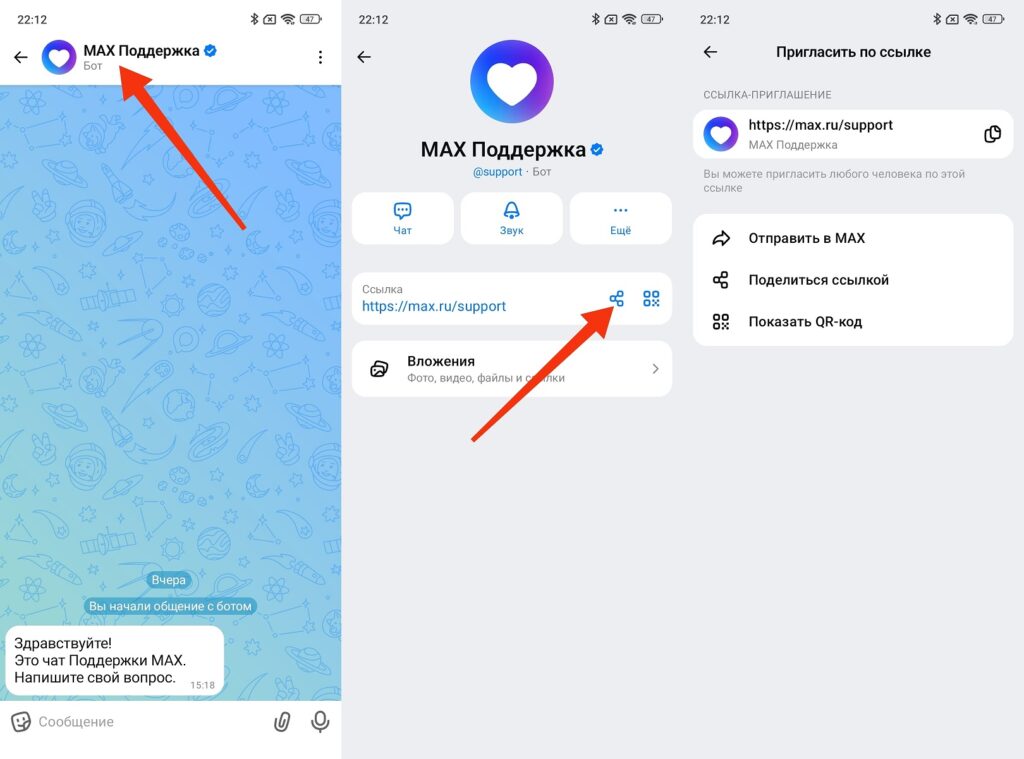
It’s the same with bots
If you simply want to share someone else’s bot, do the same thing: open its profile and copy the link. You can send it through any communication channel.