When your iPhone or iPad is running low on storage, deleting apps and clearing caches are the usual first steps. But there is another built-in tool that often goes overlooked: the native ZIP compression feature in Apple’s Files app. It lets you pack folders and individual files into ZIP archives directly on your device — no third-party apps required. While it won’t magically free up gigabytes of space in every case, it is genuinely useful for organizing documents and sending multiple files at once.
What you need to know
- The Files app on iPhone and iPad has supported built-in ZIP compression and decompression since iOS 13.
- Text documents, spreadsheets, and presentations can shrink by roughly 1.5–2× when compressed, but already-compressed formats like JPEG photos, MP4 video, and music files see almost no size reduction.
- The ZIP archive occupies space alongside the originals until you manually delete the source files or folder.
- ZIP works with both local “On My iPhone” storage and iCloud Drive folders — the steps are identical.
When compression actually saves space — and when it doesn’t
Compression does not always reduce file size. The savings depend entirely on the type of content you are archiving.
Files that compress well include text documents, spreadsheets, presentations, and other data that is not already packed in a compressed format. These can shrink to roughly half their original size inside a ZIP archive. However, JPEG photos, MP4 videos, and music files are already compressed, so zipping a folder full of photos will produce an archive nearly the same size as the original folder.
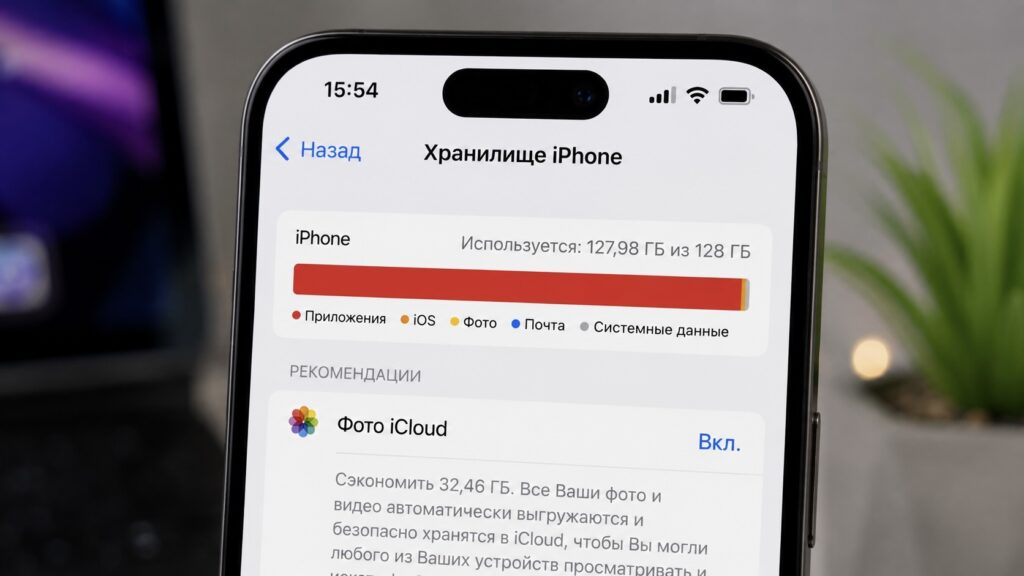
When storage is tight, this method can help
Because of this, the real benefit of compression is often not about reclaiming gigabytes. Instead, it is about bundling many files into a single, tidy ZIP that is easier to share, upload to cloud storage, or simply keep out of the way in your file list.
The compression feature has been in the Files app for quite some time
ZIP is also a universally compatible format. A ZIP archive created on an iPhone will open without special software on another iPhone, an Android device, or any desktop computer.
How to compress files and folders on iPhone and iPad
The process is the same on both iPhone and iPad. To compress an entire folder:
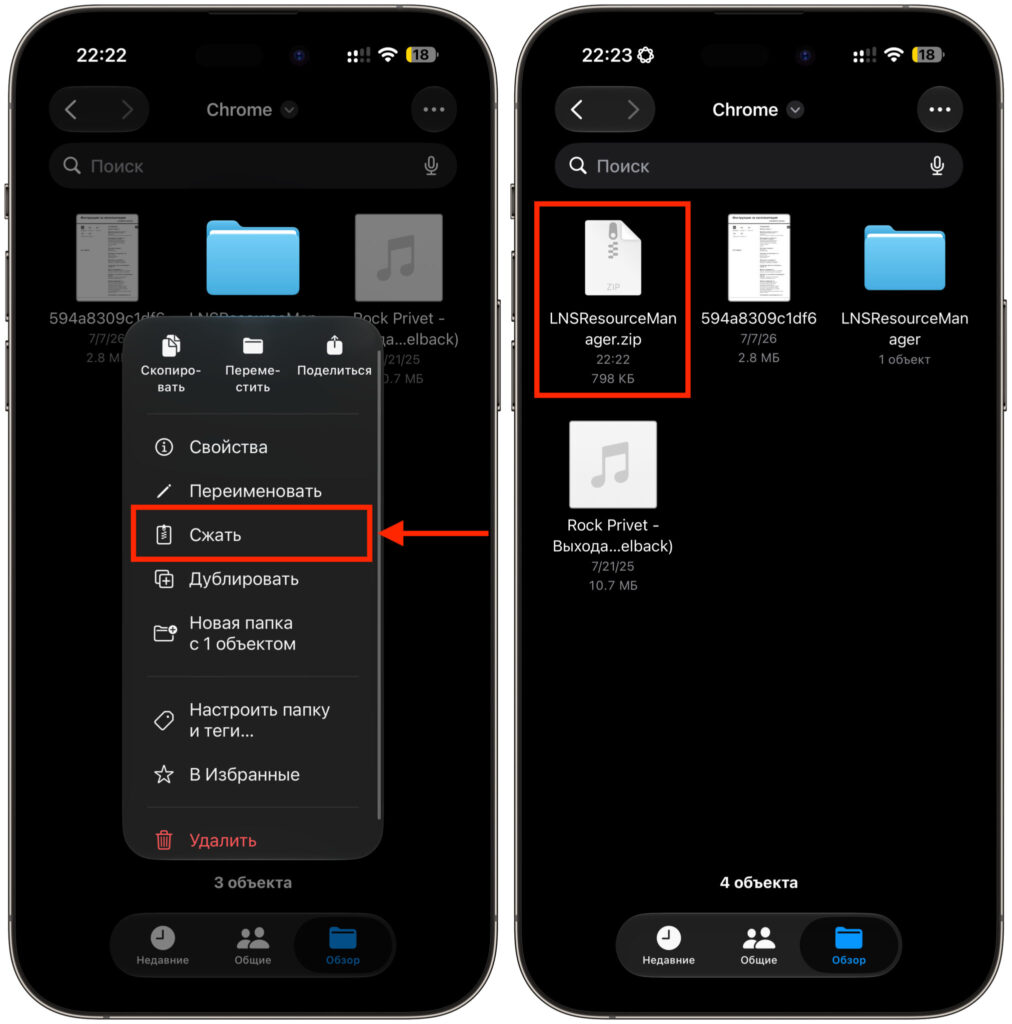
One tap and your archive is ready. You can then delete the original folder
- Open the Files app.
- In the Browse tab, locate the folder you want to compress.
- Long-press on the folder until the context menu appears.
- Tap Compress. A ZIP archive with the same name will appear alongside the folder.
If you need to compress individual files rather than a whole folder, tap Select in the upper-right corner, mark the files you want, tap the three-dot menu icon, and choose Compress. The system will bundle everything into a single archive named “Archive.zip.”
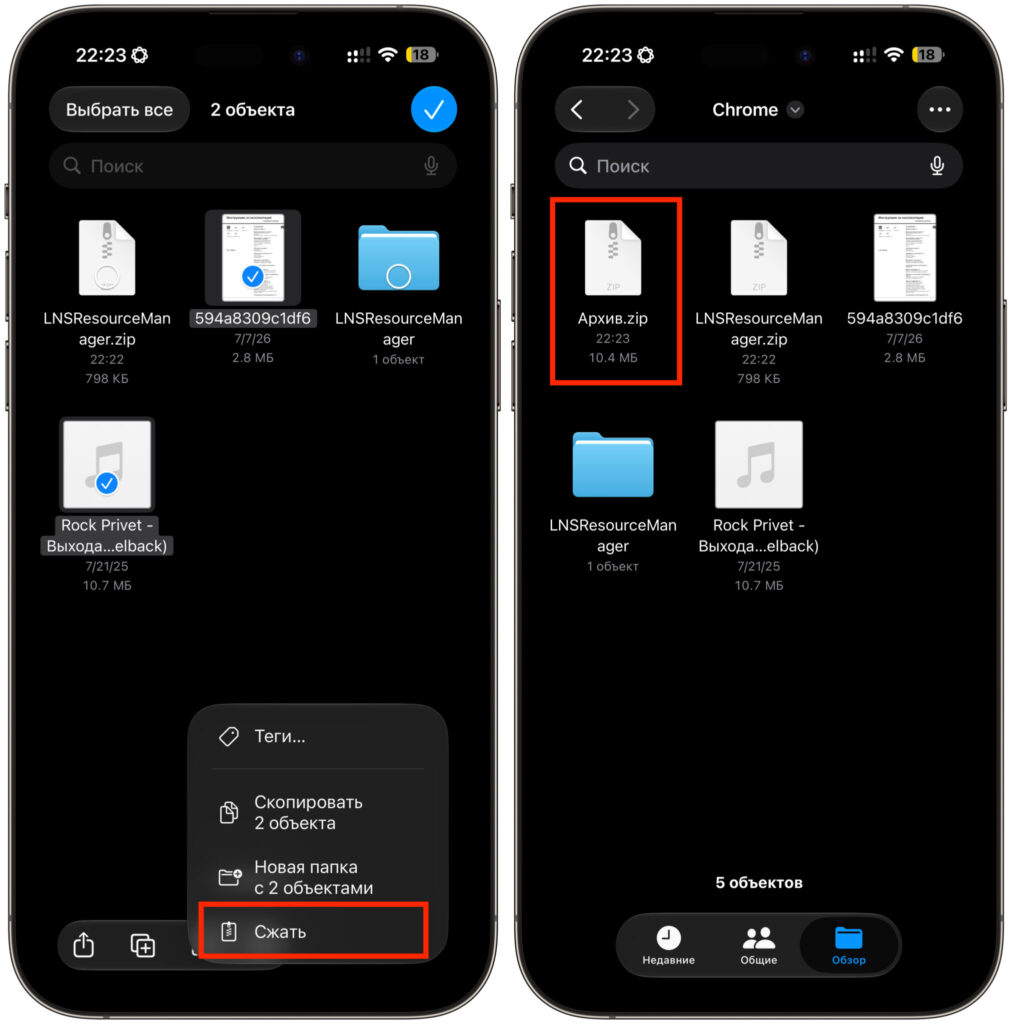
You can also select individual files for compression
This compression feature has been available in the Files app since iOS 13, so it should be present on virtually any currently supported device. It works identically with local storage (“On My iPhone”) and iCloud Drive folders.
Important: The archive takes up space in addition to the originals until you delete the source folder or files. Remember to remove the originals after creating the archive if your goal is to free up storage.
How to unzip an archive on iPhone and iPad
Extracting files is even simpler, and no third-party unarchiver is needed:
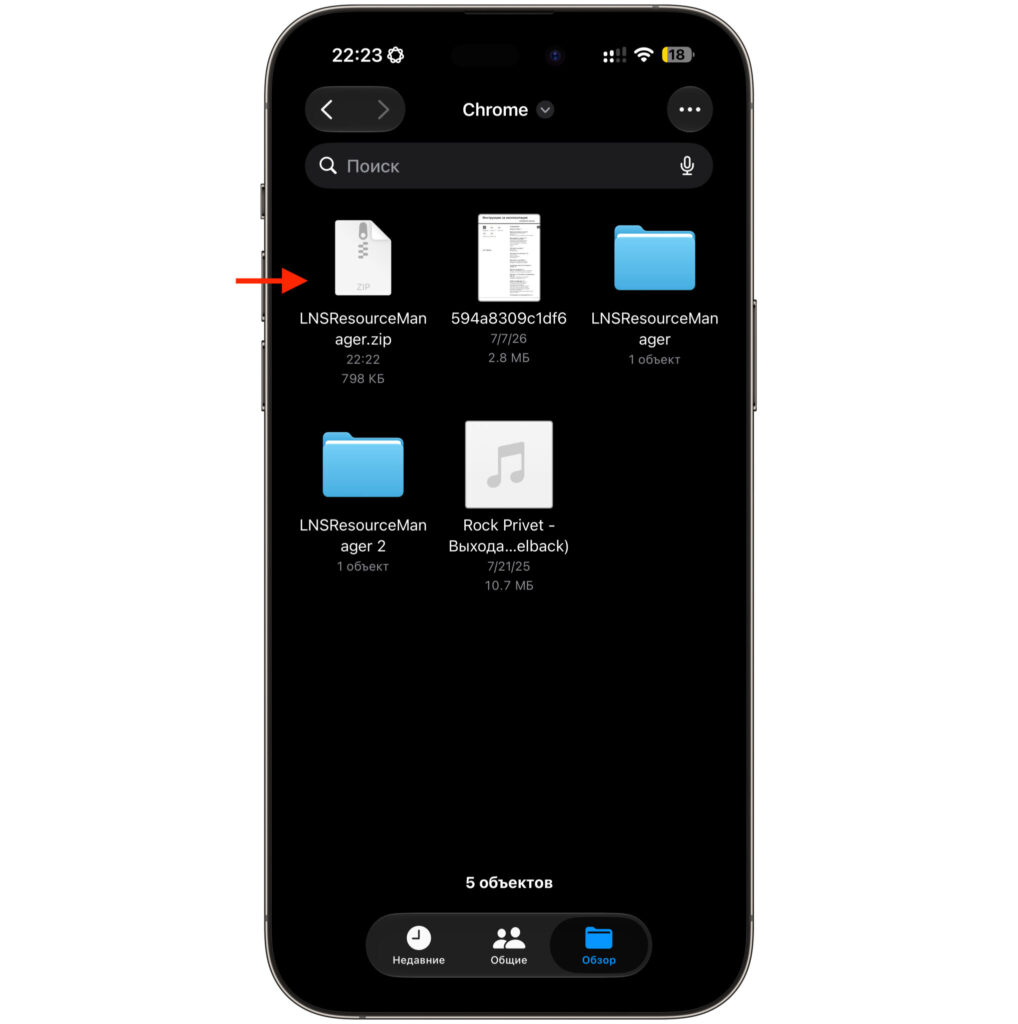
Simply tap the archive and it will unpack automatically
- Open the Files app and locate the ZIP archive.
- Tap it once.
- The device will automatically create a folder next to the archive containing the extracted files.
The built-in tool handles standard ZIP archives reliably. However, multi-volume archives and RAR files are not supported natively — you will need a third-party app for those formats.
When ZIP archives are most useful on iPhone
Sending multiple files. When you need to share a batch of documents or photos with someone, sending a single ZIP archive is far more convenient than attaching files one by one. The recipient can download and unpack it in seconds.
Archiving old projects. Completed work that you are unlikely to revisit soon can be packed into a single ZIP. This keeps your file list cleaner and makes the project easier to find later by archive name.
Freeing a small amount of space for an update or app install. If you have large text-based files — exported chat logs, databases, or similar data — compressing them can potentially free a couple of gigabytes. This will not work with media files, but it can make a difference with heavy documents.
That said, do not expect dramatic storage savings. If your device is mostly full of photos and videos, compression will yield minimal gains. Think of the Files app’s built-in archiver as a tool for organization and convenient file sharing rather than a magic “add storage” button. In that role, it works well and fully replaces third-party compression utilities.


