If your iPhone is running out of storage, deleting photos or games may not be the most effective first step. According to the source, much of the space is often taken by data that apps quietly accumulate over time. Apps such as Instagram or CapCut can grow back to a couple of gigabytes even after you clean up your photo library. One quick fix is already built into iOS storage settings: offload a heavy app and immediately reinstall it. This can remove much of the accumulated cache, often in under a minute per app. It only works safely, however, if the app is still available for you to download from the App Store.
What you need to know
- In Settings, General, iPhone Storage, each app shows its own size and a separate Documents & Data figure. The source says that second figure is the part that grows over time.
- Offloading an app and reinstalling it right away usually keeps your login and settings, while clearing much of its accumulated data. The source author reports that Instagram’s Documents & Data dropped from 1.66 GB to 85 MB.
- Reinstalling only works if the app is still in the App Store. If an app has been removed, offloading it can leave you unable to use it.
- The trick does not help with games, built-in apps such as Messages, or Telegram. For those, the source points to Messages’ Review Large Attachments option and Telegram’s own storage cleanup instead.
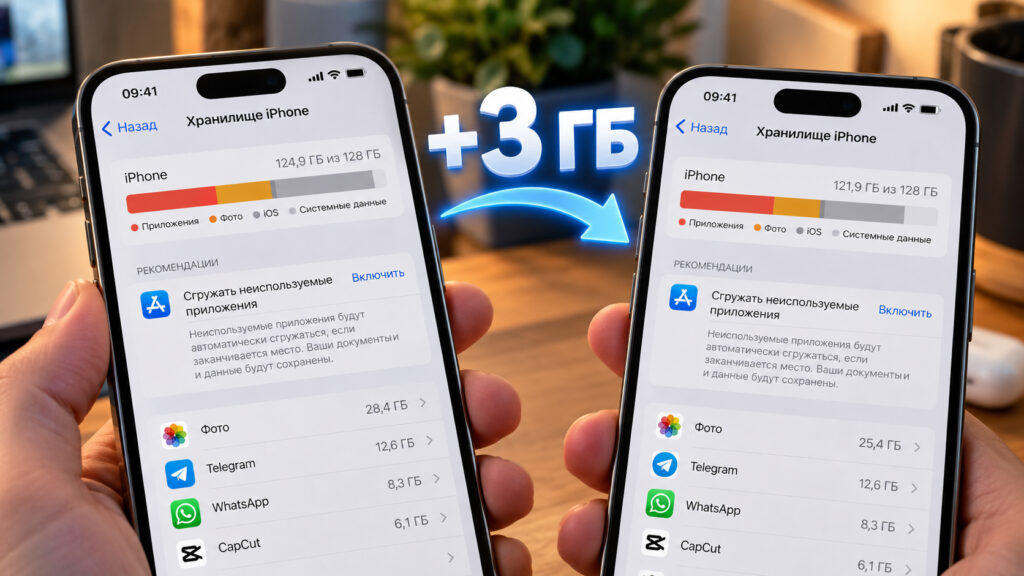
Clearing three gigabytes of storage on an iPhone
Where your iPhone storage actually goes
Open Settings > General > iPhone Storage. At the top is a colored bar, and below it is a list of apps sorted by size. At the very bottom is an entry called System Data. It contains caches, logs, and temporary files that iOS keeps on hand. According to the source, its size fluctuates constantly and can reach 20 to 25 GB for some users.
The source focuses on what happens inside individual apps. Caches exist to make apps faster. The Instagram feed preloads videos, messaging apps save images and stickers, and browsers remember website elements. When you open this content again, the phone does not have to download it a second time.
The problem, the source says, is that no one sets strict limits on these caches. Files can pile up for months. The source also says iOS only starts cleaning them seriously when storage is almost full.
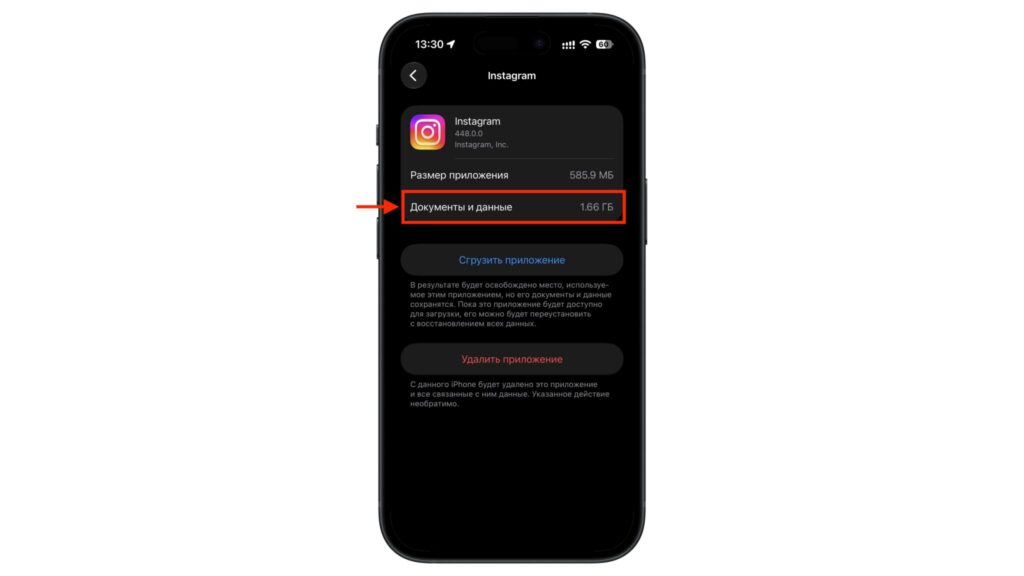
Documents & Data in Instagram’s storage settings
Tap any app in the list and you will see two figures. The first is the size of the app itself. The second is labeled Documents & Data, and this is the one that grows over time.
According to the source, Instagram itself takes up a few hundred megabytes, but its data can easily grow past a gigabyte. The same applies to CapCut, YouTube, and nearly any app that handles a lot of video.
Offload an app, then reinstall it immediately
iOS has long included an Offload App feature. Apple designed it for a different purpose. It removes the app but keeps its documents and settings on the phone, and the icon stays on the Home Screen with a cloud symbol.
The trick is to offload the app and then reinstall it right away. The app downloads fresh from the App Store. According to the source, your account login and settings are usually preserved, while a noticeable share of accumulated junk disappears.
First, make sure the app can be reinstalled
Reinstalling only works while the app is still available in the App Store. The source raises this caveat specifically for users in Russia. There, banking apps, some VK services, and many other apps have been removed from the local store.
The same principle applies anywhere: if an app is no longer available to you in the App Store, the Reinstall button will not bring it back. Your data will remain on the phone, but you will have no app to use it with.
Before offloading anything, check that the app is available in the App Store. The simplest way is to search for it in the store. If its page shows a download button or a cloud icon, you can proceed. If the app does not appear, the source advises leaving it alone, even if it takes up several gigabytes.
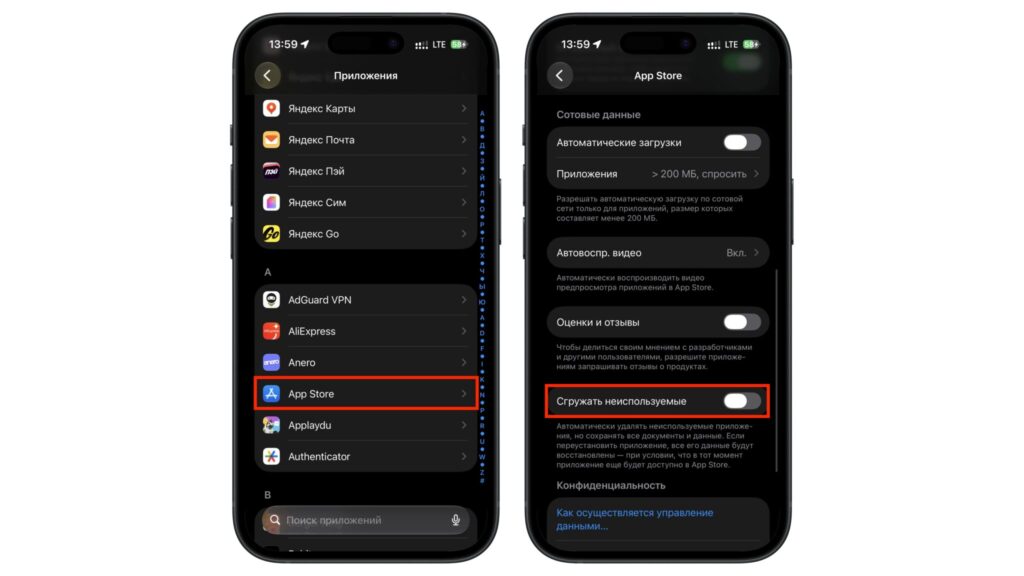
Turning off Offload Unused Apps
Check automatic offloading
The App Store settings include an Offload Unused Apps toggle. When it is on, iOS automatically removes apps you have not opened in a while.
The source warns that this can cause real trouble with an app you rarely open, such as a banking app you use once a month. If you rely on apps that are no longer in the App Store, the source recommends turning this toggle off.
Other limitations
- You need an internet connection. A large app can use a noticeable amount of mobile data when it downloads again.
- Games are not worth the effort. Their Documents & Data hold textures and levels rather than junk files. After reinstalling, the game will simply download them again, so the source says you would only be wasting time.
Step by step
If none of these limitations apply, the source describes the process as follows:
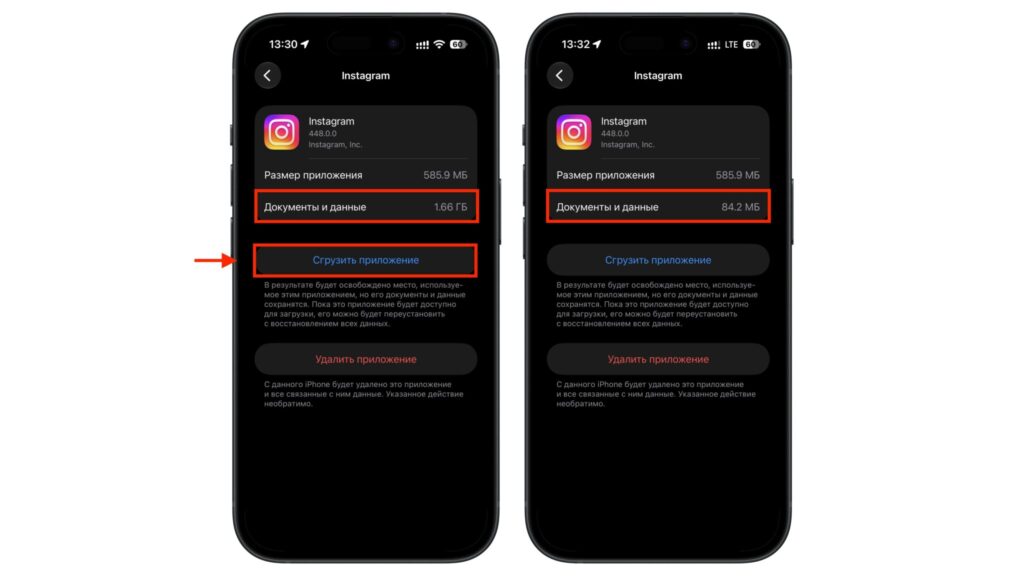
Result of reinstalling Instagram
- Open Settings > General > iPhone Storage.
- Wait for the list to load, then select the largest app.
- Tap Offload App and confirm.
- Immediately afterward, tap Reinstall App on the same screen.
- Go back to the list and check how much space the app now uses.
What results to expect
The results can be dramatic. The source author reports that Instagram’s Documents & Data section had grown to 1.66 GB. After reinstalling, only 85 MB remained. The author describes similar results with CapCut and other video editors.
The author suggests repeating the process for every app that has grown past a gigabyte. According to the source, each app takes less than a minute.
Built-in apps and Telegram need a different approach
This method does not work with built-in apps such as Photos, Messages, or Mail, because they have no Offload button.
Messages does offer a Review Large Attachments option. It gathers old videos and photos from your conversations, and you can delete them in bulk. Strictly speaking, these files are not cache, but the source notes that removing them frees up space just as effectively.
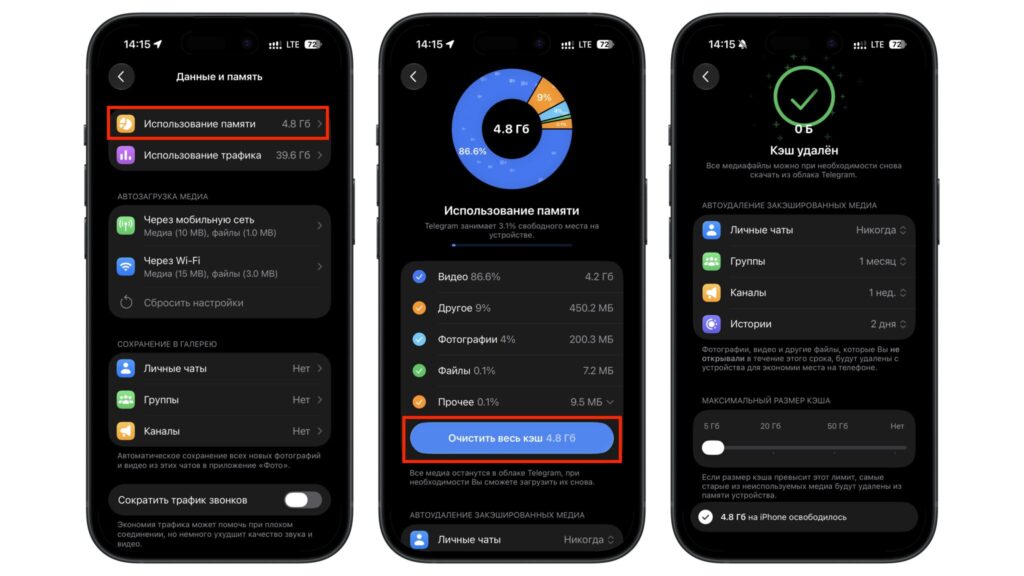
Clearing the cache in Telegram
According to the source, the offload trick works poorly with Telegram. The app stores chat media inside its own data, and that media stays in place after reinstalling.
Telegram has its own cleanup tool under Settings > Data and Storage > Storage Usage. There you can also set a limit, after which older files are deleted automatically.
Clear browser data and force restart
Safari
After apps, the source recommends moving on to browsers. Safari stores website data separately, and it can easily reach several hundred megabytes. Keep in mind that clearing it will sign you out of most websites.
The source lists these steps. The menu path reflects the source and may vary between iOS versions.
- Open Settings > Apps > Safari.
- Scroll down and select Advanced.
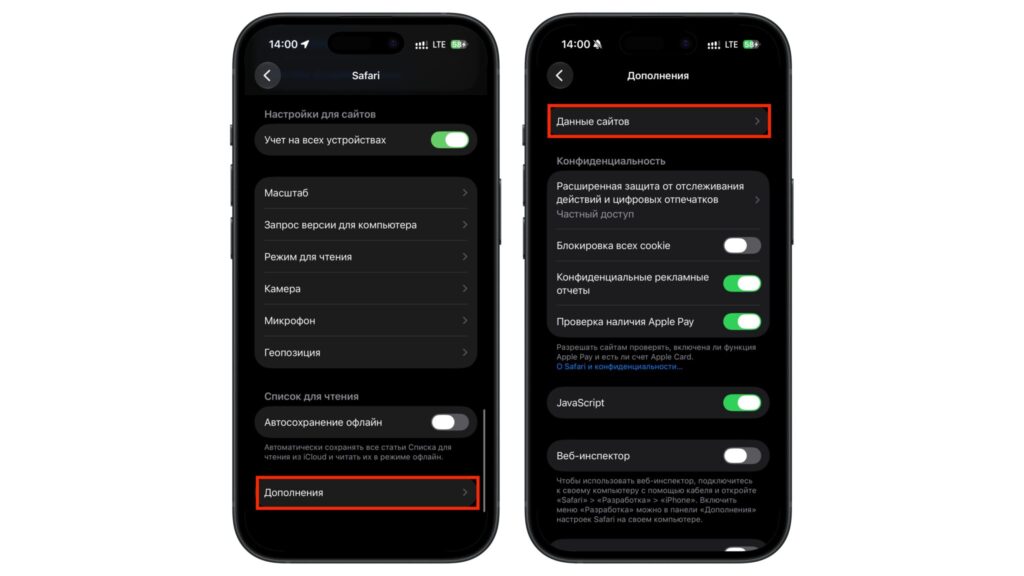
Getting to the cache-clearing option in Safari
- Tap Website Data and wait for the list to load.
- To delete data for individual sites, tap Edit in the upper-right corner.
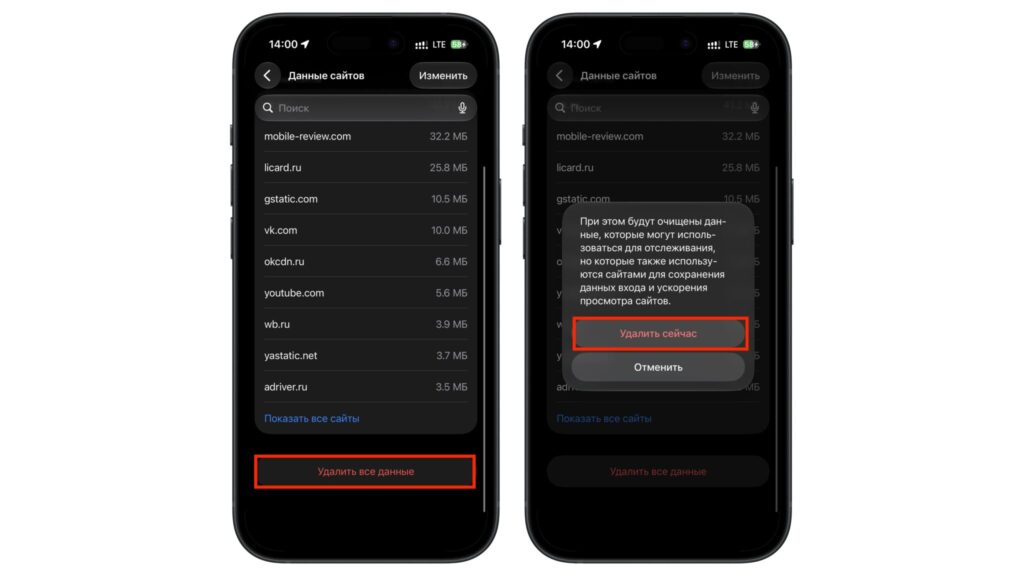
Clearing the cache in Safari
- To clear everything at once, tap Remove All Website Data at the bottom of the list and confirm.
Chrome
If you use Chrome, the source notes that you have to clear its cache inside the browser itself:
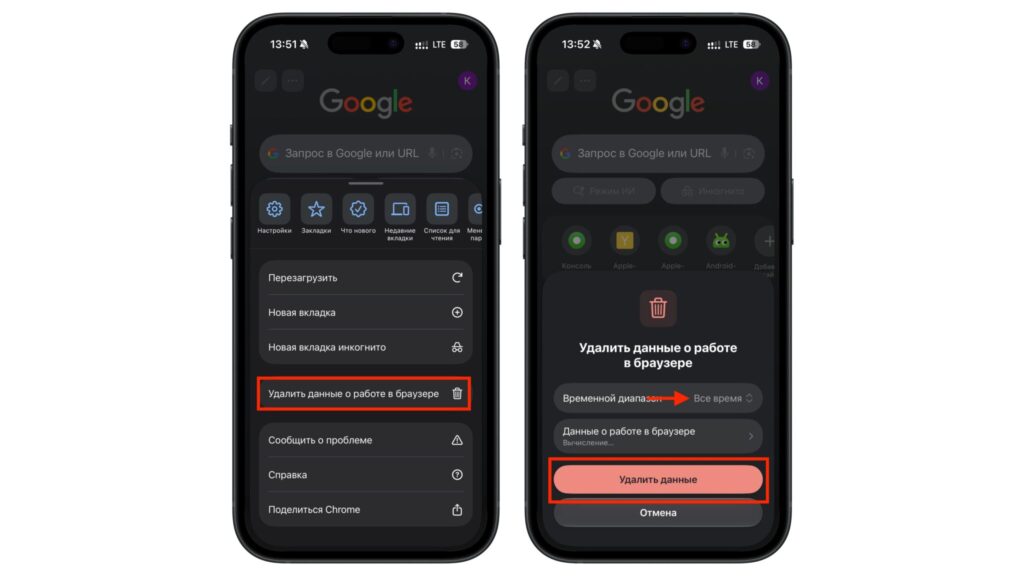
Clearing the cache in Chrome
- Open Chrome and tap the three dots in the lower-right corner.
- Select Delete browsing data.
- Set the time range to All time.
- Check Cached images and files. You can also select cookies and history if you want.
- Confirm the deletion.
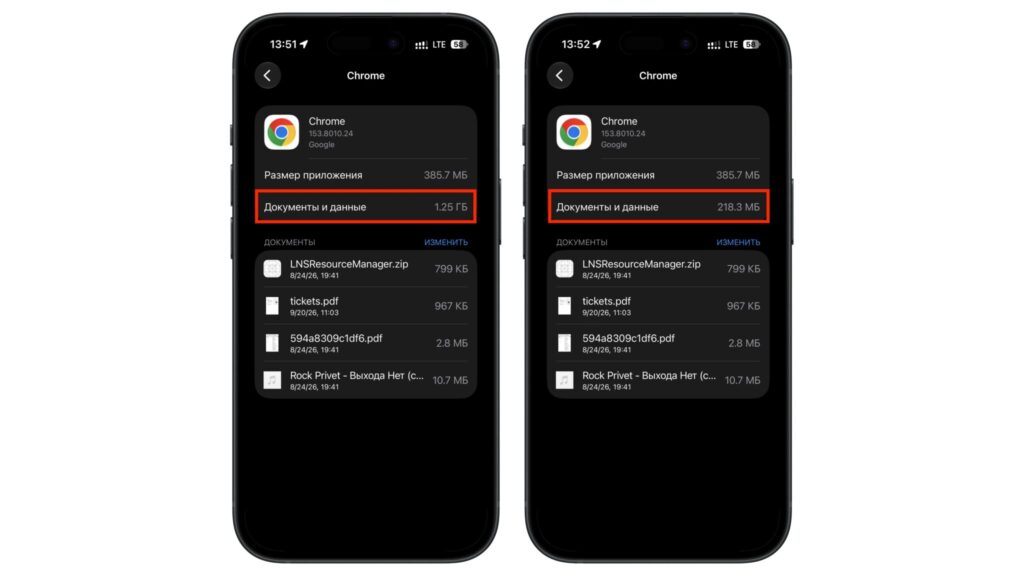
Result of clearing the cache in Chrome
Force restart
The final step, which the source says many people skip, is a force restart. According to the source, it clears some of the temporary files counted under System Data. The source says the following sequence works on iPhone 8 and later:
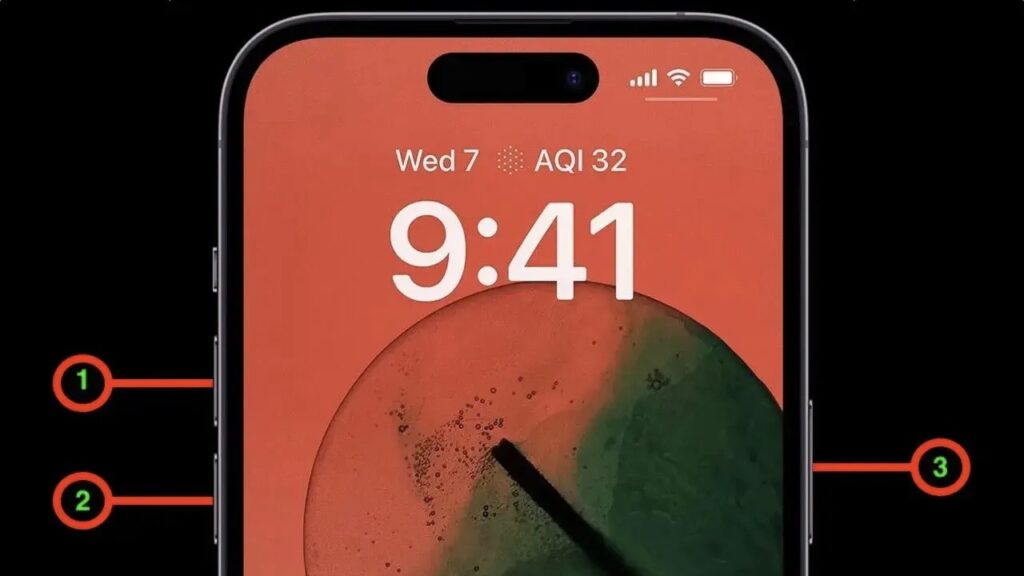
Steps for force restarting an iPhone
- Quickly press and release the volume up button.
- Quickly press and release the volume down button.
- Press and hold the side button. Keep holding it even when the power-off slider appears.
- The screen will go dark. When the Apple logo appears, release the button.
How often to repeat the process
According to the source, doing this every couple of months should make storage run out noticeably less often.
If space is still tight after a cleanup, the source suggests moving photos and videos to external storage, such as USB-C flash drives or external drives made for iPhone.