If your laptop charges slower than usual and files copy at a snail’s pace, the problem is often not the device but the cable. Today we’ll find out how much charging power your USB-C can handle. A free app called WhatCable has been released for Mac that shows the real characteristics of a connected USB-C cable: speed, power, and the exact link that limits the entire chain. Below, we’ll figure out who will actually find it useful and who can easily get by without it.
Now you’ll know exactly why your devices charge slowly
How to Check the Power and Speed of a USB-C Cable
The app works on Macs with Apple Silicon processors and allows you to check the characteristics and condition of connected USB-C cables as well as magnetic MagSafe cables that come with MacBooks. macOS receives this data when a device is connected, but it’s not visible in the regular interface. The user doesn’t need to do anything special: download the app via the link, launch it, and plug in your charger.
The app displays several important parameters at once:
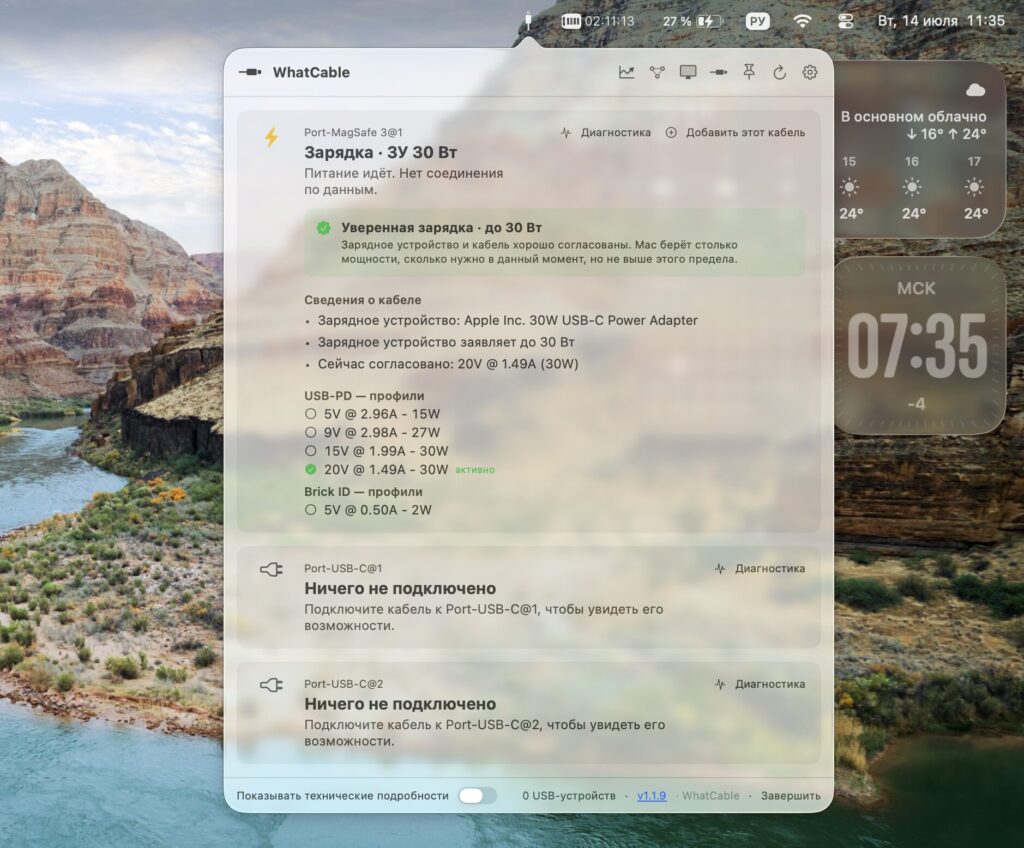
With an ideal combination of cable and power adapter, the information looks like this
- the cable’s advertised data transfer speed
- maximum charging power
- cable type — active or passive (with or without built-in electronics)
- parameters of the connected device
- actual connection speed
- voltage and current on each port
The most useful thing here isn’t even the raw numbers, but the difference between advertised and actual speed. This is exactly what explains why an expensive cable delivers less in practice than what’s promised on the packaging.
Where Does Mac Get Information About the USB-C Cable
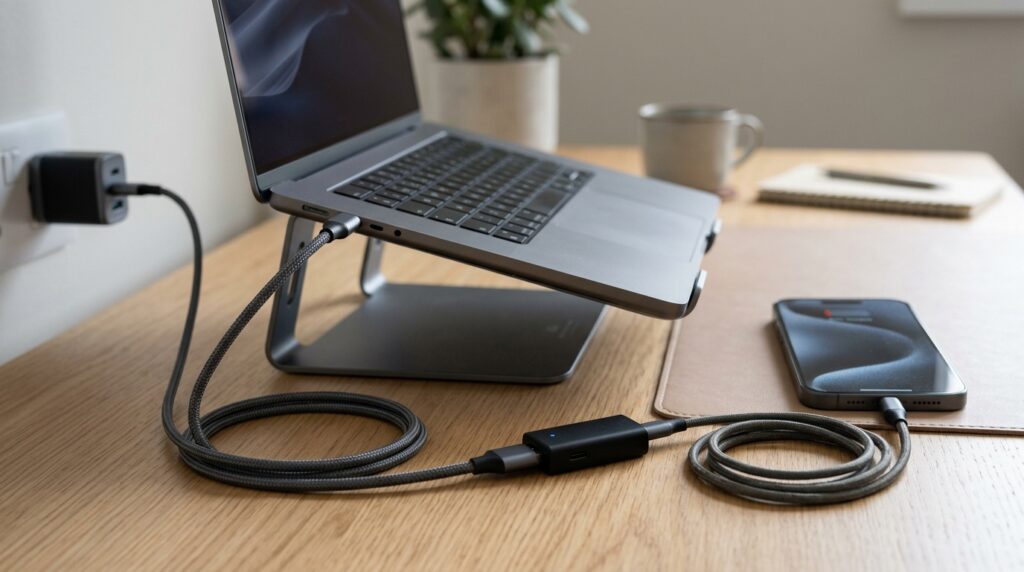
Why iPhone and MacBook charge slowly, or How to check cable speed
Many people in the comments were confused by the word “diagnostics,” but there’s no system hacking involved here. The app uses only Apple’s public tools and doesn’t require root access (full administrative access to the system).
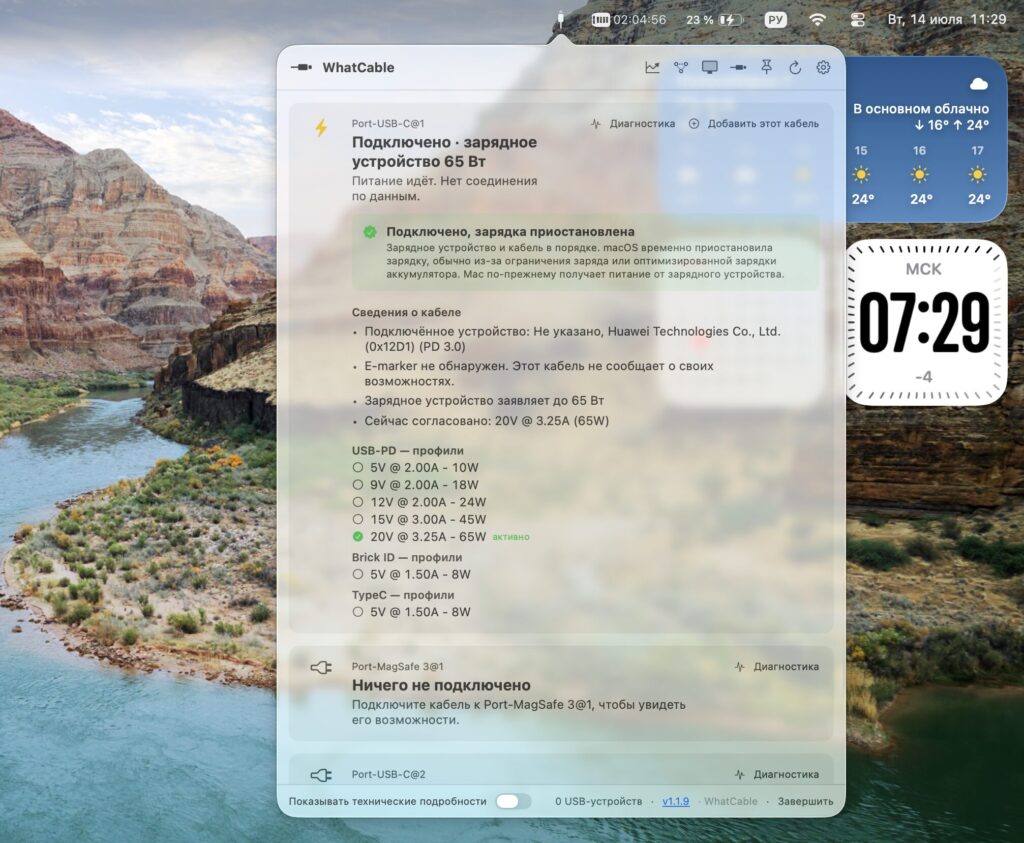
This cable’s e-marker couldn’t be read. Apparently, it simply doesn’t have one
The mechanism is simple. When a cable is connected, the charging controller in the Mac reads information from a chip built into the cable (e-marker, a microchip containing cable specifications), and macOS saves this data internally. WhatCable extracts it and displays it in a user-friendly format. Some of this information is indeed available in the Mac’s system report, but it’s scattered there and inconvenient to read.
Why a USB-C Cable Charges MacBook Slowly
The main practical function of the app is finding the weak link. In addition to data from the cable’s chip, the utility analyzes the Mac itself and the connected device, determining exactly what limits the data transfer speed or charging.
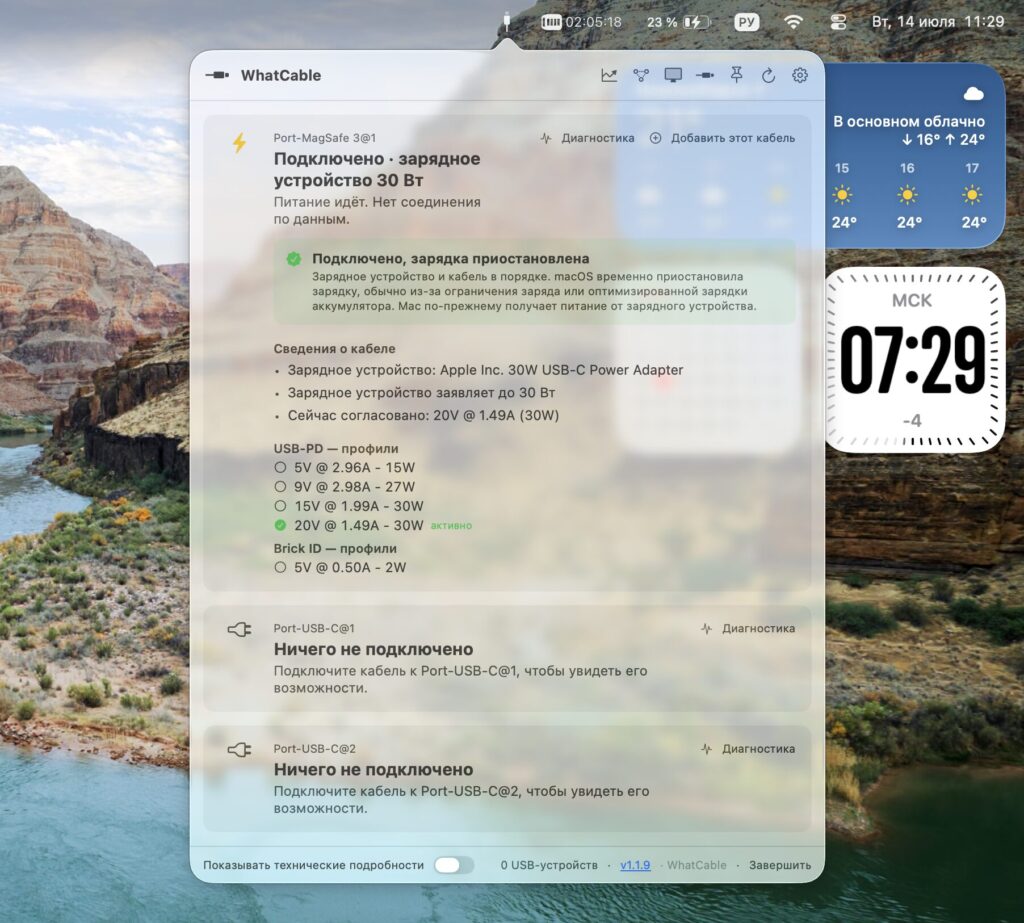
This is what information about charging being paused by the system looks like. You can go disable optimized charging
This answers a common question: why does a phone or laptop still charge slowly even with fast charging? The reason could be the cable, the power adapter, or the device itself, and WhatCable tells you where to look.
WhatCable Pro vs. the Free Version
The basic version is distributed for free and already covers the main task: understanding what your cable is capable of. There’s also a paid Pro version for £9.99 (approximately $12) with real-time energy consumption monitoring, extended diagnostics, and a command-line mode for advanced users.
Most Mac owners will find the free version sufficient. Pro is more suited for those who constantly test chargers and cables.
WhatCable for Windows and Linux
Right away about the limitation: there won’t be a Windows version. Releasing a similar program for that system is impossible due to hardware differences and system tool limitations. However, a separate Linux version is already in the works.
So for now, this is a story exclusively for Mac on Apple Silicon. Owners of older Intel-based Macs and Windows users will have to wait or use other methods.