Since iOS 26, the iPhone no longer locks you into a nine-minute snooze. Each alarm can now have its own snooze interval of 1 to 15 minutes, set in one-minute steps, and the option is still present in iOS 27. Apple did not put it in the Settings app. It sits inside each individual alarm in the Clock app, and alarms created before the update keep the old 9-minute default until you change them by hand. Below is where to find the option, how to set it for Sleep schedule alarms, and why a longer snooze is not always a better one.
What you need to know
- Starting with iOS 26, each alarm can snooze for any interval from 1 to 15 minutes, and the option is also available in iOS 27.
- The setting lives in each alarm’s options in the Clock app, not in Settings, and there is no single switch that applies it to every alarm.
- Existing alarms and newly created ones both default to 9 minutes, so you need to change each one manually.
- iOS 26 supports iPhone 11 and later. According to the source, iPhone XS and XR owners are stuck with the fixed 9-minute snooze.
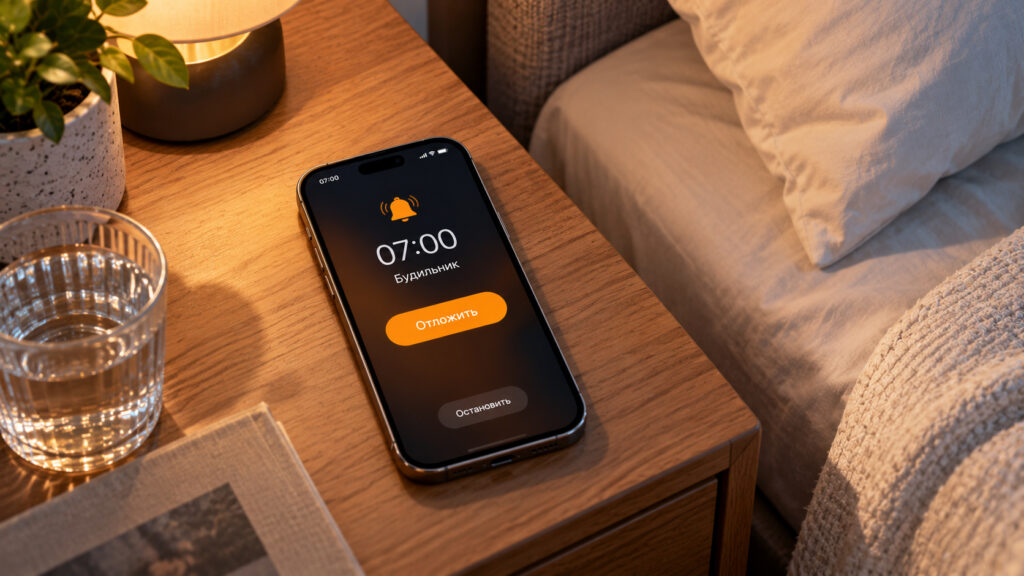
An iPhone on a bedside table showing a ringing alarm and a Snooze button
Why the iPhone snoozed for nine minutes
The number looks random, but the source traces it to mechanical design. In desk clocks from the middle of the last century, the gears could not measure exactly ten minutes, so engineers settled on nine. The convention outlived those clocks. Electronic alarm clocks kept it, and the iPhone did too.
A nine-minute pause is not a problem in itself. The issue is that one interval had to suit everyone. Some people want just a minute after the first alarm so they get up instead of sinking back into the pillow. Others want to lie in for another quarter of an hour before a hard day. Until now, the usual workaround was to set several alarms five or fifteen minutes apart. That could stretch the Clock app’s alarm list to a dozen entries, and half of them would then go off on weekends.
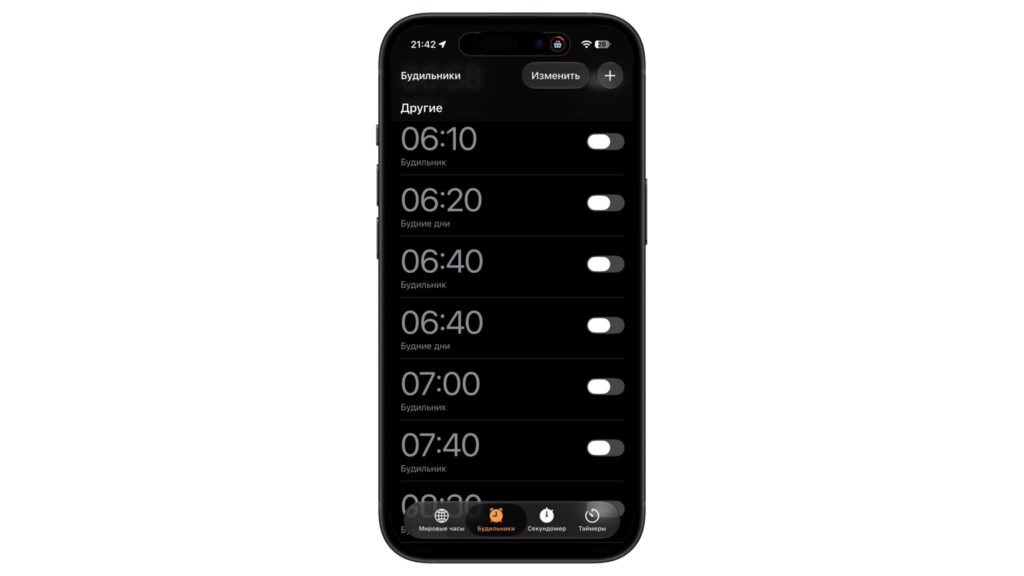
A list of several alarms set a few minutes apart in the Clock app
With iOS 26, every alarm got its own snooze interval. You can choose anywhere from 1 to 15 minutes in one-minute steps, and the setting is still available in iOS 27.
A one-minute snooze may seem pointless, but it has its fans. Because the phone rings again before you have time to fall back asleep, it works as a way to stop yourself from dozing off. The maximum of 15 minutes suits people who like to lie in after the first alarm without setting three alarms in a row.
How to change the snooze interval for a regular alarm
There is no dedicated option in the iPhone’s Settings app, and this is the first thing that trips people up. The interval is part of each alarm’s options in the Clock app. Here are the steps:
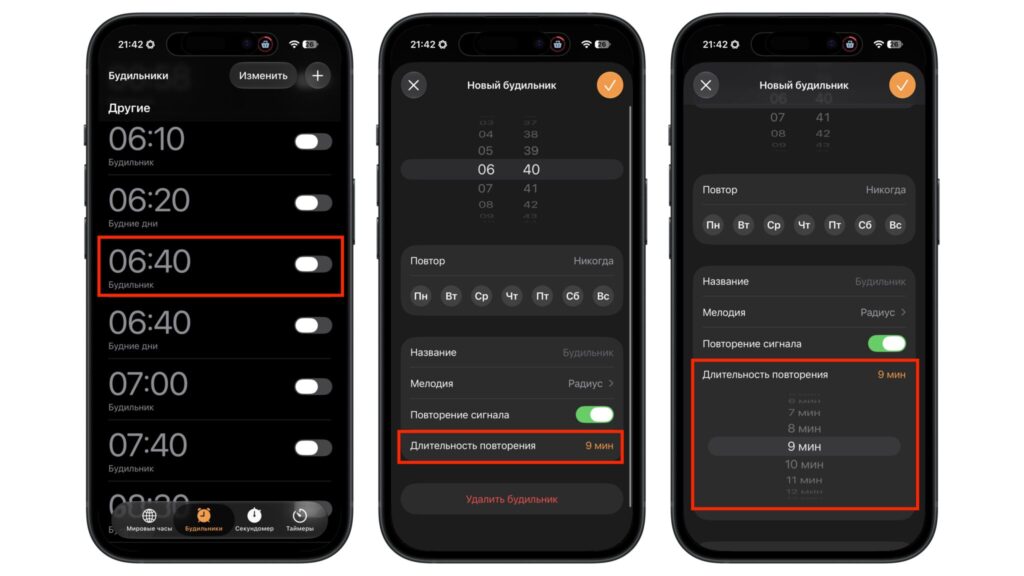
Changing the snooze interval in an alarm’s settings
- Open the Clock app.
- Go to the Alarms tab.
- Tap the alarm you want to change, or create a new one with the + button.
- Make sure the Snooze toggle is on.
- Tap the snooze duration row.
- Choose an interval from 1 to 15 minutes and save the alarm.
Note: the source describes the Russian-language interface. The English labels on your device may differ slightly.
If the snooze duration option is missing
First, check the Snooze toggle. When it is off, the alarm screen does not show a Snooze button at all, so there is no interval to choose. The second possible cause is an older system version. On iOS 18 and earlier, the interval is fixed and no setting will change it.
You can check your system version in Settings > General > About. According to the source, iOS 26 runs on iPhone 11 and later models. iPhone XS and XR did not get the update, so on those phones the snooze stays at nine minutes.
Your existing alarms will not change on their own
This detail is easy to miss. Alarms you created before updating are not converted automatically and still snooze for 9 minutes. After the update, you need to open each old alarm and set the interval manually. Otherwise, your mornings will stay exactly the same.
Sleep schedule alarms have a separate setting
If you wake up using a sleep schedule, the steps above are not enough. The Sleep schedule alarm sits apart from your other alarms in the Clock app, in the Sleep | Wake Up section above them, and the regular settings do not apply to it.
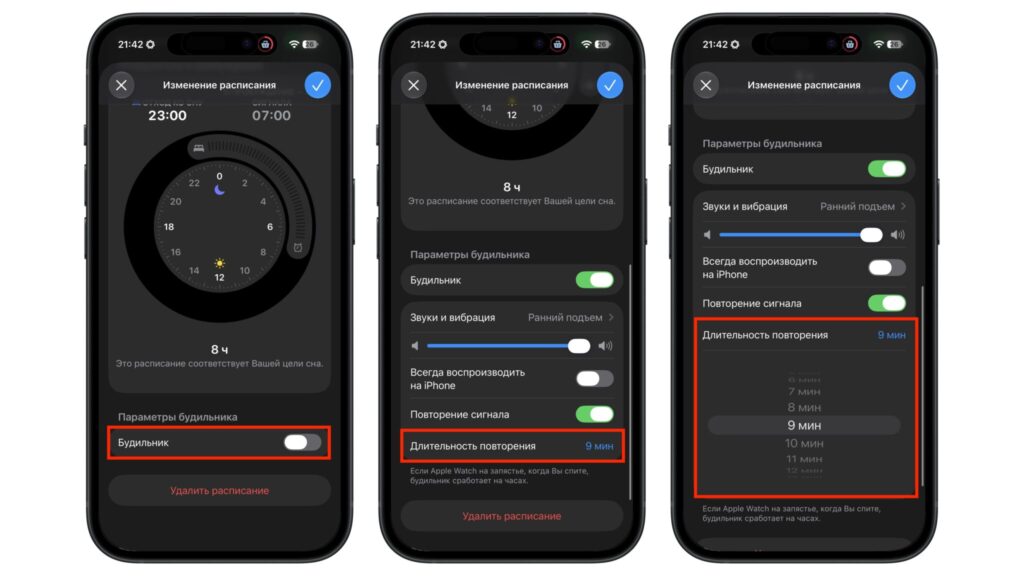
Changing the snooze interval for the Sleep alarm
To change its snooze interval, stay on the Alarms tab and tap Change next to the Sleep | Wake Up section. Scroll down to the snooze duration row, choose an interval, and confirm. You can also turn snooze off completely here if you do not trust yourself with the Snooze button.
The sleep schedule is shared with the Health app. If you edit weekdays and weekends separately, check the interval in each schedule.
There is still no global setting for all alarms
The source author sees this as a gap in Apple’s implementation. A new interval does not carry over to other alarms. Each alarm is configured individually, and every newly created alarm defaults to 9 minutes again. There is still no global switch.
With two alarms, that is not a problem. With five, one for each weekday, you will have to go through every one of them. Apple has not explained the design. The author speculates that the company chose not to change a habit shared by millions of people all at once, since anyone who never opens an alarm’s settings will see no difference. The author calls the logic understandable but notes that it costs a couple of extra minutes for people who have long wanted a different interval.
The per-alarm approach does have an upside. You can keep a short 3- to 5-minute snooze on weekdays and set your weekend alarm to 15 minutes so you are not jolted awake by every ring.
A longer snooze can do more harm than good
Fifteen minutes sounds tempting, but the source points to another iOS 26 change. On the redesigned alarm screen, the Snooze button is large, while stopping the alarm now takes a swipe. That makes it easier to hit Snooze while half asleep than to turn the alarm off, and with a long interval the mistake costs you more time.
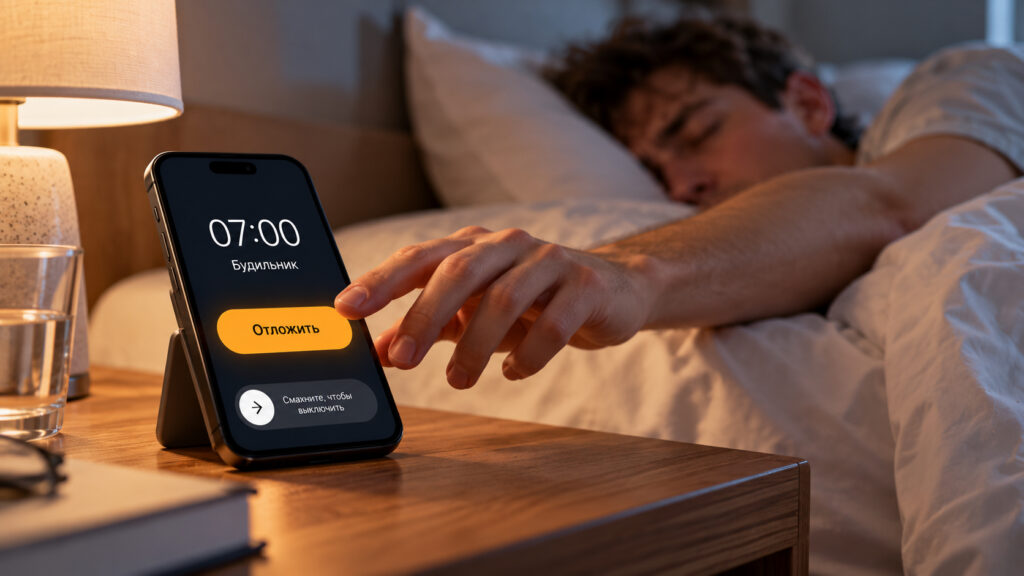
An alarm going off on an iPhone and a person reaching for the Snooze button
The source also says some sleep research suggests that a snooze longer than nine minutes may let the body slip back into deep sleep, which makes waking up even harder than at the first alarm. The source does not cite a specific study, so treat this as a claim rather than established guidance. On that basis, the author would use intervals longer than the default only on weekends or for daytime naps, when there is nowhere to be late for.
If you regularly sleep through your alarm, the snooze interval will not fix that. The source recommends checking the alarm volume first. For people who find sound alone is not enough, it also suggests a light-based alarm that gradually fills the room with light.
As a starting point, the author suggests a short step: 5 minutes on weekdays and the standard 9 on weekends. From there, you can see how many times each morning you actually reach for the Snooze button and adjust.