If Android Auto launches every time you get in the car, taking over the audio, opening navigation and pausing whatever was playing, there are still ways to stop it. Google removed the dedicated toggle in 2020, but several workarounds remain. The simplest is to change the auto-launch setting to “If used on last drive.” You can also stop unfamiliar cars from being added, choose “Charging only” over USB, look for an auto-launch option on the car’s head unit, or use a hidden developer-menu switch that disables wireless Android Auto.
What you need to know
- Google removed the standalone toggle for disabling Android Auto’s automatic start in 2020.
- Setting “Start Android Auto automatically” to “If used on last drive” means the app launches on its own only if you used it on your previous trip.
- A switch in Android Auto’s developer settings can turn off wireless Android Auto while Bluetooth calls and audio keep working, though some drivers report it does not work in every car.
- Android Auto is built into modern phones and cannot be uninstalled, but as a last resort it can be stopped entirely.
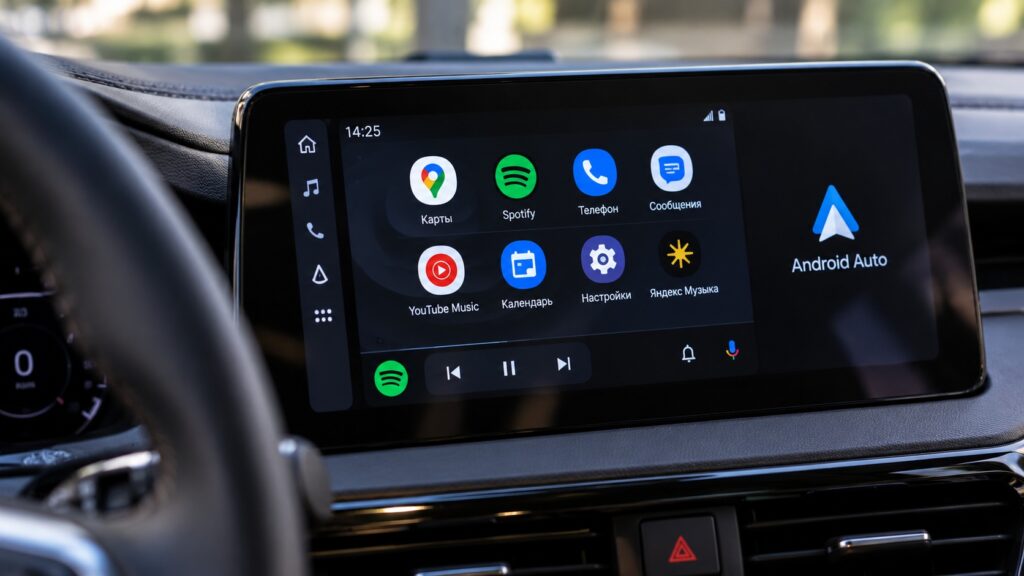
The Android Auto interface in a car
Why your phone connects without asking
Android Auto starts automatically in two situations. In wireless mode, the phone recognizes a familiar head unit over Bluetooth and establishes the connection immediately. In wired mode, plugging the cable into the car’s USB port is enough.
This behavior is controlled by the “Start Android Auto automatically” setting, and many users set it to “Always.” That suits some drivers but not all. Some people want Bluetooth only for hands-free calls and prefer to listen to music through the car’s built-in system.
The app used to include a separate switch for this, but Google removed it in 2020. Since then, users have had to rely on workarounds.
Note: menu names below are translated and may appear with different wording depending on your phone, language and app version.
Option 1: Replace “Always” with “If used on last drive”
The auto-launch setting has three choices: “Always,” “Default (set by vehicle)” and “If used on last drive.” With the last option, Android Auto starts by itself only if you used it on your previous trip. To change it:
- Open Settings → Other connections → Android Auto (the menu name varies by phone).
- Tap “Start Android Auto automatically.”
- Select “If used on last drive.”
- Restart your phone so the setting reliably takes effect.
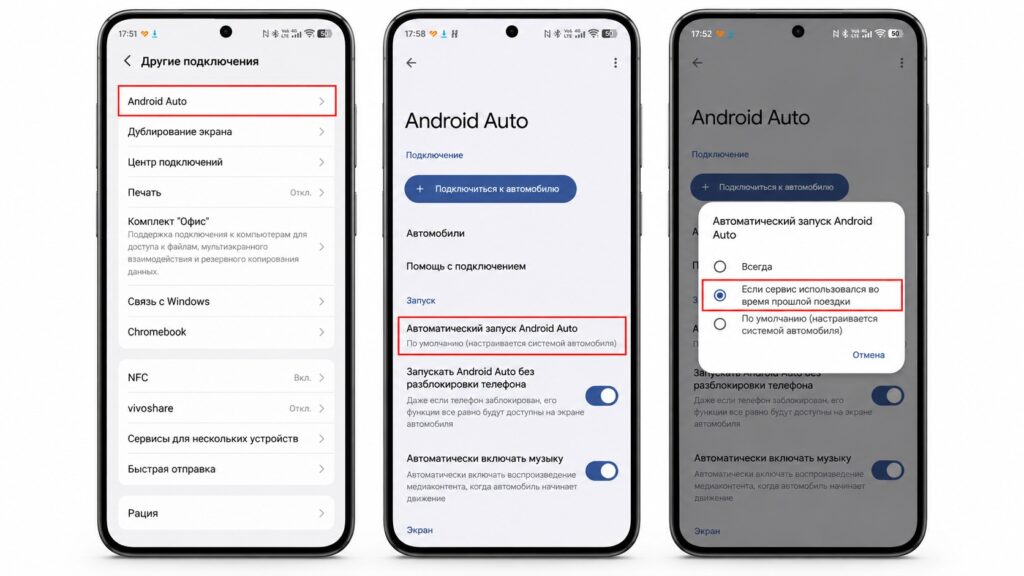
Limiting Android Auto’s automatic start

On Samsung, Xiaomi and other phones, the path to Android Auto settings may differ slightly; the easiest way to find it is the search bar in Settings. After changing the setting, exit Android Auto once on the car’s screen. On your next trip, it should not start by itself until you launch it manually.
Note that music starting automatically when you get in the car is controlled by a separate setting.
Option 2: Stop car-sharing vehicles, taxis and other cars from being added
Cars you use only once are a separate problem. You might take a car-sharing vehicle or a taxi, plug your phone in to charge, and find that Android Auto immediately connects to someone else’s head unit. To prevent new cars from being added automatically:
- Open Android Auto settings using the same path as above.
- Go to the “Cars” section.
- Turn off the switch that controls adding new cars.
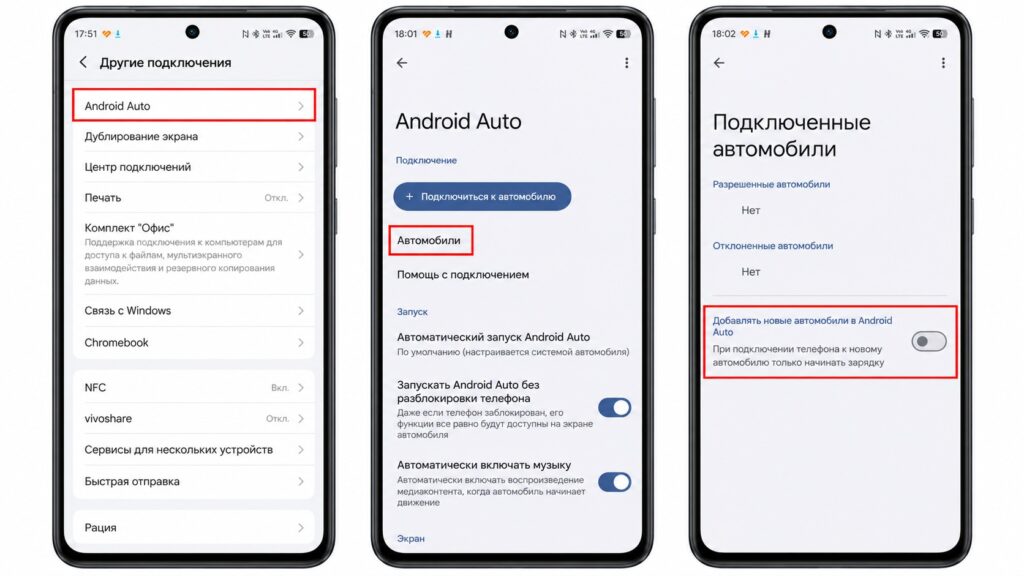
Turning off automatic adding of new cars
After this, your phone should simply charge in an unfamiliar car. In the same section, the three-dot menu lets you forget cars you no longer need. Keep in mind that if you forget your own car, you will have to set up the connection again.
Option 3: Use the cable and the head unit’s own settings
Choose “Charging only” over USB
For wired connections, there is a simple fix. When the phone is connected to the car, a USB mode choice appears in the notification shade. If you select “Charging only,” the phone charges but Android Auto does not launch.
Check the car’s menu
It is also worth checking the car’s own settings. Many head units have their own auto-launch option, and the name varies. Examples include:
- “Start Android Auto automatically”
- “Detect phone on startup”
- “Automatic projection”
- “Smartphone projection” or “Phone connection”
If you can turn this off, Android Auto should start only when you tap its icon on the car’s screen. However, not every manufacturer includes this setting.
Option 4: The hidden switch for wireless mode
Car owners on the drive2 forum share a solution that disables only wireless Android Auto. Bluetooth keeps working, so hands-free calls and music through the head unit are unaffected. The switch is in Android Auto’s developer settings:

- Open Android Auto settings and scroll down to the “Version” line.
- Tap it about 10 times in a row until a warning appears.
- Go back to the top, open the three-dot menu and select “Developer settings.”
- Uncheck the “Wireless Android Auto” option.
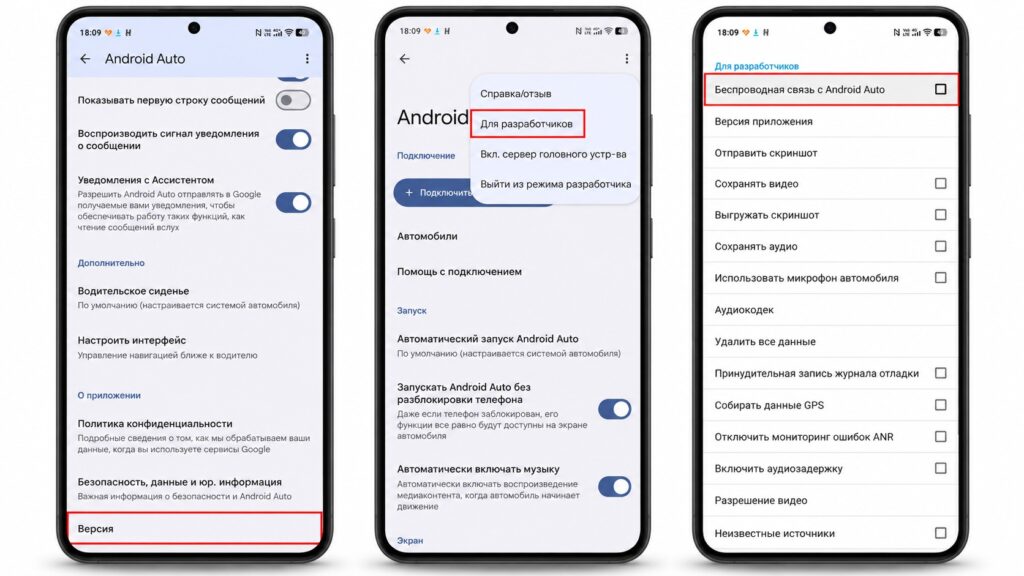
Fully disabling wireless Android Auto
In newer versions of the app, this switch may appear directly in the regular Android Auto settings, so it is worth updating the app first and checking there.
This method does not work for everyone. In the same forum discussions, owners of some cars report that their phones still connect.
Last resort: Disable Android Auto completely
If you do not need Android Auto at all, you can turn it off entirely. On modern phones, it is built into the system, so it cannot be uninstalled, but it can be switched off:
- Open Settings → Apps.
- Find Android Auto in the list.
- Tap “Close” and “Force stop.” Button names may vary by phone.
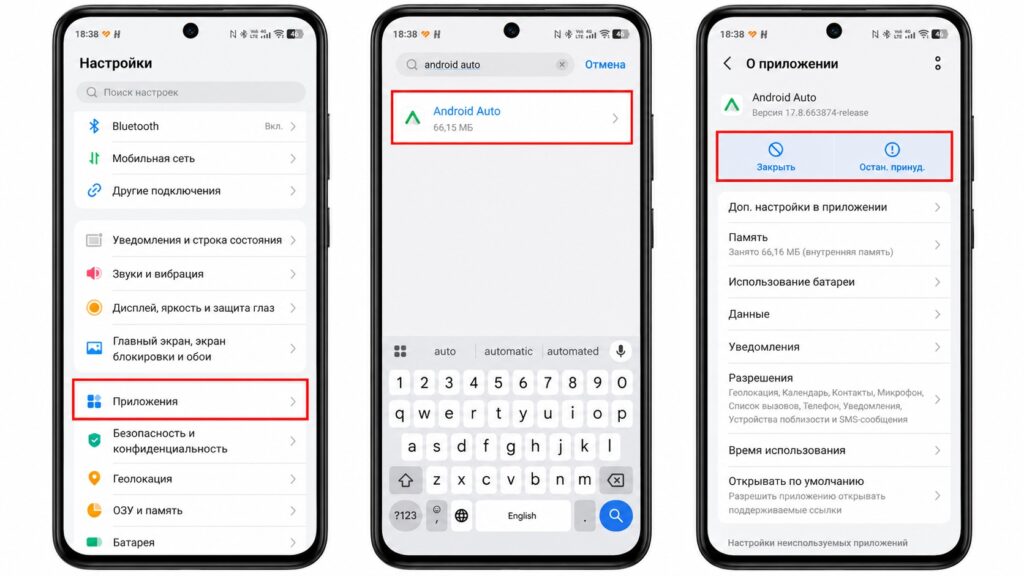
Force-stopping Android Auto
You can reverse this in the same place by tapping “Enable.” It is a true last resort, because Android Auto will not work in any car while the app is disabled.
Which option to choose
For most people, the first method is enough. The “If used on last drive” setting keeps Android Auto available without forcing it on you every time.
If the wireless connection is the problem, add the hidden developer-menu switch. For car-sharing vehicles and taxis, turning off automatic adding of new cars should help.