Google has started rolling out its October 2026 updates to Google Play services and the Google Play Store. They reach any Android smartphone with Google services, including Samsung, Xiaomi, and realme phones, regardless of Android version. The most important change targets a common scam tactic: apps that abuse accessibility permissions to read your screen during a phone call. This protection was previously available only on Android 16. With Google Play services 26.41, it now reaches Android 15 and older versions, and it switches on automatically once the update arrives.
What you need to know
- Google Play services 26.41 extends the protection to Android 15 and older. Google’s changelog says it stops apps with accessibility access from obtaining your data during a call.
- Google Play Store 53.7 shows the time or data remaining for downloads instead of a percentage.
- Find Hub adds reminders for items left behind, NFC support for compatible Bluetooth tags, and quicker tag setup.
- The updates roll out in waves and may take one to two weeks to arrive. Phones without Google services will not receive them.
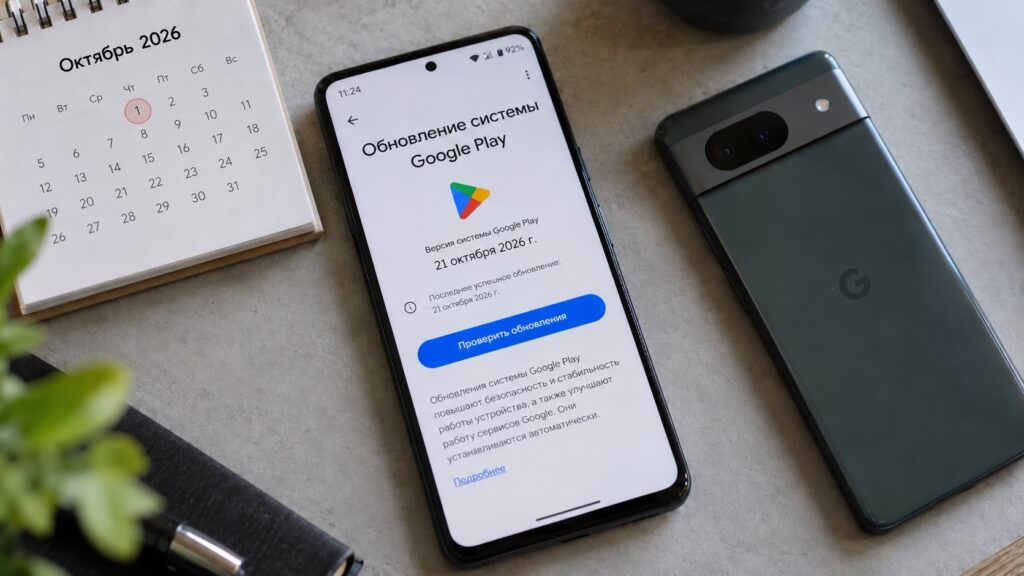
Google services update for October 2026
A caller can no longer read your screen
The scheme is a familiar one. Someone posing as a “bank employee” or a “security service” calls the victim and asks them to install an app and grant it access to accessibility features. Once that permission is granted, the app can see everything on the screen, including SMS codes and passwords.
With Google Play services 26.41, protection against this tactic also works on Android 15 and older versions. Google’s list of changes says the feature prevents apps with accessibility access from obtaining your data during a call. You do not need to turn anything on: the protection activates automatically once the update reaches your phone.
The Play Store drops download percentages
In Google Play Store version 53.7, downloads no longer show a percentage. Instead, the store shows the time remaining or the amount of data still left to download. It is a small but practical change: on a slow mobile connection, you can see at a glance whether to wait a minute or hold off until you are on Wi-Fi.

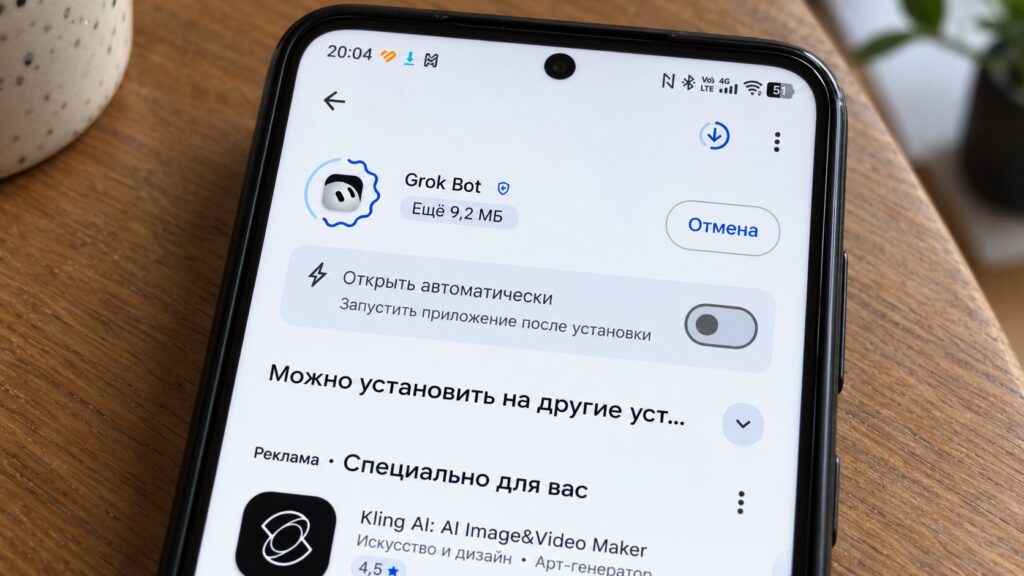
The new Google Play shows how much is left to download
Another change may be less popular. The top of the store’s Apps section now shows collections tailored to your interests, which is essentially advertising.
Find Hub reminds you about forgotten items
Find Hub, formerly Google’s Find My Device app, received the most noticeable changes. If you own a compatible Bluetooth tag, three new features apply:
- Reminders for items left behind: your phone warns you if you walk away and the tag stays where it was.
- NFC support: tap your phone against a tag to open its settings or find out who owns a lost tag.
- Quick setup: when you first connect a tag, you can set its category and name and turn on reminders right away.
This means a tag found on the street can be checked almost instantly: tap it with your phone, and you can see what kind of tracker it is. Supported tags are also now automatically linked to their owner.
Smaller additions
Several less prominent but still useful changes are also included:
- Earbud firmware: headphones that support Fast Pair are now easier to update.
- Subscriptions center: the Play Store shows content from apps you subscribe to.
- AI review summaries: the Play Store now offers AI-generated summaries of user reviews. Google has not specified in which regions this feature will work.
The rest of Google’s list covers Google Wallet, laptops, and cars.

How to check for the update manually
Google rolls out these updates in waves, so it may take one to two weeks for them to reach your phone. Phones without Google services, including newer HUAWEI models, will not receive them. You can try to speed things up manually, starting with the Play Store:
- Open Google Play and tap your profile icon in the top-right corner.
- Go to Settings and open the About section.
- Tap Update Google Play.
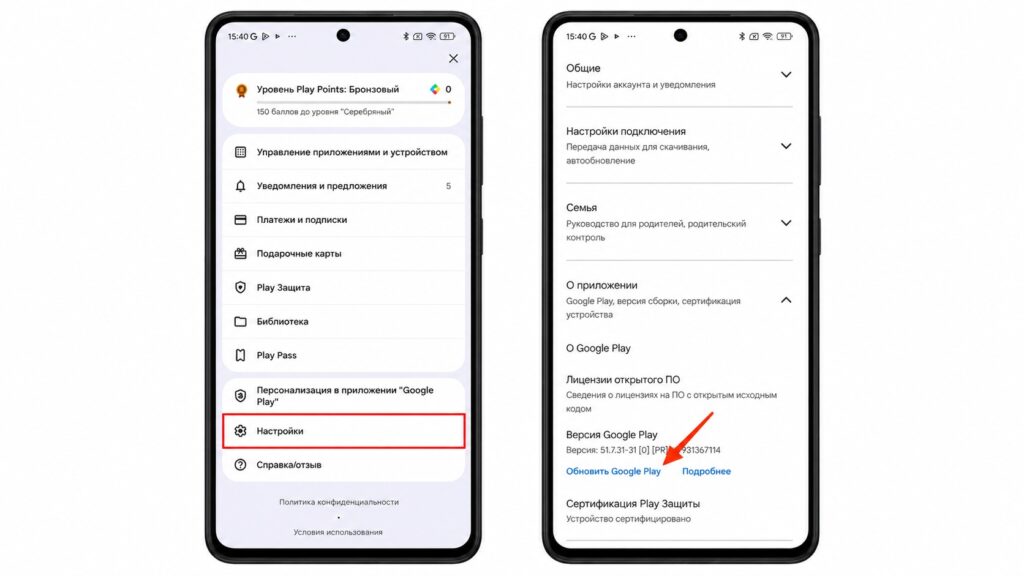
Installing a Google Play update on Android
If you already have the latest version, Google Play will tell you. The scam protection and the new Find Hub features come through Google Play services, which you can also try to update:
- Open Settings and select Google.
- Go to All services.
- Open System services.
- Update the components listed under Updates available.
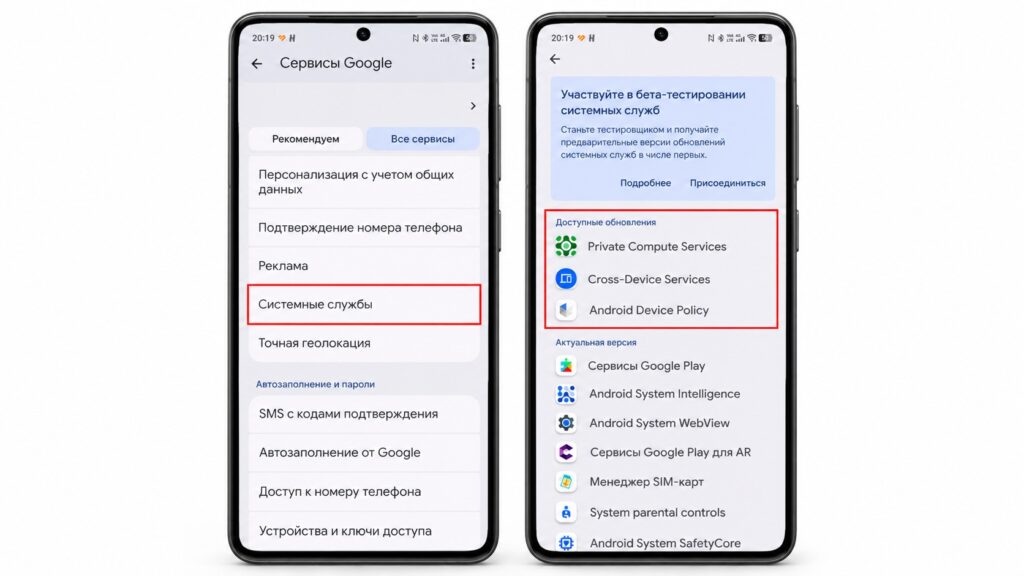
Updating Google services through Android settings
Menu names may vary slightly between phone brands. If you see no update buttons, either everything is already installed or the update has not yet reached your device.