MaPC is a new free macOS utility that aims to make Windows games from Steam, Epic Games and GOG run on Apple Silicon Macs without manual Wine configuration. It combines the three store libraries in one window and handles graphics translation behind the scenes. The app is still in beta, though. When the source author installed it, setup and the Epic Games sign-in worked smoothly, but the game download never started. Below is what MaPC does, what it requires, how to install it, and what to check if a download stalls.
What you need to know
- MaPC, from developer Steale LLC, is built on Wine. It translates DirectX 9, 10 and 11 to Apple’s Metal through DXVK and MoltenVK, and it picks graphics settings for each game automatically.
- It requires an M1 or newer Mac, macOS 15 Sequoia or later, and Rosetta 2. Intel Macs are not supported.
- DirectX 12 games run only in an experimental mode that needs D3DMetal from Apple’s Game Porting Toolkit, which MaPC does not include. Games with kernel-level anti-cheat, such as Fortnite and Valorant, will not run.
- In the source author’s trial, an Epic Games download of Hogwarts Legacy stuck at 0% and ended with a “Something went wrong” error.
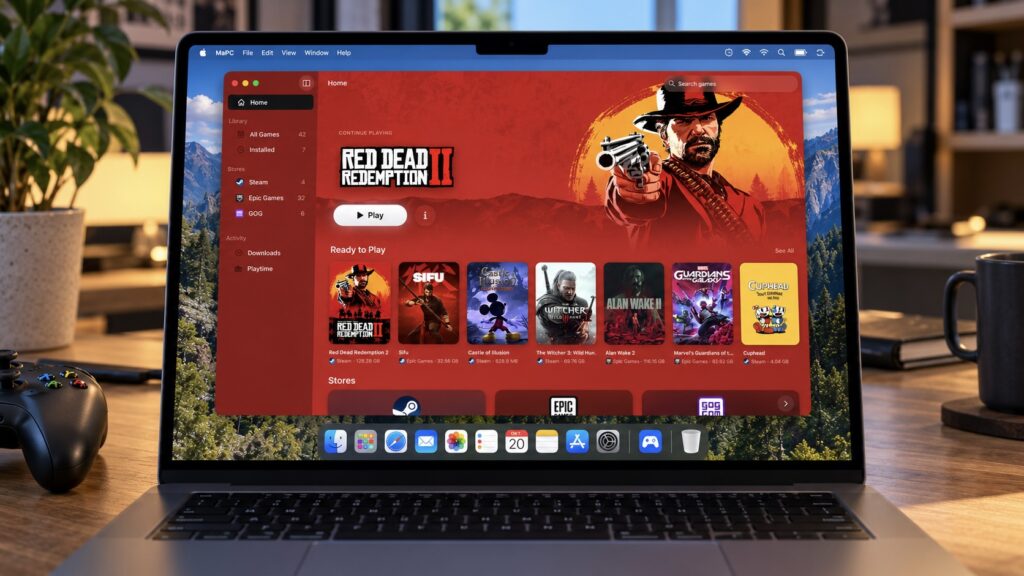
A MacBook on a desk with the MaPC app open, next to a gamepad and a mug
What MaPC does: Wine behind a familiar launcher interface
MaPC comes from a small studio, Steale LLC. In a single window, it brings together game libraries from Steam, Epic Games and GOG, complete with cover art. Users can search for games and install, launch or uninstall them from there. Under the hood it uses Wine, the compatibility layer for running Windows software. DirectX 9, 10 and 11 calls are translated into Apple’s Metal graphics API through a combination of DXVK and MoltenVK.
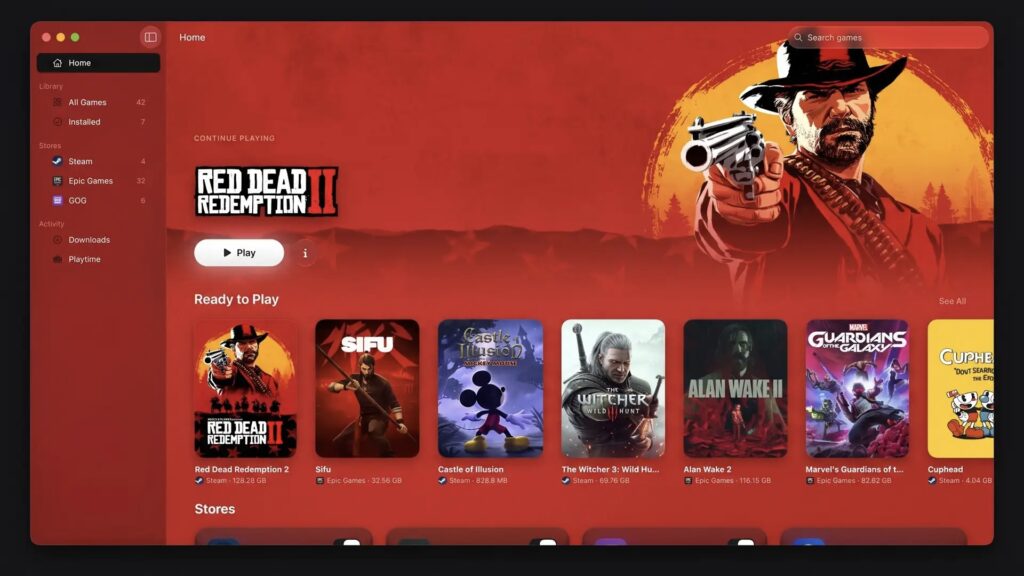
MaPC’s main screen showing Red Dead Redemption 2 and a game library from Steam and Epic Games
According to the source, the main difference from CrossOver and similar wrappers is that Wine does not need to be configured. Users do not create “bottles” or manage libraries, because MaPC selects graphics settings for each game on its own. Manual options remain for those who want them, including choice of graphics backend, ray tracing, MetalFX upscaling and launch parameters.
DirectX 12 and anti-cheat limits
DirectX 12 games work only in an experimental mode. That mode requires D3DMetal from Apple’s Game Porting Toolkit, which is not bundled with MaPC. Games that use kernel-level anti-cheat, such as Fortnite and Valorant, will not launch at all. The source attributes this to a macOS limitation rather than to MaPC itself.
Free core features, optional Pro tier
Paying for MaPC is optional. Downloading the app, connecting stores, installing games and receiving engine updates are free with no time limit. A Pro version is unlocked with a donation starting at $4.99. It adds save backups to iCloud Drive, playtime statistics, Retina resolution, a frame-rate HUD and shortcuts. One license covers five Macs, and payment is handled through Gumroad by card or PayPal.
System requirements: Apple Silicon only
MaPC’s requirements are modest but strict. It needs:
- a Mac with an M1 chip or newer;
- macOS 15 Sequoia or later;
- Rosetta 2, which the installer offers to set up if it is missing.
Intel-based Macs are not supported at all.
An Intel-based 13-inch MacBook Pro
Storage is worth checking separately. The developer recommends about 30 GB for the engine and games. The source notes that this is closer to a minimum, since modern games can easily take 60 to 100 GB each. The engine itself is about 210 MB and downloads on first launch.
There is also a longer-term concern. According to the source, Apple has said that macOS 27 will be the last release with full Rosetta support, and MaPC does not work without Rosetta. The developer has not yet explained what will happen after that.
How to install MaPC
MaPC is distributed through the developer’s website, not the Mac App Store. At the time of the source article, the current version was 1.1.3 Beta, dated October 18. It is explicitly a beta, with updates arriving almost every few days. The steps described in the source are:
- Open the MaPC download page and download the MaPC.dmg file.
- Open the disk image and drag MaPC into the Applications folder.
- Launch the app. If macOS blocks it, go to System Settings > Privacy & Security and allow it to open manually.
- Agree to install Rosetta 2 if it is not already on your Mac.
- Wait while MaPC downloads and verifies its game engine.
- Choose a store in the sidebar and sign in to Steam, Epic Games or GOG.
- Find a game in your library and start the installation.
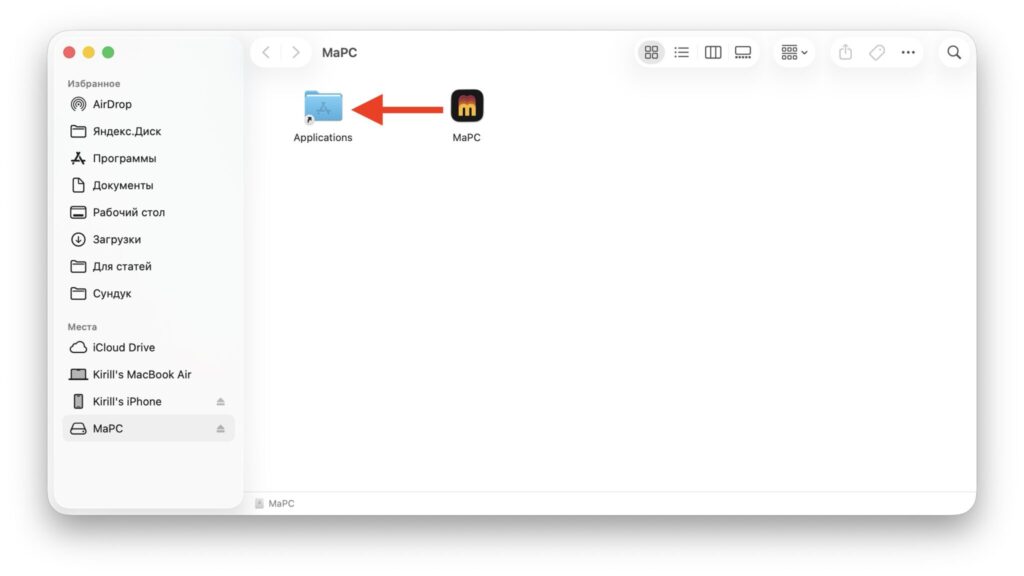
The MaPC disk image window in Finder, with an arrow showing where to drag the app into the Applications folder
Accounts, privacy and open-source parts
Store sign-ins take place on the stores’ own pages, so according to the source MaPC does not see your password. Logins are stored locally on the Mac. The claim that the app contains no telemetry comes from the developer and is not independently verified in the source.
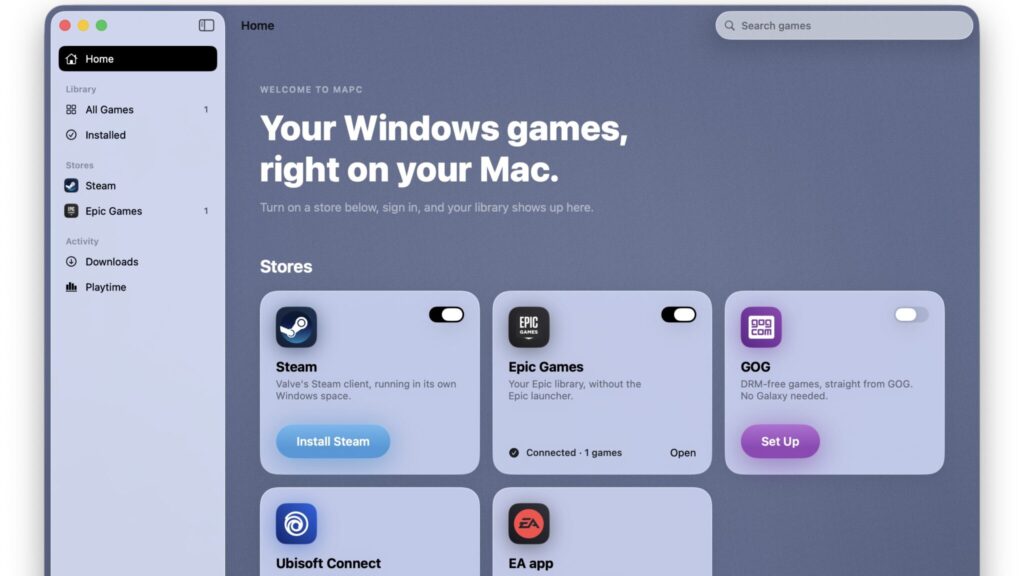
MaPC’s start screen with store cards for Steam, Epic Games, GOG, Ubisoft Connect and EA app
Cards for Ubisoft Connect and EA app already appear at the bottom of the start screen, but they cannot be connected yet. The developer promises support later, explaining that these launchers run unreliably under Wine. The game engine’s source code is open on GitHub, while the interface and licensing system remain closed.
The source author’s trial: Epic sign-in worked, the download did not
The source author reports that installation itself went smoothly. Rosetta was installed, the engine downloaded, and signing in to Epic Games worked on the first try. The author’s only Epic game, Hogwarts Legacy, immediately appeared in the store section.
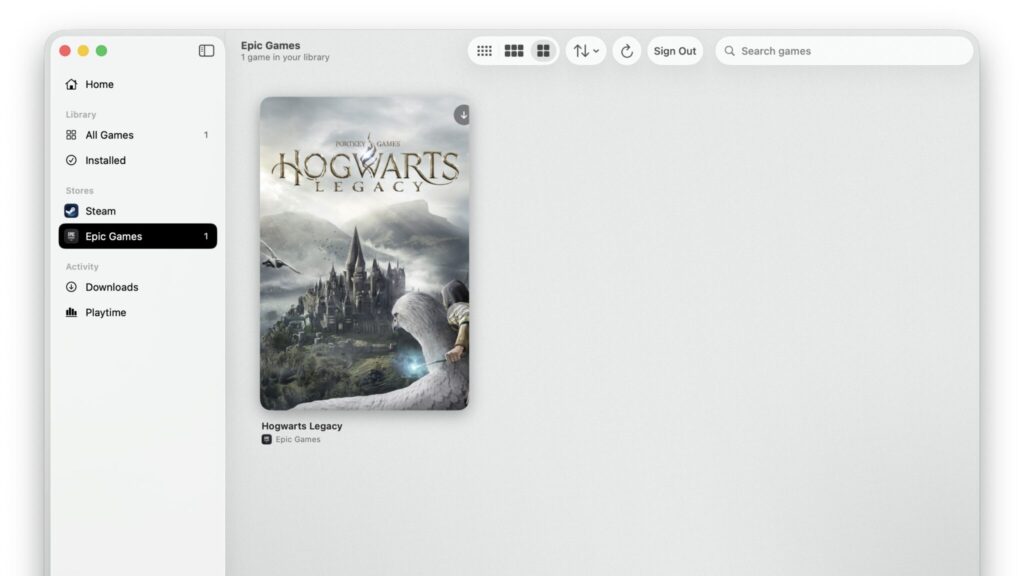
The Epic Games library in MaPC showing a single game, Hogwarts Legacy
To install a game, you hover the cursor over its cover, and an Install button appears in the middle. There are no extra dialogs for choosing a folder or version.
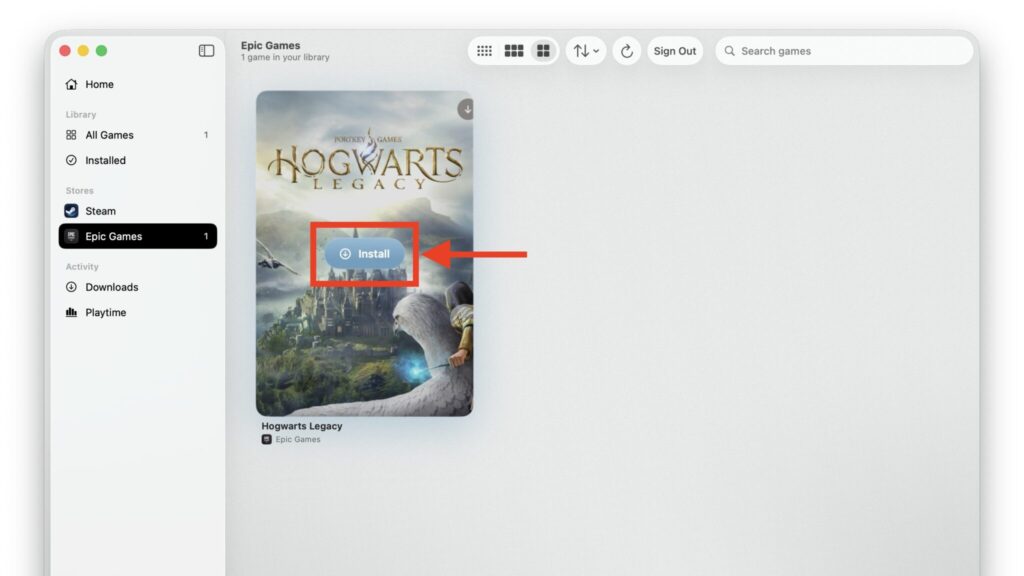
The Hogwarts Legacy cover in MaPC with the Install button highlighted
After the author clicked it, the cover darkened and a spinning indicator showing 0% appeared in the center. It never moved past that figure.
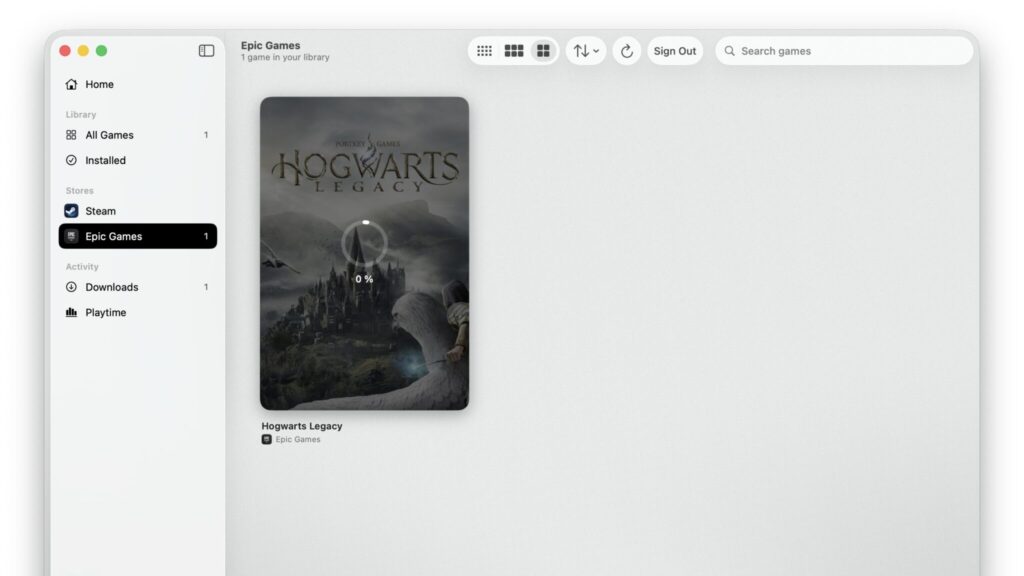
The Hogwarts Legacy cover in MaPC with a download indicator at 0%
A few seconds later, a “Something went wrong” error window appeared instead. It said the installation had not completed and could be resumed.
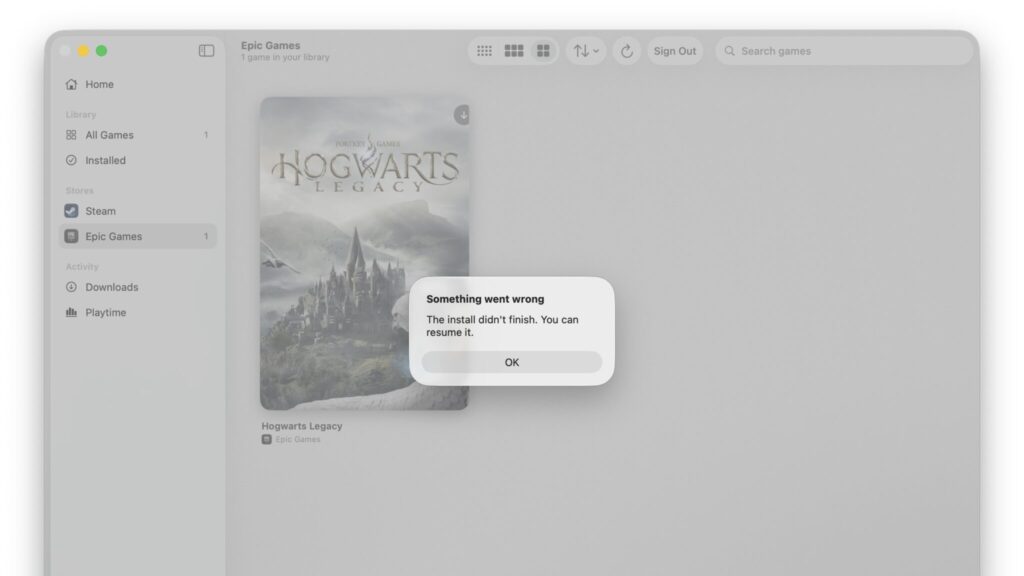
A Something went wrong error window over the Epic Games library in MaPC
In practice, there was nothing to resume. According to the author, the download never actually began. No disk space was used, and the downloads section was empty again after the error. Repeated attempts ended with the same window. MaPC gave no explanation, and the wording of the error implied that something had already been downloaded.
An isolated bug or a known weak spot?
The source author acknowledges that the problem may be specific to their setup. The author found no similar reports among open issues on the developer’s GitHub. Those issues instead mention signing in to Epic through a Steam account and 32-bit games that fail to start.
The changelog does suggest that Epic is currently MaPC’s most temperamental integration. Version 1.0.6 fixed a bug that stopped games from launching, and version 1.1.0 addressed a blank sign-in page and a library that hung while loading. The author had not resolved the issue at the time of writing. By contrast, the author notes there are no complaints about Steam, and user feedback suggests it works as intended. The source does not describe testing Steam directly.
What to check if your download won’t start
The source author offers no universal fix, but suggests several checks before giving up on the app. First, make sure you have the latest version of MaPC. Fixes ship frequently, so a bug in your build may already be resolved. Next, check your free disk space, because a game needs more room than the store listing shows.
Then work through these steps:
- Sign out of your Epic Games account in MaPC and sign back in.
- Reset the Epic environment in the app’s settings, after which MaPC will set it up again.
- Try installing a different, preferably small game. This helps show whether the problem lies with your account or a specific title.
- If you have Steam connected, check whether downloads work from there.
If none of this helps, the developer asks users to contact support@mapc.games. Include the game, your Mac model and macOS version, and attach the log. The log can be opened from the game’s page via More > Show Log.
Verdict: promising idea, early beta
The source author likes the concept: one program in place of three launchers and an evening spent configuring Wine. But MaPC is still a beta, and in the author’s case it stumbled at the very first step. If you cannot get it working, traditional wrappers that require manual setup remain an option.
For users whose games are on Steam or GOG, the author still thinks MaPC is worth a try. It is free, and it can be removed by dragging it to the Trash. The author plans to wait for a few updates before trying Epic Games again.